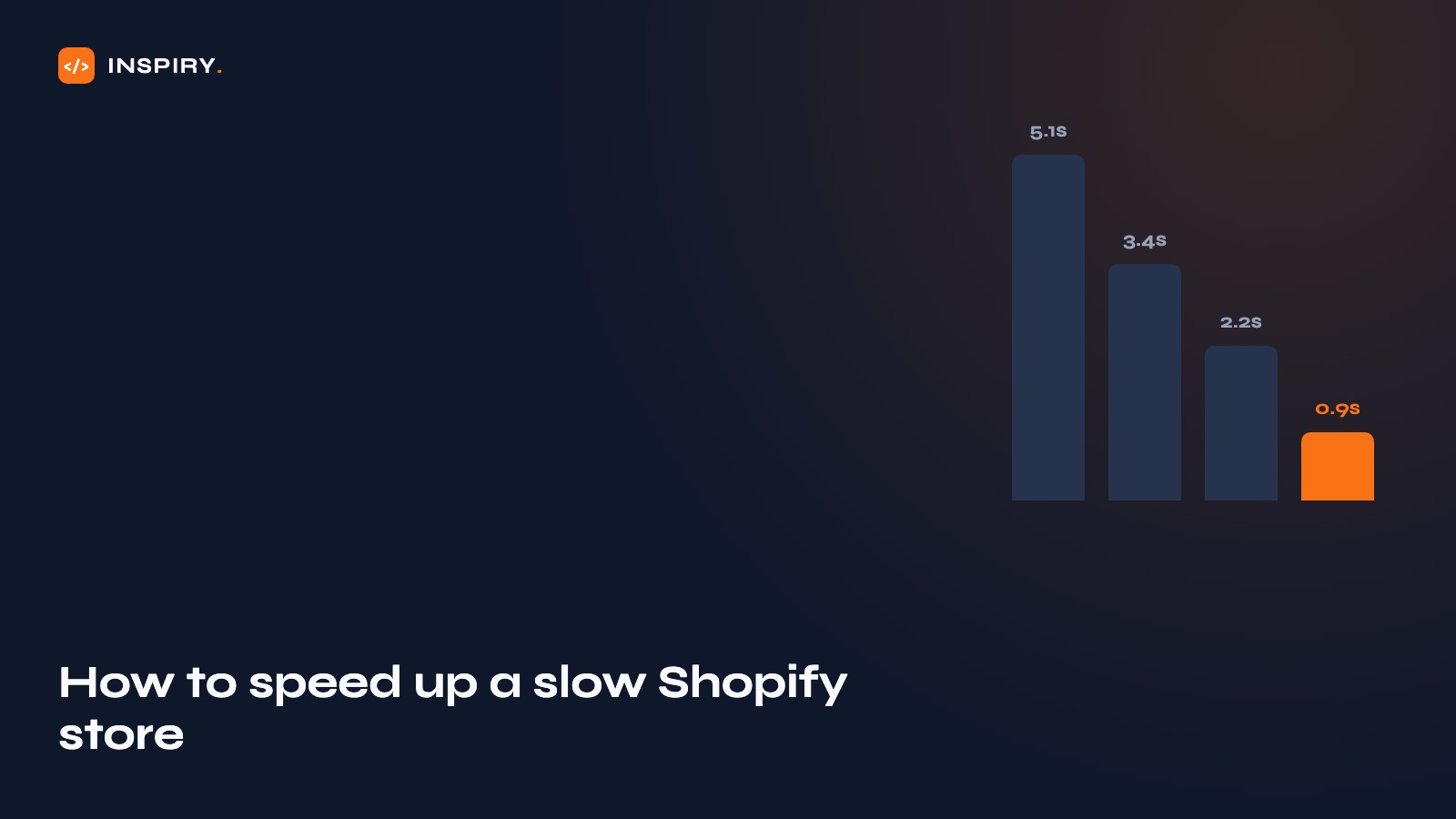
Shopify speed optimization is the work of removing what a store accumulates over time: app scripts, oversized images, theme features nobody uses. The target worth aiming at is main content rendering in about 2.5 seconds on a mid-range phone, the threshold Google's Core Web Vitals treats as good. This guide covers the triage order that gets there, the popular fixes that change nothing, and the signs a store needs a rebuild instead of a fix.
Why Shopify stores get slow
A slow Shopify store is almost never one big problem. It is an accumulation: the store launched fast, then two years of small, reasonable decisions buried it. The usual suspects, in the order we find them in audits:
- →App scripts stacking up. Reviews, upsells, popups, loyalty points, size charts: each app can inject JavaScript that every visitor downloads before the page settles, and uninstalling an app does not always remove its leftovers from the theme.
- →Oversized imagery. A 4,000-pixel PNG straight from the product photographer, uploaded as-is, on a collection page showing forty products.
- →Theme bloat. Premium themes ship with every feature switched on so they demo well: mega menus, animation libraries, quick-view modals. The store loads code for features that were turned off or never used.
- →Third-party pixels. Meta, TikTok, Google, Pinterest, a heatmap tool, and the analytics platform somebody installed in 2024 and forgot. Each one phones home on every page load.
None of this is visible from the admin. That is the trap: the store looks the same to the owner while it gets heavier for every customer.
Shopify speed triage: the order that actually works
Speed work fails when it starts in the wrong place. Optimizing images while nineteen app scripts load on every page is polishing the doorknob on a house with no roof. One rule before touching anything: measure first. Run the key pages (home, a collection, a best-selling product) through PageSpeed Insights, note the mobile numbers, and re-test after every change. Speed work without before-and-after numbers turns into superstition, and half the "optimizations" people swear by survive only because nobody measured them.
Step one: audit the apps. For each app, ask two questions: does it render anything in the storefront, and does it make money? An inventory tool that only runs in the admin costs visitors nothing; a "recently viewed products" widget nobody clicks costs every visitor real load time. Uninstall what fails the test, then have someone check the theme code for leftovers from apps deleted years ago. This step is commonly the biggest single win on a slow store, and it is free.
Step two: image discipline. Shopify's CDN handles modern formats and responsive sizes, but it cannot fix what it is fed carelessly. Compress before upload, use dimensions close to display size, use JPG or WebP for photos, and confirm the theme lazy-loads images below the fold. Watch the sneaky one: images placed through apps and page builders often bypass the theme's optimization entirely and ship at full size.
Step three: theme-level fixes. Switch off unused theme features, remove extra font families and weights (every weight is a separate download), and replace animation-heavy sections with plain ones. If the theme has not been updated in years, update it after a backup: theme developers ship real performance work between versions, and stores stuck on a 2022 release never receive any of it.
Step four, last and not first: custom theme work. Only after the first three steps does paid engineering make sense: profiling what blocks rendering, deferring non-critical scripts, trimming heavy Liquid loops on collection pages, and replacing app widgets with lightweight native features. The gains here are real. It is step four because it is the only step that costs serious money, and the first three change what needs engineering at all.
Shopify speed fixes that waste your time
Some popular fixes survive because they feel productive. They are not.
- →Speed booster apps. An app, adding scripts, to fix the problem of too many scripts. A few do useful preloading; most add weight and a monthly fee.
- →Chasing a perfect Lighthouse score. 100/100 is not a business goal. Once real customers on mid-range phones get a fast page, the last ten points commonly cost more to win than the revenue they protect.
- →Hosting upgrades. Shopify hosts every store on its own infrastructure. Nobody can sell you faster Shopify hosting; if someone is trying, close the tab.
- →Hand-minifying theme code. Shopify already minifies served assets. Deleting whitespace from Liquid files changes nothing except your diff history.
When a Shopify rebuild beats optimization
There is a point where optimization becomes a bad investment: a theme patched by six developers over five years, layered with page-builder markup and dead app code nobody dares delete. The signals are consistent: fixing one section breaks another, nobody can say what half the theme code does, and the mobile experience was clearly an afterthought. That last one matters because on most stores phones carry the majority of traffic; it is why mobile-first builds are a separate service for us rather than a checkbox.
The economics decide it. Optimizing a tangled theme is open-ended: every hour spent can reveal two more problems. A rebuild is a known quantity: a clean theme carrying only what the store needs, with every speed decision made correctly the first time. Past a certain level of mess, the rebuild is cheaper before you count the conversion gains. We handle rebuilds as fixed-price Shopify development from $1,499, quoted upfront, shipped in 2–4 weeks, with the theme code in your store from day one.
The honest part: some of it is Shopify
Part of your load time belongs to the platform, and no optimization touches it. Shopify's core scripts, the checkout, and the underlying infrastructure are fixed: you cannot self-host, swap the server, or strip the platform layer. The flip side is that this fixed layer is fast, maintained, and secured for you, which is a large part of why you chose Shopify.
So the honest goal is not "make it instant." It is: remove everything you added that slows the store down, and make the parts you control fast. On most slow stores we audit, the gap between how the store performs and how it could perform sits almost entirely in apps, images, and theme code. Which is good news. Those are fixable, and the Core Web Vitals thresholds give you a clear finish line.
This page is written and maintained by the Inspiry Solutions engineering team and reviewed by Mian Rizwan, founder. We have built WordPress, Shopify and full-stack projects for clients in 15+ countries since 2019: 200+ shipped, all at fixed prices. What you read here reflects how we actually scope and build.