A slow WordPress website usually comes from a combination of delayed server responses, oversized media, unnecessary browser work and ineffective caching. Start by measuring a representative page, identifying where the delay happens, and testing one change at a time. Another optimisation plugin is useful only when it addresses a confirmed gap.

For business owners, a slow WordPress website raises a practical concern: whether visitors can read the offer, use the navigation and complete an enquiry. For agencies, the challenge is finding the cause without disrupting those actions. This guide sets out twelve checks to make before changing the site’s plugin stack.
Establish a baseline for a slow WordPress website
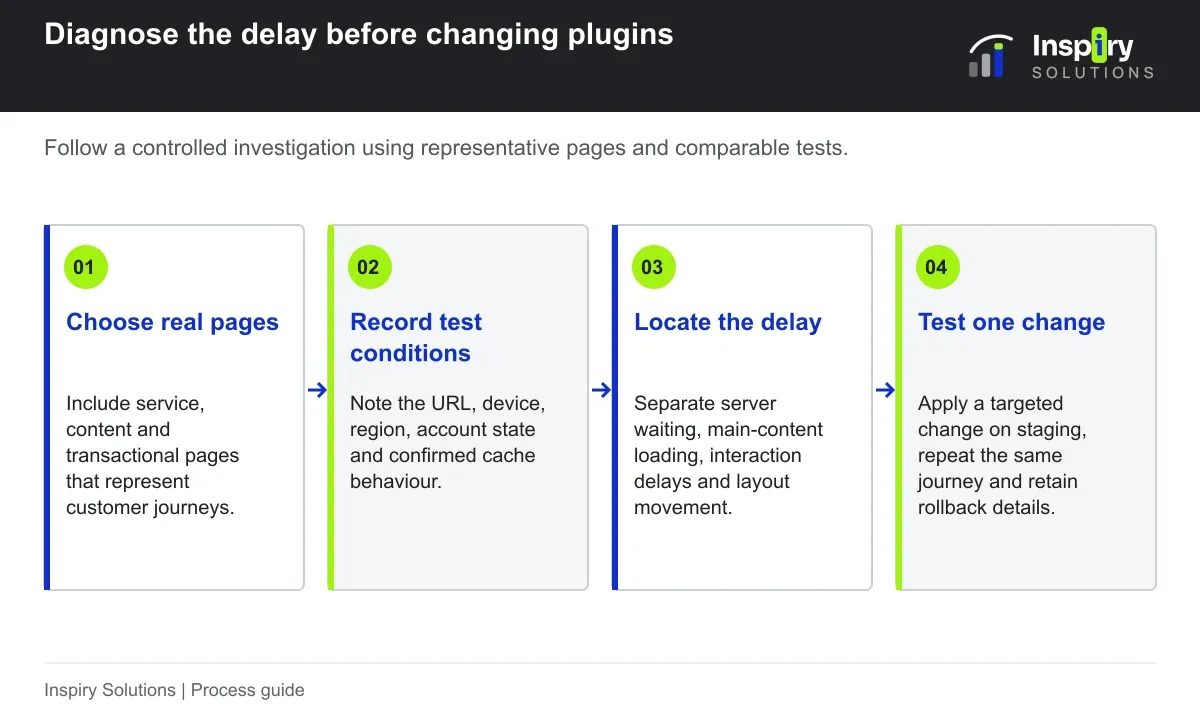
Test the homepage, a main service page, a content page and any important transactional page. Use a logged-out browser and record the URL, device, test location and cache state. An administrator’s visit can bypass caching and include tools ordinary visitors never receive.
Repeat comparable tests rather than treating one score as a diagnosis. Google explains that PageSpeed Insights combines laboratory diagnostics with real-user data, where available. Check whether that real-user section describes the tested URL or the whole origin. Its trailing collection period means a release will not immediately replace all historic observations.
When assessing a slow WordPress website, separate loading, responsiveness and stability. Our Core Web Vitals business guide explains why a page that appears quickly can still respond poorly to taps or move unexpectedly.
The wider technical SEO audit checklist for WordPress complements these speed checks when you are reviewing the site’s search foundations.
12 slow WordPress website causes to investigate
1. Hosting cannot keep up with the workload
A long initial wait on a slow WordPress website can indicate busy PHP workers, insufficient resources or slow application processing. Ask the host for resource usage, request timings and error logs around the affected period. Compare quiet hours with busy ones.
A larger plan may help when capacity is the constraint. It will not remove an expensive query or a remote service call on every request. Ask which resource is exhausted before approving an upgrade.
2. Public pages are missing the page cache
Page caching can reuse generated HTML instead of rebuilding an identical public page repeatedly. Compare the first request with subsequent requests and inspect the cache status reported by your host or CDN. Check the homepage and deeper pages separately.
On a slow WordPress website, an active cache plugin does not prove that the response was cached. Cookies, URL parameters and exclusion rules can change behaviour. Keep personalised account, basket and checkout content outside shared public caching unless the platform explicitly supports a safe configuration.
3. Images are larger than their displayed role requires
Inspect the files actually downloaded, rather than judging only the media-library thumbnail. A slow WordPress website can display a modest image while still requesting an unnecessarily large original. Check responsive image selection, compression and visual quality on both narrow and wide screens.
Prioritise prominent images and repeated gallery assets. Preserve enough detail for products, diagrams and portfolio work. The useful target is an appropriate asset for its display size, not an arbitrary file limit applied to every photograph.
4. The main image is discovered too late
The largest visible image on a slow WordPress website may wait behind scripts, CSS background discovery or inappropriate lazy loading. Inspect the loading waterfall and identify the actual Largest Contentful Paint element; it may be text rather than an image.
Google’s LCP optimisation guidance explains why resource discovery and loading priority matter. Avoid lazy loading a critical first-screen image. Verify any preload against the resource the browser really chooses, otherwise it can create a duplicate download.
5. JavaScript competes with useful interactions
On a slow WordPress website, animation libraries, complex menus and interactive widgets can keep the browser busy after visible content arrives. Test opening the menu and using a form while the page loads. Desktop testing can conceal difficulties on a less capable phone.
Remove unused functionality first, then investigate when necessary scripts execute. Google’s Interaction to Next Paint documentation describes responsiveness to user interactions. Delaying every script indiscriminately can leave the first tap waiting for essential functionality to initialise.
6. Third-party services load across every page
Chat, maps, booking widgets, video players and marketing tags each introduce their own requests and processing. Make an inventory with a business owner for every integration: what purpose does it serve, where is it needed, and who maintains it?
Test a contact page separately from an informational page. A booking widget may justify its cost where bookings happen, but loading it on every article can burden a slow WordPress website. Restrict loading where the integration supports it and verify consent-dependent behaviour.
7. The theme or builder produces unnecessary structure
Deeply nested layouts, duplicated mobile sections and large global styles can make a simple page expensive to render. Inspect repeated templates before editing individual pages: a heavy header can affect many journeys through a slow WordPress website.
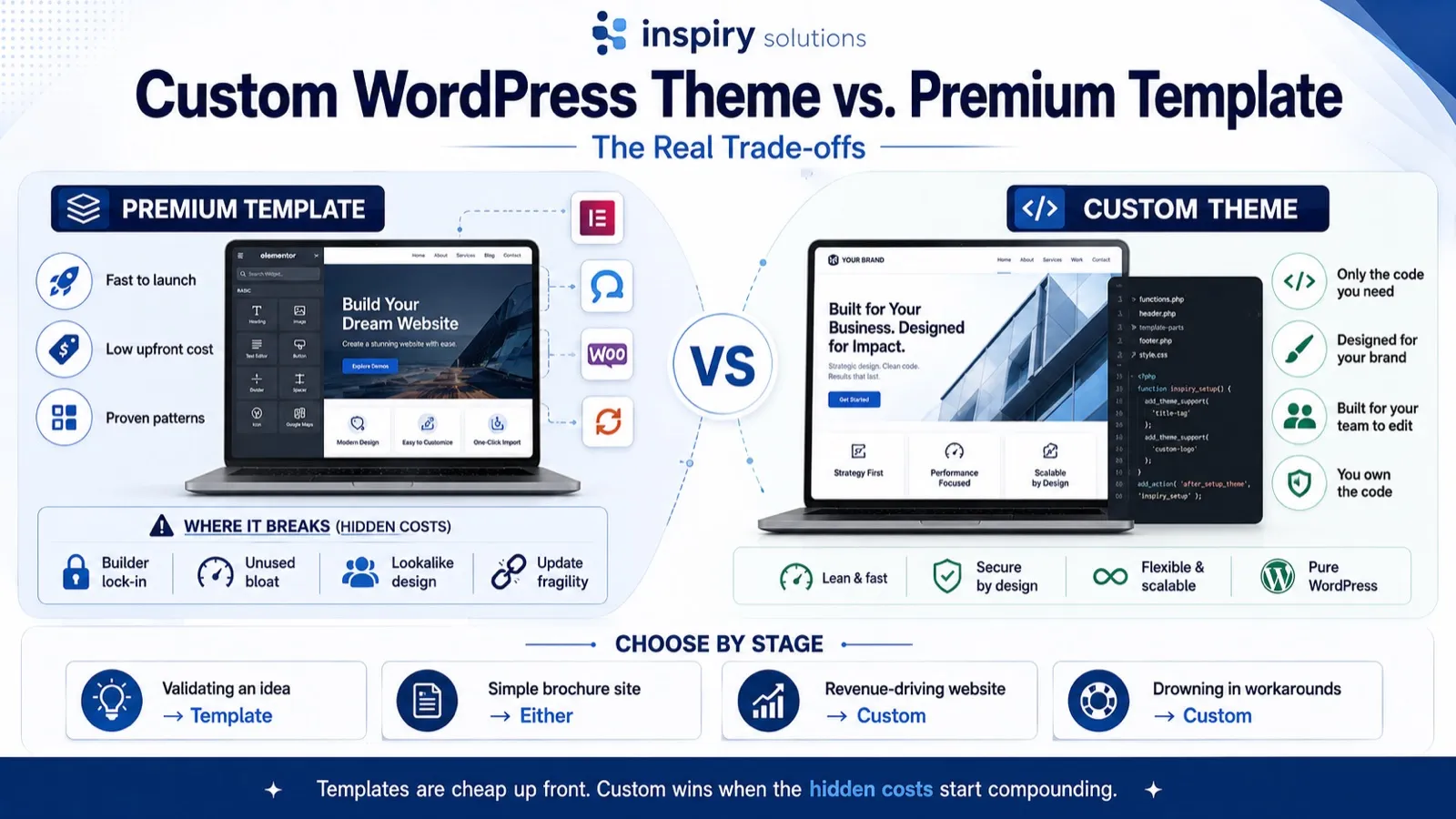
Compare alternatives on staging with equivalent content. A bare demonstration page does not establish how a replacement theme will perform with real functionality. The custom WordPress theme versus template comparison can help frame the longer-term maintenance decision.
8. Plugins perform overlapping jobs
Two image processors or several tools rewriting JavaScript can create duplication and conflicting settings. List each plugin’s responsibilities, including features bundled into the hosting platform. Identify which component owns caching, media optimisation and asset handling.
Disable overlapping features individually on staging and compare results. Retain capabilities the business needs. A short plugin list is not evidence of a fast site, and a longer list is not enough to identify the cause.
9. Database work is expensive
Slow searches, broad content queries and repeatedly loaded settings can delay uncached pages. Have a developer inspect query duration and frequency, especially on product listings or archives. Database size alone does not explain a slow WordPress website.
Avoid indiscriminate cleanup. Revisions, logs and plugin tables may support recovery or operations. Back up first, identify ownership, and use a retention policy. Our WordPress development service is relevant when the problem requires changes to queries or template behaviour.
10. Background work competes with visitors
Backups, imports, scans and synchronisation tasks can compete for resources on a slow WordPress website. Compare slow periods with scheduled job logs. Check whether a task repeatedly fails and retries, or processes an unnecessarily large batch.
Move resource-intensive work to suitable windows and investigate smaller batches. Changing scheduling requires checking that backups, emails and publishing still happen. Simply disabling the scheduler exchanges a performance concern for missed business operations.
11. Delivery settings waste repeat requests
Missing compression, inappropriate browser-cache headers or distant delivery can increase the work needed to retrieve resources. Ask the host to review response headers and compare visits from the regions where customers actually live.
A CDN serving images and CSS does not automatically cache the page’s HTML. Establish what it accelerates before expecting it to resolve server processing. Use the website performance service to scope a review across application and delivery layers.
12. Changes introduce performance regressions
A slow WordPress website may have regressed after a campaign added a tag, replaced a hero image or introduced a popup. Keep a release log and compare it with the first observed slowdown. This often narrows the investigation more effectively than general cleanup.
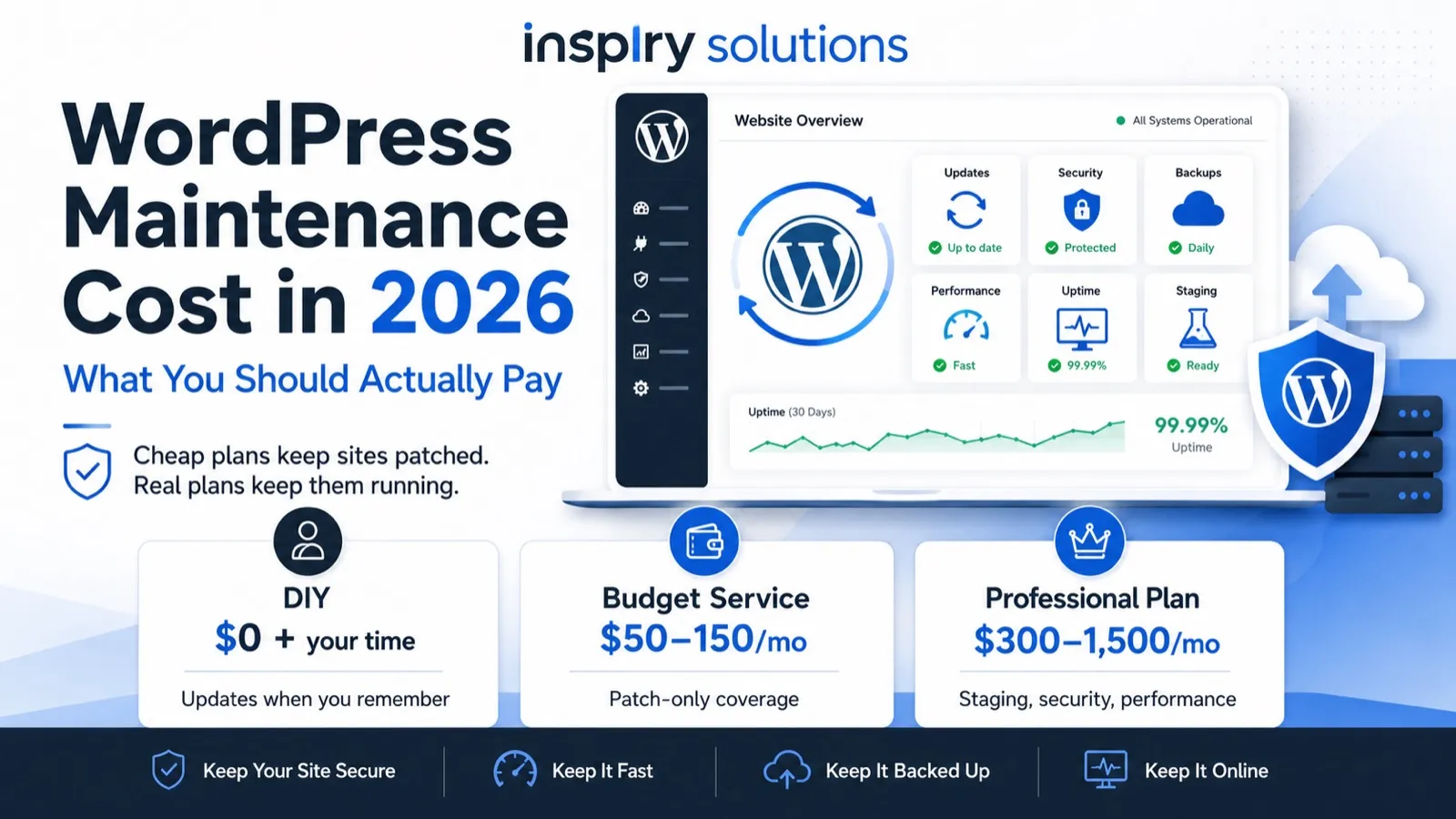
Include performance and functional checks in ongoing care. The WordPress maintenance cost guide explains the operational work to consider when budgeting for a maintained website.
Choose the right first fix
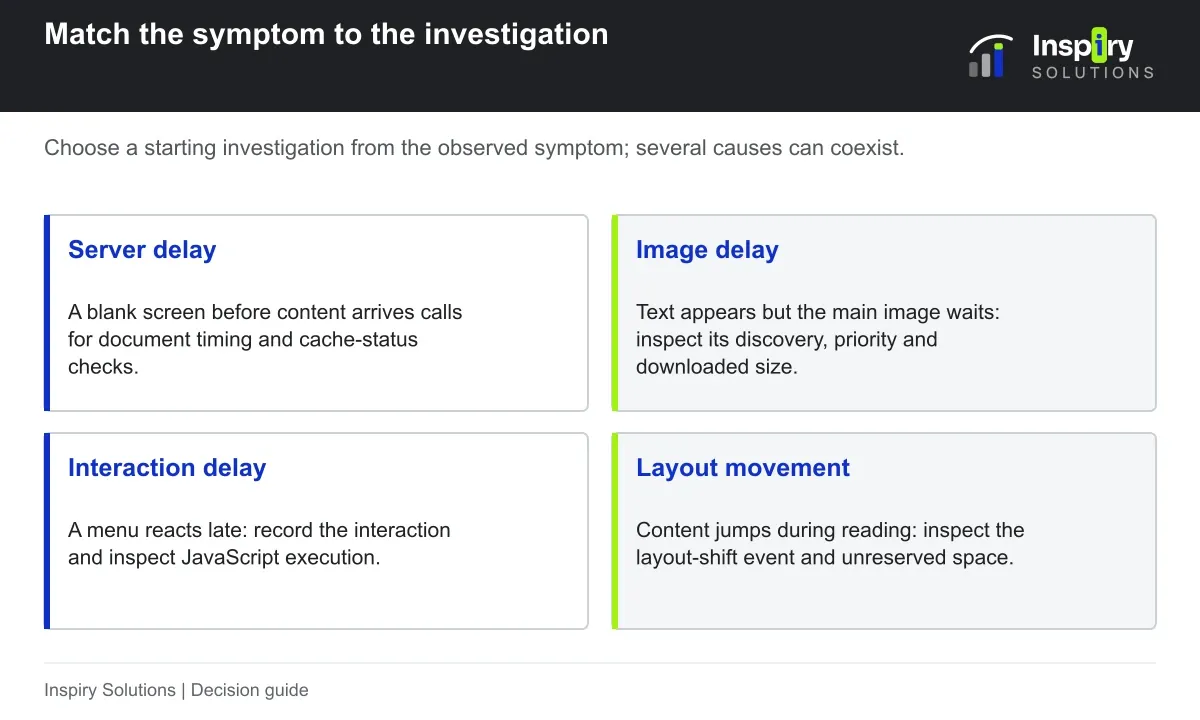
The WordPress optimisation handbook covers several contributing factors. Translate those possibilities into a specific investigation using the symptom your visitors experience.
| Observed symptom | Investigate first | Evidence to collect |
|---|---|---|
| Blank screen before anything arrives | Server and page caching | Document timing and cache status |
| Text appears but main image waits | Image discovery and size | LCP element and request waterfall |
| Menu reacts late | Script execution | Interaction recording |
| Content jumps during reading | Unreserved space | Layout-shift recording |
To improve a slow WordPress website, choose a change with a clear expected effect and an easy rollback. Avoid bundling a hosting migration, theme switch and script rewrite into one experiment: any improvement or breakage becomes harder to explain.
Hypothetical diagnostic example
Suppose a consultancy’s service page displays its text promptly but delays its main photograph and ignores early menu taps. A developer finds the photograph requested only after a slider initialises, while an unused chat integration executes during loading.
The test would replace the slider with an accessible static image, load the chat only on relevant pages, and compare the same mobile journey. This hypothetical example illustrates a testing method, not an agency case study or a promised result.
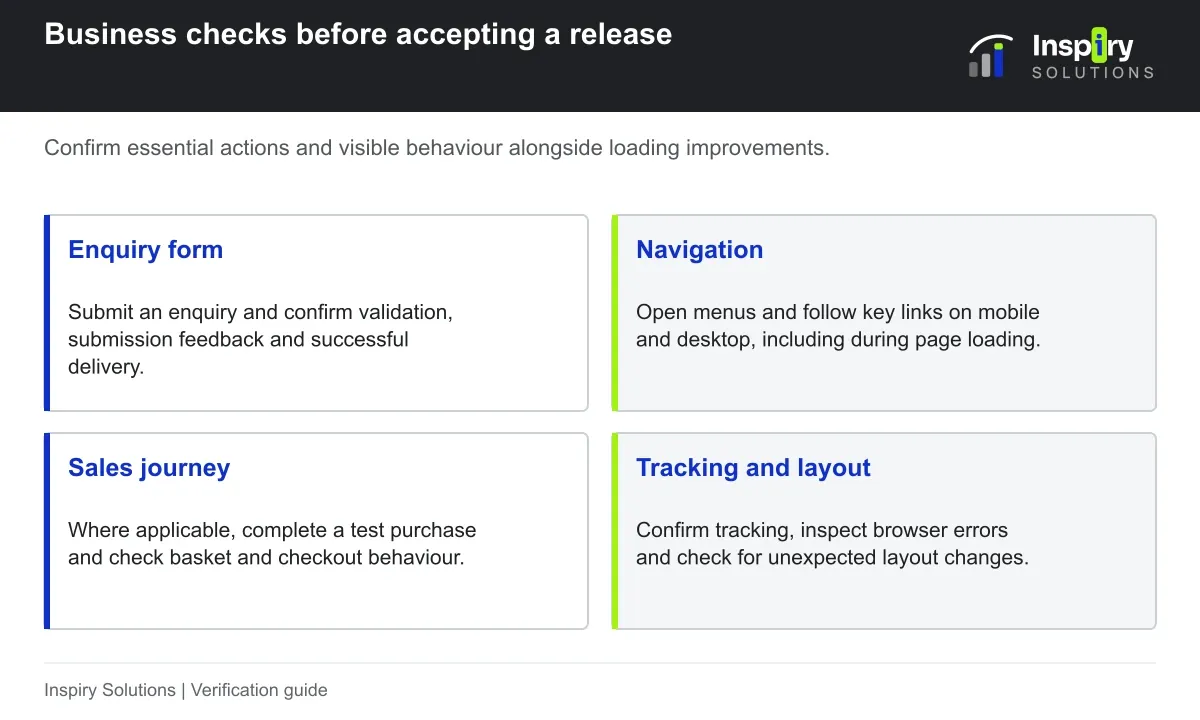
Verify the release with business actions
Record the original configuration, take a recoverable backup and test on staging. After deployment, clear the appropriate caches and repeat visits with both fresh and warm caches.
Submit an enquiry, open navigation, complete a test purchase where applicable and confirm tracking. Review browser errors and layout changes. Record the measured outcome and continue monitoring representative pages after content updates.
Frequently asked questions
Will a caching plugin fix every slow website?
No. Caching a slow WordPress website may reduce repeated server work for public pages, but oversized images, expensive scripts and slow personalised requests need their own fixes.
How many plugins should a business website have?
There is no useful universal limit. Evaluate necessary functionality, execution cost, overlap and maintenance. Remove confirmed waste rather than targeting a number.
Why is mobile slower than desktop?
Phones can have less processing capacity and different network conditions. On a slow WordPress website, responsive layouts may also load different assets on mobile. Test the mobile journey and inspect its actual requests.
Should I change hosting first?
Change hosting when evidence identifies capacity, configuration or geographical delivery as a constraint. Request timings and resource data before making that decision.
Does a perfect performance score guarantee sales?
No. A score describes a test under particular conditions. Sales also depend on the offer, usability and audience. Verify functional journeys alongside performance.
When does a slow WordPress website need rebuilding?
Consider rebuilding when measured fixes are constrained by the existing architecture or maintenance burden. Compare a scoped repair plan with replacement costs before committing.
Conclusion: fix the cause before adding another layer
A slow WordPress website needs a diagnosis that separates server waiting, resource loading and browser work. Establish a baseline, investigate the most visible symptom and verify each change against a real business action. That creates an evidence-based improvement plan and a clearer brief for whoever maintains the site.