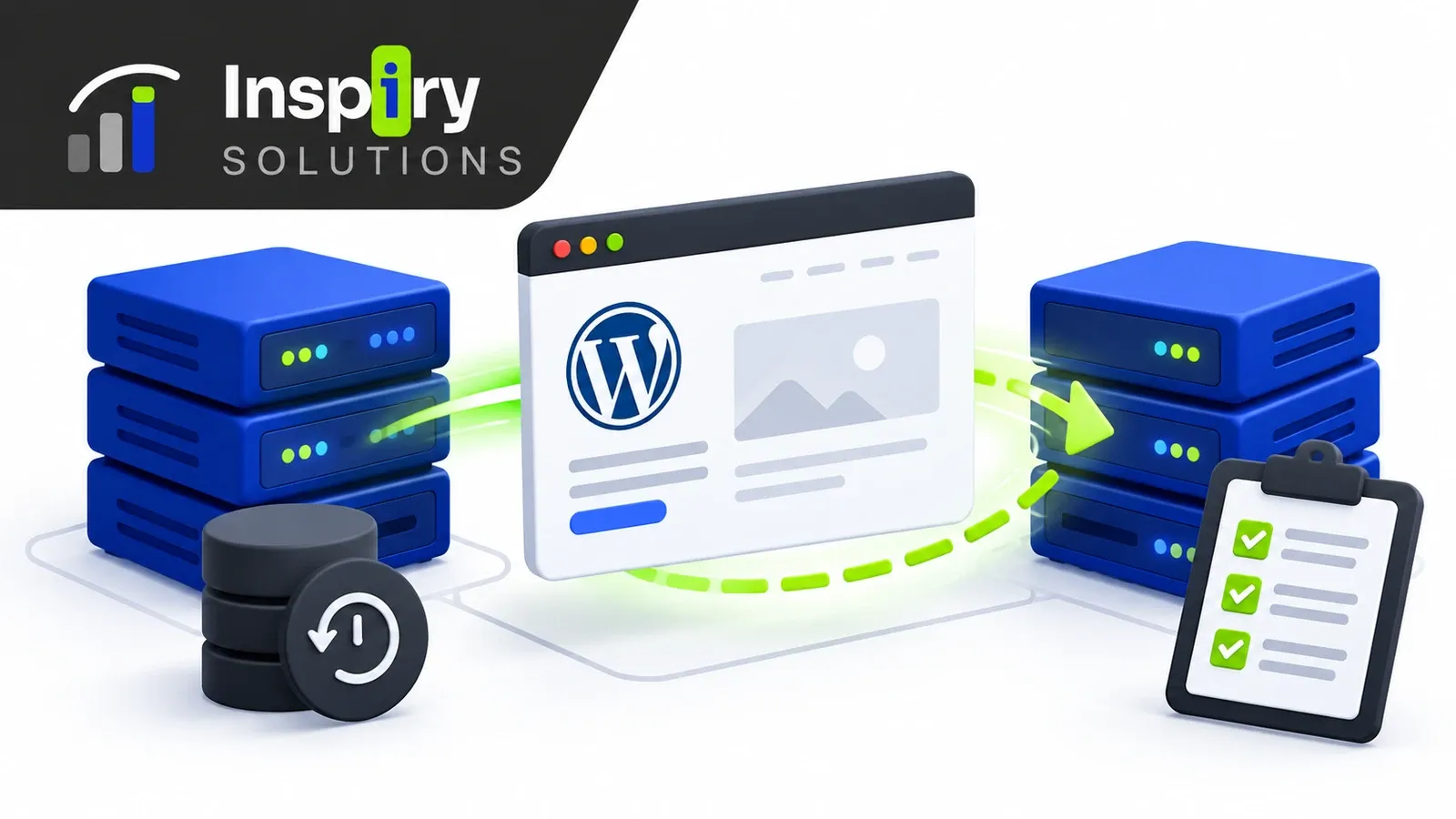
A WordPress backup strategy is only reliable when it covers the right data, keeps independent copies and has been tested through a successful restore. A safe approach protects four areas: the database, website files, configuration settings and essential services outside WordPress. It also defines backup frequency, storage locations and retention. Host backups are useful, but they are not a complete recovery plan. The real test is whether someone can rebuild a working website when the original installation is unavailable.
This guide is for business owners who assume their hosting provider handles backups but have never tested recovery. You will learn how to assess your setup, identify missing protection and create a practical plan without comparing dozens of plugins.
A backup is only as good as the last restore
A backup file is not proof that your website can be recovered. It only shows that something was copied at a particular time. Until someone successfully restores that copy, important questions remain unanswered.
The archive might contain the database but exclude uploaded documents. It might restore files but fail because configuration settings are missing. Sometimes everything is available, but nobody knows the recovery steps.
Four weaknesses commonly undermine recovery:
- Incomplete backups excluding databases, uploads or custom code.
- Copies stored on the same server or hosting account.
- Retention periods expiring before a problem is discovered.
- No documented restore procedure or responsible person.
The official WordPress backup documentation explains why both database information and website files matter. Having one without the other may prevent complete recovery.
A useful WordPress backup strategy starts with two business decisions.
Data you can lose: How much recent information could disappear without seriously disrupting your business? Consider enquiries, bookings, orders and content changes.
Time offline: How long could your website remain unavailable before the interruption becomes unacceptable?
These goals are called the recovery point objective and recovery time objective. The terminology matters less than understanding what your business can tolerate.
A brochure website updated occasionally may accept losing yesterday’s edits. An online shop processing transactions throughout the day probably cannot.
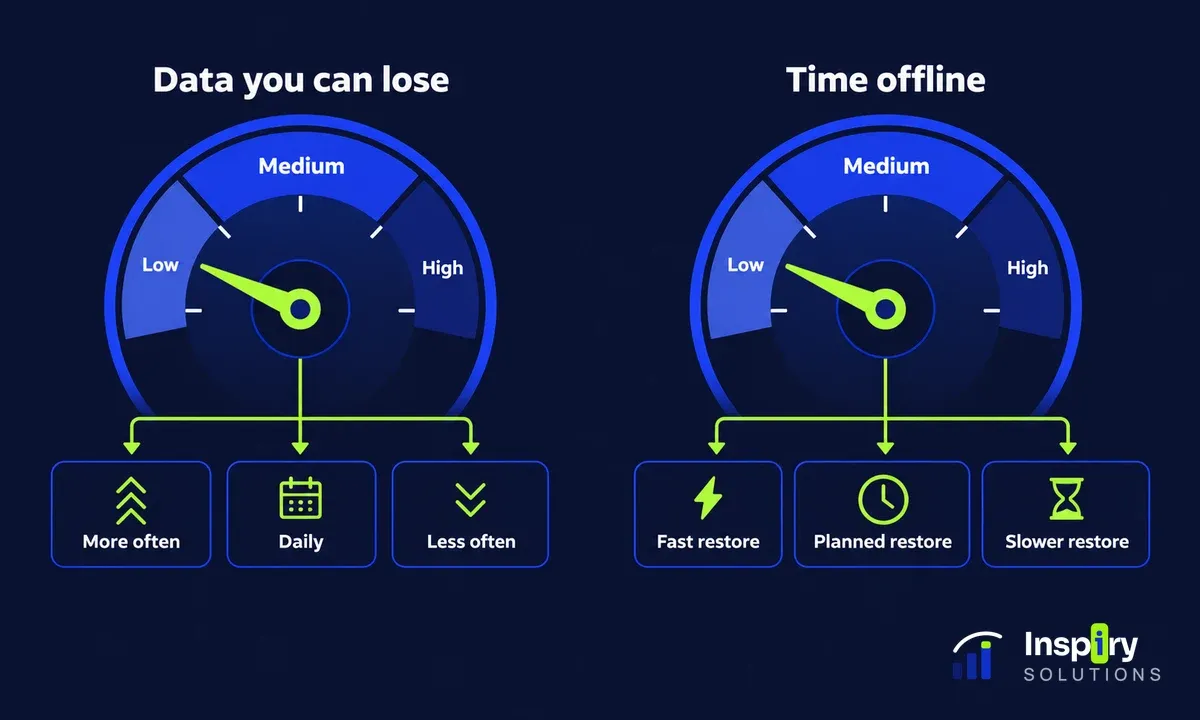
Acceptable data loss determines backup frequency. Acceptable downtime determines how quickly someone must access copies, rebuild the website and verify essential functions.
A scheduled backup does not automatically guarantee either outcome. Recovery depends on the available data, working infrastructure and someone capable of performing the restore.
What a full WordPress backup includes
A full WordPress recovery needs more than a compressed folder of website files. WordPress stores information across several locations, and hosting snapshots may not include everything.
Use these four categories to check what your current system captures.
The database
The database contains much of the information created through WordPress, including pages, posts, user accounts, settings and plugin-generated records.
Depending on installed plugins, it may also contain form submissions, WooCommerce orders, product information and bookings.
Database backups are particularly important for websites receiving frequent customer activity. Losing recent records can have consequences even when the website itself is quickly restored.
Check whether your backup captures all required tables, including custom tables created by plugins. A successful backup notification does not guarantee every record was included.
If database and file copies are captured at different times, their contents may not match. Identifiable backup sets make recovery easier.
The wp-content folder
The wp-content directory typically contains uploaded media, themes, plugins and custom files required by the website.
Losing it could mean losing images, documents, design customisations or functionality that cannot be recreated through a fresh WordPress installation.
Plugin files may be downloadable again, but the same versions might not remain available. Custom themes and modifications can be particularly difficult to reconstruct.
Check whether backups include the entire relevant directory rather than only media uploads.
Identify any files stored outside standard WordPress folders by plugins or external integrations.
wp-config.php and server settings
The wp-config.php file contains essential configuration, including database connection details. Server settings can also affect how a restored website operates.
Important settings may include .htaccess rules, redirects, PHP configuration and scheduled tasks.
A restored database and file collection may still fail when the replacement hosting environment behaves differently.
Treat configuration backups as sensitive information because they can contain credentials.
The WordPress security hardening guidance explains how to protect important files and administrative access.
Record configuration changes that cannot be reproduced automatically.
Things outside WordPress
Business recovery may depend on services outside the WordPress installation.
Examples include DNS records, email accounts, licence keys, API credentials, payment services and third-party integrations.
A WordPress backup does not automatically protect external mailboxes or customer data stored on separate platforms.
Maintain a secure inventory showing each service, its administrator and its recovery procedure.
Keep credentials in a protected password manager rather than an unencrypted document alongside your backups.
How often to back up: match frequency to change
The right schedule depends on how quickly information changes and how much data your organisation can afford to lose.
A fixed daily schedule might protect one website adequately while exposing another to substantial losses.
Consider three website types.
Brochure websites: A relatively static site with occasional updates may be adequately protected by daily or weekly backups, depending on acceptable data loss.
Enquiry-driven websites: Sites collecting enquiries every day generally need at least daily database backups. More frequent copies may be appropriate when submissions are business-critical.
WooCommerce websites: Stores handling regular transactions, customer accounts and stock changes often require more frequent database protection. Higher activity may justify hourly or near-real-time approaches.
The question is not simply how often should I back up my WordPress site. It is how many enquiries, transactions or changes might disappear between successful copies.
Databases often change more frequently than themes and plugins. Separate schedules can therefore be practical.
For example, database backups might run several times daily while complete file backups run daily. Frequent uploads or deployments may require additional file protection.
Always create an extra backup before plugin updates, theme changes, WordPress upgrades, migrations or significant configuration work.
Confirm that the backup finishes successfully before proceeding. A failed backup followed by a failed update leaves you without the protection you expected.
Where to keep backups: the off-server rule
At least one recoverable copy must exist independently of the hosting account running your website.
This is a central rule in WordPress backup best practices. If the hosting account is deleted, compromised, suspended or unavailable, you should still be able to recover the site.
Host snapshots are useful for reversing failed updates and accidental changes. However, they may depend on the same account as the affected website.
Ask your provider where snapshots are stored and whether they remain accessible if your hosting account becomes unavailable.
An offsite WordPress backup can be stored in separate cloud storage or another protected backup service.
For businesses wanting managed protection, our maintenance plans with off-site backups include independent backup arrangements and restore checks.
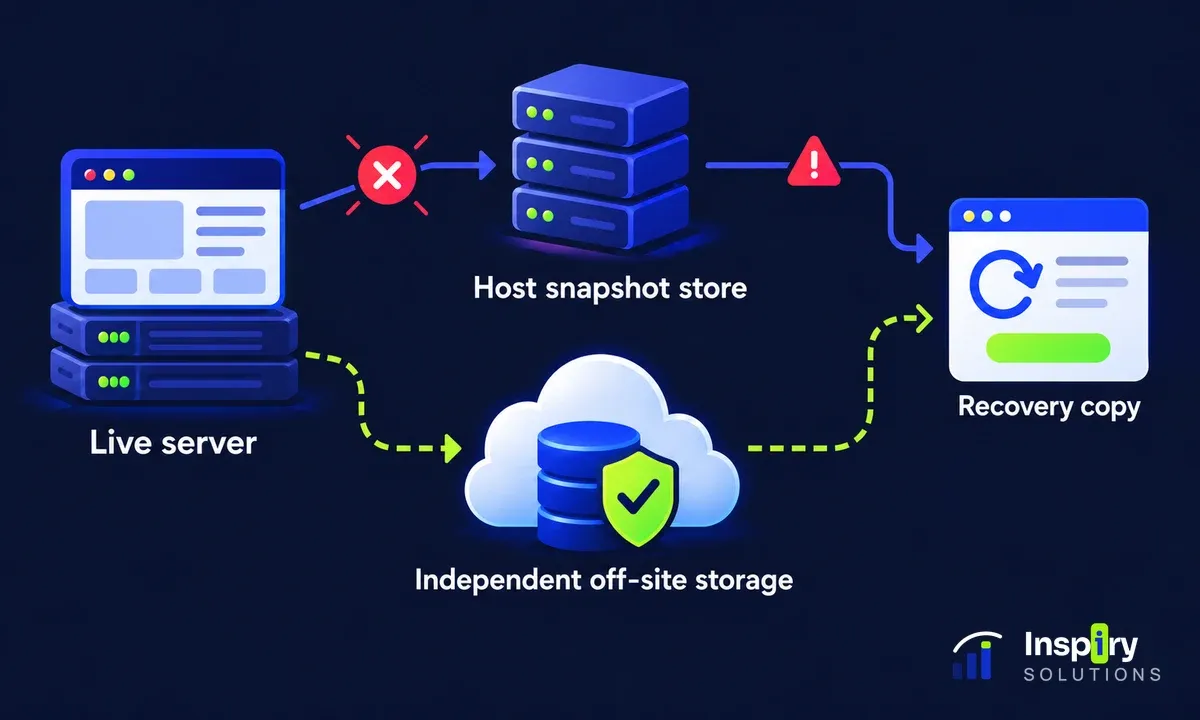
A sensible storage design distinguishes three locations: the live server, the hosting provider’s snapshot system and independent off-server storage.
The independent copy must also have separate access controls.
If an attacker obtains WordPress administrator credentials, those credentials should not automatically allow them to delete every backup.
Limit storage permissions, enable multi-factor authentication where supported and consider protection against deletion or alteration.
The UK National Cyber Security Centre’s small business guidance offers useful advice on securing business systems and protecting recoverable information.
Independent storage reduces reliance on one provider and account. However, external copies are not useful if nobody can retrieve or decrypt them during an emergency.
Document who controls storage access and how authorised personnel can recover the archives.
Retention: why 7 days is often not enough
Backup frequency and retention solve different problems.
Frequency determines how much recent information might be lost. Retention determines how far back you can reach when investigating an issue.
Keeping only seven days of backups creates serious limitations when problems remain unnoticed.
Malicious code may sit quietly inside a website. A broken form integration might stop recording enquiries without an obvious error. An accidental content change might remain undiscovered until someone reviews an older page.
By that point, every recent copy may contain the same problem.
A practical WordPress backup retention arrangement commonly combines daily, weekly and monthly recovery points.
For example, a business might retain daily copies for two weeks, weekly copies for two months and selected monthly copies beyond that.
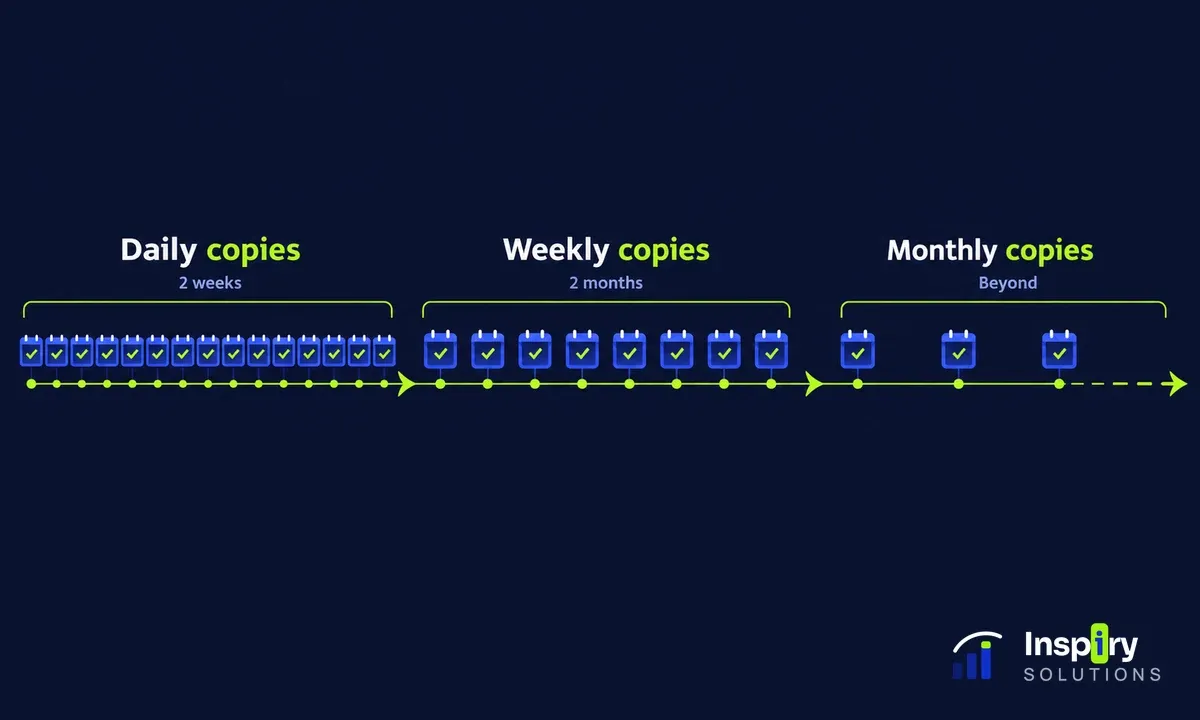
This is an illustrative schedule, not a universal requirement. Retention should reflect business risk, storage availability, legal obligations and the information being protected.
Hypothetical example: A solicitor’s website relies on host backups retained for 14 days. A plugin vulnerability is exploited, but injected code is only discovered five weeks later.
Every remaining host backup already contains the malicious code. An independent monthly copy from before the infection gives the developer a clean reference for comparison.
That older copy should not automatically replace the live database because doing so could discard legitimate records created since the infection.
Recovery may involve cleaning the current environment, fixing the vulnerability and preserving valid newer data.
Our guide to the steps when a site is hacked explains why containment and investigation should come before recovery decisions.
Longer retention consumes storage, but deleting older copies purely to minimise costs can remove the only useful recovery point.
Set retention rules and confirm that older recovery points remain accessible for their intended lifetime.
How to test a restore without touching the live site
A successful backup notification does not prove the resulting website will function.
The most useful verification is a test restore into an isolated staging environment or local WordPress installation.
Staging is a separate website used for testing without affecting visitors. A local installation runs on a developer’s computer.
Both allow recovery checks without replacing the live website.
Select a recent backup and retrieve it through the same process you would use during an emergency.
Rebuild the website using its database, files and required configuration.
Follow the WordPress backup and recovery documentation when checking that the database and website files work together.
Once the test site loads, check more than the homepage.
- Open important pages and verify layouts, navigation and images.
- Check administrator and relevant user-role logins.
- Submit a test form and verify its behaviour.
- Inspect recent posts, uploaded media and database records.
- Test checkout or bookings using safe test settings.
- Review redirects, errors and important integrations.
Disable production payment processing and outgoing notifications. A restore drill must not accidentally process transactions or send customer emails.
Before changing hosting providers, proving a backup before a hosting move can reveal missing files and configuration dependencies.
A quarterly restore drill
A quarterly restore drill is a reasonable starting point for many business websites. Higher-risk sites may require more frequent checks.
Use this repeatable process:
- Select a backup from independent storage.
- Retrieve the archive and verify that its files can be opened.
- Restore into an isolated environment.
- Check pages, logins, media, forms and recent data.
- Record errors, corrective actions and recovery time.
- Update the procedure and schedule the next drill.
Measure the time from starting recovery until essential website functions pass verification.
Document manual steps, including updating configuration, replacing temporary domain references and reconnecting services.
A staging restore cannot guarantee identical results during a complete hosting outage. It does demonstrate whether stored data is usable and the recovery process is understood.
Backup strategy options compared
Different backup arrangements protect against different failures. Their reliability depends on storage, permissions, retention and recovery procedures.
| Option | What it covers | Where it is stored | Survives a host problem? | Survives a hacked admin login? | Restore effort |
|---|---|---|---|---|---|
| Host daily snapshots | Usually files and database, depending on provider | Host-managed backup system | Depends on independent access and storage | Depends on account and snapshot protection | Often low when host access works |
| Backup plugin to the same server | Configured database and files | Live hosting environment | Generally no | Not reliably | Medium if server remains accessible |
| Backup plugin to external cloud storage | Selected database, files and settings | Separate cloud storage | Usually, if independently accessible | Depends on credentials and deletion permissions | Medium |
| Maintenance provider backups | Contract-defined data and recovery support | Provider-managed or independent storage | Depends on arrangements | Depends on security controls | Often lower for owner when support is included |
| Manual export | Manually selected files and database | Operator-chosen destination | Yes, if stored independently | Potentially, if securely protected | Often high |
For most businesses, combining host snapshots with an independent off-server copy is sensible.
Host snapshots simplify recovery from update failures. Independent copies provide an alternative when the hosting account is unavailable.
Before choosing a service, confirm its coverage, retention controls and whether recovery works without the original host.
Establish who performs the restore. A provider may supply only an archive, leaving reconstruction, security checks and integration testing to you.
These responsibilities belong in the maintenance agreement.
Write your WordPress backup strategy on one page
An effective recovery plan does not require a lengthy manual. A one-page document is easier to maintain and follow.
Record these essentials.
What is backed up: Database, wp-content, configuration files and external dependencies, including exclusions.
How often: Database and file schedules, plus backups before changes.
Where copies are stored: Host snapshots and independent off-server storage, including access controls.
How long copies remain available: Daily, weekly and monthly retention periods, including relevant legal requirements.
Who restores the site: Responsible person, deputy contact and securely accessible instructions.
Last tested date: Most recent successful restore, recovery time, unresolved issues and next test.
Include acceptable data loss and downtime goals so you can judge whether your schedule meets business needs.
Review the document when changing hosting, adding functionality or transferring maintenance responsibility.
If external support is involved, compare responsibilities with what a maintenance plan should include.
An agreement should clarify backup ownership, retention, recovery assistance and what happens when the relationship ends.
An authorised developer should understand the recovery arrangements without relying on undocumented knowledge.
Common questions
How often should I back up my WordPress site?
It depends on how often website content and customer information change. Sites receiving daily enquiries or orders should have at least daily database backups, with more frequent copies where data loss would be costly. Less active websites may need fewer scheduled copies. Always take an extra backup before updates, migrations or important changes, and confirm it completed successfully.
Are my host’s backups enough?
Host backups are a good first layer, particularly for reversing failed updates or accidental changes. However, they may be stored with the hosting provider and controlled through the same account. Keep at least one independent copy outside the hosting account, with separate access controls. Check whether you can retrieve it when the host’s dashboard is unavailable.
How long should I keep WordPress backups?
Keep backups long enough to recover from problems noticed late, including security breaches, damaged content and unnoticed configuration mistakes. A mix of daily, weekly and monthly copies is a common approach. The appropriate retention period depends on your site’s activity, recovery requirements, storage arrangements and applicable record-keeping obligations. Review older recovery points regularly rather than retaining everything indefinitely.
How do I know my backup works?
Restore it into an isolated staging or local copy of your website. Check essential pages, forms, administrator logins, uploaded media and recent content. Confirm that database information and website files work together. Repeat the exercise on a schedule, for example quarterly, and document any problems. A successful backup notification alone does not demonstrate that recovery will work.
Your next step: prove recovery before you need it
Check the date, location and contents of your latest recoverable backup. Confirm that an independent copy exists and someone can restore it without depending entirely on the original host.
If you cannot answer those questions, your backup arrangements are incomplete.
Not sure your backups would restore? Send your URL for a free audit and we will reply within two working days. Our WordPress maintenance plans from $99/month include off-server backups and restore checks.