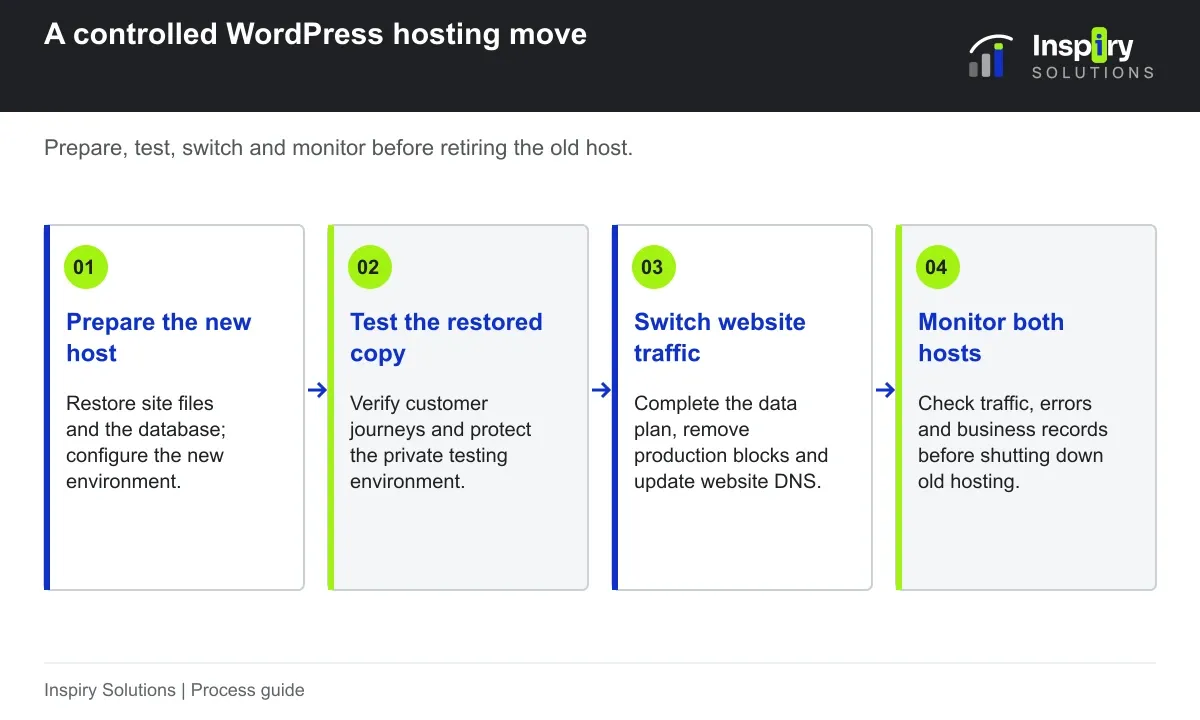
A WordPress migration should move a tested copy of your files and database, preserve existing URLs, control changes during the switch and retain a workable rollback. Prepare the new host before changing DNS, verify real customer journeys afterwards and retire the old host only when traffic and data are accounted for.
A WordPress migration is a business continuity project. Your website may also receive enquiries, take payments, send emails and run scheduled integrations. A page that looks correct can still lose a form submission or charge a customer twice. This checklist makes those less visible dependencies part of the launch decision.
1. Define your WordPress migration scope
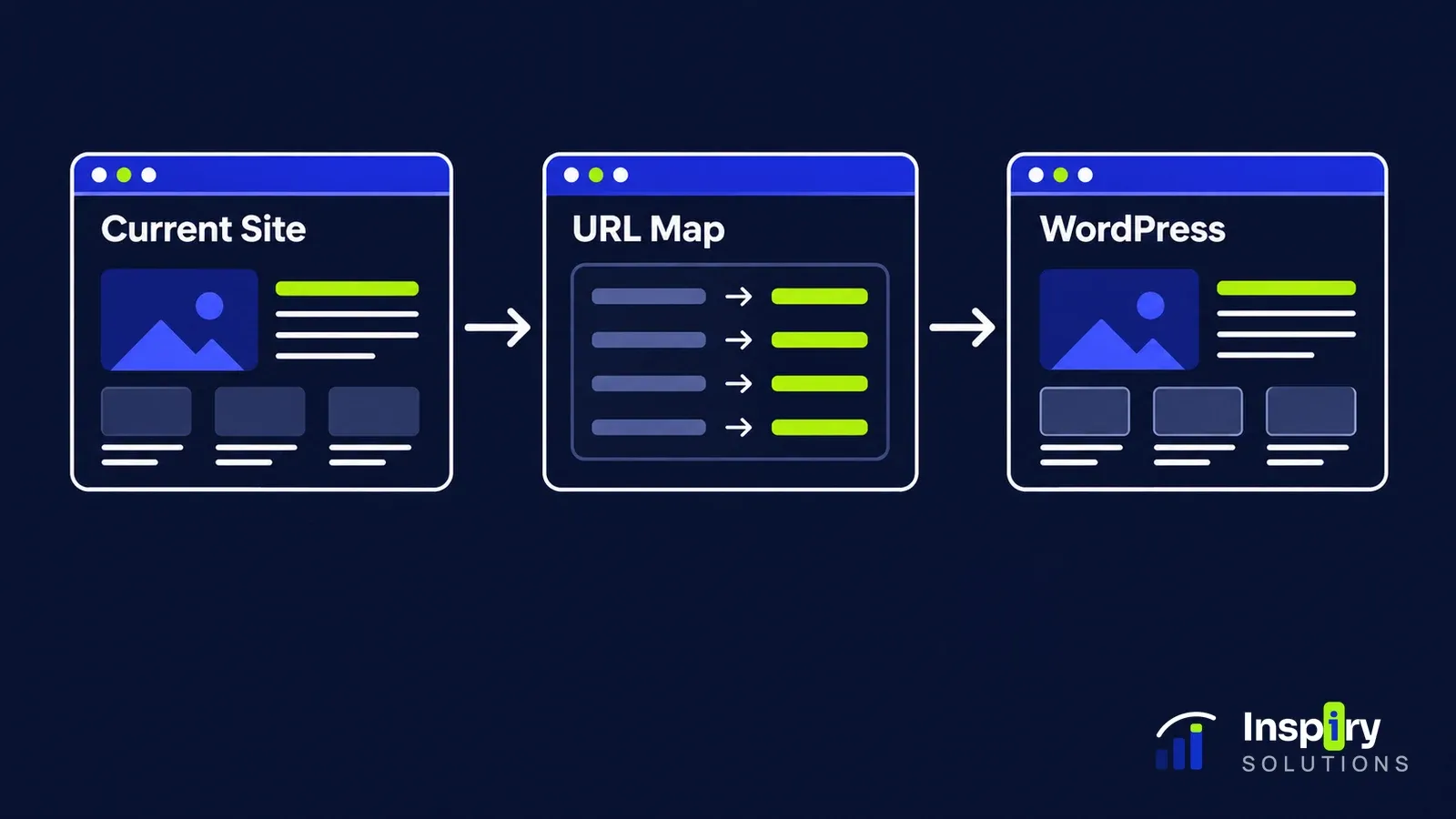
Start by stating what will change: hosting, PHP version, web server, caching, CDN or domain. A hosting-only move should usually retain the domain, protocol, preferred hostname and page paths. Avoid combining it with a redesign, permalink change or large content deletion unless the project explicitly covers those changes.
Google’s hosting-change guidance separates infrastructure changes from moves that alter visible URLs. That distinction determines whether you need a new redirect map or should simply preserve existing behaviour.
Nominate a WordPress migration launch owner and a business approver. Write the acceptance conditions before copying anything: key pages load, enquiries arrive, orders reconcile and essential integrations work. For a combined rebuild, use the broader planning process in redesigning a website without losing SEO. If you are leaving Wix or Squarespace for WordPress, treat the project as a rebuild with its own URL inventory and redirect map.
2. Inventory WordPress migration access and dependencies
Confirm access to the old and new hosting accounts, registrar, DNS service, CDN, WordPress administrator accounts and backup storage. Domain registration, DNS and website hosting may belong to different suppliers. Identify who can change each account and who is available during launch.
List plugins, custom code, licences, redirects, scheduled jobs, payment gateways, form destinations, SMTP settings and external API credentials. Include custom database tables and files stored outside the normal uploads directory. Record whether a firewall restricts an integration to the old server’s IP address.
Keep credentials in a secure shared vault. The WordPress migration runbook should reference their location rather than contain passwords. If nobody owns a custom integration, resolve that gap before launch through your WordPress development team.
3. Record the baseline before anything changes
Export a WordPress migration URL inventory with status codes, page titles, canonical URLs and indexing directives. Prioritise pages generating enquiries, sales, organic visits or valuable links. Include downloads, images and less obvious pages reached through old campaigns.
Save screenshots of key templates and a record of actual journeys: submit an enquiry, search, sign in, add an item to a basket and reach checkout. Capture analytics identifiers and Search Console verification methods so the new copy retains them.
Measure representative mobile pages under repeatable conditions. A WordPress migration baseline helps distinguish a new regression from an existing issue. Review the business guide to Core Web Vitals before interpreting performance reports; one test score is an incomplete picture.
4. Prove that the backup can be restored
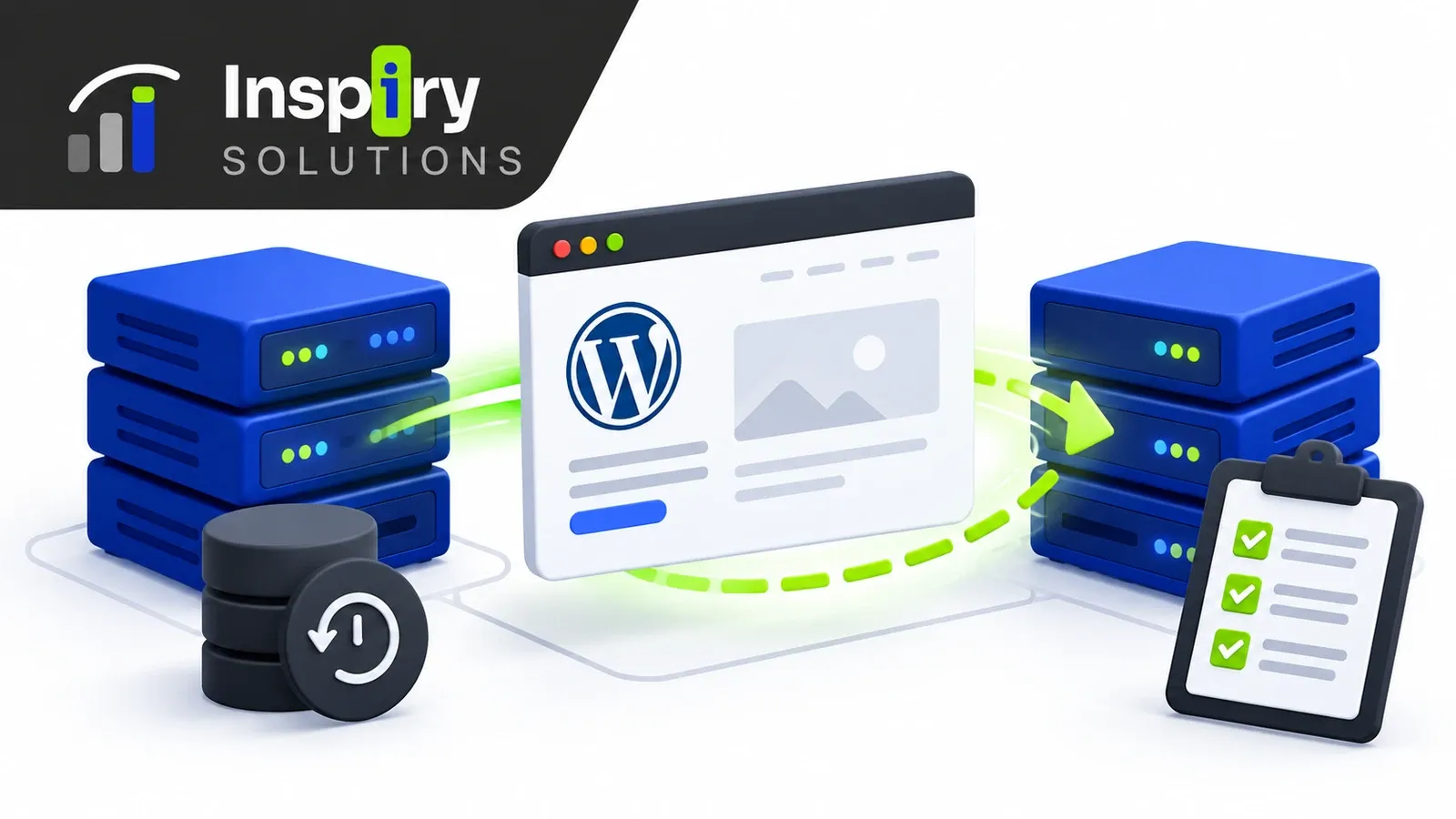
For a WordPress migration, back up the database and site files together, including uploads, themes, plugins and configuration. Keep a protected copy away from both hosting accounts. Record the backup time and the point up to which it contains business data.
The WordPress migration handbook explains that a move retaining the domain and URLs can copy the files and database, with configuration updates where database credentials change. A theme export alone is not a complete site backup.
Restore the backup into the new environment and verify it. A successful download does not prove that an archive opens, the database imports or custom tables are present. Keep the restoration steps with the launch runbook, including who can execute them under pressure.
5. Prepare the WordPress migration environment
Compare PHP compatibility, database support, extensions, memory limits, upload limits and storage capacity. Match the working application first. Schedule optional upgrades separately where that makes faults easier to isolate.
Translate existing web-server rules carefully. Apache configuration does not automatically become Nginx configuration. Recreate redirects, access restrictions, cache exclusions and any rules serving protected downloads. Verify HTTPS coverage for every hostname customers use.
Review scheduled tasks and outgoing email. A restored site can start sending reminders, processing queues or contacting payment services before it is public. Disable production side effects on the test copy and use test credentials where supported.
Configure caches deliberately. Logged-in pages, baskets, checkout and personalised responses need appropriate exclusions. More aggressive caching is not automatically better hosting. Use website performance support when server behaviour and application caching need investigation.
6. Test the private copy with realistic journeys
Use an authenticated staging environment or a controlled local hostname override for WordPress migration testing. Testing under the production hostname can expose certificate, cookie and redirect problems that a temporary address misses. Document the test arrangement so colleagues do not accidentally check the old server.
Protect staging from public access where practical. A robots.txt restriction is not a privacy control. If temporary indexing restrictions are used, record exactly where they must be removed from production at launch.
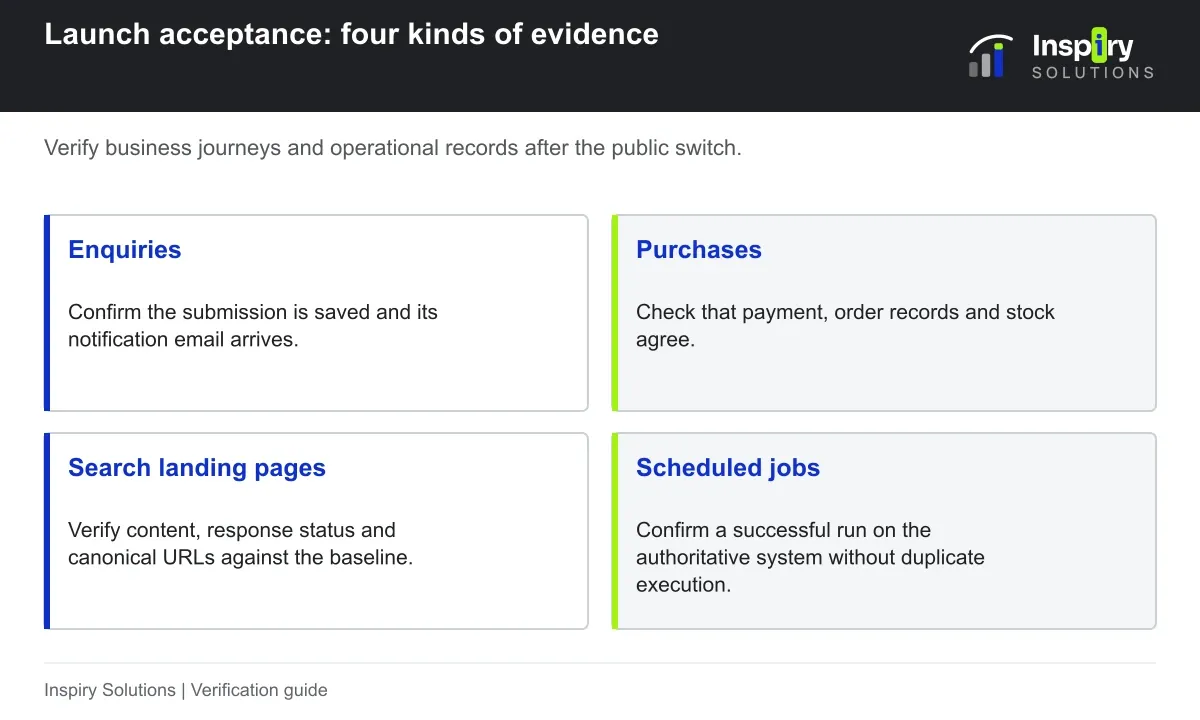
Create a small acceptance matrix
| Journey | Evidence required | Owner |
|---|---|---|
| Enquiry | Submission saved and email received | Sales lead |
| Purchase | Payment, order and stock agree | Store manager |
| Organic landing page | Correct content, status and canonical | SEO lead |
| Scheduled integration | One successful run, no duplicate job | Developer |
Test mobile navigation, search, downloads and error pages as well. Compare the baseline crawl against the new environment. Missing redirects, unexpected noindex tags and incorrect canonicals deserve targeted technical SEO checks before approval. Record these WordPress migration checks against the WordPress technical SEO audit checklist.
7. Protect orders, submissions and other changing data
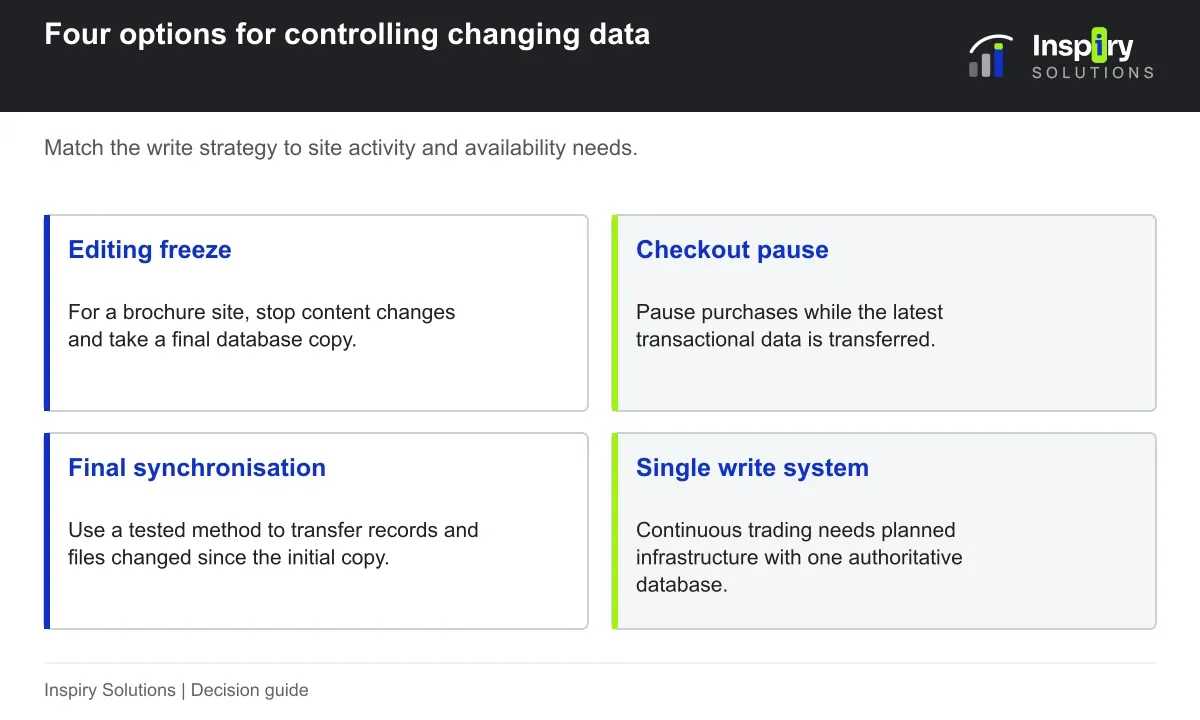
The initial WordPress migration copy becomes stale while the old site remains active. Decide which system may accept writes during the switch and how later records will reach the new database. This is the most consequential decision for ecommerce, memberships and booking sites.
A brochure site’s WordPress migration may need a short editing freeze and final database copy. A busy store may require a controlled checkout pause, a final synchronisation or infrastructure designed around one authoritative database. Continuous availability is an engineering requirement, not a standard feature of every migration plugin.
Hypothetical example: an order arrives during the switch
A retailer copies its database at 21:00, then switches DNS at 22:00. An order placed at 21:30 exists only on the old copy. Restoring the earlier database loses that order unless the final sync includes it. If both servers accept purchases afterwards, records may diverge further.
Choose a method that accounts for records, uploaded files and external payment events together. Avoid casually merging database rows: identifiers and relationships can conflict. Agree how staff will reconcile payments, orders and submissions before declaring success.
8. Prepare DNS without breaking email
Export the current DNS zone. Identify the website’s A, AAAA and CNAME records separately from MX, SPF, DKIM and other verification records. Changing nameservers can remove email configuration if the replacement zone is incomplete.
Reduce relevant DNS TTL values ahead of the switch, allowing existing cached values time to expire. Lowering TTL at launch does not invalidate earlier caches. Retain functioning service on the old infrastructure during the transition.
Check both IPv4 and IPv6 records, the preferred hostname, CDN configuration and certificate readiness. List the exact DNS changes in the WordPress migration runbook. Confirm who controls emergency DNS edits and how they will identify which server received a failed request.
9. Run the launch checks and rollback decision
Complete the final copy or synchronisation, verify agreed data totals, enable production integrations and remove temporary production access or indexing restrictions. Switch the planned DNS records and test the public site from more than one connection.
Purge relevant caches when needed, then repeat the acceptance matrix. Check the actual email inbox and payment provider rather than trusting an on-screen success message. Confirm scheduled jobs run on the authoritative system only.
Define rollback triggers such as widespread server errors or unusable checkout. DNS reversal alone is not a complete rollback once new orders exist on the new server. Capture and reconcile new records before returning traffic, and expect cached DNS answers to take time to change.
10. Monitor, then close the migration
Watch errors, enquiries, order reconciliation, email delivery and important landing pages immediately after launch. Check Search Console and analytics over subsequent days, accounting for reporting delays and normal business variation.
Retain the old account until remaining traffic, jobs and records have been checked. Google recommends monitoring both infrastructures before shutting the old one down. Then archive the final backup, remove redundant access and restore routine DNS TTL values.
Update the maintenance record with new hosting details, recovery instructions and licence ownership. Include ongoing backup and update work in your WordPress maintenance budget, rather than treating launch as the end of responsibility.
Frequently asked questions
Can a WordPress hosting move avoid all downtime?
Sometimes, but it depends on the infrastructure and changing data. Keeping pages available is easier than maintaining uninterrupted purchases across separate databases. Agree the availability requirement and synchronisation method before choosing a migration approach.
Will changing hosts affect rankings?
A hosting-only WordPress migration does not inherently require new URLs. Availability, content differences and indexing errors can still affect search performance. Preserve the baseline and investigate faults; no checklist can guarantee unchanged rankings.
Do I need new redirects for a hosting-only move?
Usually not if public URLs stay identical. You must still recreate existing redirects and preferred-hostname behaviour. If paths or the domain change, map those changes separately and test the destinations.
Does moving WordPress also move business email?
A WordPress migration does not necessarily move email. Email may use another provider or the old hosting account. Confirm mailbox hosting and DNS records independently. Cancelling an account can remove mailboxes even when website DNS is correct.
Is a migration plugin enough?
A WordPress migration plugin can simplify copying, but it does not decide who owns live writes, test every integration or prove rollback works. Confirm that custom tables, external storage and server configuration are included in your specific migration.
How long should I keep the old host?
Keep it until residual traffic, data reconciliation and rollback needs are resolved. Use logs and business checks to make that decision. A fixed waiting period cannot account for every DNS, integration or operational dependency.
Make the move reviewable before launch
A controlled WordPress migration has a tested copy, an explicit live-data plan, verified customer journeys and a usable recovery procedure. Treat those as launch conditions. This gives the business a clear basis for switching hosts and an accountable process for checking that the move worked.