If you have a hacked WordPress site, contain the damage, preserve evidence and secure access before removing suspicious files. During the first hour, protect visitors and take a complete copy of the affected website. Over the next five hours, change passwords and secure administrator accounts. Use the remaining time to investigate how the attacker entered and how far the infection reaches. The most important rule is to diagnose before making changes. Rushing into clean-up can destroy useful evidence without fixing the weakness that allowed the attack.
This guide is for business owners and marketing teams dealing with suspicious redirects, spam pages, browser warnings or hosting suspension notices. It explains what you can safely handle, when to involve a developer and how to approach recovery without making the situation worse.
Signs your WordPress site has been hacked
A compromised website does not always display an obvious warning. Some attacks remain hidden while redirecting visitors, generating spam pages or running malicious code.
Attackers may configure malware to behave differently for logged-in administrators, visitors and search engine crawlers. Your homepage looking normal while logged in proves little.
If you are wondering how to tell if WordPress site is hacked, check these five signs.
1. Redirects that only happen on mobile
A visitor clicks your website in Google and lands on an unrelated gambling or advertising site. Your desktop version appears normal.
Malicious redirects may activate only for mobile devices, search visitors or logged-out users.
Test using a private browser window and mobile data. Visit the same page directly and through Google. Record unexpected destination URLs.
A WordPress hacked redirect can originate from modified PHP files, injected JavaScript or compromised database settings.
2. Spam pages in Google results
Attackers can generate Japanese-language, pharmaceutical or gambling pages unrelated to your business.
These pages may be hidden from navigation while remaining accessible through Google.
Search:
site:yourdomain.com
Replace the example with your domain. Check for unfamiliar titles, languages and URLs.
This is a useful spot check, not a complete list of indexed pages. Clean-looking results do not prove the site is safe.
3. New or changed admin users
Unknown administrator accounts require immediate attention because they can modify website files, plugins and settings.
Open WordPress > Users > All Users and review administrators.
Look for unfamiliar usernames, unexpected email addresses, changed roles and accounts belonging to former contractors.
Before removing anything, record suspicious account details and verify ownership. An attacker retaining administrator access may regain control after you change your password.
4. Browser or Search Console warnings
Browsers may warn visitors about harmful content. Google Search Console can also report security problems.
Treat a WordPress site hacked Google warning seriously.
Open Search Console > Security & Manual Actions > Security issues and record reported examples.
Not every infected site receives a warning. A clean report does not guarantee the absence of malware.
5. A suspension notice from your host
Hosting providers may suspend websites after detecting malicious files, spam or unusual server activity.
A suspension does not automatically confirm an attack, but it needs investigation.
Contact your host through official support. Ask what triggered the restriction, when activity was detected and whether other sites were affected.
Request available malware scan results before restoring anything.
The first hour: contain without destroying evidence
Your first objective is not to make the website appear normal. It is to prevent further harm while preserving enough evidence to understand the incident.
Deleting suspicious files or restoring an old backup immediately can remove important clues about how the attacker gained access.
Follow this order during the first hour.
1. Record what happened
Write down when the problem was reported and when you confirmed it.
Capture screenshots of suspicious redirects, warnings, unfamiliar users and affected URLs. Save any messages received from your hosting provider.
2. Restrict public access
If visitors are being redirected to harmful websites or sensitive information may be exposed, temporarily restrict access.
Use a trusted maintenance mechanism or ask your hosting provider to apply server-level restrictions.
Avoid installing unfamiliar security plugins into an already compromised installation. If the website processes payments, consider temporarily disabling checkout until the risk has been assessed.
3. Preserve a complete website copy
Ask your host or developer to create a snapshot containing:
- WordPress core, plugin and theme files.
- The complete
wp-contentdirectory. - The WordPress database.
- Configuration files and available server logs.
Store the snapshot separately in restricted storage and label it as potentially infected.
Do not restore this copy to a publicly accessible website without examining it first.
4. Avoid destructive changes
Do not immediately reinstall WordPress, delete suspicious files or run automated cleaning tools.
Some emergency changes may be necessary to stop active harm, but document them.
If you cannot safely restrict access or preserve a backup, contact a professional. Our WordPress maintenance and security support can help assess suspicious activity and identify the next steps.
5. Keep an incident record
Create one document containing timestamps, screenshots, affected URLs, actions taken and people contacted.
This makes the investigation easier when hosting, website maintenance and business email are managed by different people.
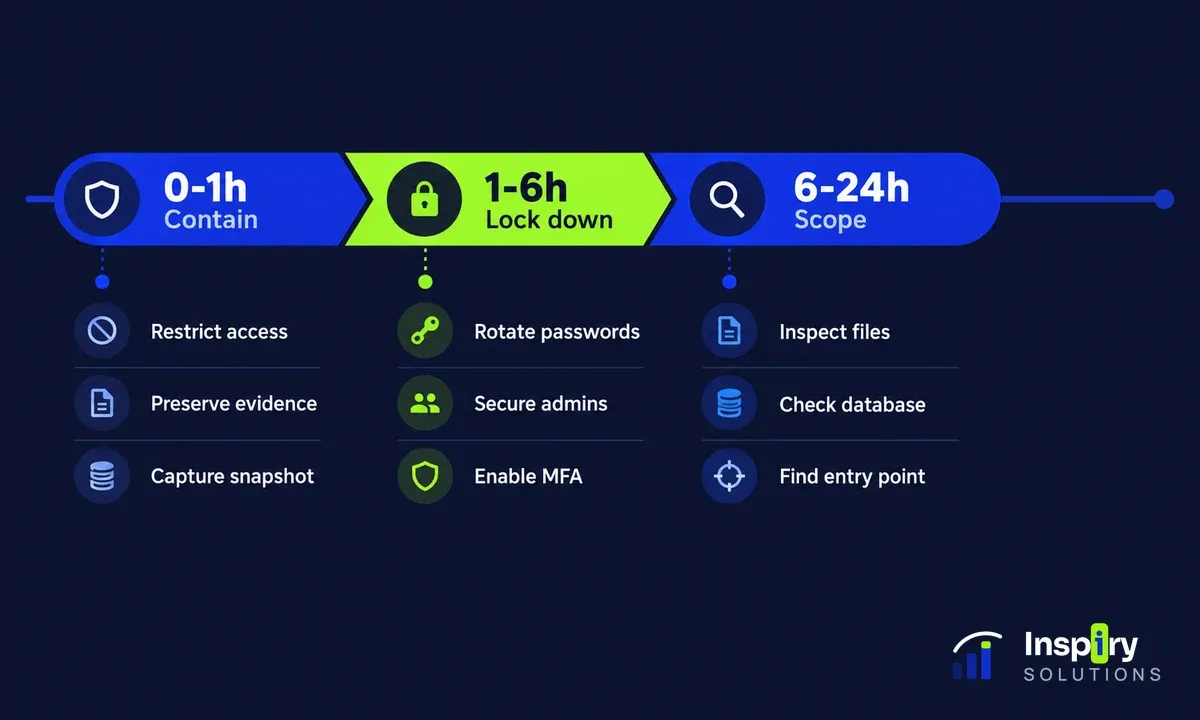
The timeline divides the response into three priorities: contain the incident, lock down access and investigate the scope.
Hours 1-6: lock down every way in
Once evidence is preserved, prevent further unauthorised access.
A hacked WordPress site may involve stolen passwords, compromised hosting credentials or unauthorised administrators.
Changing your WordPress password alone is insufficient if another access route remains.
1. Secure hosting access
Change your hosting password using a trusted device.
Review account users and login history. Enable multi-factor authentication (MFA), which requires additional verification when signing in.
2. Rotate SFTP and SSH credentials
SFTP and SSH provide server file access. Replace passwords or keys and revoke unnecessary accounts.
Ask your developer to review unfamiliar SSH keys, file-transfer users and scheduled tasks.
3. Update database credentials
A developer should replace database credentials, update WordPress configuration and revoke the old credentials.
Incorrect changes can break the database connection, so avoid attempting this without technical experience.
4. Secure administrator accounts
Reset all legitimate administrator passwords.
Investigate unknown users, preserve their details and remove unauthorised access.
Regenerate security keys and salts in wp-config.php to invalidate existing authentication sessions.
The WordPress security hardening documentation explains recommended protections.
5. Protect connected email accounts
Compromised email accounts may allow attackers to reset administrator passwords.
Change relevant passwords, check forwarding rules and enable MFA.
Use unique credentials across hosting, email and WordPress. The UK’s National Cyber Security Centre offers small business security guidance.
Who to tell: host, developer, agency, card processor if payments run on the site
Contact your host first, particularly if visitors are being redirected or the website is suspended.
Next, inform whoever maintains the site and share your incident record.
Notify your advertising or SEO agency about affected landing pages.
If the website processes payments or stores customer data, assess payment provider notifications and applicable data protection obligations.
What to ask your host for: access logs, any malware scan results, the date files changed
Request:
- Web server access and error logs.
- Available malware scan results.
- File-change records and timestamps.
- SFTP, SSH and hosting login history.
- Suspicious scheduled tasks.
- Available backup dates.
Ask for copies before logs are overwritten. Timestamps are not always conclusive, but they help establish a timeline.
Hours 6-24: find out how far the hack reaches
Investigate which files, database records and accounts were affected and how the attacker entered.
A malware scanner helps, but cannot replace a proper investigation.
1. Compare WordPress core files
Compare installed core files against an authentic copy of the same WordPress version.
Unexpected modifications deserve investigation, particularly changes to executable code.
2. Inspect plugins and themes
Review installed extensions, versions and recently modified files.
Look for unknown plugins, suspicious PHP files and unexpected theme changes.
Outdated plugins are possible entry points, making this a useful time for auditing the plugins you rely on.
Remember that legitimate updates also modify files.
3. Investigate database injections
Malware can survive file clean-up if malicious code remains in the database.
Check posts, widgets, page builder settings, administrator records and wp_options.
Avoid bulk database changes without a verified backup.
4. Identify the entry point
Possible causes include vulnerable plugins, reused passwords, untrusted themes, compromised email or another infected website sharing hosting.
Compare each possibility against evidence.
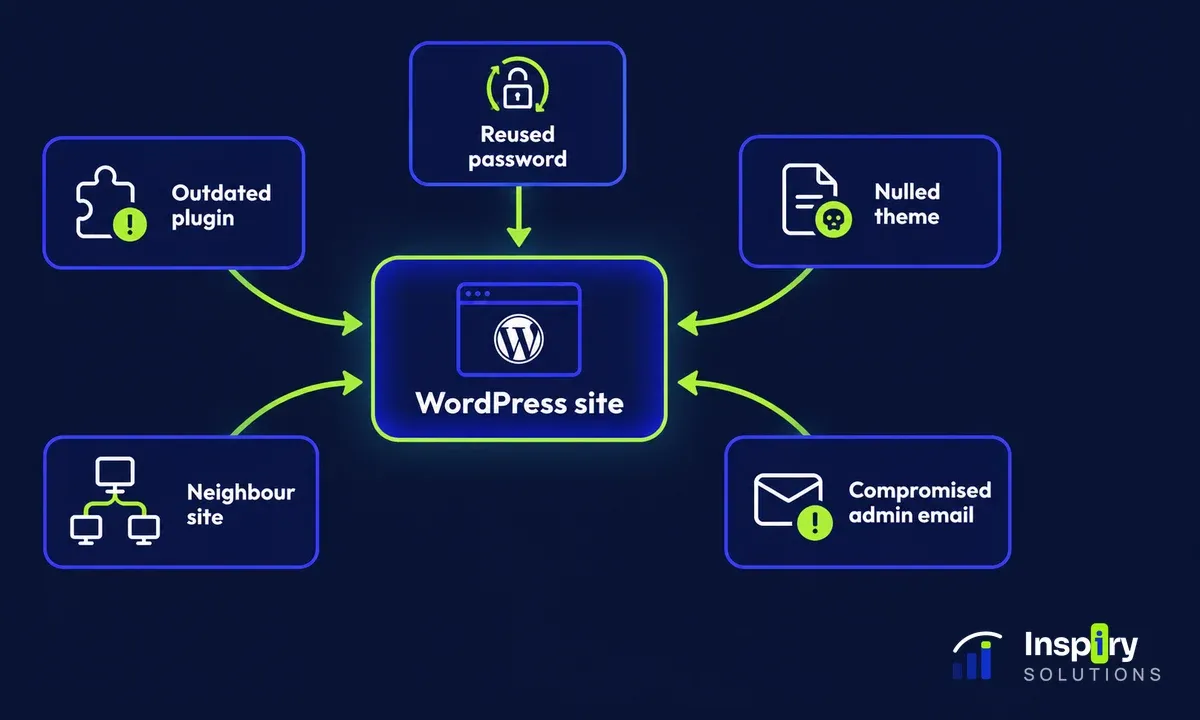
The map illustrates five possible entry points. Removing malware without closing the original route risks reinfection.
5. Check scheduled tasks and hidden access
Some infections schedule tasks that regenerate malicious files after deletion.
Inspect WordPress scheduled events, server cron jobs, unfamiliar must-use plugins and administrator accounts.
6. Review Search Console
Check Security issues, indexing information and unfamiliar URLs.
Investigate spam pages and indexing problems caused by spam pages.
Google’s spam policies cover hacked content that can affect visibility.
For guidance on file changes and logs, consult WordPress security monitoring guidance.
Aim to establish the infection’s scope and likely entry point. Investigation may continue beyond 24 hours.
Triage table for a hacked WordPress site
Not every recovery task should be attempted by the website owner.
| Task | When (hour band) | Owner can do it safely? | Needs a developer or host? |
|---|---|---|---|
| Enable maintenance mode | 0-1h | Sometimes | Host recommended for server restrictions |
| Copy files and database | 0-1h | If experienced with backups | Recommended |
| Rotate hosting and SFTP passwords | 1-6h | Usually | Host may need to revoke sessions |
| Remove unknown admins | 1-6h | After verifying account details | Recommended if ownership is unclear |
| Regenerate salts | 1-6h | Not without technical experience | Yes |
| Compare core files | 6-24h | No | Yes |
| Inspect database for injected scripts | 6-24h | No | Yes |
| Identify entry point | 6-24h | Rarely | Yes |
| Request Search Console review | After clean-up | Yes | Developer can verify readiness |
This sequence is a practical guide, not a reason to delay urgent containment.
A common mistake is treating a clean scanner result as proof that the incident has ended.
A scanner may remove an infected file while leaving a scheduled task, compromised administrator or vulnerable plugin untouched.
Cleaning without identifying and closing the entry point can lead to reinfection.
Hypothetical example: a spam redirect on a service business site
Hypothetical example: A dental practice notices that mobile visitors arriving from Google are redirected to a gambling website. The homepage appears normal on desktop.
Here is how the first 24 hours could unfold.
Hour 0-1: Preserve evidence
The owner reproduces the redirect using a private browser window and mobile data.
They record the destination URL, capture screenshots and contact their hosting provider.
The website enters maintenance mode while the host takes a complete snapshot of its files and database.
Hours 1-6: Secure access
The owner rotates hosting and SFTP credentials with assistance from the developer.
Administrator passwords are changed, and a review reveals an unfamiliar administrator account created three weeks earlier.
The developer records its details, removes unauthorised access and regenerates WordPress security keys.
Hours 6-24: Investigate
The developer traces the likely entry point to a form plugin that had not been updated for more than a year.
They also identify injected code in the active theme’s functions.php file and suspicious entries in the WordPress options table.
The affected code is replaced or repaired, the vulnerable plugin is addressed and additional checks look for hidden access.
After recovery: Verify
The team tests the website on mobile devices, reviews Search Console and monitors for recurring redirects and suspicious changes over 30 days.
This is an illustrative scenario, not a real client case study. It shows why preserving evidence and identifying the entry point should come before deleting malware.
Clean up or rebuild: making the call at hour 24
By hour 24, you should aim to have enough information to choose a recovery approach, even if the investigation remains ongoing.
The decision depends on the infection’s scope, the age and condition of the website, and the availability of trustworthy backups.
Clean-up may be suitable when the affected files and database records are understood, the entry point is closed and compromised components can be reliably repaired.
Rebuilding may be safer when malicious changes are widespread, the entry point remains unknown or the website depends on abandoned extensions and unreliable backups.
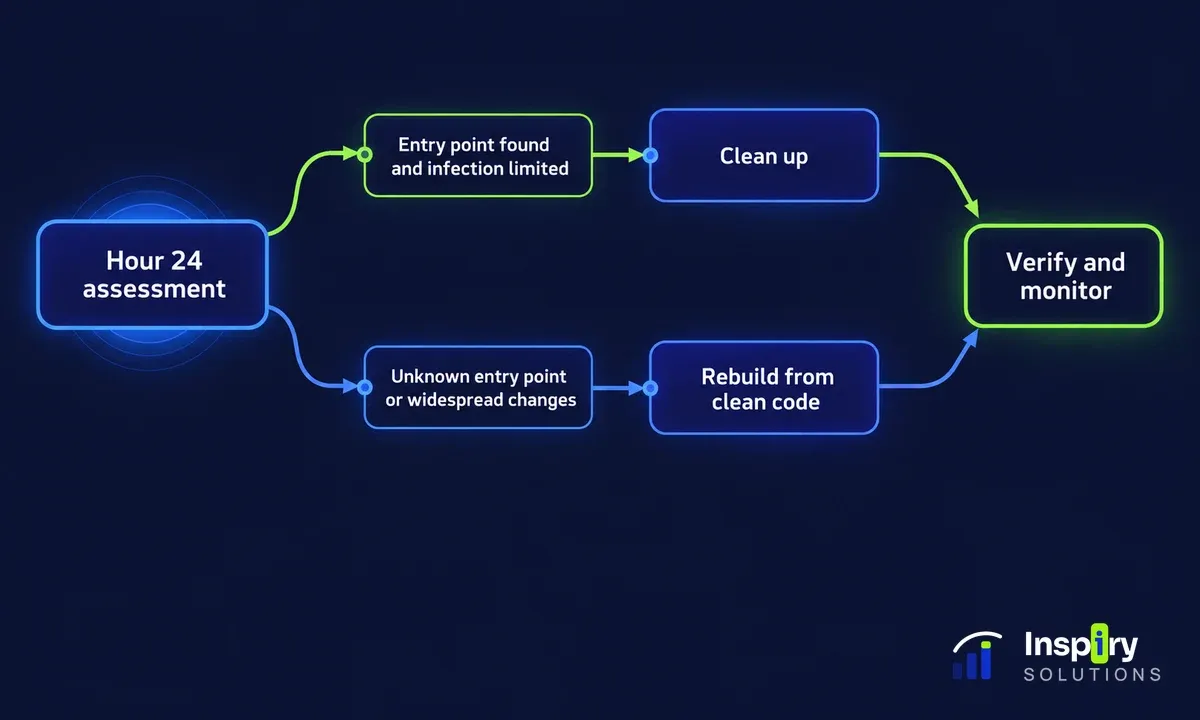
The decision diagram illustrates these two paths. Neither approach should involve copying unverified, potentially infected files into a trusted installation.
After remediation, test redirects, forms, administrator access and important business functions.
If Google flagged the website, request a review through Search Console once the security problems have been resolved.
Continue monitoring for at least 30 days, checking for unexpected file changes, new administrator accounts, spam pages and recurring redirects.
A homepage loading normally is not sufficient evidence of recovery.
Common questions
How do I know if my WordPress site has been hacked?
Look for unexpected redirects, particularly on mobile devices, unknown administrator accounts, spam pages appearing in a site: Google search, and warnings from your browser or Search Console. Test while logged out because some infections hide from administrators. A suspicious result requires investigation, even when the homepage appears normal.
Should I restore a backup straight away?
Not before preserving a copy of the infected website and investigating how the attacker gained access. A backup created before the infection may remove visible malicious files, but it does not automatically fix the original weakness. If the vulnerable plugin or compromised credentials remain, the restored website can become infected again.
Will a hack hurt my Google rankings?
It can. Hacked content is covered by Google’s spam policies, and affected websites may display security warnings or lose search visibility. After removing harmful content and securing the website, review Search Console and request a security review where required. Recovery depends on Google’s processing and the website’s condition. Nobody can guarantee the timing.
Can a security plugin fix a hacked site on its own?
A security plugin can detect known malware patterns and suspicious changes, but it cannot guarantee a complete clean-up. Scanners may miss database injections, hidden backdoors and modified configuration files. They also may not reveal how the attacker entered. Identifying and closing that entry point is essential for preventing reinfection.
Who should I contact first?
Contact your hosting provider first, particularly if visitors are being redirected or the website has been suspended. Next, contact the developer or agency maintaining your website. If the site processes payments or stores customer information, consider informing your payment provider and assessing applicable data protection obligations. Keep a record of communications and actions.
What to do next so the first 24 hours never happen again
A security incident highlights why WordPress maintenance requires more than occasional plugin updates.
Three habits help reduce future risk.
1. Keep WordPress and extensions updated
Apply security updates promptly. Test potentially disruptive changes on staging before publishing.
Remove abandoned or unnecessary extensions to reduce potential entry points.
2. Keep tested backups outside your hosting account
Schedule off-server backups of files and the database.
Test restoration periodically and verify that pages, forms and important business functions work.
An untested backup is not a reliable recovery plan.
3. Require MFA and limit permissions
Enable multi-factor authentication for administrators and sensitive accounts.
Give users only the permissions needed for their responsibilities. Remove old accounts and review access regularly.
These measures are part of what ongoing maintenance actually covers. They reduce risk and make recovery easier, but cannot guarantee complete protection.
If you suspect an infection, record the symptoms, protect visitors and preserve evidence before making destructive changes.
If your site is showing signs of a hack, send us the URL for a free audit and a plain-language reply within two working days. For ongoing protection, our WordPress maintenance plans start at $99/month and include updates, backups and monitoring.