WordPress plugins become too many when their combined performance cost, overlapping features and maintenance demands outweigh their business value. There is no universal safe number. Audit what each plugin does, where it runs and who maintains it, then test removals or replacements against the functionality your customers and team actually need.

A simple brochure site and a membership shop require different capabilities. Counting WordPress plugins can identify complexity, but it cannot explain why a page responds slowly or an enquiry form fails. The useful question is whether every installed component earns its place.
Why counting WordPress plugins gives an incomplete picture
WordPress plugins differ in scope and behaviour. One may adjust an administrative setting, another may load an interactive library across every public page, and another may manage payments, orders and background jobs. Those components cannot be compared meaningfully by counting them as equal units.
More components still create more dependencies to review and maintain. The point is not that quantity never matters. It is that count needs context: useful features, code execution, compatibility, data ownership and support arrangements.
The WordPress plugin management documentation covers activation, removal and troubleshooting. Build on that process with an inventory and a test plan rather than deleting whatever looks unfamiliar.
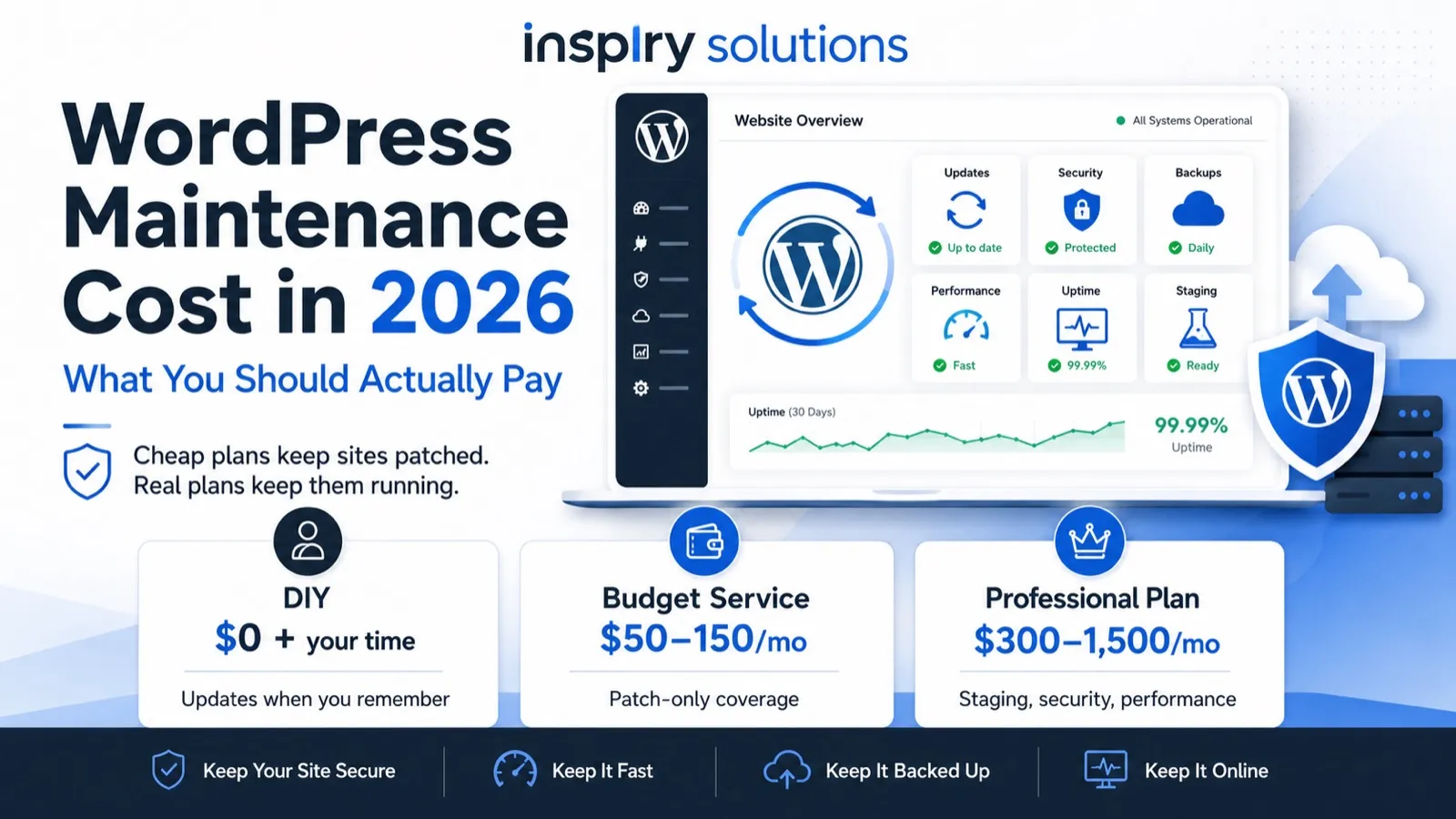
Our WordPress maintenance cost guide explains why updates, recovery and verification should be considered alongside licence fees.
Where plugins add performance and operational cost
Assess WordPress plugins across three areas. Server work includes PHP execution, database queries and calls to external services. Browser work includes downloaded scripts, styles, images and interactive processing. Operational work includes updates, compatibility testing, subscriptions and support.
WordPress plugins can be inexpensive in one area and costly in another. An administrative integration may load no public scripts but create repeated background tasks. A visual widget may generate little server work while keeping a visitor’s phone busy.
Also distinguish inactive WordPress plugins from active ones, must-use components and host-provided integrations. Some components are managed outside the ordinary plugin list. Ask the site maintainer to identify the complete stack before concluding that the dashboard count describes everything.
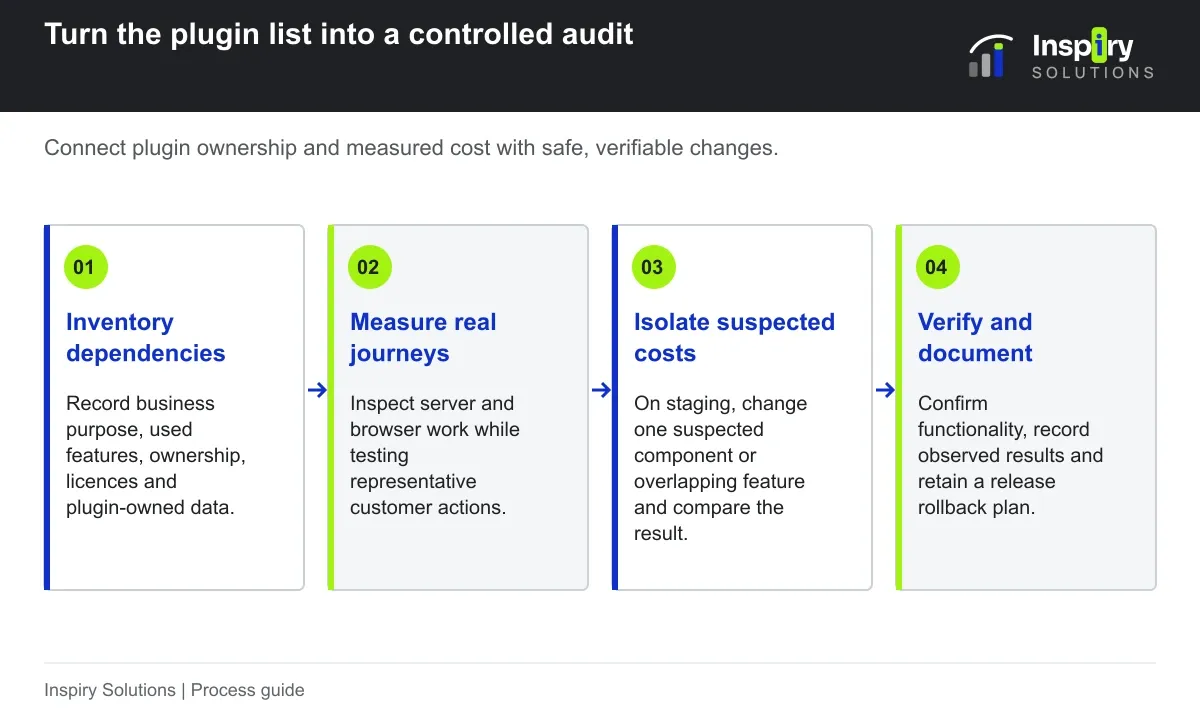
A seven-step WordPress plugins audit
1. Record purpose, ownership and dependencies
Inventory WordPress plugins by business purpose, features actually used, owner, licence status and dependencies. Include custom plugins and integrations supplied by the host. Check which templates, forms or shortcodes rely on them.
Identify the person who can explain why each component exists. A plugin installed for an old campaign may still be active long after the campaign ended. Conversely, an unfamiliar integration might connect enquiries to the sales team.
Record data ownership too: settings, submissions, subscriptions and custom content may belong to that extension. Our WordPress development service is relevant when those relationships need a technical review.
2. Measure representative pages and business journeys
Select the homepage, a service page, an article and relevant product or account pages. Test while logged out, then investigate administrative and personalised journeys separately. Record device, region and cache state so comparisons remain useful.
Inspect document response time, downloaded assets and browser execution. Submit an enquiry, use search and complete a test transaction where appropriate. A loading score alone will not reveal that a delayed script broke form validation.
Use our Core Web Vitals business guide to distinguish loading speed, responsiveness and stability when deciding what to investigate.
If delays extend beyond the plugin stack, follow the slow WordPress website diagnostic guide before attributing every symptom to extensions.
3. Identify duplicate responsibilities
Look for overlapping WordPress plugins in caching, image processing, script optimisation, security features, forms, analytics and redirects. Include capabilities already supplied by the hosting platform or theme. Several tools may be configured to modify the same output.
Choose a clear owner for each responsibility shared by WordPress plugins. This does not always require removing a whole plugin: disabling one duplicated module may preserve its useful features. Document the decision so another administrator does not re-enable the overlap later.
Verify that consolidation keeps necessary protections and business functions. Two security components may provide different capabilities, while two analytics integrations may unintentionally send duplicate events. Inspect what happens rather than relying on labels.
4. Check where scripts and styles load
Inspect whether WordPress plugins load assets on pages that do not use their visible features. A gallery library loading on every article or a booking integration loading outside booking pages deserves investigation. Check available conditional-loading settings before choosing a replacement.
WordPress provides a dependency-aware way to load scripts through wp_enqueue_script(). Custom changes should respect dependencies and the component’s documented integration approach.
Do not indiscriminately unload a library because its filename seems unrelated. Navigation, validation or another extension may depend on it. Test early taps and submissions after changing load rules.
For builder add-ons, the Elementor speed guide adds checks for widget loading and shared templates.
5. Inspect backend work and background jobs
To assess WordPress plugins on slow uncached requests, have a developer inspect PHP timings, expensive queries and external requests. Look for the work performed by the page rather than assuming that the largest plugin folder causes the largest delay.
Review imports, synchronisation, scans and scheduled jobs. WordPress documents WP-Cron as its task-scheduling mechanism. Repeated or failing jobs can create operational overhead even when public pages are served from cache.
Check whether each integration handles failures sensibly and processes manageable batches. A change to scheduling needs verification of backups, publishing and business emails, not just a faster page request.
6. Assess compatibility, support and recovery
For retained WordPress plugins, review supported WordPress and PHP versions, update history, documentation and access to support. Confirm who receives licence notices and who can recover the site if an update fails. Ratings and download totals are useful context, not proof that an extension suits this installation.
The WordPress Site Health screen provides configuration information and warnings that can support the review. It does not replace a functional test of the actual website.
Consider custom code under the same standard. Moving functionality from a plugin into a theme or snippet does not remove its execution cost or maintenance responsibilities. It changes where those responsibilities live.
7. Test changes on staging, then verify the release
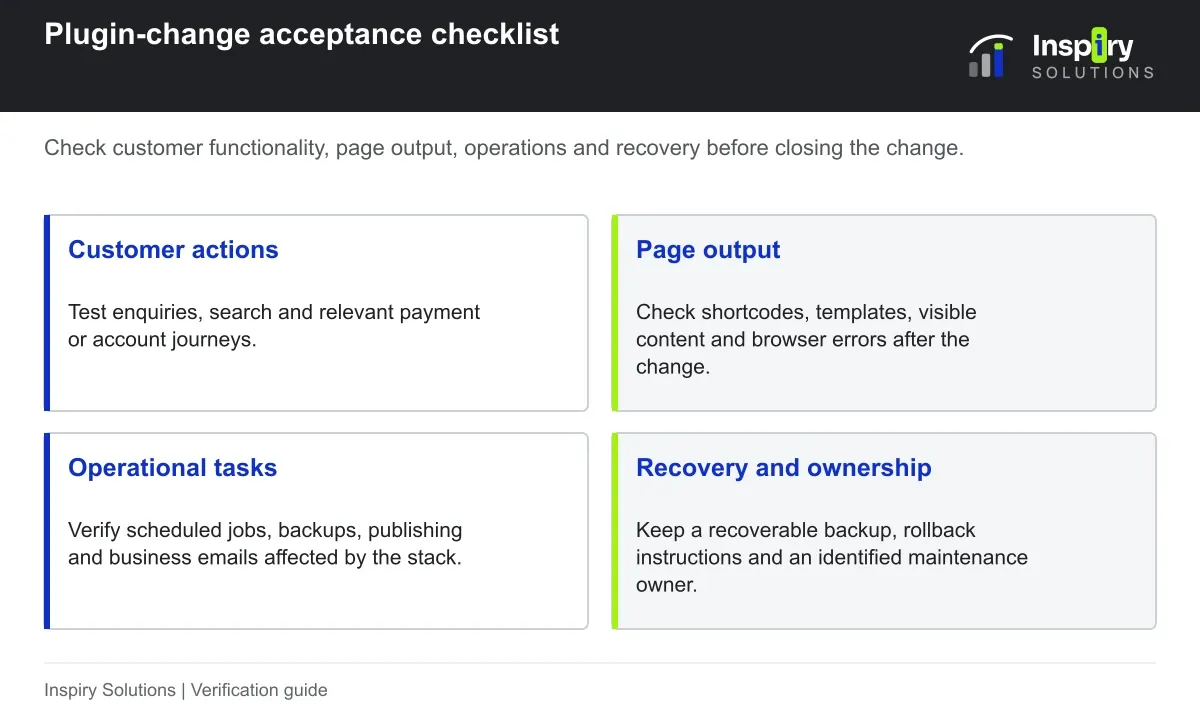
Take a recoverable backup and copy the relevant site configuration to staging. Use safe test integrations for payments and outbound services. When testing WordPress plugins, disable one suspected component or overlapping feature at a time, then repeat the same measurements and journeys.
Inspect pages for missing shortcodes, empty content, changed templates and browser errors. Re-enable the component to confirm whether the symptom returns. Cached responses can hide the effect, so use a documented and consistent cache-testing method.
Once the evidence supports a change, record it and deploy with a rollback plan. A website performance review should include both observed improvements and functional acceptance.
Hypothetical comparison: a small stack can still be expensive
Imagine two business websites. The first has a short plugin list but uses a visual effects extension that loads large libraries everywhere and calls an external service during page generation. The second uses more narrowly scoped plugins, each restricted to the pages or tasks that need them.
The count alone cannot establish which site is faster. Measure equivalent content and journeys. This hypothetical comparison illustrates why implementation matters; it does not claim that a larger plugin stack is generally better.
| Finding | Possible action | Required verification |
|---|---|---|
| Unused gallery module loads globally | Disable its assets or module | Retained galleries still work |
| Two tools send the same event | Consolidate tracking ownership | Events remain complete and singular |
| Essential payment extension adds work | Configure and monitor it | Orders and payments remain correct |
Keep, configure, replace or remove?
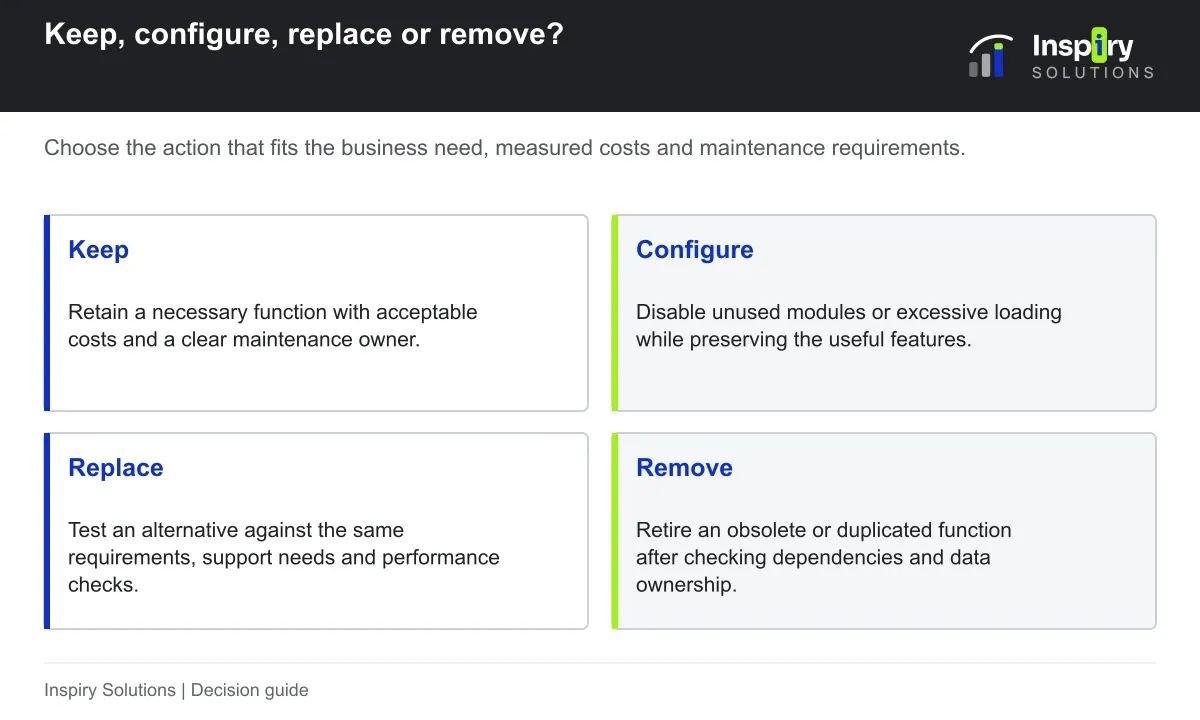
Keep WordPress plugins that perform necessary functions with acceptable costs and a clear maintenance owner. Configure it when unused modules or excessive loading explain the problem. Replace it when a suitable alternative demonstrably meets requirements with a better support or performance fit.
Remove it when the function is no longer needed or a tested replacement already provides it. Deactivation and deletion are different operations; uninstall behaviour may remove data. Export useful records and inspect vendor documentation before deleting an extension that owns business information.
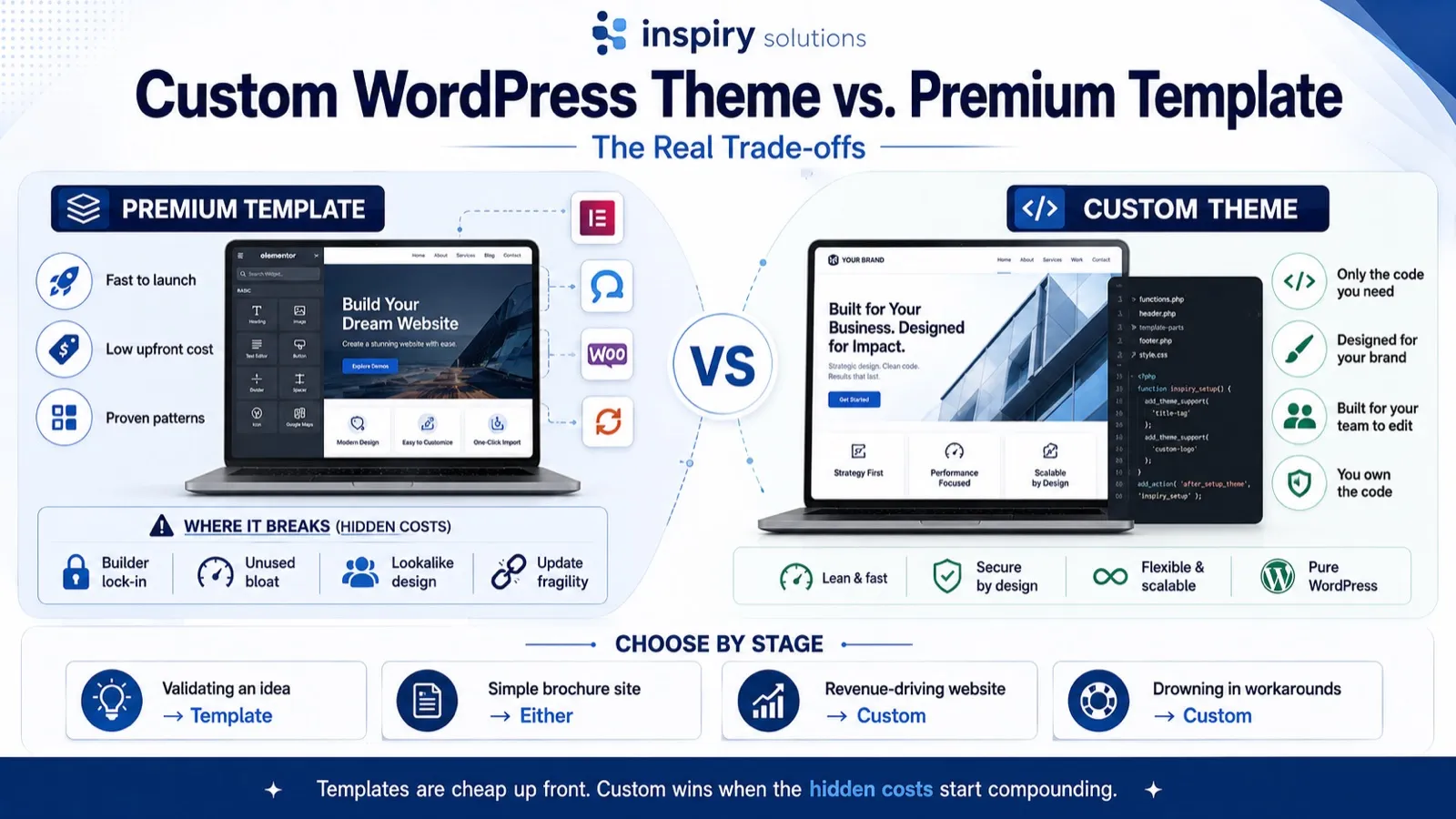
If multiple features belong naturally in a maintained theme or custom component, assess that architecture deliberately. Our custom theme versus template guide helps frame the ownership question without treating custom code as automatically faster.
Set an ongoing plugin policy
Require a purpose, owner and test plan before adding WordPress plugins. Check whether an existing tool can satisfy the need, and review the effect on representative pages before release. Keep a brief inventory with licences and integration credentials managed appropriately.
Revisit the stack after campaigns, redesigns and changes to business processes. Features can become obsolete while their code and subscriptions remain active. Schedule removal as a tested change rather than a rushed housekeeping task.
Agree who performs updates, checks forms and handles recovery. Our agency versus freelancer development guide can help compare the support arrangements behind those responsibilities.
Frequently asked questions
Is there a maximum safe plugin count?
No universal count of WordPress plugins describes every site. Evaluate combined resource cost, useful functionality, compatibility and the team’s ability to maintain the stack.
Do inactive plugins slow every public page?
Ordinary inactive plugins generally do not run their normal page hooks. They still need review for maintenance and stored data, and other managed components may remain active.
Are paid plugins always faster than free ones?
No. The price of WordPress plugins does not establish runtime efficiency or suitability. Test the features and configuration required by your installation.
Should I replace plugins with code snippets?
Only when there is a clear ownership and maintenance benefit. Snippets can still add queries, scripts and security responsibilities, and may be harder to support.
Can I deactivate everything on the live website?
That can interrupt payments, forms and content. Use staging and a controlled test plan, particularly for components tied to customer actions.
Will deleting a plugin remove its data?
It depends on the extension and uninstall settings. Review documentation, back up and export important records before deleting it.
Conclusion: judge plugins by the work they do
WordPress plugins deserve their place when they support a necessary business function at a manageable cost. Use the seven-step audit to measure actual behaviour, remove duplication and establish maintenance ownership. A smaller list can be a useful outcome, but reliable functionality and a faster customer journey are the stronger acceptance criteria.