Elementor website speed can often improve without rebuilding the site. Measure the slowest part of a representative customer journey, then address image loading, unnecessary widgets, shared templates, scripts and caching. Keep the current design where it serves the business, and verify that forms, navigation and dynamic content still work after each change.

Elementor website speed depends on more than the builder, which is one part of a WordPress installation. Hosting, themes, add-ons and marketing integrations also influence the result. Treating every delay as an Elementor problem can send a project towards an expensive redesign while leaving the actual bottleneck untouched.
Measure Elementor website speed before changing settings
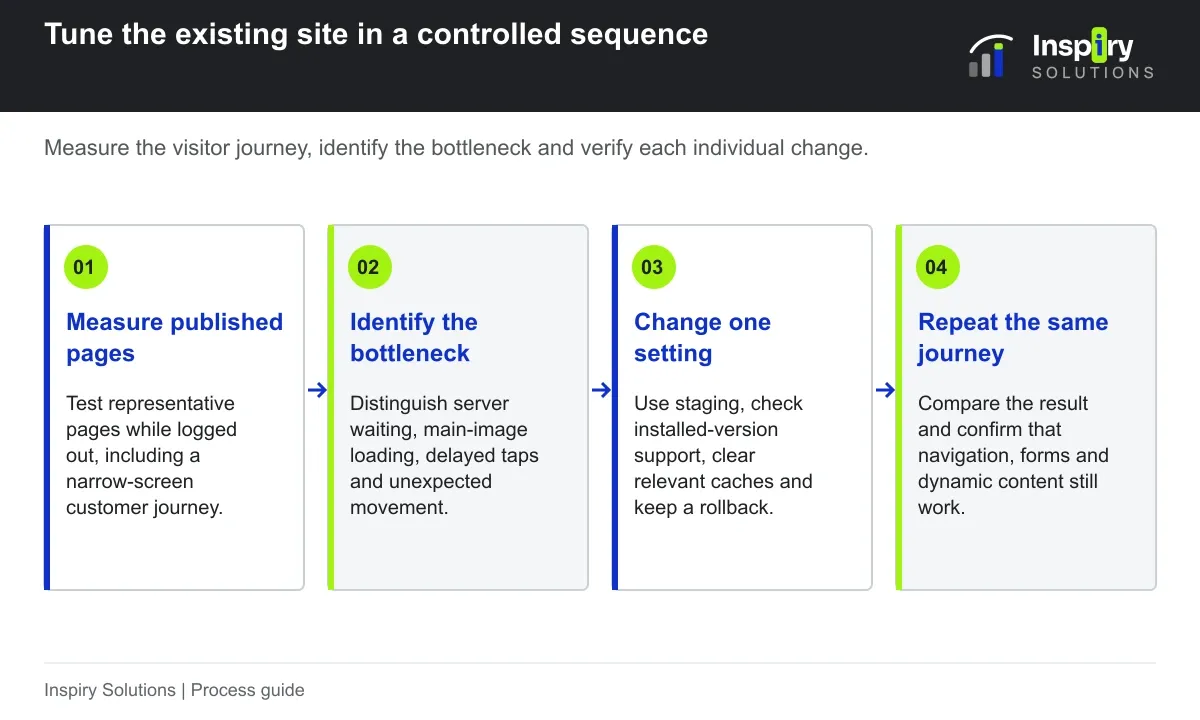
Select pages representing the site: a service template, a landing page, an article and a product or booking page if relevant. Test published pages while logged out. The editor includes administrative functionality and is not a fair substitute for a visitor’s experience.
Record server waiting time, the main visible content, delayed interactions and unexpected movement. Save a browser recording and screenshots so the team can explain the symptom. Our Core Web Vitals business guide connects these measurements with practical customer frustrations.
Run comparable tests more than once. Check a narrow screen as well as desktop, and include the menu, an enquiry submission and any important popup. A page that loads quickly but loses enquiries has failed the release criteria.
When several page types are slow, the 12-cause WordPress speed diagnostic guide helps distinguish builder work from wider hosting and delivery problems.
1. Review supported performance settings
Update on staging with a backup and compatible Elementor, Pro, theme and add-on versions. Use the installed release’s supported features when planning Elementor website speed changes. Older tutorials may show switches that have moved, become standard behaviour or no longer apply.
Elementor’s official performance feature documentation currently describes optimised image loading, background-image lazy loading and inline font icons, among other options. For Elementor website speed improvements, review each feature’s purpose before enabling it. Change one setting, clear relevant caches and verify the pages it affects.
Do not activate every experimental feature simply because its name sounds faster. An experiment may interact with custom styling or third-party widgets. Keep a record of the previous value and a straightforward rollback procedure.
2. Improve Elementor website speed through shared templates
Shared headers, footers and archive layouts can influence Elementor website speed across many pages. Start with these shared components. Remove redundant wrappers, unused promotional sections and repeated decorative elements that increase structure without helping visitors.
Use spacing controls instead of stacking empty spacer widgets wherever practical. Review sections duplicated solely to support mobile and desktop: hiding a section visually does not reliably establish that all of its resources avoid loading. Inspect the output and requests.
Container changes should be selective and tested. Compare a representative template before undertaking a full conversion. Custom CSS may depend on the old structure, so the work needs visual checks at every relevant breakpoint. Our WordPress development service is relevant where template changes extend beyond editor settings.
3. Audit widgets and add-on packs
Create a list of widgets used by the business and identify which extension supplies each one. A large add-on pack may be necessary for one feature, or several packs may duplicate functionality. Check whether unused modules can be disabled within the extension.
Assess add-ons’ effect on Elementor website speed through actual network requests and browser work. Elementor’s Improved Asset Loading documentation describes conditional loading for specified Elementor assets; it does not establish that every external add-on follows the same approach.
For Elementor website speed, replace a complex widget only where a simpler alternative meets the same need. A static testimonial section may suit a short page, while a filterable catalogue may justify more functionality. Document the trade-off so a future editor understands why the choice was made.
4. Fix image delivery and first-screen discovery
Image sizing affects Elementor website speed: choose dimensions for the display role and check which responsive file the browser downloads. Compress photographs while preserving details customers need to inspect. Compare the downloaded image on mobile with the original rather than trusting a plugin’s savings message.
Identify the actual Largest Contentful Paint element. If it is an image, make sure lazy loading or an entrance effect does not delay its appearance. Background images can need a different loading approach from image widgets; test the final published markup.
Reserve image space using a consistent ratio or appropriate dimensions to prevent movement. Use lightweight poster images for optional videos where the design permits. Keep significant products and services visually clear instead of reducing media until it no longer communicates the offer.
5. Review fonts and icons for Elementor website speed
Inventory font families, weights and styles across global settings and individual widgets. Many designs can keep their identity with a more consistent typographic system. Remove weights that no published content uses and check whether multiple components request the same family separately.
Compare fallback and final font layouts. A heading that changes from two lines to three after a font loads can move the form below it. Review text wrapping before and after font changes on narrow screens.
For icons, check the site’s supported inline or library options and remove redundant libraries where possible. Verify menus, social links and controls after the change. Missing icons can make navigation confusing even when the loading report improves.
6. Schedule scripts around the customer journey
List sliders, maps, chat services, analytics and popup integrations. Decide which must work immediately and which belongs only on specific pages. For Elementor website speed, removing an unused integration can offer a simpler maintenance path than complicated rules for postponing execution.
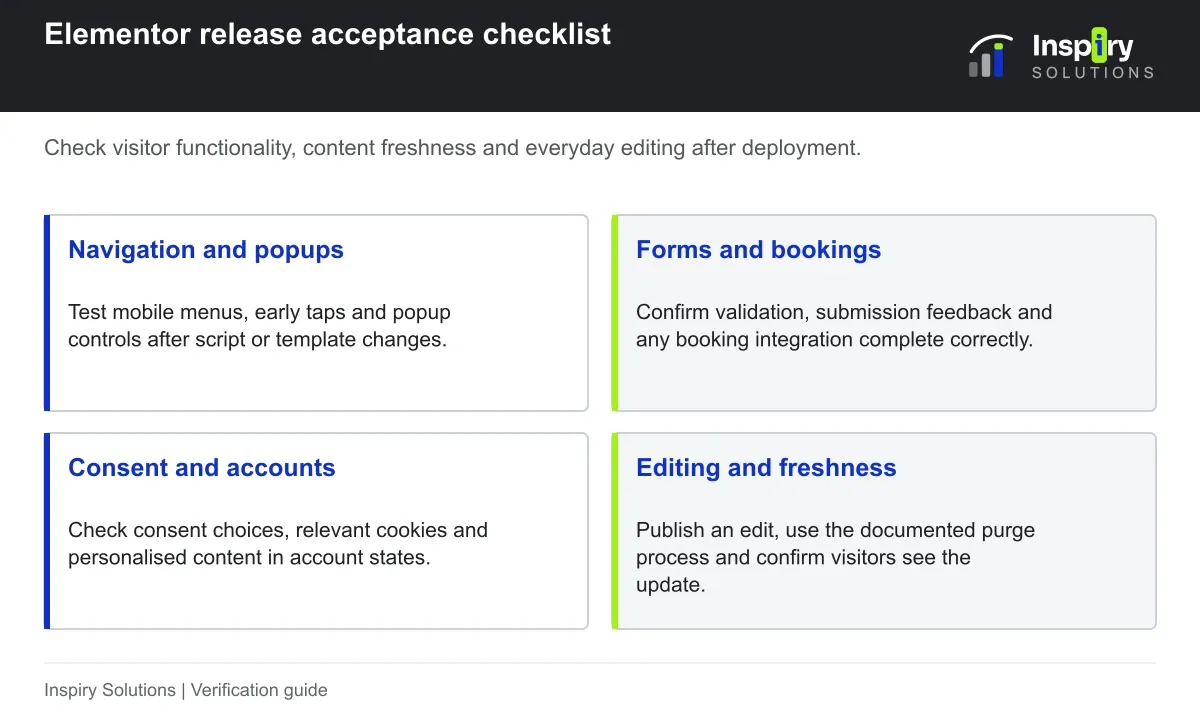
Test any delay setting by interacting early, while the page is still loading. An Elementor website speed fix should not make a menu or booking button use its first tap only to download dependencies. Confirm form validation, spam protection and submission feedback under the same conditions.
Keep optimisation ownership clear. When a host, cache plugin and another extension all rewrite scripts, disable overlap before adding further rules. A website performance review should include these functional effects, alongside loading measurements.
7. Configure caching for the right content
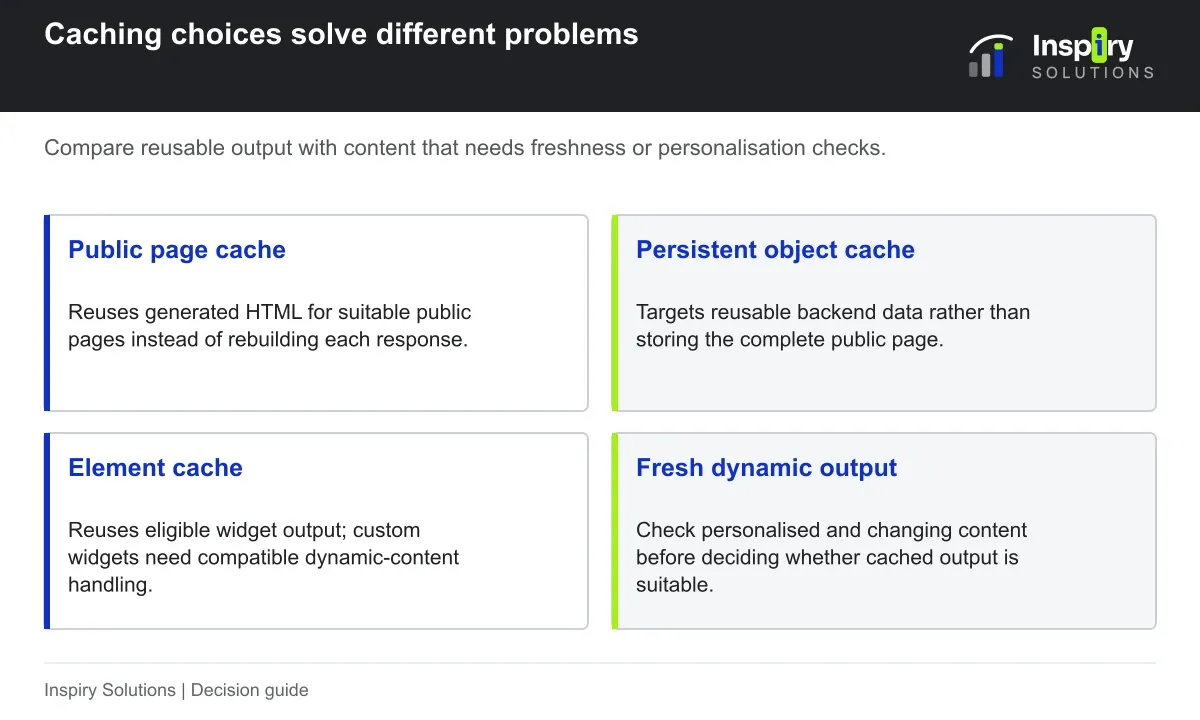
Caching options for Elementor website speed solve different problems: public page caching, persistent object caching and Elementor element caching each have a distinct role. A reusable HTML page reduces repeated page generation; object caching targets reusable backend data; element caching concerns eligible widget output. Establish which layer is enabled and what it actually stores.
Elementor’s widget optimisation documentation explains that developers can identify dynamic output for element caching. Custom widgets need compatible behaviour. Check personalised content, changing offers and query-driven sections rather than assuming that every element should be cached.
Verify published edits appear after the expected cache-clearing process. Test visitors with different cookies and account states. Keep a written purge procedure so editors do not compensate for stale content by repeatedly changing the page.
8. Investigate server constraints and theme overlap
When Elementor website speed is limited by the initial HTML response, investigate uncached generation and hosting before adjusting animations. Compare a cached public page with an uncached request through the host’s supported testing method. Ask for PHP, database and resource evidence.
Review whether the theme adds its own menu systems, sliders or global styles alongside Elementor. A diagnostic theme comparison belongs on staging with representative content. Our custom theme versus template guide helps assess ownership and flexibility when that overlap is structural.
Consider a rebuild when necessary changes repeatedly conflict with the architecture or become difficult to maintain. Use the website redesign without losing SEO guide to plan URL and search protections if replacement becomes justified.
Hypothetical improvement plan for a service website
Imagine an agency managing a consultancy site with a video header, two add-on packs and a popup on every page. The contact page needs the booking integration, but the articles do not. Mobile visitors also wait for an animated hero to become visible.
| Proposed change | Reason | Acceptance check |
|---|---|---|
| Use a static hero image | Make the offer visible promptly | Image quality and main-content timing |
| Restrict booking assets | Remove unrelated page work | Booking still completes on contact page |
| Remove unused add-on modules | Reduce unnecessary dependencies | All retained widgets render correctly |
This is a hypothetical prioritisation exercise, not a claimed client result. Measure each change independently and retain it only when the observed benefit and functional checks support the decision.
Verify Elementor website speed and customer actions
Keep a configuration record and deploy during a manageable support window. Clear generated files and caches using the installed version’s documented tools. Repeat key journeys while logged out and logged in where accounts exist.
Check menus, forms, search, popups, consent choices and mobile layouts. Confirm that another editor can still update the site. Include these checks in an ongoing care plan; our WordPress maintenance guide explains the work behind that budget.
For a broader release review, the WordPress technical SEO audit checklist complements performance testing with search-focused checks.
Frequently asked questions
Is Elementor always slow?
No. Elementor website speed depends on content, templates, extensions, delivery and hosting. Measure the installed site before assigning responsibility to the builder.
Do I need to switch to the Hello theme?
Not automatically. Compare themes on staging to assess Elementor website speed and identify overlap. A production switch can change layouts and functionality and should follow a clear implementation plan.
Will converting every section to containers fix speed?
It may simplify some layouts, but Elementor website speed can also be constrained by hosting, media or scripts. Test representative conversions and verify custom styling before committing to broad changes.
Can element caching show outdated content?
Any caching layer needs appropriate freshness and invalidation. Verify changing and personalised output with the installed version and each widget’s documented support.
How many Elementor add-ons are acceptable?
There is no universal number. Assess their useful features, loaded assets, execution costs and compatibility, then remove unnecessary overlap.
Why is the editor slow when public pages are fast?
The editor performs different work and usually bypasses public caching. Investigate administrative requests, resource limits and extensions separately from visitor loading.
Conclusion: improve the existing site with evidence
Elementor website speed improves most reliably when changes target a measured cause and preserve the customer journey. Start with shared templates and unnecessary work, then review supported loading and caching options. The outcome should be a website that loads, responds and remains straightforward to maintain.