WordPress emails not sending from your contact form usually means something has gone wrong between the form submission, your website’s mail system and the recipient’s inbox. Sometimes WordPress never sends the message. Other times, the message is sent but rejected or filtered by the receiving provider. The solution is to identify where delivery stops before changing settings. Four simple tests can reveal whether the problem involves the form, WordPress, the sending service or your domain’s email authentication records.
This guide is for business owners whose website enquiries are missing or landing in spam. You will learn how to diagnose delivery problems, configure reliable sending and protect future enquiries if notifications fail again.
Why WordPress emails go missing
A WordPress contact form can display a successful submission message without guaranteeing delivery.
By default, WordPress uses wp_mail(), commonly relying on the hosting server’s PHP mail configuration. This method may work but lacks the built-in authentication and delivery controls of a dedicated service.
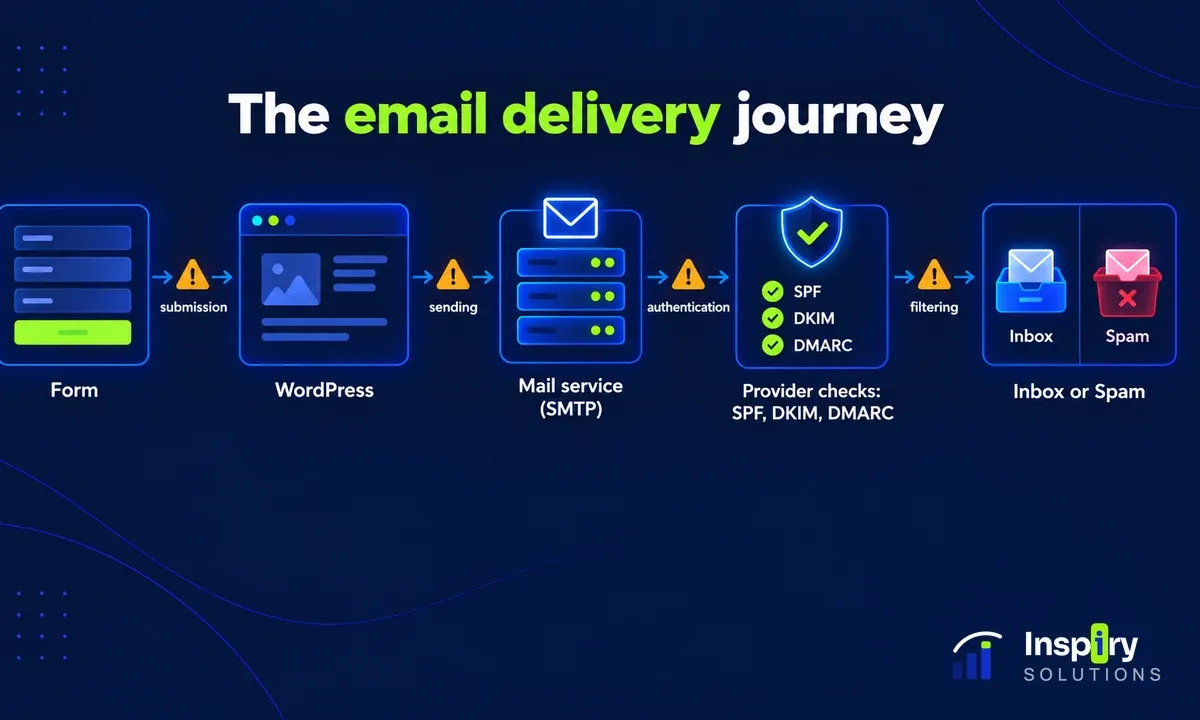
When someone submits a form:
- The plugin processes the submission.
- WordPress prepares a notification.
- The mail system attempts delivery.
- The receiving provider checks the message.
- The provider accepts, filters or rejects it.
Failure at any stage can prevent delivery.
Shared hosting adds complications. Multiple websites may use the same sending infrastructure. If its IP reputation is poor, receiving providers may distrust messages.
Another common mistake is using the visitor’s address as From.
For example, someone submits an enquiry using Gmail. Your website then sends a notification claiming to originate from that Gmail address.
Your website is not authorised to send on Gmail’s behalf, so providers may reject or filter it.
Instead, use an authorised business-domain address as From and the visitor’s address as Reply-To.
Missing notifications do not necessarily mean the form plugin is broken. Incorrect DNS, authentication or mail settings can cause identical symptoms.
Diagnose before installing another plugin.
WordPress emails not sending? Find where they stop
Before changing hosting settings or installing SMTP software, complete these four tests.
Record the submission time, test address and result. These details make troubleshooting easier and help your developer identify the problem.
Step 1: submit a test
Open your website in a private browser window and locate your main contact form.
Enter a recognisable test name, an address you control and a short message. Complete every required field and submit it.
Observe the result.
Does the form display success? Does it remain loading? Does it show a validation or server error?
If submission fails, investigate form configuration, CAPTCHA, JavaScript errors, security restrictions or server problems before focusing on email delivery.
If the form displays success, the frontend received an apparent successful response. It does not prove the message reached your inbox.
Repeat the test on mobile if customers have reported device-specific problems.
Record any errors and avoid unnecessary repeated submissions that could complicate your investigation.
Step 2: check stored entries
Determine whether the submission was saved.
Some WordPress form plugins include entry storage. Others require an extension or additional configuration.
Gravity Forms supports stored submissions, while Contact Form 7 does not store entries by default. Contact Form 7 users can install an appropriate extension, such as Flamingo, for future submissions.
Open your WordPress dashboard and look for the test entry.
If the entry exists, the form probably processed the submission successfully. The next investigation is notification delivery.
If it does not exist, check whether storage is enabled before assuming submission processing failed.
A success message without independent storage is risky because there may be no record of a customer’s enquiry.
Installing entry storage today cannot recover previous submissions that were never saved.
Step 3: check an email log
An email log helps determine whether WordPress attempted to send the notification.
Many WordPress mail plugins provide logging. Some record only the result returned by WordPress or the transport, while others integrate with the provider’s delivery events.
Enable appropriate logging and submit another test.
Check the recipient, sender, timestamp and status.
A recorded failure may indicate incorrect credentials, connection problems or notification configuration.
However, success does not guarantee inbox delivery. It may only mean the sending service accepted the message.
WordPress provides guidance on checking Site Health for configuration issues.
Developers can also use WordPress debugging and error logging to investigate application errors, although debugging does not provide complete delivery tracking.
Step 4: check spam and other inboxes
Send test notifications to addresses hosted by different providers, such as Gmail and Outlook.
Check inboxes, spam folders, junk folders and filtering rules. Business mail administrators may also need to inspect quarantine or message-trace information.
Compare the results:
- Neither provider receives messages: investigate WordPress and the sending service.
- One receives messages but another does not: investigate provider filtering and authentication.
- Messages consistently reach spam: check sender reputation, domain alignment and content.
- All tests arrive: investigate intermittent problems or specific recipient settings.
Testing different providers helps identify where delivery stops.
If you cannot access DNS or mail logs, share your findings with your developer or hosting provider.
For ongoing protection, WordPress maintenance with form checks helps identify failures before they remain unnoticed.
Fix 1: send through a proper mail service (SMTP)
SMTP stands for Simple Mail Transfer Protocol, a standard method for transferring outgoing email between mail systems.
For business websites, authenticated sending is generally more dependable than basic hosting mail.
A dedicated service can authenticate senders, manage messages and provide delivery reports.
Services may offer SMTP credentials or an API connection, another controlled method for submitting messages.
A typical WordPress SMTP setup involves:
- Choose an appropriate mail service.
- Verify your business domain.
- Install a compatible WordPress mail plugin.
- Connect through SMTP or an API.
- Configure an authorised sender.
- Send a WordPress test.
- Verify a real form submission.
For example, example.com might send notifications from website@example.com.
The address must be authorised. Whether it needs a separate mailbox depends on the provider.
An SMTP plugin cannot guarantee delivery. Incorrect credentials, expired authorisation, sending limits and missing DNS records can still cause failures.
For Microsoft 365 or Google Workspace, check supported authentication methods rather than assuming an ordinary password works.
Keep credentials, API keys and tokens out of shared screenshots. Restrict access and remove unnecessary administrator permissions.
Finally, test the actual contact form, not just the plugin’s test button. A real submission also checks notification configuration.
Fix 2: authenticate your domain with SPF, DKIM and DMARC
A properly configured sending service solves only part of the delivery problem. Receiving providers also need evidence that messages legitimately belong to your domain.
Three DNS records help establish that trust.
DNS, or Domain Name System, manages records associated with your domain. These settings are controlled wherever your DNS is hosted, commonly your registrar, hosting company or DNS provider.
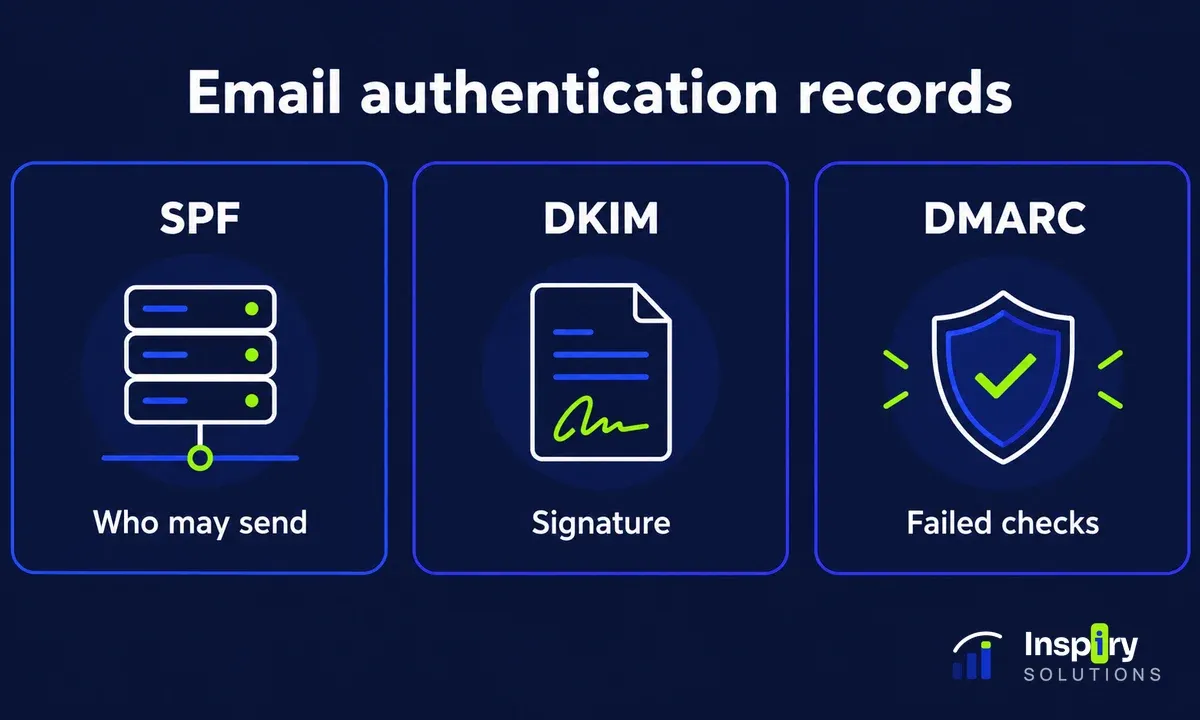
SPF: who is allowed to send
Sender Policy Framework identifies servers permitted to send using your domain’s envelope sender identity.
Your SPF record should authorise legitimate services that require this permission.
Avoid publishing multiple separate SPF TXT records for one domain. When necessary, combine authorised senders into one valid policy.
Follow your mail provider’s instructions rather than copying another website’s configuration.
DKIM: proof that the message is genuine
DomainKeys Identified Mail adds a cryptographic signature to outgoing messages.
Receiving providers verify that signature using a public key published in DNS. This helps confirm that signed content has not been altered during delivery.
Your sending service normally provides the required DKIM records and verification instructions.
DMARC: what happens when checks fail
Domain-based Message Authentication, Reporting and Conformance tells receiving providers how to handle messages failing aligned authentication checks.
A DMARC policy can request monitoring, quarantine or rejection.
Begin with monitoring where appropriate to identify legitimate senders before enforcing stricter restrictions.
DMARC checks alignment between the visible From domain and authenticated identities. Publishing SPF and DKIM records does not automatically guarantee alignment.
Google explains its requirements in its email sender guidelines covering SPF, DKIM and DMARC.
Requirements vary by sender category and volume, but authentication remains essential.
Before editing DNS, identify every authorised sending service. Incorrect records can disrupt invoices, newsletters, staff messages and website notifications.
Afterwards, use provider verification tools and repeat delivery tests. DNS changes may take time to propagate.
Fix 3: correct the form’s From and Reply-To
Even with authenticated SMTP, incorrect notification settings can prevent delivery.
From identifies the sender and should generally use an authorised business-domain address.
Reply-To determines where responses go and can contain the visitor’s address.
Example configuration:
- From:
Website Enquiries - Reply-To:
[visitor-email] - To:
sales@example.com - Subject:
New website enquiry
The placeholder represents the form’s email field. Syntax depends on your plugin.
This arrangement preserves authentication while allowing staff to reply directly.
If troubleshooting Contact Form 7 not sending email, inspect its Mail tab.
Never use the visitor’s address as From simply for convenience.
Check every form, including quotations, bookings and applications. Each may have separate notification settings.
Test internal notifications and customer receipts independently. One may work while another fails.
Finally, verify that recipients are monitored. Delivery to an abandoned mailbox still means a lost enquiry.
Troubleshooting table
Match the symptom with the next investigation.
| Symptom | Likely cause | Fix | Who can do it |
|---|---|---|---|
| Form shows error on submit | Validation, CAPTCHA, plugin or server problem | Check error and form settings | Owner or developer |
| Success message but no entry stored | Storage disabled or processing problem | Check storage configuration and logs | Developer |
| Entry stored but no email | Notification or sending failure | Review mail settings and logs | Developer |
| Email arrives in spam | Authentication, alignment or reputation problem | Check SPF, DKIM, DMARC and sender identity | Developer or DNS administrator |
| Works for Gmail but not Outlook, or the reverse | Provider filtering or rejection | Compare delivery reports | Mail administrator |
| Stopped after hosting move or DNS change | Changed sending IP or mail configuration | Recheck SMTP, SPF, MX and DKIM | Hosting or DNS administrator |
| Notifications go to an old address | Outdated form settings | Update recipients across all forms | Website administrator |
Hosting migrations deserve particular attention.
A new server may use a different sending IP, while existing SPF records still reference the previous configuration.
DNS changes can also affect MX records, which direct incoming messages to your mailbox provider.
For a structured migration process, read our guide to protecting email during DNS changes.
Hypothetical example
A law firm moves its website to new hosting. Two weeks later, staff discover contact form notifications have stopped arriving.
Fortunately, the plugin stored every submission, allowing the team to review enquiries and respond.
The new server was sending unauthenticated messages using visitors’ addresses as From.
The developer connects WordPress to an authorised SMTP service, configures DKIM and corrects the sender address.
Fresh tests confirm delivery to the intended inboxes.
This hypothetical example demonstrates why stored entries and systematic diagnosis matter.
A safety net so no enquiry is lost
Reliable email delivery matters, but depending entirely on notifications creates unnecessary risk.
Your website should retain enquiries independently from the sending system whenever appropriate for the form’s purpose and privacy requirements.
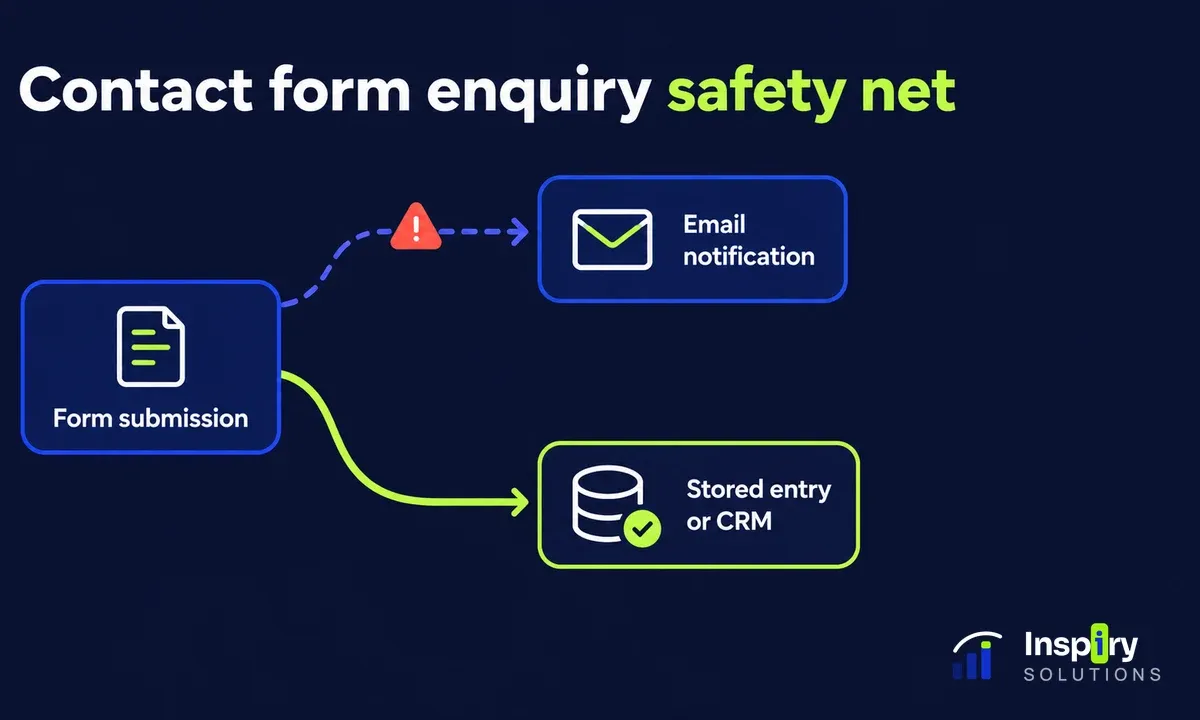
Store submissions independently
Configure your form plugin to save entries in WordPress or transfer them to a suitable customer relationship management system (CRM).
A CRM helps businesses organise contacts and enquiries.
The important principle is that submission storage must not depend on successful email delivery.
Check that entries remain available when notifications fail during a controlled test.
Only authorised staff should access stored personal information. Establish suitable retention rules, backups and deletion procedures.
Database storage protects against notification failures, but the database itself still requires security and backups.
Run a weekly test
Create a recurring check for your most important forms.
Once a week, submit an identifiable test enquiry and verify:
- The form processes successfully.
- The entry appears in WordPress or your CRM.
- The notification reaches the designated mailbox.
Automated monitoring can help, provided it checks meaningful results rather than simply confirming that the webpage loads.
Keep a record of test dates and failures to identify recurring problems.
See what a maintenance plan should test when deciding which checks belong in regular website maintenance.
Add a second recipient
Consider sending enquiry notifications to two monitored business addresses.
This provides additional visibility when one mailbox is unavailable, filtered or no longer monitored.
However, two recipients do not protect against a failure affecting the shared sending service. Stored submissions remain the independent safety net.
A shared mailbox or established team process can reduce duplicate responses.
Review saved entries regularly instead of waiting for someone to report missing notifications.
The objective is to make failures detectable before enquiries remain unanswered.
Common questions
Why is my WordPress contact form not sending emails?
Usually, the server’s default mail configuration lacks appropriate authentication, or the form uses an incorrect From address. Receiving providers may reject or filter these messages. First confirm whether the submission is stored. Then check the email log, sending configuration and recipient mailbox to identify exactly where delivery stops.
Do I need an SMTP plugin?
Most business websites benefit from sending through an authenticated mail service instead of basic hosting mail. An SMTP plugin is one convenient way to connect WordPress to that service. Some providers offer API connections as an alternative. Both methods still require correct sender configuration, domain authentication and successful delivery testing.
Why do my WordPress emails go to spam?
WordPress emails going to spam may indicate missing or misaligned SPF, DKIM or DMARC authentication, an incorrect From address, poor sender reputation or suspicious message content. Review your sending provider’s diagnostics and verify domain alignment. Correct authentication is generally more dependable than repeatedly asking customers or staff to check spam.
Why did emails stop after moving hosts?
Moving hosts may change the server’s sending IP address, mail configuration or DNS records. Messages that previously passed authentication might then fail. Check SPF, DKIM, MX records and the configured sending service after every migration. Repeat actual form submissions even when the website appears to be functioning normally.
How do I recover enquiries that never arrived?
If your form plugin stored submissions, open its entries section in the WordPress dashboard and review the affected period. You can then respond using the saved details. If entries were never stored and no other system retained them, they generally cannot be recovered. Independent storage is essential for protecting future enquiries.
Check your forms today
You do not need technical expertise to discover whether your business is losing enquiries.
Start with a five-minute check.
Open your contact form, submit a test, check the stored entry and confirm the notification arrives.
Repeat using another mailbox provider if possible.
If delivery fails, identify the last working stage. A stored entry without notification requires different troubleshooting from a form that cannot submit.
Once everything works, continue weekly tests and regularly review stored entries.
Today’s success does not guarantee delivery after future hosting, DNS or mail service changes.
Need help checking your website?
If your form emails are unreliable, send us your URL for a free audit and a plain-language reply within two working days. Our WordPress maintenance plans from $99/month include regular form checks so lost enquiries are caught early.
Contact Inspiry Solutions at hello@inspirysolutions.com.