WordPress uptime monitoring should check whether your site is reachable, whether important pages are correct and whether enquiries or transactions actually work. For a business website, five useful checks cover page availability, SSL and domain expiry, response time, forms or checkout, and unexpected security changes. The other half of the setup is deciding who receives each alert, what they investigate first and when they should contact the hosting provider or developer. Without that response plan, even an accurate warning can sit unread while customers encounter problems.
Why ‘the homepage loads’ is not enough
Your homepage might load perfectly while the contact page is broken.
The monitor reports that the website is available.
This is why website uptime monitoring needs to look beyond a successful server response.
Consider some problems that can remain unnoticed:
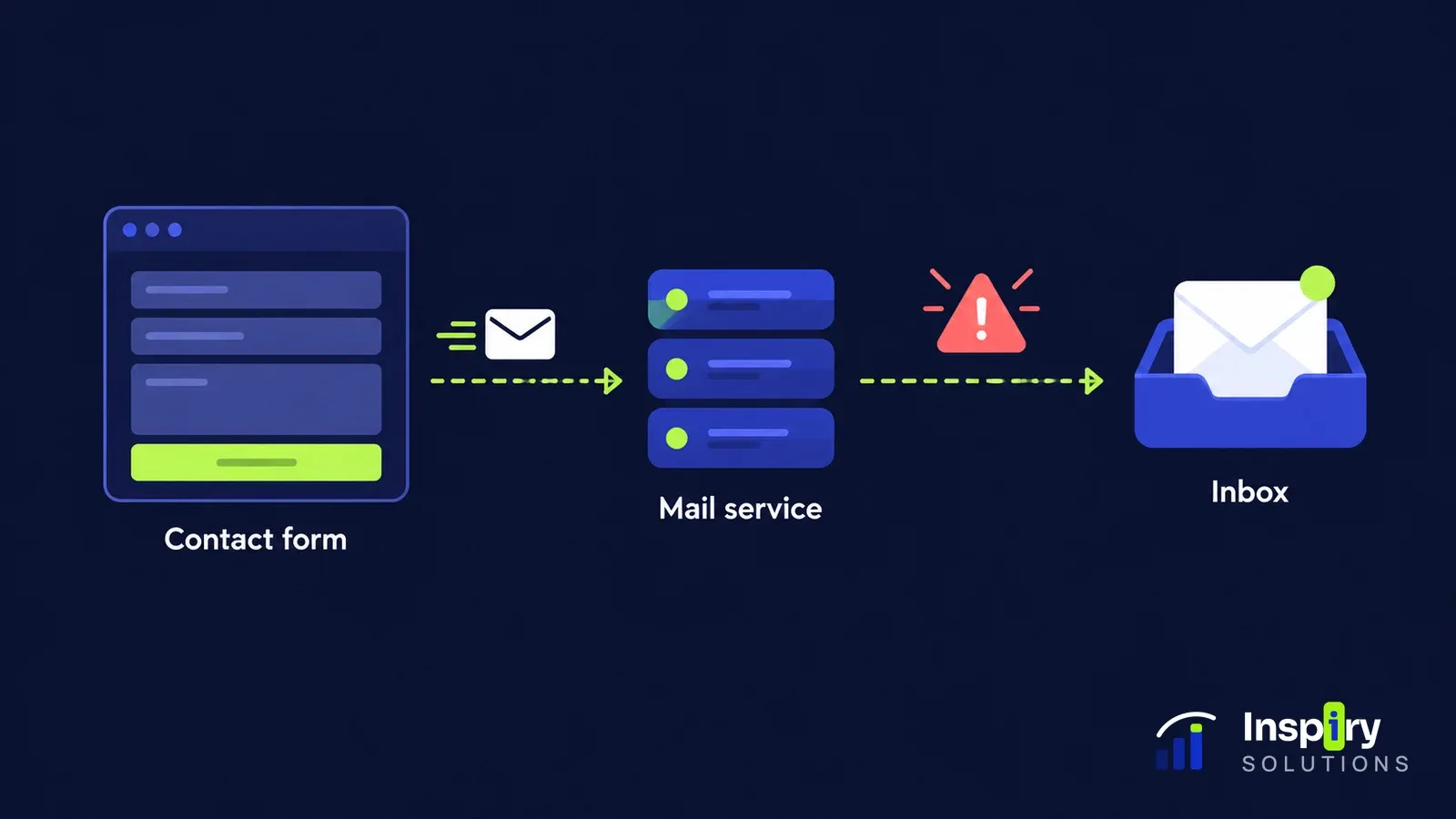
- A contact form stops delivering messages after an email configuration change.
- An SSL certificate expires, triggering a browser security warning.
- A domain registration expires or its DNS settings change unexpectedly.
- A checkout fails after a payment integration update.
- A caching rule displays outdated content or an application error.
- A malicious redirect sends some visitors to an unrelated website.
Not every issue produces an obvious outage.
Email delivery deserves special attention. If enquiries matter, include a separate delivery check and review our guide to forms that stop delivering email.
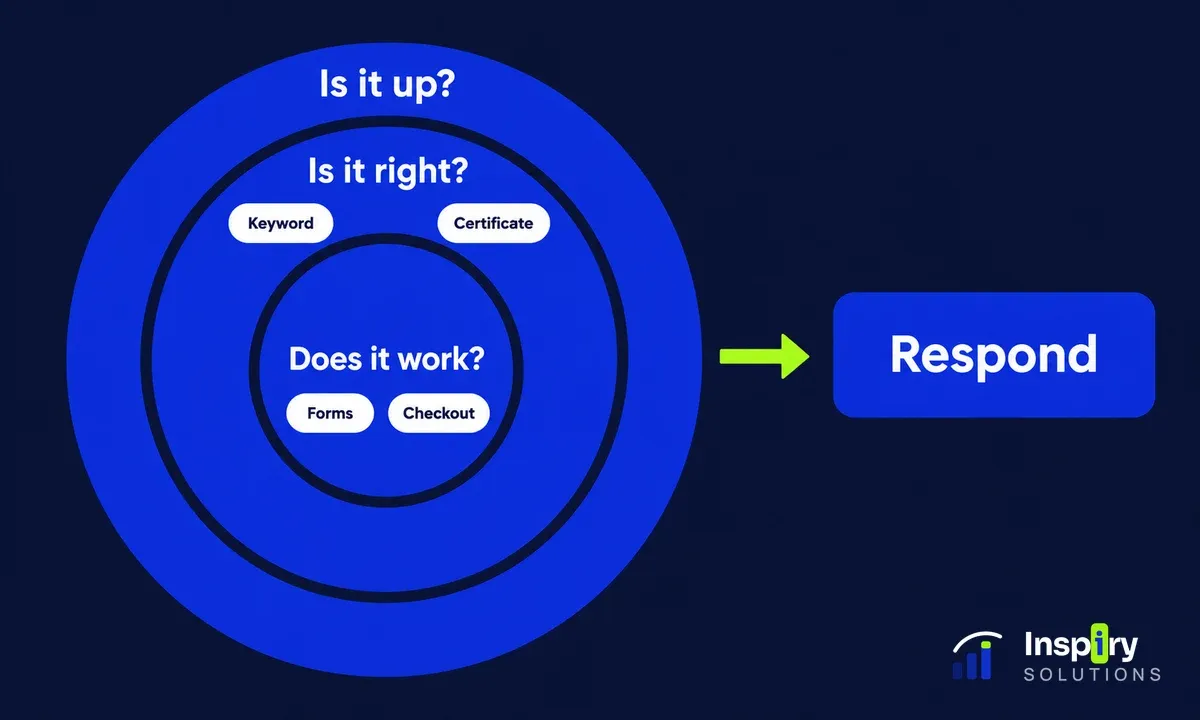
A useful way to think about coverage is through three layers.
Is it up? Checks whether the server responds.
Is it right? Checks whether the expected page content and certificate are present.
Does it work? Checks whether visitors can complete the actions that generate enquiries or sales.
Each layer catches problems the previous layer can miss.
The business impact depends on what breaks.
The objective is not to generate a warning for every small change.
The WordPress uptime monitoring checks worth setting up
A sensible WordPress uptime monitoring setup starts with five checks. These cover the most important failure categories without overwhelming the person responsible for the website.
HTTP uptime with a keyword check
Begin with the homepage and at least one important service or contact page.
An HTTP check requests the URL and records its response status.
For example, a service page might contain the heading “Request a quotation”.
Choose stable text that is unlikely to change during normal editing.
Avoid checking promotional headlines that the marketing team frequently updates.
A keyword monitoring website feature is particularly useful for detecting blank pages, unexpected error messages and missing content.
However, a keyword check cannot establish that every button or script works.
Use it as a second layer rather than a complete functional test.
SSL certificate and domain expiry
Set up ssl expiry monitoring that gives your team enough notice to investigate renewal problems before the certificate expires.
Domain expiry is a separate risk.
Your domain registrar controls the registration, and a normal page availability checker cannot necessarily predict when that registration will expire.
Add an expiry reminder using the registrar’s renewal information, with an independent check where available.
Make sure the business owns the registrar account, renewal notifications reach an active mailbox and payment details remain current.
Response time trend
Time to First Byte, or TTFB, measures how long it takes to receive the first byte of a server response after a request begins.
Google’s guidance on optimising Time to First Byte explains why server response delays matter when diagnosing website performance.
Do not treat a single slow result as proof of a hosting problem.
Look for repeated increases, particularly around busy periods or after website changes.
Our guide to investigating slow server responses explains what to examine before deciding that a hosting upgrade is necessary.
A form or transaction test
On an online shop, it might involve a controlled checkout test using an appropriate test environment or payment method.
A form test should distinguish between successful submission, successful processing and successful email delivery.
Similarly, reaching the checkout page does not prove that a payment can be completed.
Hypothetical example: A plumbing company’s site stays “up” all weekend, but a caching change means the contact form shows an error. A functional test that checks the expected thank-you page could have caught the failure within minutes instead of on Monday morning.
A simple keyword check on a thank-you page can help verify that the expected result appeared, but only when it is part of a test that actually submits the form.
Security change alerts
Availability is not the only reason to watch a WordPress installation. Unexpected administrator accounts, modified website files or unusual changes to important settings may indicate an operational mistake or a security problem.
Configure alerts for new administrator users and significant file changes. Not every modification is suspicious: WordPress updates, plugin updates and authorised development work can legitimately change files.
The person receiving these notifications needs enough context to distinguish planned activity from unexplained activity.
The official WordPress monitoring guidance recommends a combination of internal and external uptime monitoring, plus regular tracking of performance metrics such as page load time.
Change detection should sit alongside access controls, backups, updates and security hardening. It does not replace them.
If nobody has responsibility for reviewing unusual activity, collecting more security notifications achieves very little.
These five checks are easier to maintain when someone also owns the technical response. Our maintenance with monitoring and priority support provides an option for businesses that need ongoing oversight rather than a collection of unattended notifications.
How often to check and how to avoid false alarms
The right interval depends on business impact.
A website that accepts enquiries throughout the day might use checks every few minutes.
Certificate and domain expiry require a different schedule because those dates normally change much less frequently.
Start by matching the check interval to the consequences of the failure.
A sensible starting approach is:
- Check essential page availability every few minutes.
- Run functional form or checkout tests at intervals appropriate to business activity.
- Review response time trends throughout the day.
- Check certificate and domain expiry daily, with advance reminders.
- Send important unexplained security changes promptly.
These are starting points, not universal rules.
A short network interruption can cause a checker to report that a site is unavailable even when most visitors have no problem.
To reduce false alarms, configure the tool to confirm a suspected outage from a second location before sending an urgent warning.
Repeated failures from separate locations provide stronger evidence than one failed request.
Maintenance windows also matter.
If your developer is performing an approved deployment, it may be reasonable to suppress routine outage warnings temporarily while retaining records of what happened.
Do not disable every warning indefinitely.
Finally, separate urgent problems from informational ones.
A failed checkout deserves faster attention than a small response time fluctuation.
If every notification has the same urgency, the important ones become easier to ignore.
Who gets the alert and what they do first
An alert is useful only when it reaches somebody with the ability and authority to respond.
Sending every warning to a general company inbox is a weak arrangement if nobody regularly checks that mailbox.
The responsible person should know how to access the website, hosting account, registrar and relevant technical contacts.
They do not need to fix every issue personally.
For an urgent website down alert, the first five minutes should focus on confirmation and diagnosis rather than hurried changes.
- Open the affected page from another device or network.
- Check whether the problem affects one page or the entire website.
- Review the hosting provider’s status page.
- Check whether updates, deployments or configuration changes happened recently.
- Record the error, affected URL and time before escalating.
If WordPress administration remains accessible, the built-in Site Health screen under Tools can provide useful configuration and diagnostic information.
It is not a substitute for an external checker because you cannot rely on the dashboard being available during a major outage.
A simple escalation path
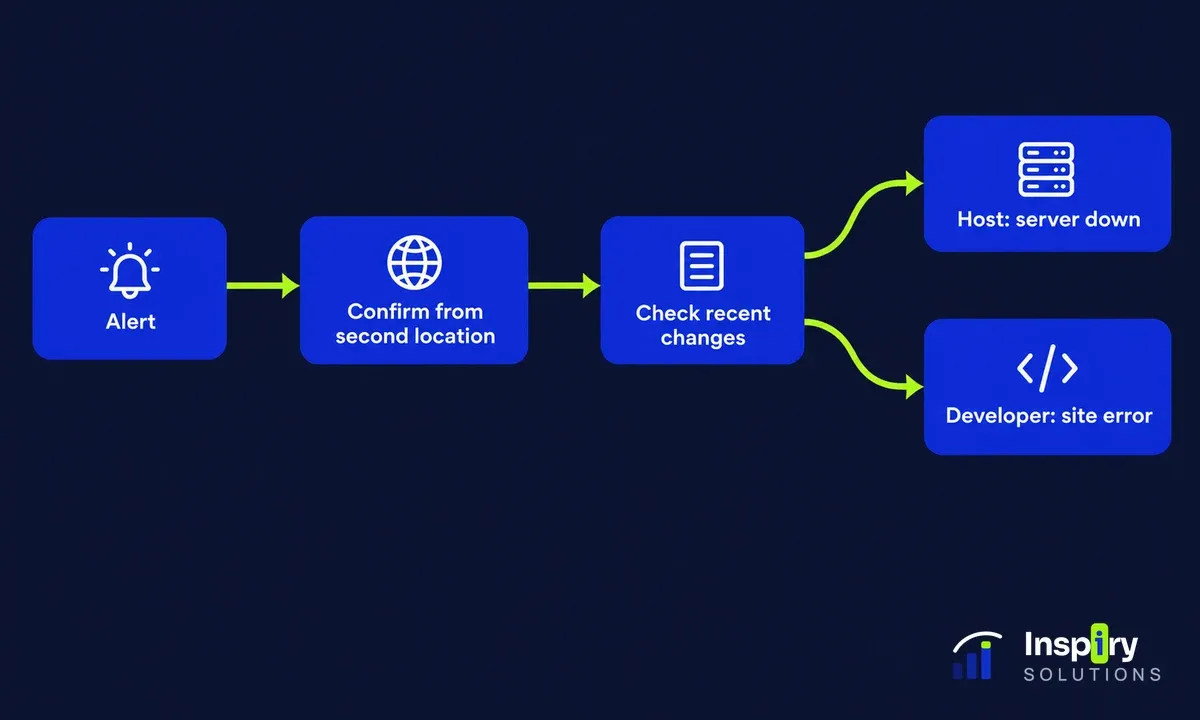
After confirming the problem, decide whether it appears to involve the hosting environment or the website application.
Contact the hosting provider when:
- The server is unreachable across the website.
- The hosting dashboard reports an infrastructure incident.
- Several websites on the same hosting environment fail.
- Server resource limits or service availability appear to be involved.
Contact the developer when:
- Only a particular page, form or checkout is broken.
- A recent plugin or theme change may have caused the failure.
- The website loads but displays application errors.
- WordPress functionality behaves incorrectly despite the server responding.
These categories can overlap.
Do not repeatedly change plugins, restore backups or clear caches without understanding the possible consequences.
If the symptoms suggest unauthorised changes, follow appropriate steps after a suspected hack before making changes that could remove useful evidence.
Write the escalation instructions in a shared location outside WordPress, so they remain accessible when the website is unavailable.
Include account access procedures, contact details, backup ownership, expected response arrangements and who can approve emergency changes.
Monitoring plan table
The following plan provides a practical starting point for a typical business website.
| What to monitor | How | Suggested frequency | Alert goes to | First response |
|---|---|---|---|---|
| Homepage uptime with keyword | HTTP status and expected text | Every few minutes | Website owner or support contact | Confirm externally and check hosting status |
| Contact page and form | Functional submission and success check | Regularly during business activity | Marketing lead and developer | Reproduce failure and check form configuration |
| SSL certificate expiry | Certificate validity and expiry check | Daily with advance warnings | Technical owner | Check renewal and certificate configuration |
| Domain expiry | Registrar renewal and expiry reminder | Daily check or renewal reminders | Business account owner | Verify registration and renewal settings |
| Response time | Record and compare response trends | Every few minutes, review weekly | Technical support | Identify affected pages and recent changes |
| New admin user or file change | Activity logging and change detection | Promptly after relevant changes | Security or technical owner | Verify whether change was authorised |
| Checkout or booking (if present) | Controlled transaction or booking test | Based on business-critical usage | Operations lead and developer | Reproduce journey and inspect integration errors |
The intervals are recommendations, not guaranteed detection times.
A test can miss a problem that occurs between checks.
Keep the plan small enough to operate reliably.
A named primary contact and backup contact are more valuable than a complicated notification system that nobody understands.
Choosing a monitoring tool
Choose a tool based on the failures you need to detect, not the length of its feature list.
Start with the basic requirements.
Can it test several URLs independently?
These capabilities help separate a genuinely broken website from a temporary network problem.
Next, examine alert delivery.
Email may be adequate for routine reports but less suitable for urgent problems outside working hours.
SMS, mobile notifications or a team chat integration may be more appropriate for critical failures, provided someone is responsible for checking them.
Consider the following before selecting a service:
- Check locations and minimum intervals.
- Keyword checks and configurable failure conditions.
- SSL certificate and domain expiry reminders.
- Email, SMS or team chat notifications.
- Incident history and response time reporting.
- Maintenance windows and alert confirmation.
- Public or private status pages, if relevant.
- Support for functional tests and integrations.
Free plans can be suitable for basic website checks.
Do not assume a paid service includes every type of test.
Some tools focus only on HTTP availability.
Ownership is just as important as features.
The monitoring account should belong to the business, using an address and recovery method the business controls.
A previous contractor should not be the only person able to change the notification recipient or access historical incidents.
Give your developer appropriate access without surrendering ownership of the account.
Test the notification channels after setup.
Use the history, not just the alerts
The best monitoring records reveal patterns that are difficult to recognise from isolated complaints.
Review incidents at least once a month.
Look at how often the website became unavailable, which pages were affected, how long incidents lasted and whether similar failures happened repeatedly.
Compare this with response time records.
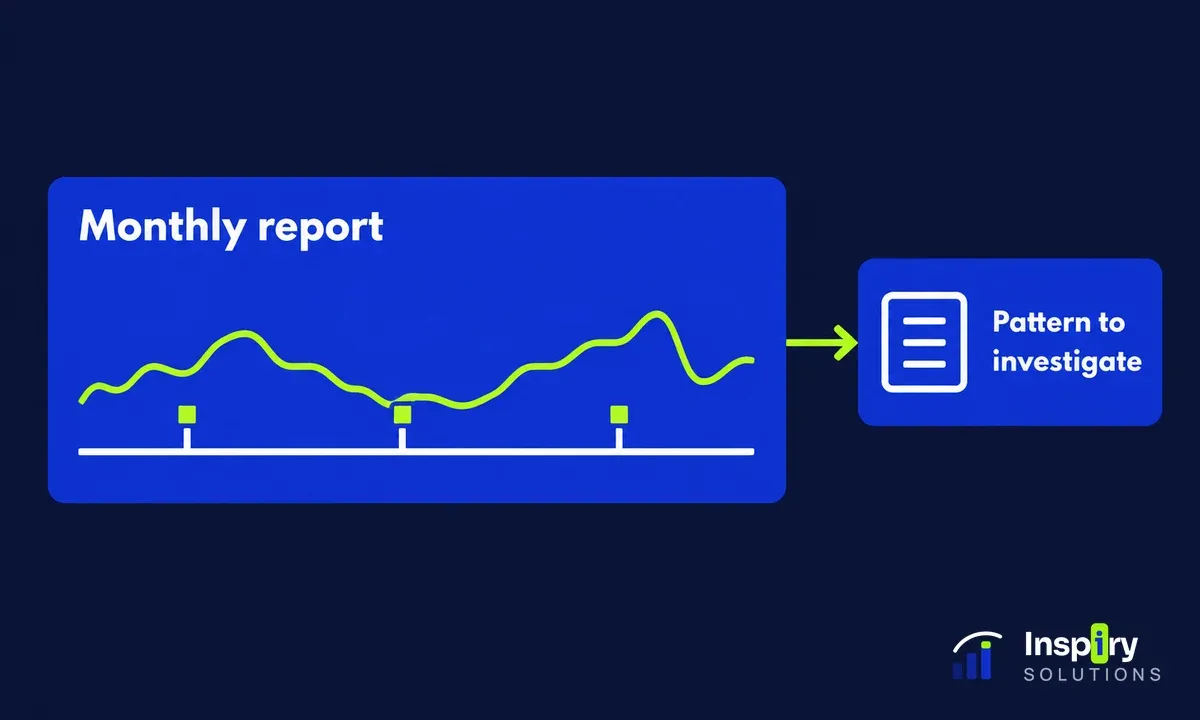
For example, you might notice that slow periods tend to appear around scheduled background tasks, large imports or busy shopping periods.
That pattern suggests where to investigate.
Record recent changes and compare their timing against performance problems.
If response times become worse after installing a plugin, investigate its behaviour before assuming that the server needs more resources.
Likewise, repeated errors during heavy traffic may justify reviewing server capacity, application queries and caching configuration.
A useful monthly report should answer four questions:
- What failed or became unusually slow?
- When did it happen, and how long did it continue?
- What action was taken, and did it solve the problem?
- What should change to prevent a repeat incident?
This makes hosting conversations more productive.
Instead of telling the provider that the website occasionally feels slow, share the affected URLs, incident times and response measurements.
If the evidence points towards server limitations, read our guide to choosing hosting that fits the site.
After changing hosts, continue watching a site after a hosting move to catch configuration, certificate and functionality problems that may not appear immediately.
Keep the monthly report straightforward.
A simple response time chart with outage markers, a brief incident summary and one action for the following month is often sufficient.
The aim is to make better maintenance decisions, not produce a large report nobody reads.
Common questions
How often should uptime be checked?
Every few minutes is common for business sites, particularly when enquiries or purchases depend on the website being available. More critical pages may justify shorter intervals. Pair frequent checks with confirmation from a second location to avoid false alarms. The right frequency depends on business impact, operating hours and who can respond when a warning arrives.
Does my host monitor my website?
Hosting providers generally watch their infrastructure and server services, but that does not mean they verify that your pages, forms and checkout work correctly. Independent monitoring can detect problems the host will not see, including missing content or broken visitor journeys. Ask your provider exactly what it checks instead of assuming every website function is covered.
What should I do when I get a downtime alert?
Confirm the issue from another device or network, then check the hosting provider’s status page and any recent website changes. Record the affected URL and error message. Escalate to the host for server issues and to the developer for site errors. After the fix, repeat the original check to confirm the website works again.
Can monitoring detect a hacked site?
Keyword checks and file or user change alerts can catch some hacks early, especially unexpected redirects, altered content or unfamiliar administrator accounts. However, many compromises do not produce obvious changes. Monitoring is not a replacement for security updates, backups, restricted access and security hardening. Treat an unexplained change as a reason to investigate, not automatic proof of a hack.
Set up monitoring this week
You do not need to implement every possible check immediately.
Start with three monitors today.
First, create an HTTP and keyword check for the homepage. Use stable expected text and confirm that the tool reports a failure when the content is unavailable.
Second, create a check for the main contact or enquiry journey. Where possible, make this a functional test that submits a controlled enquiry and verifies the result rather than simply opening the contact page.
Third, configure SSL certificate expiry warnings. Then add a separate domain renewal reminder and verify who controls both accounts.
Once those are working, introduce response time tracking and security change notifications.
Decide who owns the alerts before declaring the setup complete.
Test a notification, document the escalation route and ask the responsible person to explain what they would do if the website failed outside normal working hours.
If they cannot answer confidently, the process needs more work.
Effective website monitoring is not simply about collecting green status indicators.
That responsibility belongs within an ongoing maintenance process. Our guide to what monitoring adds to a maintenance plan explains how ongoing checks fit alongside updates, backups and technical support.
Our $199/month WordPress maintenance plan includes performance monitoring and priority support, so alerts reach someone who can act. Or send your URL for a free audit and a reply within two working days.