A wordpress security checklist helps small businesses reduce website risks by protecting administrator accounts, keeping software updated, checking hosting settings, maintaining recoverable backups and monitoring suspicious changes. The practical approach is to divide responsibilities between the business owner, developer and hosting provider. Establish essential protections once, review them monthly and perform additional checks whenever something changes. No checklist guarantees that a website cannot be hacked, but consistent maintenance makes common weaknesses easier to identify and address before they cause serious problems.
This guide is for business owners and marketing managers who want to understand what needs protecting without becoming WordPress security experts. You will get a practical checklist with clear responsibilities, verification methods and routines your team can maintain.
What a WordPress security checklist can and cannot do
Website security is about reducing risk, not eliminating it. Even a well-maintained WordPress website can encounter an undiscovered vulnerability, compromised third-party service or stolen administrator credentials.
A useful WordPress security checklist focuses on prevention, early detection and recovery. It identifies weaknesses before incidents and establishes what should happen when something goes wrong.
Common risks for small businesses include:
- Weak or shared passwords: Shared accounts make unauthorised access harder to identify.
- Outdated software: Unpatched plugins, themes or WordPress components may contain known vulnerabilities.
- Poor hosting isolation: Compromised accounts may expose other websites sharing the environment.
- Missing recovery options: Without working backups, restoration becomes harder.
- Unmanaged access: Former employees and agencies may retain unnecessary privileges.
The UK National Cyber Security Centre’s small business guidance covers important practices, including passwords, updates and backups.
The challenge is usually assigning responsibility rather than understanding that protection matters.
The owner manages access and business decisions. The developer handles application updates and configuration. The hosting provider maintains server infrastructure.
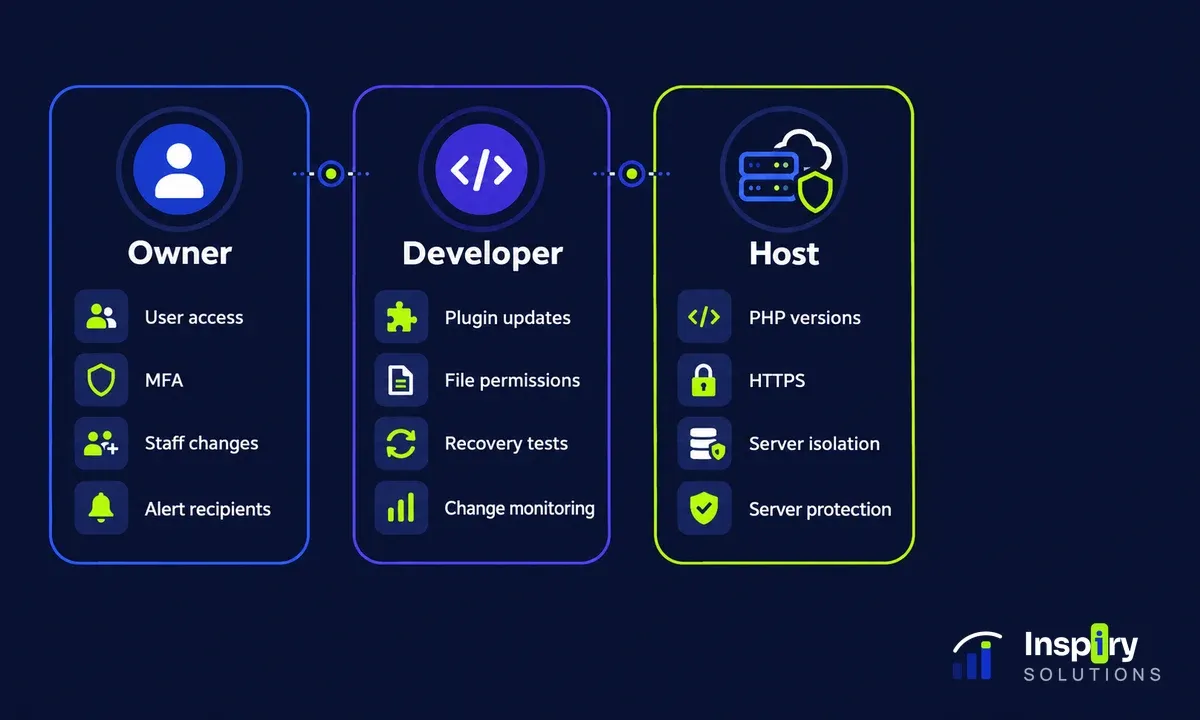
Responsibilities sometimes overlap, particularly with managed hosting. What matters is that every task has an accountable person.
For businesses without an internal developer, managed WordPress maintenance plans can handle recurring technical work. Owners must still control account ownership and approve access.
Treat this checklist as an operational document. Tick completed items, assign responsibility and record verification dates. Anything without an owner remains an unresolved risk.
Access: logins, roles and people
Access control should come before installing additional security tools. Strong server configurations cannot fully protect a website when someone signs in using stolen administrator credentials.
Start by reviewing WordPress users in the administration dashboard.
Give everyone a unique account.
Shared administrator accounts make it difficult to identify who changed settings, installed plugins or edited content. Each employee and contractor needs an individual login.
Use strong, unique passwords stored in a reputable password manager. Never reuse credentials between WordPress, hosting accounts and important email services.
Enable multi-factor authentication for administrators.
Multi-factor authentication (MFA) requires additional verification beyond a password, reducing reliance on credentials alone.
WordPress provides guidance on multi-factor authentication and implementation approaches.
Protect hosting dashboards, domain registrars and business email accounts with MFA as well. An exposed hosting account can undermine WordPress protections.
Apply least privilege.
WordPress user roles provide different permissions. Editors can manage content without administrator access, while Authors generally manage their own posts.
Only people who genuinely need to configure plugins, manage users or change website settings should receive Administrator privileges.
Remove unnecessary accounts immediately.
When employees leave or agency contracts end, revoke their access the same day. Reassign their content where necessary.
Review users monthly, including former contractors and temporary developers. A secure login arrangement becomes weaker when forgotten accounts accumulate.
Software: core, plugins and themes
WordPress consists of core software, themes and plugins. Every installed component contains code that needs maintenance.
The OWASP Top 10 recognises vulnerable and outdated components as an application security risk.
Your WordPress hardening checklist should therefore cover software inventory, trustworthy sources and timely updates.
Choose maintained software.
Install plugins and themes from reputable developers. Review compatibility information, update history and support activity before adding anything.
Avoid nulled premium plugins. These unauthorised copies may have been modified and should not be trusted.
For custom functionality, consider these security questions for bespoke plugins before commissioning or installing extensions.
Remove unnecessary components.
Deactivated plugins still leave files on the server. Delete unused plugins and themes after confirming they are unnecessary.
Keep an appropriate fallback theme if required, but avoid maintaining multiple unused alternatives.
If your website has accumulated extensions, read how to judge your plugin stack to identify unnecessary complexity.
Update promptly and test properly.
A monthly review is not always frequent enough for important security fixes. Critical vulnerabilities may require much faster action.
Before significant updates, confirm that a recent backup exists and recovery is possible.
Test major changes on a staging website when practical. Staging is a separate environment used to check updates before applying them to the live website.
After updating, verify forms, navigation, checkout functionality and other essential features.
A successful update notification does not prove everything still works. Functional testing completes the update process.
Hosting and server settings
WordPress security best practices extend beyond the dashboard. Hosting configuration affects file execution, encrypted connections and the consequences of account compromise.
Your developer and hosting provider should establish who controls each setting.
Use a supported PHP version.
PHP is the programming language that runs WordPress. Unsupported versions stop receiving normal security maintenance.
Check your PHP version through WordPress Site Health or hosting settings. Upgrade to a supported, compatible version after testing.
Use HTTPS throughout the website.
HTTPS encrypts information transmitted between visitors and your website.
Confirm that your SSL/TLS certificate is valid, renews correctly and covers the appropriate domains.
Check that HTTP redirects to HTTPS and important pages do not load insecure resources.
Check hosting isolation.
If several websites share a hosting plan, ask whether each operates in an appropriately isolated account.
Separate accounts and permissions can limit damage from a compromised website. Different installation directories alone do not guarantee isolation.
Restrict file access.
File permissions determine which processes can access or modify files. Avoid unnecessarily permissive settings.
Your developer should review permissions and ownership according to the hosting environment.
The built-in WordPress file editor can be disabled using this setting in wp-config.php:
define( 'DISALLOW_FILE_EDIT', true );This blocks plugin and theme editing through the administration interface, but does not prevent every method of changing server files.
The official WordPress hardening documentation explains file permissions, editor restrictions and related settings.
Questions to ask your host
You do not need to understand every server setting to hold your provider accountable.
Ask:
- Is my website running a supported PHP version?
- Are websites and hosting accounts appropriately isolated?
- Who installs server-level updates and security patches?
- What protection exists against suspicious requests?
- Where are server backups stored?
- Who investigates hosting-related incidents?
Request specific answers rather than accepting general assurances. Document responsibilities so important tasks are not overlooked.
Backups and recovery
Backups provide recovery options when updates fail, files become damaged or an infection requires restoration. They do not prevent attacks.
A useful backup strategy answers three questions: where are copies stored, how far back can you recover and has restoration been tested?
Keep off-server copies.
Backups stored only on the live hosting account may become unavailable during account compromise or server failure.
Use an independent destination with restricted access.
Maintain enough historical restore points to recover from problems discovered late. An infection may remain unnoticed until recent backups already contain compromised files.
Test restoration.
A successful backup notification does not guarantee that the website can be restored.
Periodically restore a copy in an isolated environment. Confirm pages, database content, uploaded files and important functionality work correctly.
Record the test date and outcome.
Assign recovery responsibility.
Identify who can initiate restoration, retrieve backup files and verify the recovered website.
Agree on acceptable recovery time and data loss. An actively updated online shop normally requires different backup frequency from a rarely changed brochure website.
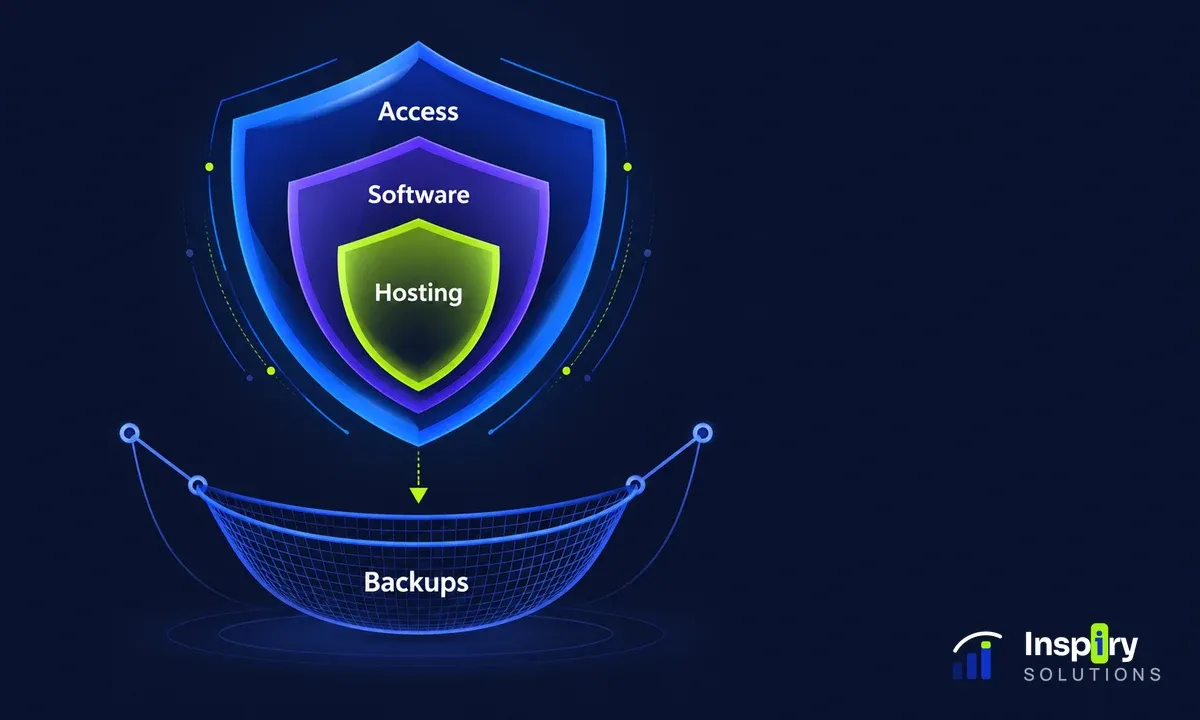
Store recovery instructions securely. Emergency restoration should not depend entirely on one unavailable contractor.
Monitoring: knowing when something changes
Preventative controls reduce exposure, while monitoring helps identify unusual activity when something goes wrong.
Small business website security monitoring should produce useful alerts without overwhelming the recipient.
Prioritise three areas.
Uptime alerts: External monitoring identifies unexpected website downtime so someone can investigate.
File and account changes: Alerts can identify unexpected file modifications, new administrator accounts or unusual configuration changes. Not every change is malicious, but unexplained activity deserves investigation.
Search Console notifications: Ensure Google Search Console security issue emails reach somebody who regularly checks them.
Login protection is also important.
Automated password attempts can consume resources and potentially expose weak credentials.
Use appropriate login attempt limits or equivalent protective measures alongside MFA.
The official WordPress brute force guidance explains methods for reducing automated login attacks.
Every alert needs a named recipient. Establish which events require immediate action and which can wait for routine review.
Monitoring without someone responsible for investigating notifications provides limited protection.
The checklist by owner and frequency
This table turns general WordPress security tips into practical, verifiable tasks.
The named person remains accountable even when another provider performs the technical work.
| Check | Who owns it (Owner / Developer / Host) | Frequency | How to verify |
|---|---|---|---|
| MFA on admins | Owner / Developer | Once, monthly | Sign in and confirm additional verification is required |
| Unique logins | Owner | Once, monthly | Compare accounts with current employees and contractors |
| Leaver removal | Owner | After changes | Confirm former staff and agencies have no access |
| Plugin and theme updates | Developer | Monthly, after changes | Review updates and completed testing |
| Remove unused plugins and themes | Developer | Monthly | Inspect installed components and remove unused files |
| Supported PHP version | Host / Developer | Monthly | Check hosting settings and support status |
| HTTPS and certificate | Host | Monthly, after changes | Check certificate validity and HTTPS redirects |
| File editor disabled | Developer | Once, after changes | Confirm configuration setting is active |
| Off-server backups | Developer / Host | Once, monthly | Verify independent backup copies and retention |
| Tested restore | Developer | Monthly | Review the latest restoration test record |
| Uptime and change alerts | Developer | Once, monthly | Check alert delivery and recipients |
| Search Console alerts routed | Owner | Once, monthly | Confirm monitored email addresses and authorised users |
This is a baseline rather than a universal specification. Membership platforms, online shops and business-critical websites may require additional controls and more frequent reviews.
Hypothetical example: An accountancy firm completes the checklist and discovers three employees sharing one administrator login, a former agency account still active and backups stored only on the same server.
The firm creates individual accounts, enables MFA, removes the former agency account and arranges off-server backups.
None of these improvements requires purchasing additional software. The main problems concern access and recovery arrangements.
That is why clear responsibility matters more than counting installed security tools.
When an owner field is unclear, contact the relevant provider. Assign the task, set a deadline and specify what evidence will confirm completion.
A checklist only becomes valuable when it changes how people manage the website.
Turn the checklist into a routine
Completing a WordPress hardening checklist once is not enough. Risks change when staff, software and hosting arrangements change.
Organise maintenance around three practical routines.
Once: the set-up tasks
Establish essential protections before depending on recurring maintenance.
Inventory administrator accounts, plugins, themes, hosting services and backup destinations.
Remove unnecessary accounts and software. Enable MFA for administrators and protect hosting and domain accounts.
Ask your developer to check PHP compatibility, file permissions, HTTPS and WordPress file editing restrictions.
Confirm monitoring is configured and notifications reach appropriate recipients.
Finally, establish independent backups and complete an initial restoration test.
Record responsibility, completion dates and verification evidence.
This gives you a baseline for future reviews and makes incomplete tasks visible.
Monthly: a 20-minute review
A business owner can complete a short oversight review without personally installing updates or changing server settings.
Follow this schedule:
- Minutes 0-5: Review administrator accounts, unfamiliar users and access held by previous contractors.
- Minutes 5-10: Check WordPress, plugin, theme and PHP update status. Confirm urgent fixes are being handled promptly.
- Minutes 10-15: Check recent backups and the latest restoration test. Confirm recovery evidence exists.
- Minutes 15-20: Review uptime, file change and Search Console alerts. Assign unresolved issues.
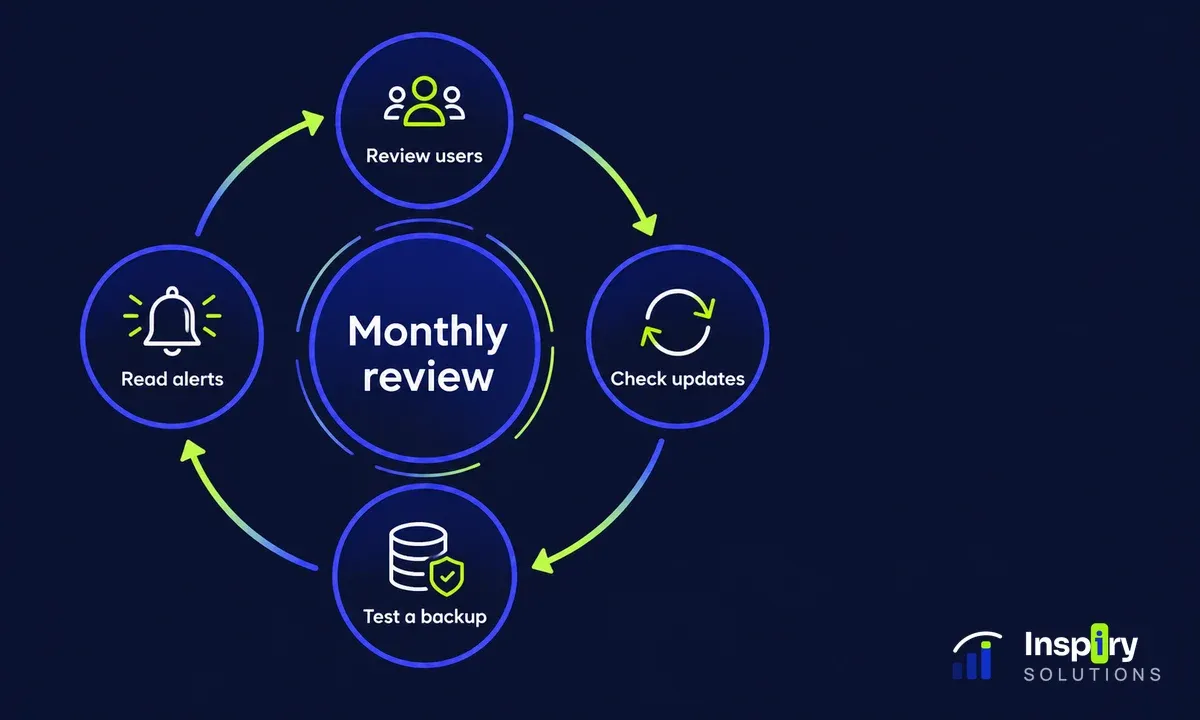
This review is an accountability exercise, not a reason to delay urgent security updates.
When a developer manages maintenance, request a short report covering completed updates, testing and outstanding risks.
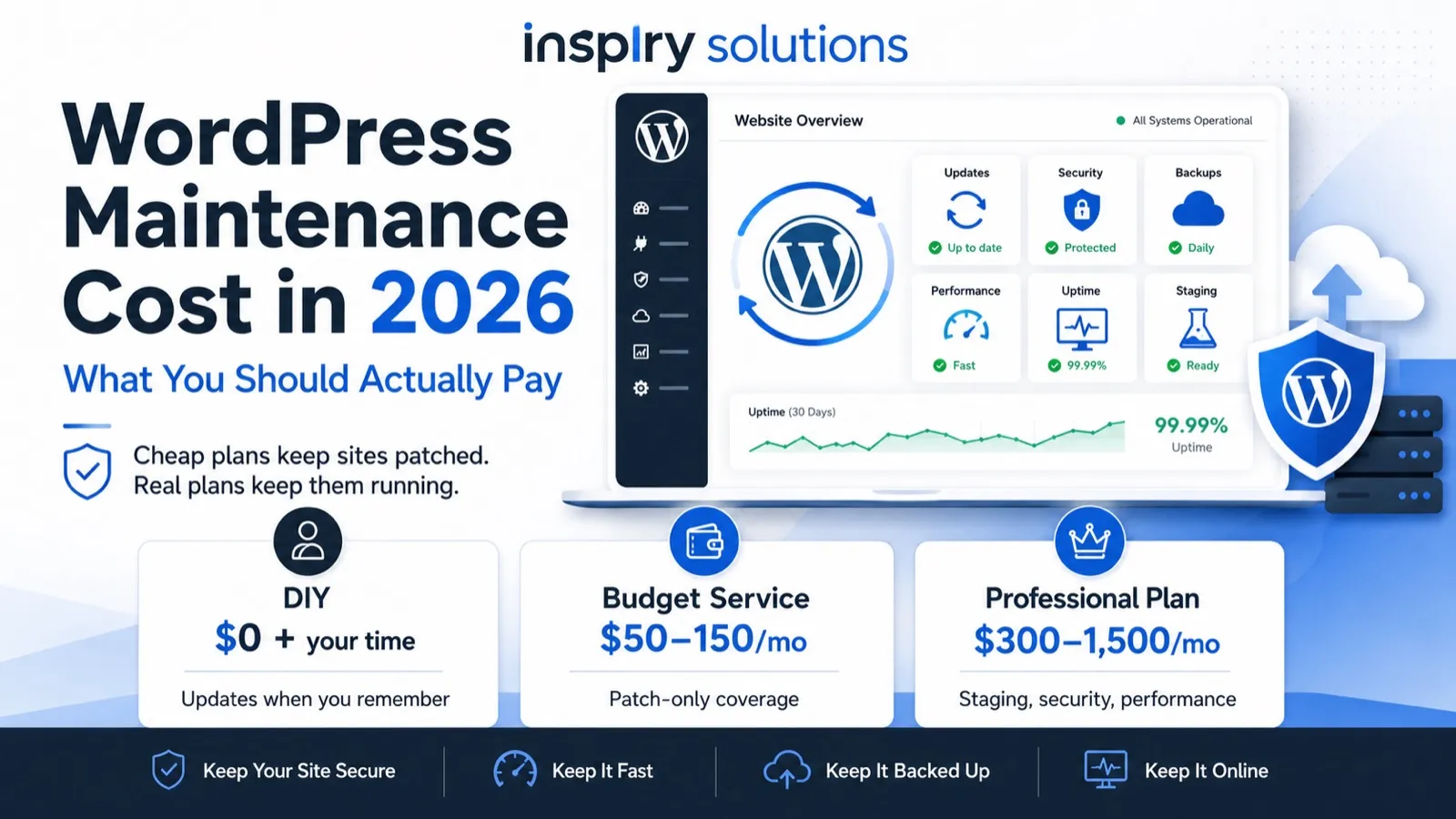
If your team cannot reliably manage these responsibilities, consider the real cost of keeping WordPress patched and whether a maintenance plan makes more sense.
After every change: quick checks
Staff changes, software updates, migrations and new functionality should trigger additional verification.
When somebody leaves, remove their WordPress and hosting access immediately.
After plugin or theme updates, check affected features and investigate unexpected errors.
After a hosting migration, verify HTTPS, PHP compatibility, monitoring, scheduled tasks and backup destinations.
When installing custom functionality, review permissions and unnecessary administrator access.
Maintain a simple change log recording what changed, who performed the work and how it was tested.
For business-critical websites, establish approval and rollback arrangements before significant changes.
These routines will not prevent every incident, but they make overlooked responsibilities easier to identify.
Common questions
Do I need a security plugin for WordPress?
A security plugin can provide login protection, file change alerts, scanning and other useful controls. However, it does not replace software updates, MFA, appropriate access permissions or good hosting. Choose one maintained plugin that meets your requirements rather than installing several tools with overlapping functionality. Additional plugins do not automatically provide better protection.
How often should I check WordPress security?
Perform a short monthly review and additional checks whenever staff, plugins, themes or hosting arrangements change. Important updates should be installed sooner when security fixes become available. Review alerts as they arrive rather than waiting for the next scheduled check. The appropriate frequency also depends on website complexity and business importance.
Is WordPress less secure than other platforms?
WordPress core has a dedicated security team and can be a reasonable platform for businesses when properly maintained. Many practical compromises involve plugins, themes, login credentials or hosting configurations. Other platforms also require appropriate access management and maintenance. What matters is whether your organisation consistently manages the responsibilities associated with its chosen platform.
What is the single most useful security step for a small business site?
Enable multi-factor authentication on every administrator account and remove accounts that are no longer needed. This combination reduces exposure to stolen or guessed passwords while eliminating unnecessary access routes. Follow it with prompt software updates and reliable backups. No single protection is sufficient, but administrator access control is an effective starting point.
Take the next step
A WordPress security checklist only delivers value when somebody completes and verifies the tasks.
Start with administrator access, software maintenance and recovery. Confirm what your developer and hosting provider already manage, then address the remaining gaps.
Avoid buying additional tools before understanding the actual weaknesses. A straightforward process with clear ownership is more useful than a complicated setup nobody consistently maintains.
Want the checklist run for you? Our WordPress maintenance plans start at $99/month and cover updates, backups and monitoring, or send your URL to hello@inspirysolutions.com for a free audit and we will reply within two working days with the gaps we see.