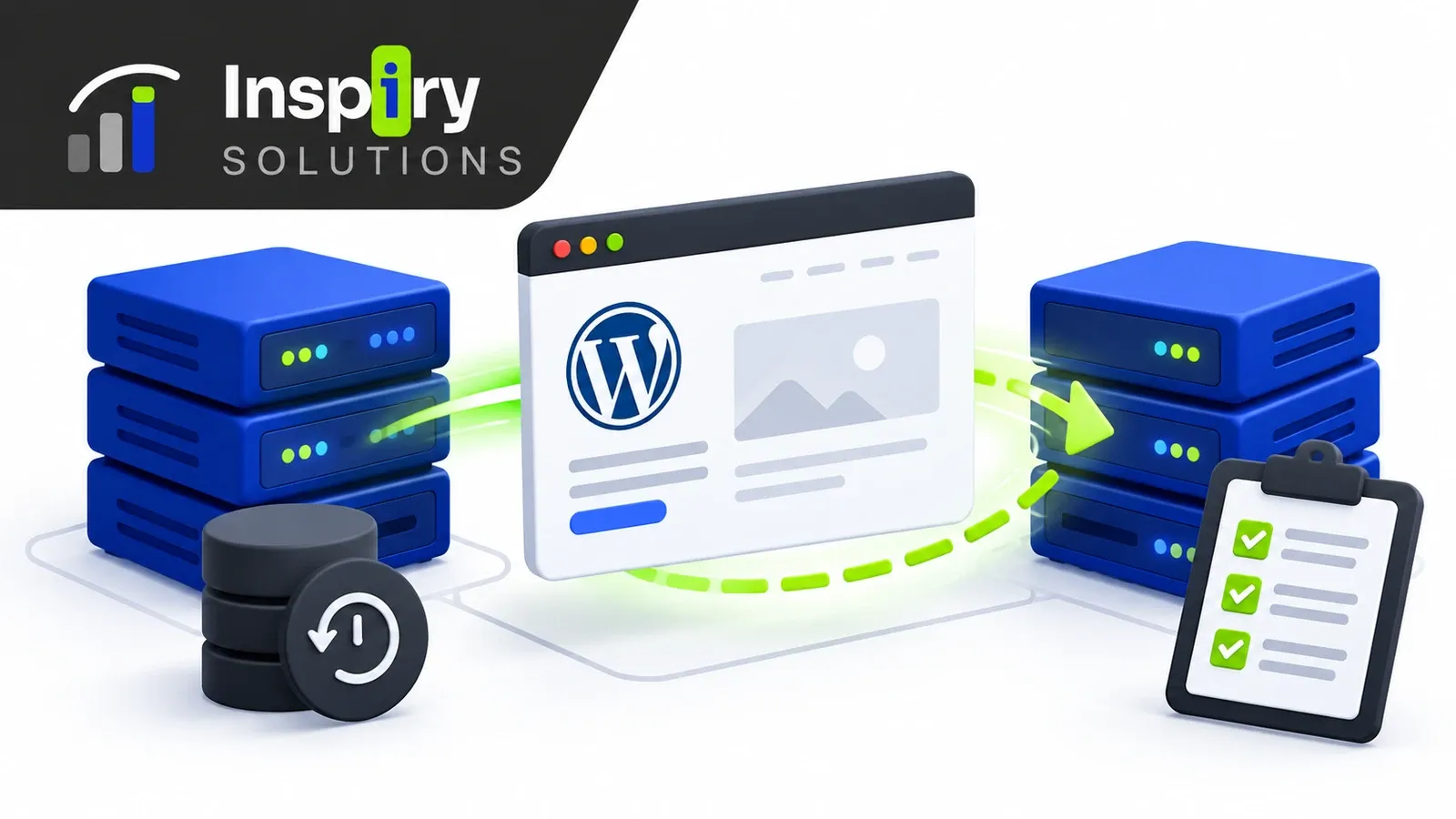
A WordPress staging site lets you test changes privately before updating your live website. You create a separate copy, apply updates, check important features and move approved changes into production. This reduces the risk of broken pages, failed forms and plugin conflicts reaching customers. However, safe testing also means protecting new orders, enquiries and user accounts created while you work. The key is understanding what to copy, what to test and what not to overwrite when changes go live.
If you manage a business website, online shop or agency client site, this guide explains four setup methods, privacy controls, a practical testing checklist and a safer publishing process.
What a WordPress staging site is for
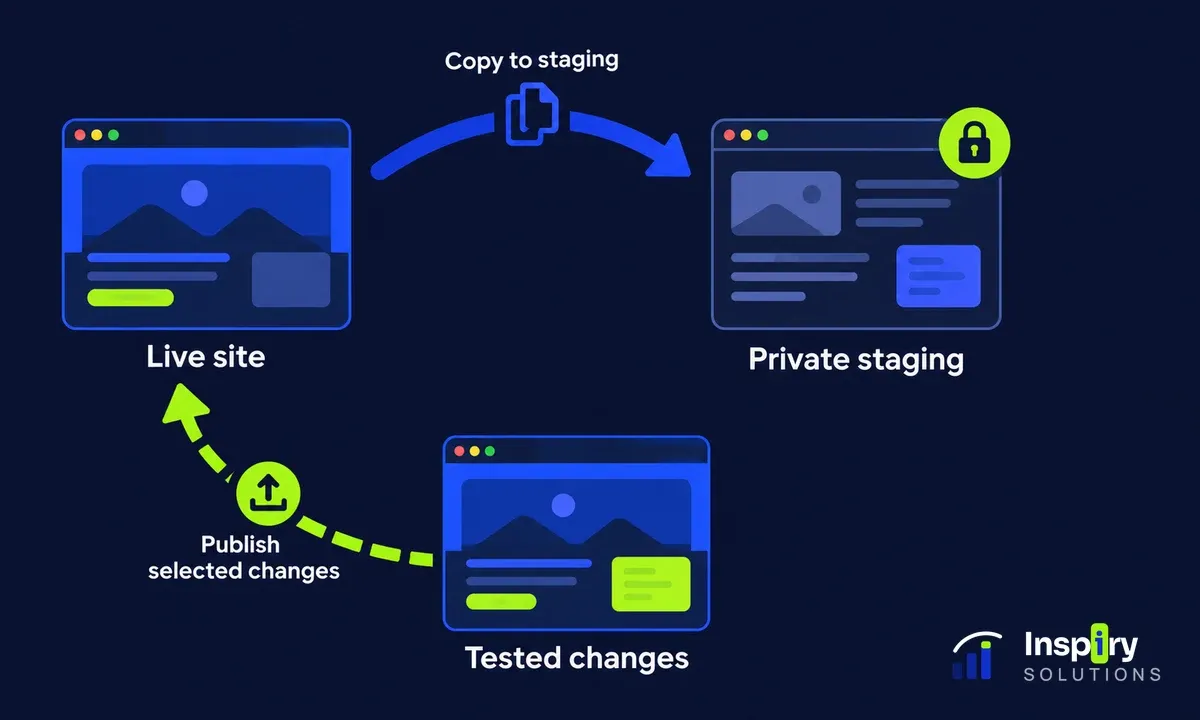
A WordPress staging site is a separate working copy of your production website. Production means the version customers visit, while the staging environment provides somewhere to make changes without affecting those visitors.
A typical setup contains the same WordPress files, theme, plugins, database and configuration as the live site. The closer these environments match, the more reliable your testing becomes.
You can use staging to check:
- WordPress core updates before applying them publicly.
- Plugin and theme updates that might cause conflicts.
- Elementor templates, navigation changes and layouts.
- PHP version upgrades and compatibility issues.
- New plugins, integrations and custom code.
- WooCommerce checkout, forms and account functionality.
A plugin update might work on ordinary pages but break a booking form using custom JavaScript. Testing privately helps identify that problem before visitors encounter it.
WordPress provides an official guide to updating WordPress, including precautions around updates.
At Inspiry Solutions, WordPress work tested on staging first is part of our approach to protecting customer-facing websites during development.
What staging does not replace
A staging environment is not a backup. Its purpose is testing changes, while a backup exists to restore your website after something goes wrong.
An older staging copy may not contain recent orders, enquiries or content. Both environments might depend on the same hosting account.
Keep independent, restorable backups and verify that restoration works. Another WordPress installation does not automatically protect your data.
Ways to create a staging site
There are four ways to create a WordPress staging site. Your choice depends on hosting, technical experience and website complexity.
Check how each method copies data, protects access and transfers changes to production.
Your host’s one-click staging
Many managed WordPress hosts offer staging through their control panels. Some include it at no extra cost, while others restrict it to particular plans.
The usual process is:
- Sign in to your hosting dashboard.
- Find the staging section.
- Select your production website.
- Create a staging copy.
- Enable access protection.
- Open the copied installation.
Hosting tools may automatically handle database configuration, temporary URLs and file copying.
However, some hosts provide selective publishing, while others replace the production database.
Check these limitations, particularly for shops and membership websites. Review what maintenance plans should include rather than assuming updates are tested privately.
A staging plugin
A staging plugin creates a working copy when your host lacks a suitable built-in feature.
Depending on the plugin, the copy may use a separate directory, additional database tables or an isolated environment.
Advantages include:
- Compatibility with many hosting providers.
- Setup through the WordPress dashboard.
- Selective publishing in some products.
- No separate hosting account in certain configurations.
Limitations include storage requirements, slow copying and paid publishing features.
Check access protection, scheduled tasks and database handling. Never assume publishing preserves new production records.
A local development copy
A local WordPress environment runs on your computer instead of a public server.
Developers can import website files and a database to test themes, PHP changes and custom functionality without modifying production.
Local testing provides isolation and makes experimentation convenient.
However, your computer may use different PHP settings, caching, database versions and server software.
Changes should still be checked in an environment resembling production before publication.
A separate staging server
A developer can create a dedicated staging server using a private subdomain or separate hosting environment.
This provides more control over server configuration, permissions and deployment. It suits complex websites requiring structured reviews.
The developer should configure:
- Server settings matching production.
- Restricted access and safe data handling.
- Disabled production emails and payments.
- Controlled file and database synchronisation.
- A documented rollback process.
Disadvantages include extra setup, maintenance and potentially higher hosting costs.
A separate server makes sense when additional control solves an operational problem.
Comparing the four methods
| Method | Setup effort | Cost | Matches live server? | Handles live data safely? | Best for |
|---|---|---|---|---|---|
| Host one-click staging | Low | Often included, plan-dependent | Usually close | Depends on publishing controls | Business websites |
| Staging plugin | Low to moderate | Free or paid | Configuration varies | Depends on selective publishing | Sites without host staging |
| Local development copy | Moderate | Tools may be free | Not necessarily | Yes, if production data is preserved | Custom development |
| Separate staging server managed by a developer | Higher | Additional hosting or management | Can closely match | Yes, with controlled deployment | Complex websites |
For most business websites, host-provided staging is the sensible starting point.
For shops, membership platforms and sites receiving frequent submissions, prioritise data protection. Selective publishing matters more than setup speed.
Keep staging private and out of search
A staging copy can contain duplicated content, customer information and unfinished work. Public access creates avoidable privacy and SEO risks.
Protect the environment before development begins.
Use password protection
The safest starting point is server-level password protection or another access control that prevents unauthorised visitors and search crawlers from accessing the website.
Do not rely entirely on WordPress’s search engine visibility setting or robots.txt.
Google explains that robots.txt is not a mechanism for keeping pages out of Google. A blocked URL can still appear in search results if discovered through links.
A staging site noindex instruction provides an additional precaution, but password protection is the stronger access safeguard. Search crawlers must access a noindex instruction for it to work.
Confirm that staging privacy settings never reach production.
Disable real transactions and notifications
A staging environment should not behave like another production website.
After copying the database, inspect outgoing emails, payment gateways, scheduled tasks and external integrations.
Disable or redirect email delivery to prevent messages reaching customers. Configure payment gateways in supported sandbox modes to prevent real charges.
Also check:
- CRM integrations creating customer records.
- Newsletter and marketing automation connections.
- Webhooks sending information externally.
- Background jobs and scheduled publishing.
- Analytics tags affecting production reports.
Use fictional test records wherever practical. When real customer information is necessary, restrict access and remove unnecessary sensitive data.
The live data problem
The biggest WordPress staging mistake is assuming the copied database stays current.
When you create staging, the files and database reflect production at that moment. Afterwards, the environments change independently.
Customers continue placing orders, submitting forms, creating accounts and making bookings on the live site. Those records do not automatically appear in staging.
WordPress databases often contain settings, content and transactional records together.
Hypothetical example: a theme update deletes recent orders
Hypothetical example: a shop creates a staging copy on day 1 and spends a week testing a theme update.
During that week, customers place new orders on production. Staff also update existing orders and customer details.
The team finishes testing and pushes the entire staging database into production.
Because that database predates the transactions, newer orders and customer records may disappear from the active website.
The theme update appears successful, but important business information has been overwritten.
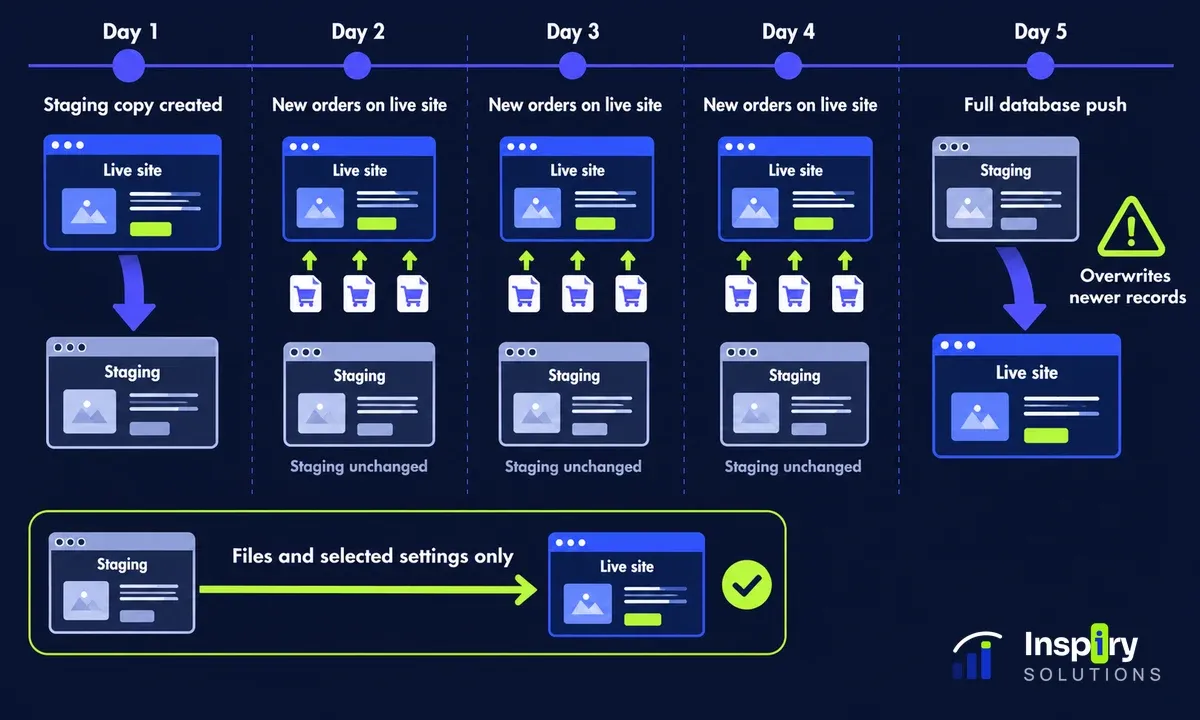
The safer approach is identifying precisely what the update changes.
If it only modifies theme files, deploy those files without replacing the production database.
If it changes database-stored theme options or layouts, migrate only the necessary settings using a verified method. Alternatively, repeat the approved configuration changes directly on production after taking a fresh backup.
Why database merging is complicated
Copying selected database tables might appear safer, but WordPress plugins often store different types of information in shared or interconnected tables.
WooCommerce, membership plugins and form builders can depend on related records and metadata.
Copying one table may omit dependencies or replace current information.
Even with selective database synchronisation, developers must inspect which records will change.
The rule is simple: Never overwrite an active production database with an older staging database without understanding what has changed since copying it.
Document the deployment method before development starts. Do not discover at launch that your only publishing option replaces everything.
A test script before every push
Testing should follow a repeatable checklist rather than an informal look at the homepage.
Record what changed, which features could be affected and whether each check passes. This makes approval clearer and helps identify problems before publication.
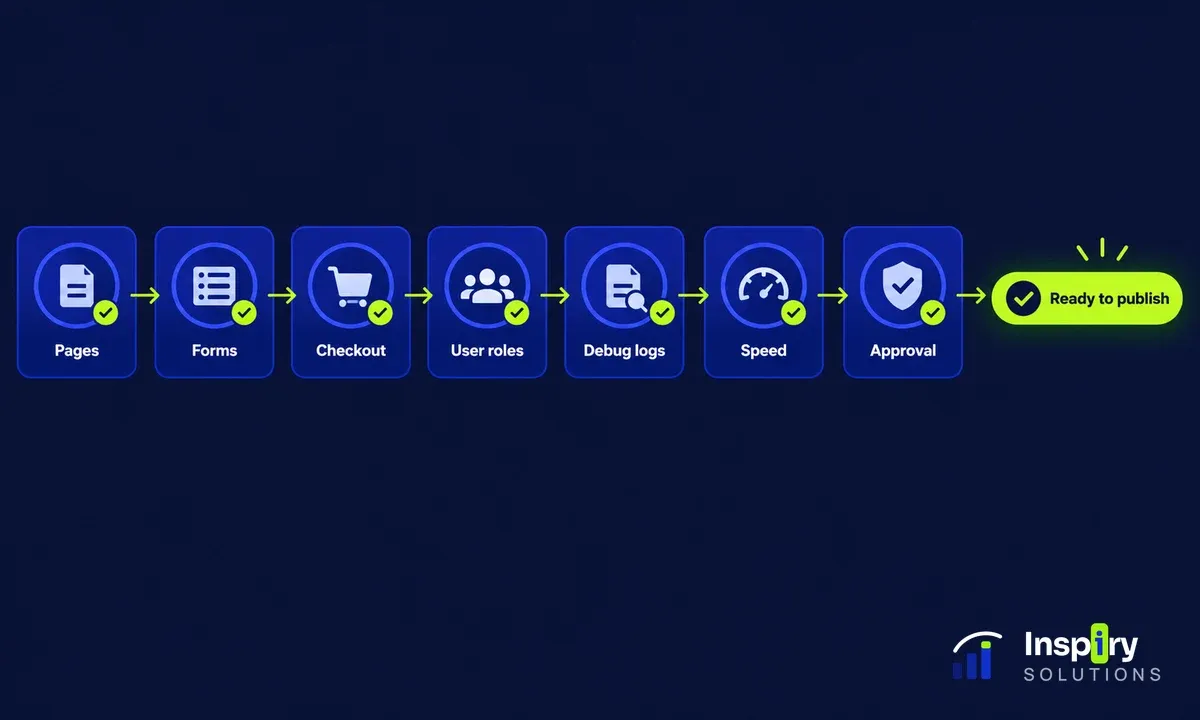
1. Check important pages
Open the homepage, service pages, contact page and affected landing pages.
Check headings, images, navigation, buttons and responsive layouts on desktop and mobile.
Look for overflowing content, missing elements and unusual spacing. If using Elementor, inspect existing templates as well as edited pages.
2. Test forms and enquiries
Submit a clearly labelled test enquiry.
Confirm validation, success messages and delivery to the intended test destination.
For CRM integrations, check field mapping and delivery through a safe test connection.
A visible success message does not prove the enquiry reached its destination.
3. Check checkout and accounts
For shops, test cart updates, shipping, coupons and checkout using an appropriate payment sandbox.
For membership websites, test login, logout, password reset and user permissions.
Check different account roles when functionality depends on access levels.
Never use real customer payments for routine staging tests.
4. Compare logged-in and logged-out views
Some problems only affect visitors who are not administrators.
Open the staging site in a private browser session, using its access credentials.
Check pages, forms and navigation without an administrator login. Then test account-specific features using an ordinary test user.
This helps reveal permissions and caching problems.
5. Review debugging information
Ask your developer to inspect the WordPress debug log and relevant server error logs.
The official WordPress debugging documentation explains how to record errors.
Investigate new warnings, fatal errors and recurring database issues.
Do not expose sensitive debugging information to public visitors.
6. Perform a speed spot check
Compare representative pages before and after the update under similar conditions.
Look for unusually slow loading, layout movement, new scripts and unnecessary requests.
Check mobile and desktop performance.
The aim is to identify obvious regressions, not perform a complete performance audit after every minor update.
7. Confirm deployment readiness
Before approval, record:
- Pages and functions tested.
- Form and checkout results.
- Errors found and resolved.
- Mobile and browser checks.
- Files or settings requiring deployment.
- Backup and rollback responsibilities.
- Person providing final approval.
Do not approve an update simply because the homepage loads.
A completed test record is more useful than an assurance that everything looks fine.
Pushing changes live safely
Once testing passes, publishing becomes a controlled task.
Transfer approved changes without replacing current customer information or introducing unrelated modifications.
Take a fresh production backup
Back up production files and the database immediately before deployment.
WordPress provides official backup guidance explaining why both components matter.
Confirm the backup is complete, independently accessible and restorable. Where practical, verify restoration separately.
Decide what needs to move
Identify whether the update involves files, plugins, custom code, content, settings or database structure.
Simple updates may be safer to repeat on production than to publish the entire staging copy.
Custom code can use controlled file transfers or version control.
For database changes, identify affected records and preserve newer production data. Consider compatibility and rollback when schemas change.
Choose a release window and approver
Publish during a quieter period when someone can monitor the website.
Agree who authorises deployment and who handles restoration if necessary.
For shops, consider active orders, background processes and payments.
A quiet window does not make an unsafe database replacement acceptable.
Verify the production website
Repeat essential checks after deployment:
- Key pages and navigation.
- Mobile layouts and interactive elements.
- Form submissions and delivery.
- Checkout and account functionality.
- Live payment and email settings.
- Important customer records.
- Error logs and caching behaviour.
Clear relevant caches and confirm the CDN serves updated files.
If deployment fails, follow the rollback plan. Restoring an earlier database can remove transactions created after that backup.
For ongoing support, maintenance with staged updates provides a structured approach to testing changes before publication.
When staging is not enough
A WordPress staging environment reduces risk but cannot automatically reproduce every production condition.
Reliable testing depends on how closely the environments match and which external services are available.
Server differences can hide problems
Staging and production may have different PHP versions, memory limits, extensions or database settings.
A plugin might work in one environment and fail in another.
Before significant updates, compare important server configurations and resolve avoidable differences.
For high-risk changes, ask whether a closer production match is required.
Caching and CDN behaviour may differ
Content delivery networks, server caches and optimisation plugins can behave differently between environments.
A layout may work in staging but display outdated files after publishing. Scripts might also be combined or delayed differently.
After deployment, refresh relevant caches and verify CSS, JavaScript and interactive features on production.
External services need separate checks
Successful sandbox tests do not prove that production payment credentials, email delivery or webhooks are configured correctly.
Use safe test modes during development, then perform controlled production checks after release.
The same principle applies to CRM connections, shipping services and authentication systems.
Staging also supports website rebuilding and migration. Our guide to testing a private copy before a move covers additional checks involving redirects and launch preparation.
Staging supports safer decisions. It does not eliminate the need for careful deployment and verification.
Common questions
Do I need a staging site for a small WordPress website?
Yes, it is worth having a staging site for any website generating enquiries or sales. Even a small website can lose business through a broken contact form. Many hosting providers include staging at no extra cost, making it a practical precaution before important WordPress updates.
Will a staging site hurt my SEO?
Only if search engines index it as a duplicate of your live website. Password protection is the reliable fix because unauthorised crawlers cannot access the content. Robots.txt alone does not keep pages out of Google. Ensure staging-specific noindex settings never transfer to production.
Can I push staging to live without losing orders?
Yes, but avoid overwriting the live database with an older staging copy. New orders and customer records may have appeared since copying it. Push approved files and specific settings where safely supported, or re-apply changes on the live site after taking a backup. Check existing orders afterwards.
Is a staging site the same as a backup?
No. Staging is a working copy for testing, while a backup preserves restorable website files and database information. Keep backups separately from staging and test a restore to confirm they work. Your backup system should remain accessible even if the main hosting environment becomes unavailable.
Make your next WordPress update safer
Check whether your host supports staging and selective deployment. Protect the copy, disable real transactions and test essential functions.
Before publishing, identify production data created during testing.
Follow a consistent process: copy, protect, test, approve, back up, publish and verify.
If updates keep breaking your site, send us the URL for a free audit. Our WordPress development and maintenance work tests every change on staging before it reaches your customers. Email hello@inspirysolutions.com for a plain-language reply within two working days.