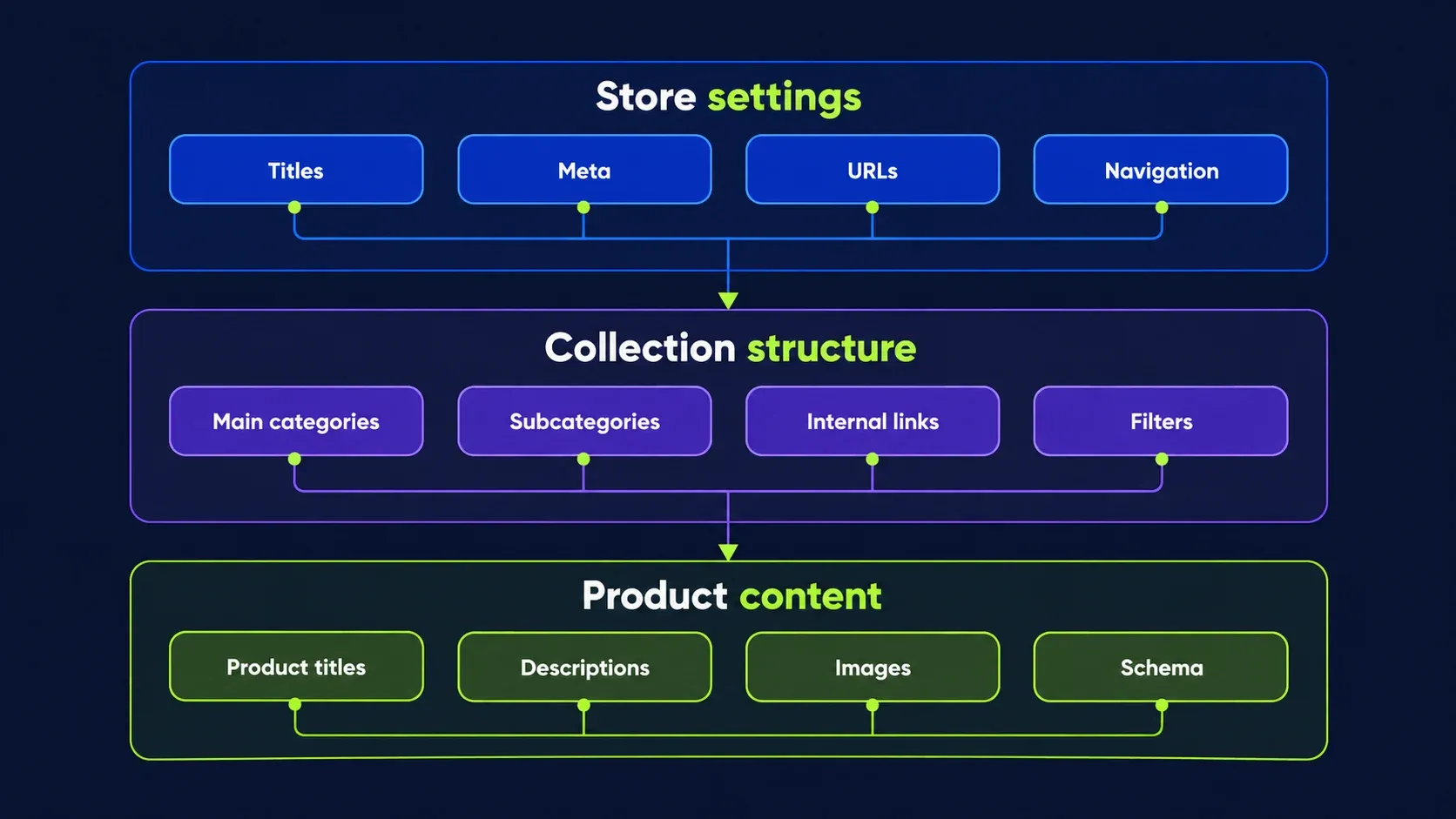
Shopify store maintenance means checking the parts of your shop that Shopify does not manage for you: apps, theme changes, speed, search visibility, checkout and content. Shopify handles the underlying platform, but a working store can still develop broken features, outdated information or unreliable tracking. Five monthly checks, supported by a simple change log and quarterly reviews, give you a practical routine. You can manage most checks yourself, provided someone takes responsibility for completing them and arranging fixes when needed.
This guide is for Shopify store owners who assumed managed hosting meant everything was maintained. It separates Shopify’s responsibilities from yours, provides a repeatable Shopify maintenance checklist and explains when paying for ongoing store management makes sense.
What Shopify maintains and what it does not
Shopify takes care of much of the technical infrastructure that an online store needs.
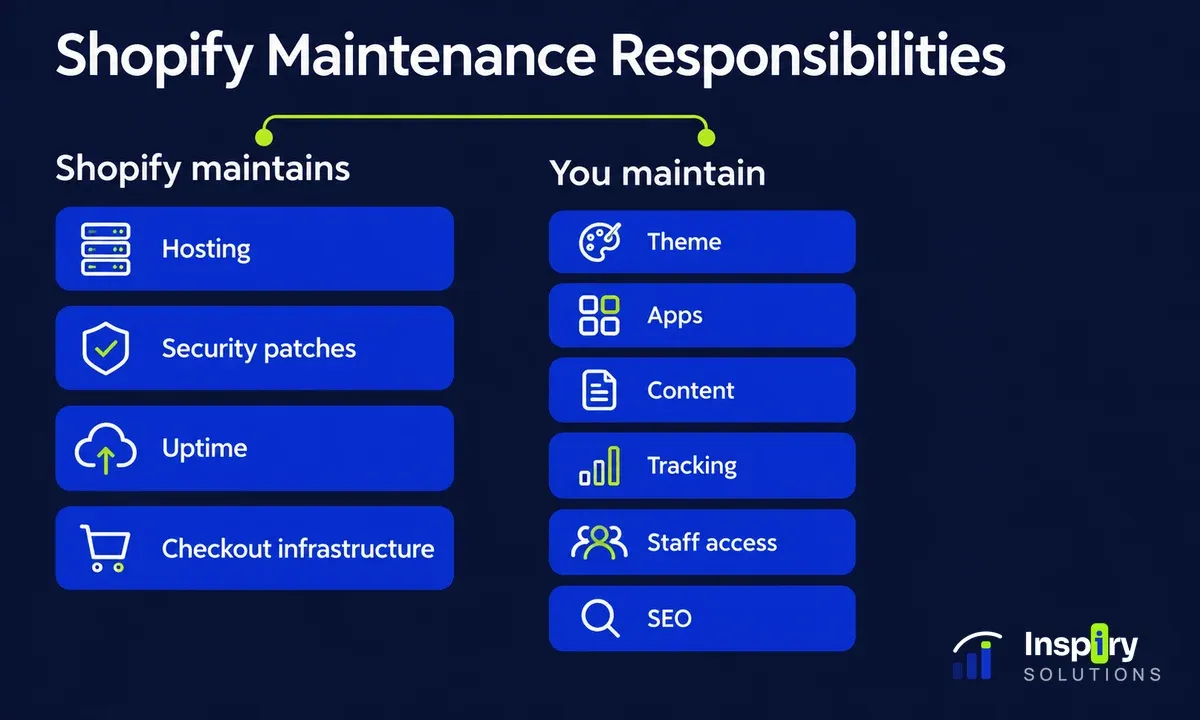
What Shopify handles
Shopify is responsible for operating and maintaining its core hosted platform. This includes:
- Hosting infrastructure for your Shopify storefront.
- Security patches and updates to Shopify’s underlying systems.
- Platform infrastructure monitoring and availability.
- The core checkout infrastructure provided by Shopify.
- Platform-level technical improvements and infrastructure changes.
You do not normally need to arrange server operating system updates, manage the underlying hosting environment or patch Shopify’s core checkout infrastructure yourself.
It does not, however, guarantee that a customer can complete every purchase correctly. Your shipping configuration, discounts, payment settings and third-party integrations still need checking.
What the store owner maintains
The merchant remains responsible for many things customers see and use.
These include:
- Theme customisations, layout changes and theme update planning.
- Installed apps, their permissions, charges and integrations.
- Product information, pricing, collections and promotional content.
- Analytics, advertising tags and conversion tracking.
- Staff accounts, access permissions and account security.
- Search engine optimisation, redirects and indexing checks.
- Store policies, cookie consent and customer-facing information.
A Shopify store can be technically available while its buying experience is broken.
For example, Shopify’s infrastructure may be running correctly, but a recently installed app could interfere with product selection. An expired promotion could still appear on the homepage, or purchases might stop reaching your analytics reports.
How this differs from WordPress
With a self-hosted WordPress website, the owner or maintenance provider normally has more responsibility for WordPress core updates, plugins, themes, backups, hosting configuration and compatibility.
Our guide to what WordPress maintenance involves explains the broader responsibilities of maintaining a WordPress website.
Why Shopify stores gradually develop problems
Most Shopify issues do not begin with one major change.
An app gets installed for a promotion. A developer modifies a theme section. A staff member changes the delivery settings. A discontinued product is removed without checking existing links.
Individually, these changes may seem harmless. Over time, their combined effects can create problems nobody immediately notices.
The purpose of Shopify store maintenance is to detect that gradual drift before it becomes an expensive or customer-facing issue.
If your team needs help managing changes and resolving problems, our Shopify store management service covers ongoing technical oversight alongside development support.
The 5 monthly Shopify store maintenance checks
A consistent Shopify monthly checklist should focus on the systems most likely to change and the problems that affect customers, measurement or revenue.
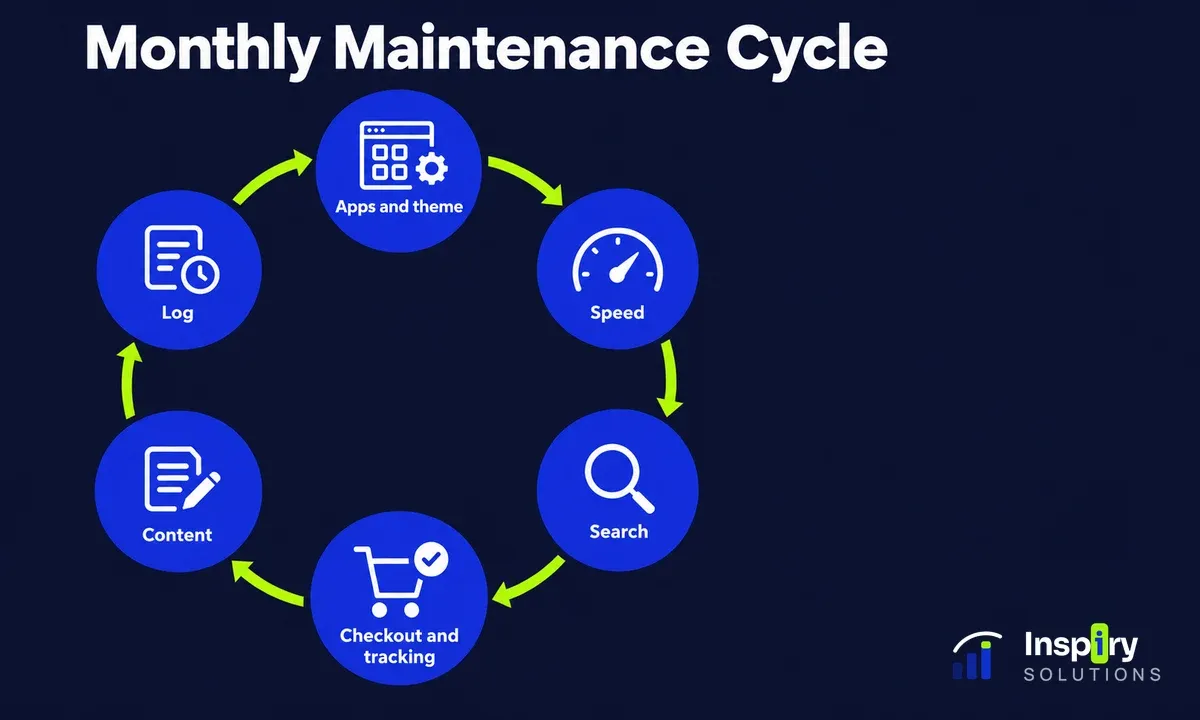
1. Apps and theme
Open your installed apps list and examine each app rather than assuming everything installed is still necessary.
For every app, ask:
- Is someone actively using it?
- Does it still perform a useful function?
- Does another app or native Shopify feature already do the same job?
- Have its charges, permissions or configuration changed?
- Does it add scripts or other elements to customer-facing pages?
A useful first step is identifying apps installed for old campaigns, temporary testing or features no longer used.
An unnecessary app may introduce cost, complexity or additional scripts.
Our article on cutting apps that slow the store explains how to identify unnecessary apps without removing useful functionality.
Check for leftover app code
Uninstalling an app does not always remove every custom integration or historical theme modification.
Inspect relevant theme app embeds, snippets and manually added scripts, particularly where an older app was installed through custom code.
Review Shopify theme updates
Themes distributed through the Shopify Theme Store can receive updates from their developers.
However, a customised published theme does not automatically receive those updates in place. Installing a newer theme version can also require custom code and configuration to be reviewed or reapplied.
For Shopify theme updates:
- Identify the current theme version and whether a newer version is available.
- Record the custom code and design changes already made.
- Duplicate or back up the relevant theme before significant work.
- Apply and test changes in an unpublished theme.
- Check important customer journeys before publishing.
You do not need to install every update immediately.
2. Speed
Start with three representative pages:
- The homepage.
- A popular collection page.
- A typical product page.
Test each on mobile. Use the same pages and broadly consistent testing conditions every month so comparisons are meaningful.
Compare results with the previous month
Instead, look for a sustained deterioration or an obvious change following an app installation, image replacement or theme modification.
Record the date and recent changes before investigating the cause.
Shopify’s theme performance guidance covers image loading, JavaScript, layout stability and other technical considerations.
Review Core Web Vitals
Open the Core Web Vitals report in Google Search Console.
These measurements focus on three important aspects of user experience:
- Largest Contentful Paint (LCP): how quickly the largest visible content loads.
- Interaction to Next Paint (INP): how responsive the page is to interactions.
- Cumulative Layout Shift (CLS): how much content unexpectedly moves.
Google’s explanation of Core Web Vitals provides further detail about these measurements.
A clean report does not replace manually testing important pages.
For more detailed troubleshooting, see our guide to fixes for a slow Shopify store.
3. Search and indexing
A store can remain fully functional while important product or collection pages become harder for search engines to discover.
Your monthly checks should therefore include Google Search Console.
Review the Page indexing report
Look for newly reported indexing problems, unexpected exclusions and changes affecting important URLs.
Google’s Page indexing report documentation explains how to interpret the different indexing statuses.
Not every excluded URL is a problem. Duplicate pages, intentionally redirected addresses and pages marked not to be indexed can produce expected results.
Focus on valuable pages that should appear in search but unexpectedly do not.
Inspect deleted products and redirects
When a product is discontinued, check whether its old URL receives traffic or has useful external links.
If a suitable replacement exists, redirect the old address to the relevant product or collection.
Shopify provides a built-in redirect feature, explained in its URL redirect guidance.
A redirect should lead to a genuinely relevant destination. Sending every removed product to the homepage may confuse visitors and fail to meet their original intent.
Check the sitemap
Confirm that your Shopify XML sitemap remains accessible and is submitted in Search Console.
The sitemap helps Google discover URLs, but submission does not guarantee indexing.
If indexing problems are widespread or you have never assessed the store’s search configuration, start with a one-off Shopify SEO review.
4. Checkout, payments and tracking
This is one of the most commercially important monthly checks.
Review an order from start to finish
Where practical, place a controlled test order using an appropriate testing method, or examine a recent genuine order and its associated checkout records.
Verify:
- Products and variants can be added to the basket.
- Discount codes behave as intended.
- Shipping options and rates match the relevant destination.
- Tax is calculated according to your configured rules.
- Payment completes correctly where live testing is appropriate.
- The order appears in Shopify’s order records.
- Confirmation messages contain accurate information.
Compare analytics with Shopify orders
Check whether purchase events are reaching Google Analytics 4 (GA4), your website analytics platform.
Hypothetical example
A gift store’s monthly check shows purchases in GA4 have dropped while Shopify orders are steady.
Further investigation identifies a tracking setup that stopped working after a checkout change. The tracking is corrected and verified that same week instead of the discrepancy remaining unnoticed until the end of the quarter.
This is an illustrative scenario, not a claimed client result.
5. Products, content and policies
Finish the monthly review by checking the information that customers rely on when deciding what to buy.
Start with popular products, important collections and any pages changed since the previous check.
Products and stock
Look for discontinued products still promoted as available, incorrect stock messages, missing images and inconsistent variant descriptions.
Decide how sold-out products should be handled.
Permanently discontinued products need a deliberate decision about retaining, redirecting or removing the page.
Promotions and content
Check homepage banners, collection descriptions, product prices and sale messages.
Remove expired promotions and confirm that advertised discounts match the checkout.
Policies and cookie consent
Review delivery, returns, refunds, privacy and contact information when business practices change.
A monthly check should identify obvious inconsistencies.
UK stores should review their cookie and similar-technology practices against the Information Commissioner’s Office cookie guidance.
This completes the five monthly Shopify store maintenance checks. The next step is recording what changed and what still requires attention.
Keep a maintenance log
A maintenance log is one of the simplest ways to make ongoing checks useful.
Without it, someone may notice a problem but have no record of when it started or what changed beforehand.
A shared spreadsheet or task-management document is enough.
Record four basic details for every meaningful change:
- Date: when the change happened.
- Change: what was installed, removed, edited or corrected.
- Owner: who performed or approved it.
- Reason: why the change was necessary.
Use the log when investigating problems
Suppose the product page starts displaying incorrectly.
Before editing the theme, review recent changes. If the issue appeared after a new app installation, that gives you a sensible starting point for investigation.
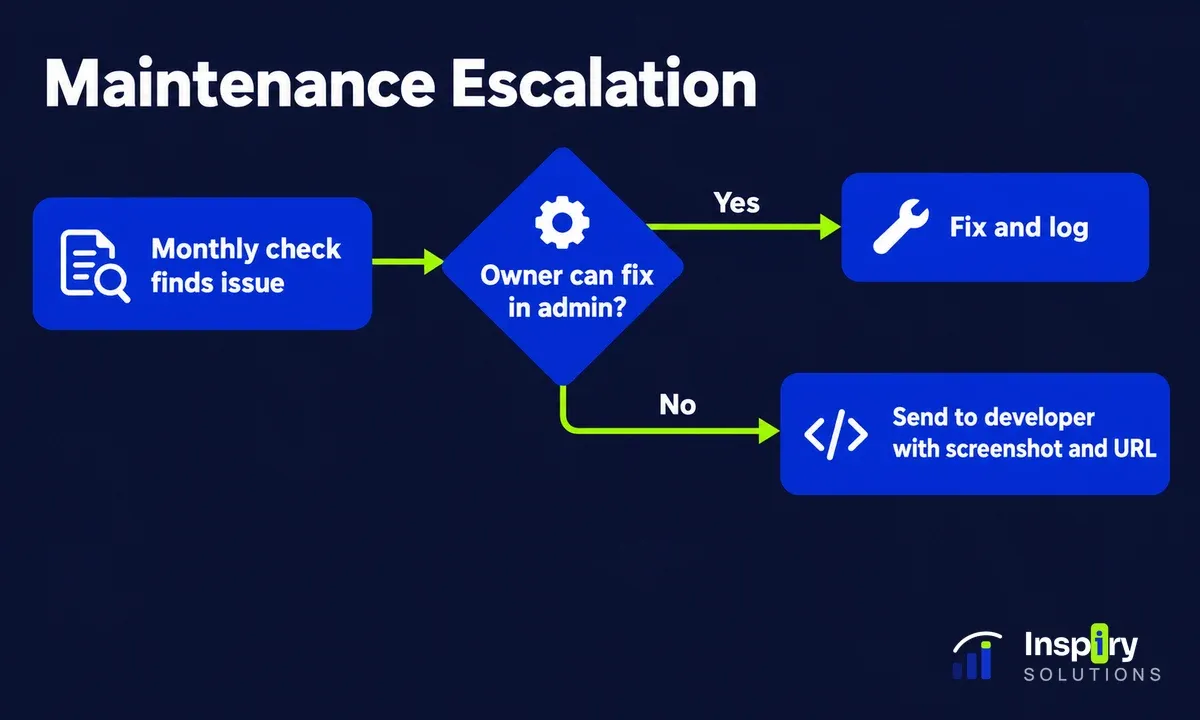
The escalation process should remain simple.
When a monthly check identifies an issue, decide whether the owner can safely correct it through Shopify’s administration interface.
If yes, make the change, verify the result and log it.
If no, send a developer the affected URL, screenshots, what should happen, what actually happens and any recent changes that could be relevant.
Quarterly and yearly tasks
Not every task belongs in a monthly routine.
Use the following Shopify maintenance schedule as a starting point and adjust it to your business.
Shopify maintenance schedule
| Task | Frequency | What to look for | Usually done by |
|---|---|---|---|
| App review | Monthly | Unused apps, permissions, new charges | Owner |
| Leftover app code | Quarterly | Abandoned snippets, scripts and integrations | Developer |
| Theme updates | Monthly | Available releases, customisation compatibility | Developer |
| Speed test | Monthly | Mobile speed changes, broken layouts | Owner |
| Core Web Vitals report | Monthly | Worsening mobile experience and affected URLs | Owner |
| Page indexing report | Monthly | New errors, unexpected exclusions | Owner |
| 404s and redirects | Monthly | Deleted product URLs, unsuitable destinations | Owner |
| Test order | Monthly | Checkout flow and order confirmation | Owner |
| Discount and shipping check | Monthly | Incorrect rates, offers and configuration | Owner |
| Analytics vs orders | Monthly | Missing purchase events, unusual reporting gaps | Owner |
| Product and stock review | Monthly | Outdated availability, prices and promotions | Owner |
| Policy pages and cookie consent | Monthly | Outdated wording, consent configuration | Owner |
| Staff accounts | Quarterly | Unnecessary access, former staff accounts | Owner |
| Two-step authentication | Quarterly | Staff authentication and account security | Owner |
| Domain renewal | Yearly | Renewal status, ownership and payment details | Owner |
These frequencies are practical defaults, not guarantees that problems can only occur between scheduled checks.
Review staff access quarterly
Check who can access the Shopify administration interface.
Remove accounts belonging to people who have left, and reduce permissions that are no longer needed.
Check two-step authentication arrangements for staff and encourage or enforce appropriate authentication controls wherever available.
Review costs and ownership
Yearly, verify domain ownership, renewal settings, billing contacts and the longer-term suitability of the theme.
Improve the checklist itself
Do not turn the Shopify maintenance checklist into a growing collection of tasks nobody understands.
Review which checks identified meaningful problems and which repeatedly produced little value.
Add new tests whenever a recent incident shows that an important risk was missing.
Doing it yourself or paying for management
If your store is relatively simple, changes infrequently and has someone responsible for its operation, much of the routine can be handled internally.
The main requirement is consistent ownership.
A checklist that nobody completes is not a maintenance process.
When doing it yourself is enough
Self-management can work when:
- Someone has time reserved for the monthly checks.
- The owner understands basic Shopify administration.
- Theme customisations and integrations are limited.
- There is a clear route for obtaining technical help.
- Findings are documented and acted upon.
However, technical changes involving Liquid templates, JavaScript, complex tracking or integration issues may need a developer.
When store management makes sense
Paid management becomes more useful when the store changes regularly or problems could go unnoticed because nobody has time to investigate them.
Inspiry Solutions provides Shopify store management starting from $250/month, covering a defined maintenance routine and agreed fixes.
A monthly fee should never be interpreted as unlimited development or unrestricted responsibility for third-party systems.
How to compare Shopify maintenance cost
When comparing Shopify maintenance cost between providers, ask three questions:
- What is checked? Request a written schedule covering apps, theme, speed, indexing, checkout and tracking.
- What is fixed? Establish which corrections are included and which require a separate quote.
- How is it reported? Confirm how findings, completed work and unresolved issues are documented.
Common questions
Does a Shopify store need maintenance?
Yes. Shopify maintains the underlying platform, not every aspect of your theme, apps or content. App installations, theme changes and tracking integrations can break or behave differently without warning. Monthly checks help identify these problems early, before they remain unnoticed for long periods. Most owners can perform basic checks themselves, although technical fixes may require a developer.
How much does Shopify store maintenance cost?
Inspiry Solutions provides Shopify store management starting from $250/month. Doing it yourself generally costs time rather than an external monthly fee, although specialist fixes may still require payment. Compare providers by what they actually check, what problems they fix and how they report completed work. Price alone does not establish whether a service offers sufficient protection or useful technical support.
Do Shopify themes update automatically?
Themes distributed through the Shopify Theme Store can receive new versions from their developers. However, those updates are not automatically applied to a customised published theme. Installing an updated version may require custom code and settings to be reviewed or transferred. Without a change log, previous modifications can be missed or lost during an update, so test changes before publishing.
What should I check after installing a new app?
Check page speed on product and collection pages, especially on mobile. Inspect whether the app adds structured data, scripts or tracking features that duplicate existing integrations. Verify that checkout, important product interactions and analytics still work. Record the installation in your maintenance log so you can investigate it quickly if a problem appears afterwards.
Put the checklist on a calendar
A Shopify monthly checklist only works when someone has responsibility for completing it.
Choose a recurring date each month and assign an owner. Make sure that person can access the relevant Shopify administration areas, analytics and Search Console reports.
Record what passed, what changed and what needs attention. Keep the maintenance log alongside the checklist rather than relying on memory.
When you find an issue, assess its impact before making changes.
This approach keeps Shopify store maintenance manageable. You are creating a reliable process for identifying changes, testing important functions and arranging corrections.
If you would rather not run the checklist yourself, ask about Shopify store management from $250/month, or send your store URL to hello@inspirysolutions.com for a free audit to see where it stands today. You will receive a plain-language reply within two working days.