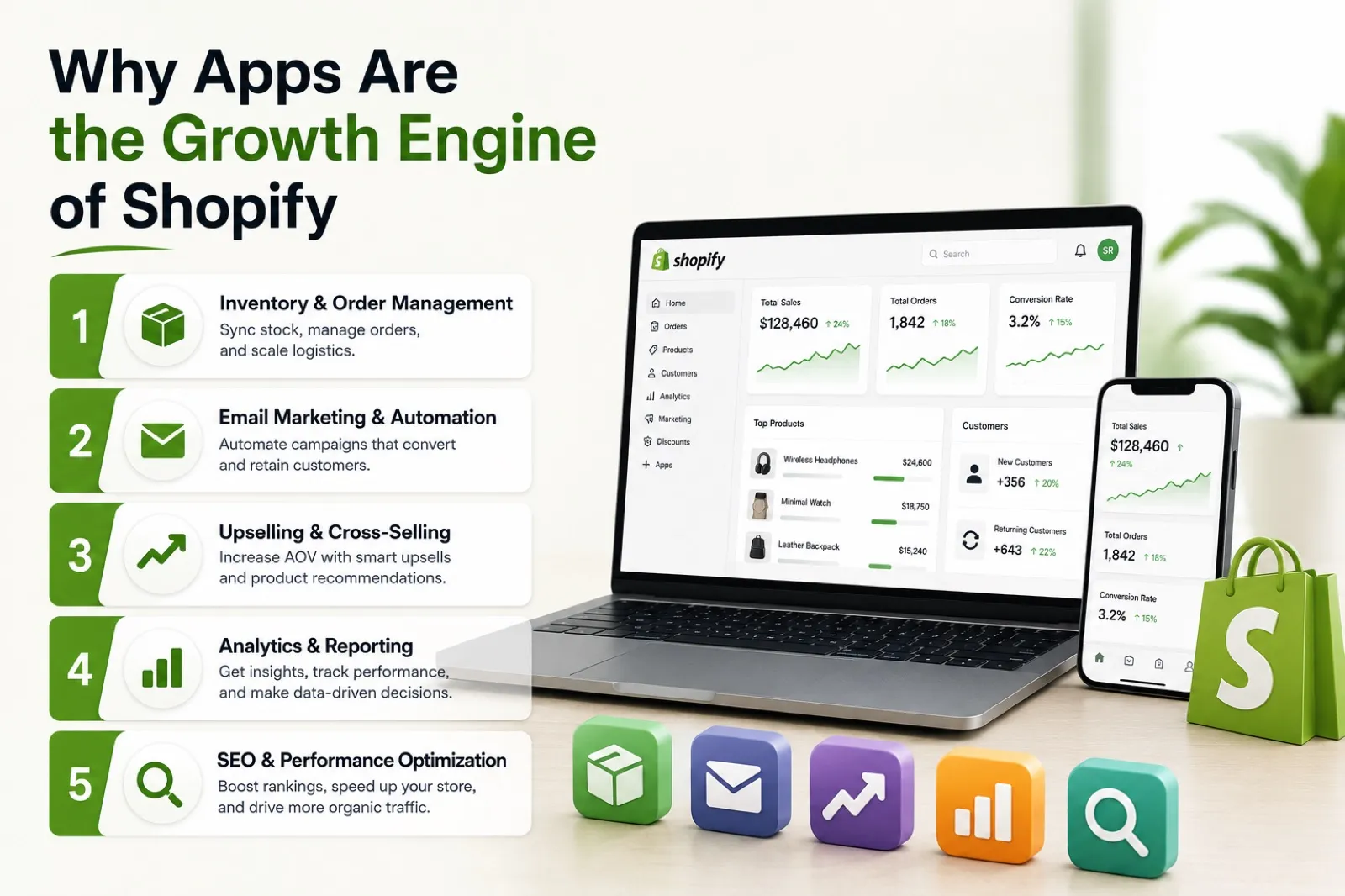
A slow Shopify store often needs a measured review of apps, images and theme code rather than another optimisation app. For loading, the good Core Web Vitals threshold is LCP at or below 2.5 seconds at the 75th percentile of visits, assessed separately for mobile and desktop. This guide explains the triage order and seven checks for improving speed without breaking the buying journey.
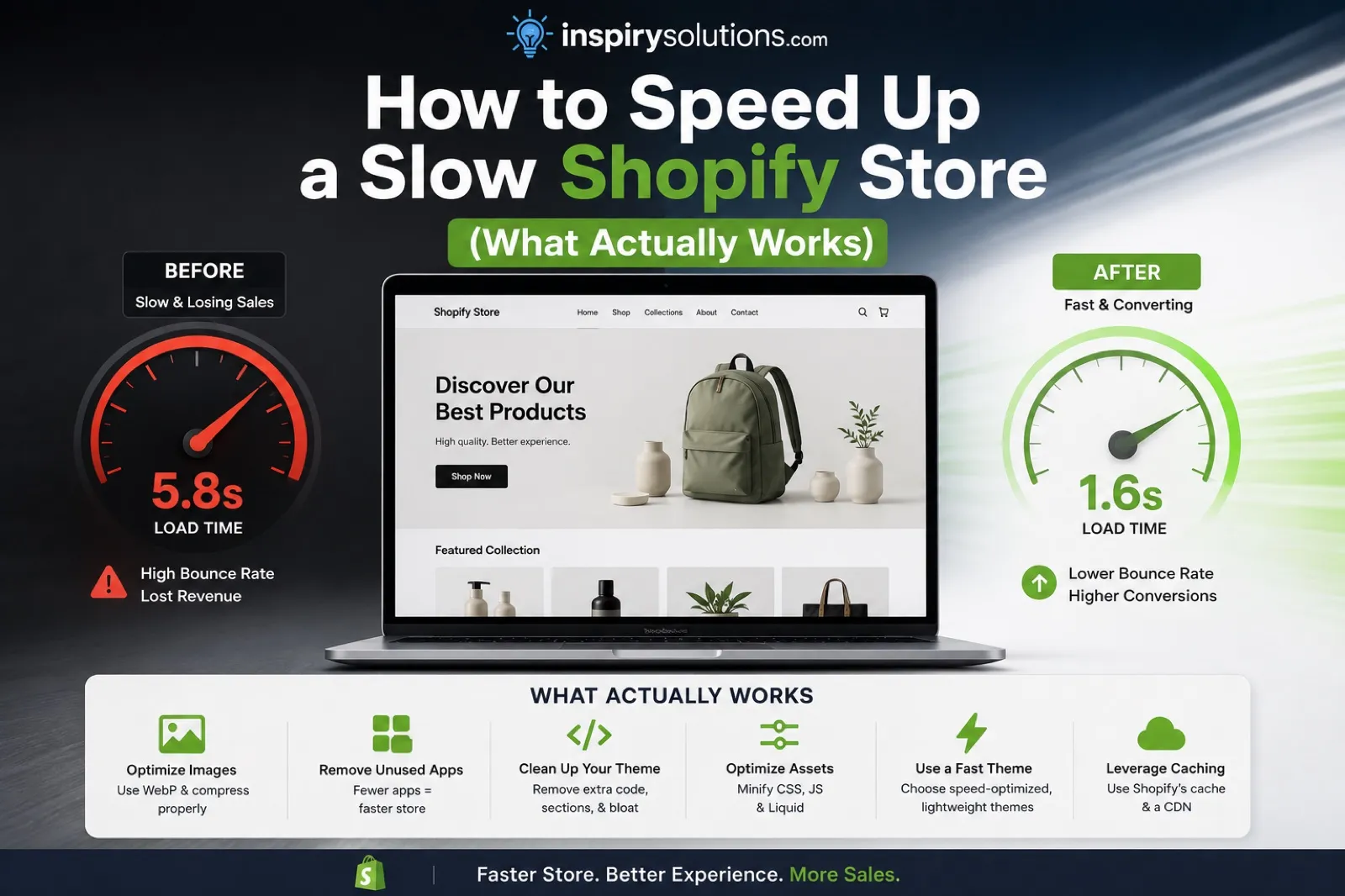
Why Shopify stores get slow
A slow Shopify store can have several interacting causes. Audit the actual storefront rather than assuming that every app or premium theme is heavy. Common areas to investigate include:
- Storefront app embeds and scripts, including leftovers from removed tools.
- Images delivered at unsuitable sizes or requested too late.
- Theme sections, fonts and interactions that load unnecessary work.
- Third-party tags and pixels, especially duplicated installations.
None of this is visible from the admin. That is the trap: the store looks the same to the owner while it gets heavier for every customer.
Shopify speed triage: the order that actually works
Speed work fails when it starts in the wrong place. Optimizing images while nineteen app scripts load on every page is polishing the doorknob on a house with no roof. One rule before touching anything: measure first. Run the key pages (home, a collection, a best-selling product) through PageSpeed Insights, note the mobile numbers, and re-test after every change. Speed work without before-and-after numbers turns into superstition, and half the “optimizations” people swear by survive only because nobody measured them.
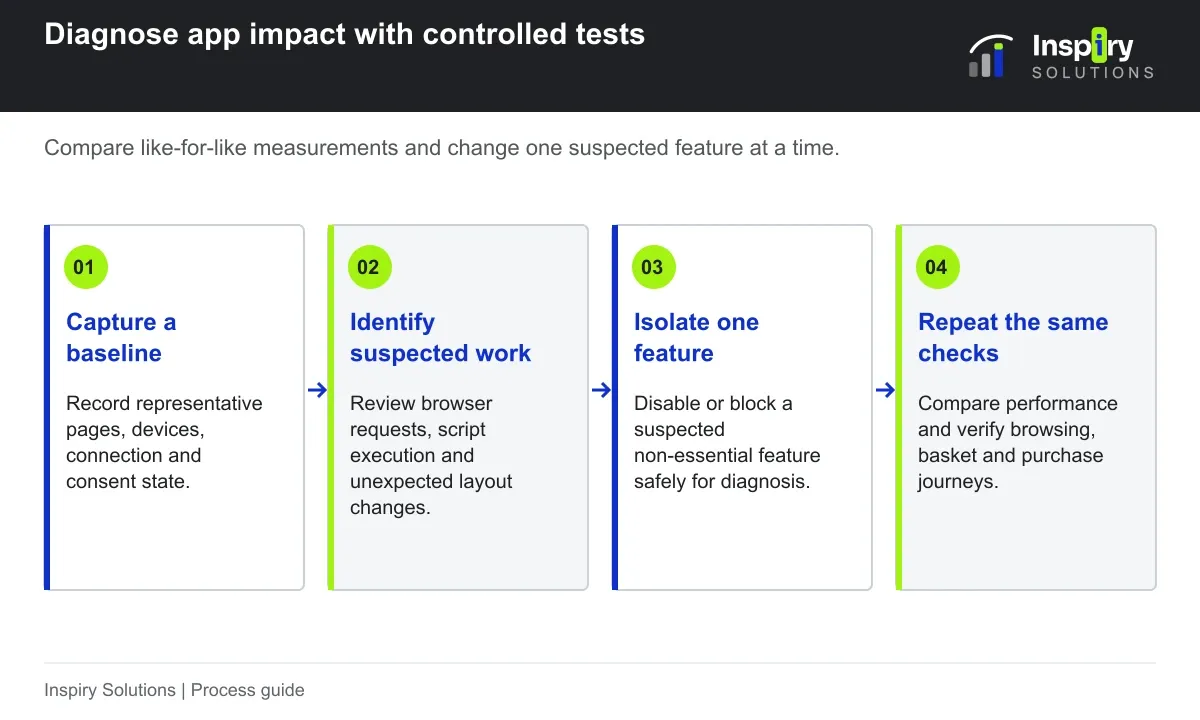
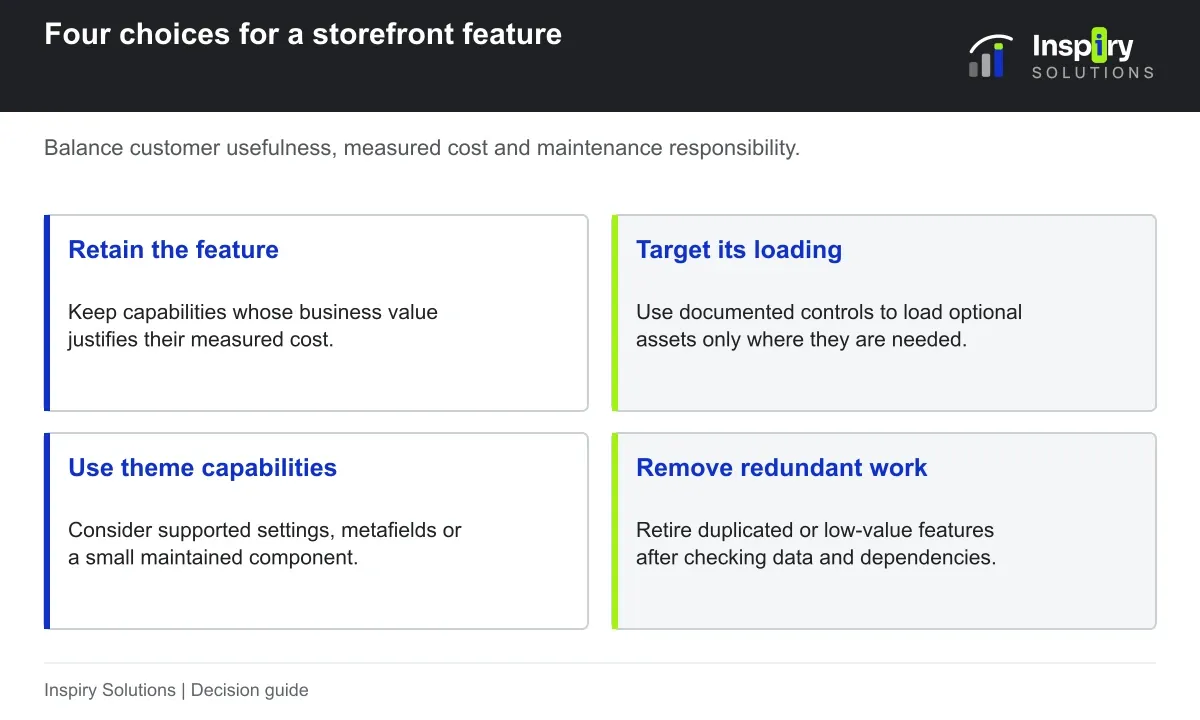
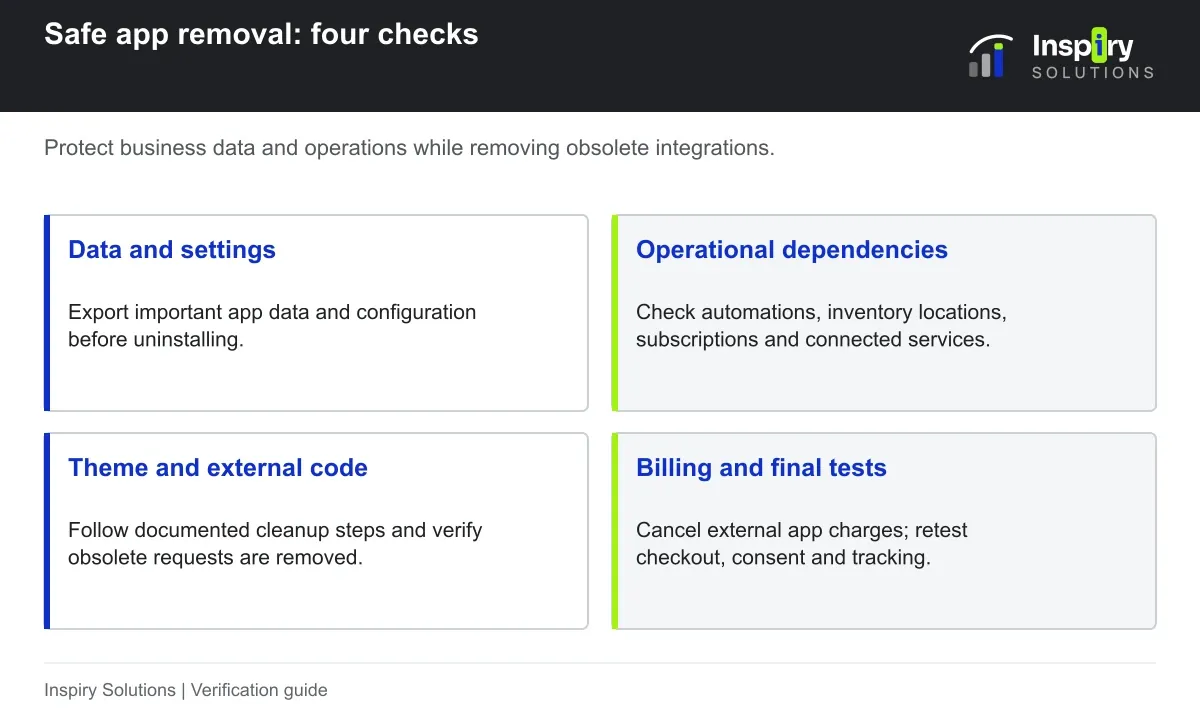
Step one: audit the apps. Identify which Shopify store features use each app and which resources reach the storefront. Some tools affect administration only; others add requests or interactions. Test a suspected feature in a duplicate theme or other safe setup before removal, and check orders, data exports and dependencies as well as speed.
Step two: image discipline. Shopify’s CDN handles modern formats and responsive sizes, but it cannot fix what it is fed carelessly. Compress before upload, use dimensions close to display size, use JPG or WebP for photos, and confirm the theme lazy-loads images below the fold. Watch the sneaky one: images placed through apps and page builders often bypass the theme’s optimization entirely and ship at full size.
Step three: theme-level fixes. Switch off unused theme features, remove extra font families and weights (every weight is a separate download), and replace animation-heavy sections with plain ones. If the theme has not been updated in years, update it after a backup: theme developers ship real performance work between versions, and stores stuck on a 2022 release never receive any of it.
Step four, last and not first: custom theme work. Only after the first three steps does paid engineering make sense: profiling what blocks rendering, deferring non-critical scripts, trimming heavy Liquid loops on collection pages, and replacing app widgets with lightweight native features. The gains here are real. It is step four because it is the only step that costs serious money, and the first three change what needs engineering at all.
Shopify speed fixes that waste your time
Evaluate fixes by their measured effect on your Shopify store. Some popular approaches are poor fits when they do not address the actual bottleneck.
- Speed apps: assess the implementation and baseline rather than assuming a new app will help or hurt.
- Perfect-score chasing: a lab score is a diagnostic signal, not the business objective.
- Hosting upgrades: Shopify manages the platform infrastructure; a third party cannot replace it with a different Shopify host.
- Whitespace edits: Shopify already minifies supported served assets. Removing Liquid whitespace is not a substitute for investigating images and scripts.
When a Shopify rebuild beats optimization
There is a point where optimization becomes a bad investment: a theme patched by six developers over five years, layered with page-builder markup and dead app code nobody dares delete. The signals are consistent: fixing one section breaks another, nobody can say what half the theme code does, and the mobile experience was clearly an afterthought. That last one matters because on most stores phones carry the majority of traffic; it is why mobile speed sits at the centre of our website performance work rather than being a checkbox.
Compare a targeted repair estimate with a scoped rebuild, including migration and testing. A new theme is not automatically faster or more profitable. Our Shopify development work starts with the requirements and evidence so the proposed build addresses known limitations rather than replacing the store on appearance alone.
The honest part: some of it is Shopify
Shopify manages the underlying platform hosting. Your controls sit mainly in themes, media, apps and supported configuration; checkout extension options depend on the platform and plan. You still need to test the complete buying journey, including the parts managed by Shopify and third parties.
So the honest goal is not “make it instant.” It is: remove everything you added that slows the store down, and make the parts you control fast. On most slow stores we audit, the gap between how the store performs and how it could perform sits almost entirely in apps, images, and theme code. Which is good news. Those are fixable, and the Core Web Vitals thresholds give you a clear finish line.
Seven Shopify store speed checks before release
The useful sequence is baseline, isolation, change and verification. Shopify’s web-performance guidance identifies themes, apps and third-party code as factors merchants can investigate.
- Choose real pages. Measure a collection, a typical product and a demanding product, not only the homepage. A Shopify store may behave differently across templates and app configurations.
- Record conditions. Keep the URL, device profile, connection assumptions and visitor state. Repeat comparable tests so a cache change or different page does not masquerade as a fix.
- Inspect the main image. Confirm suitable delivered dimensions and when it is requested. Do not lazy-load the image needed for the initial main content; reserve space to avoid layout movement.
- Trace scripts. Identify which feature owns slow requests or long tasks. App count alone does not reveal the Shopify store bottleneck.
- Test a feature in isolation. Disable a suspected embed in a safe copy where possible. Note what changes and what stops working before removing the live dependency.
- Verify the buying journey. Check variants, discounts, cart behaviour, checkout, order confirmation and relevant tracking. Faster browsing is not a successful release if purchases fail.
- Monitor after deployment. Repeat lab checks promptly and review real-user trends later. A Shopify store change needs both immediate acceptance and continuing observation.
Document a Shopify store speed change clearly
Write the hypothesis before the change: for example, a recommendation widget is contributing a long interaction task on product pages. Record the affected template and test the same product with the feature disabled. If the suspected delay remains, investigate another cause rather than removing the feature on habit.
When a change helps, test the dependencies that made the feature useful. A widget may also supply analytics events or merchandising rules. Keep the release version and recovery method so the Shopify store can return to the previous behaviour if a missed issue appears.
Use our app-category guide to review whether a tool solves a real problem. If the limitation is structural, compare a targeted repair with the custom theme options before commissioning a rebuild.
Apps are a common cause of slow stores, so our guide to Shopify app bloat is a useful next read, along with custom vs premium Shopify themes.
Common questions
How fast should a Shopify store load?
Use real-user LCP at or below 2.5 seconds, INP at or below 200 milliseconds and CLS at or below 0.1 as the good thresholds. Assess the 75th percentile separately for mobile and desktop. Test representative Shopify store pages and interactions; a single homepage lab score is not a complete result.
Do Shopify speed optimization apps actually work?
Some tools help particular problems, but none should be installed on a promise alone. Measure the same pages before and after, check what the tool changes and verify checkout, consent and analytics. Prefer a demonstrated improvement over a speculative Shopify store speed claim.
How many apps are too many on Shopify?
There is no magic number. Twenty admin-only apps can be harmless while three storefront widgets wreck your load time. Count the apps that render something or inject scripts into your storefront, because those are the ones every visitor pays for, and keep only the ones that measurably make money.
Can a Shopify store have too few apps?
Yes, if removing a useful tool disrupts inventory, merchandising or customer support. Choose dependencies by need and measured impact. An arbitrary app-count target is not a reliable performance strategy.
Should I lazy-load every Shopify store image?
No. Images needed immediately, particularly the main visible content, should not be unnecessarily delayed. Lazy loading can help below-the-fold media. Confirm what the actual theme outputs rather than enabling a universal rule.
When should I recheck Shopify store performance?
After a significant theme, app or content release, and on a routine review schedule suited to the business. Repeat diagnostics immediately, then examine real-user trends separately. Keep comparable conditions and customer-journey tests.
Your next step
Improve your Shopify store with a measured sequence, not a stack of speculative fixes. Keep the customer journey intact and use repeated tests to decide whether each change deserves release.