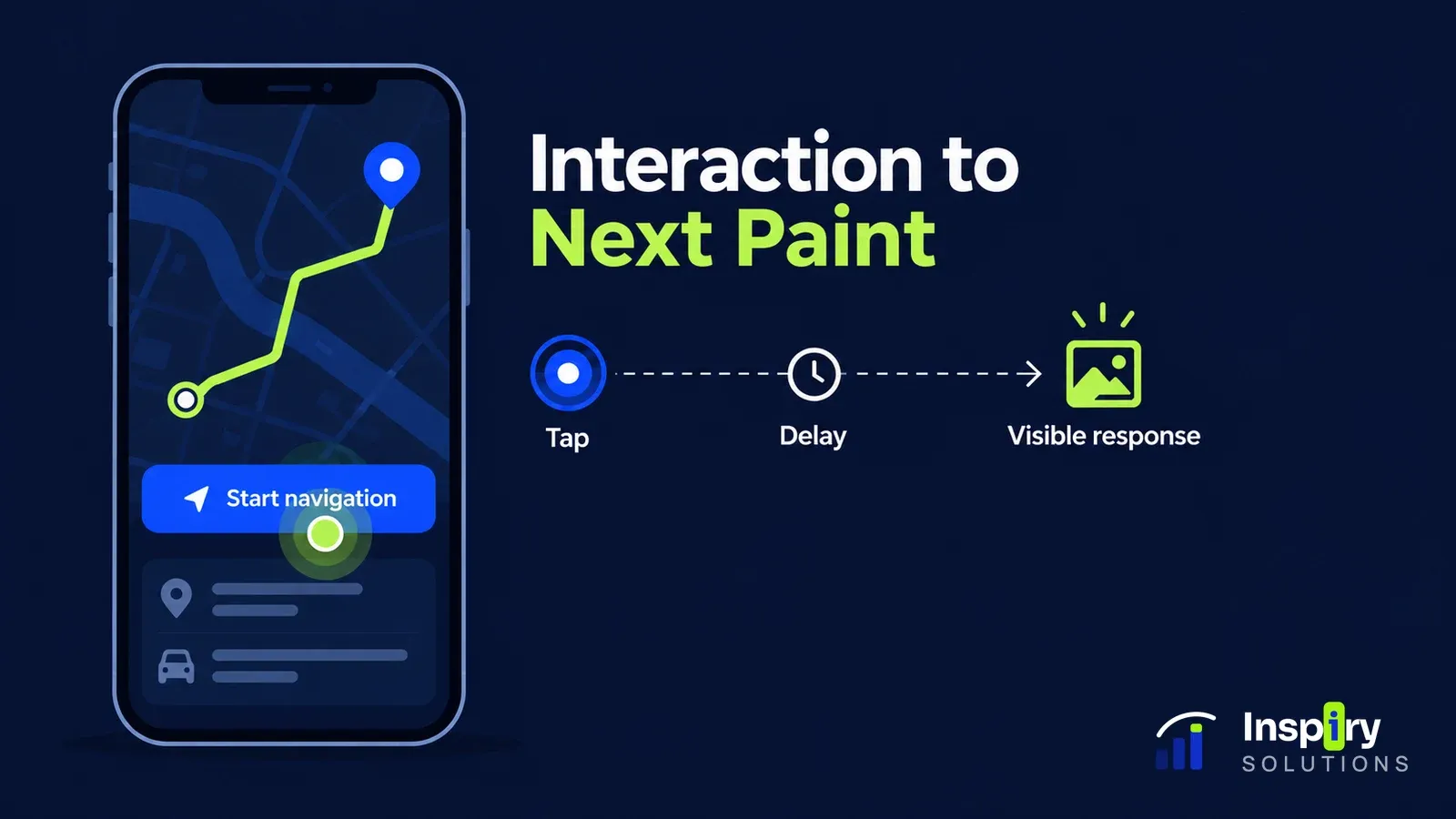
Third-party scripts can slow a website through extra server connections, JavaScript execution and layout changes. Chat widgets, tracking pixels, analytics tools and embedded media each add work for the browser. The solution is not to remove every marketing tool. Build a script inventory, measure each integration and decide whether to keep, delay, replace or remove it. That protects useful reporting and enquiries while cutting unnecessary loading work.
This guide is for business owners and marketing teams whose websites have accumulated integrations over several years. You will learn how to identify scripts, assign responsibility and make performance changes without losing important functionality.
What counts as a third-party script
A third-party script is JavaScript supplied by an external service rather than developed as part of your website’s own functionality. It may load directly from another company’s server or through a plugin, app or tag manager.
Common examples include:
- Live chat and customer support widgets.
- Analytics and visitor reporting tools.
- Advertising and conversion tracking pixels.
- Heatmaps and session recording tools.
- Cookie consent and preference managers.
- Review feeds and testimonial widgets.
- Booking and appointment integrations.
- Video players, maps and social media embeds.
Not every external resource is JavaScript. Embedded media may also download images, stylesheets, fonts and other files. Tracking pixels can generate network requests without requiring a large JavaScript download.
The practical concern is the total work an integration introduces.
A chat widget might connect to a messaging server, identify the visitor and build an interface. An analytics tag may simply collect information and send an event. Both have costs, but those costs are different.
Why one widget can mean several requests
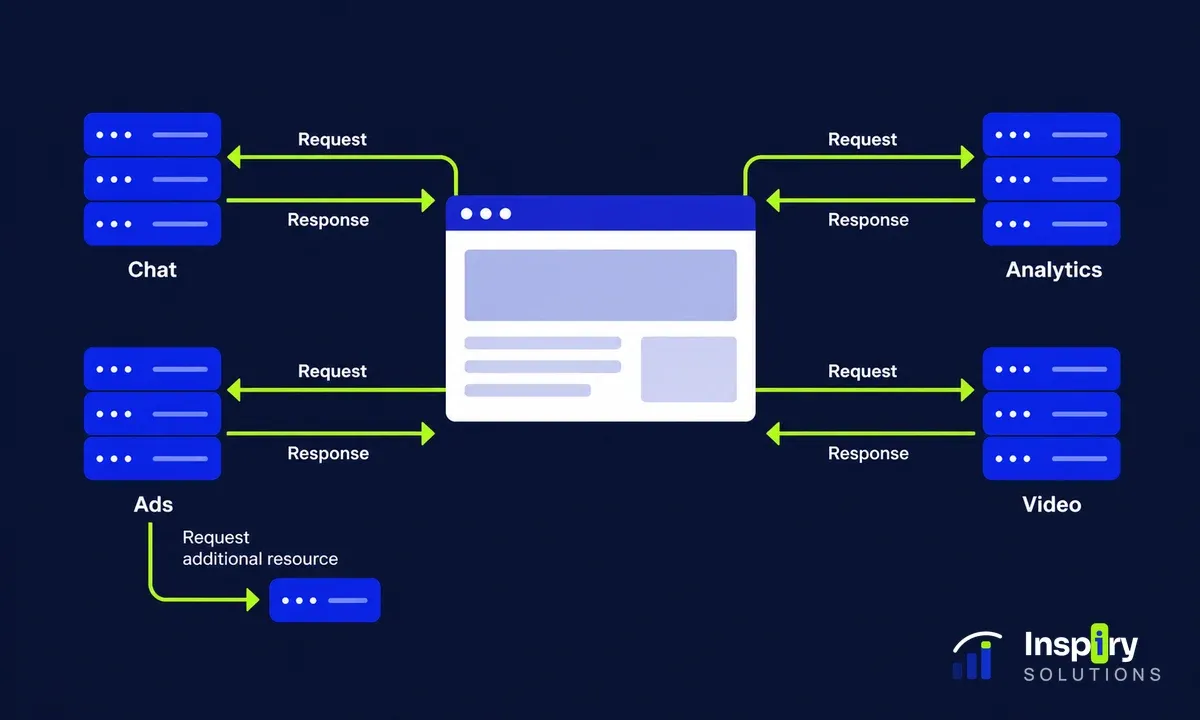
One visible review panel might download resources from multiple domains. Its initial script can request additional code, styles or images.
A page with four integrations may generate considerably more than four requests. The impact depends on their implementation, connection conditions and execution behaviour.
Shopify stores face the same problem
Shopify stores commonly introduce third-party scripts through apps. Review, marketing and customer support integrations can add loading work beyond essential storefront functionality.
The number of installed apps is not a performance score. What matters is the resources each app introduces and where they load.
The same principle applies when reviewing app scripts on Shopify stores. Identify actual loading behaviour before assuming an app is harmless or expensive.
How third-party scripts slow a page
Third-party scripts affect loading and responsiveness through network requests, browser processing, layout changes and dependent resources.
Extra external connections
When a browser contacts another domain, it may need to resolve its address and establish a secure connection. Additional downloads compete for network capacity, particularly on slower mobile connections.
Caching reduces some repeat downloads, but website owners cannot control every external provider’s caching policies.
Main-thread work delays interactions
The browser must parse, compile and execute downloaded JavaScript. Much of that execution competes for time on the main thread, which handles rendering and user interaction.
Visitors may see a page but experience slow clicks and taps while expensive scripts execute. Even a small JavaScript download can create substantial processing work.
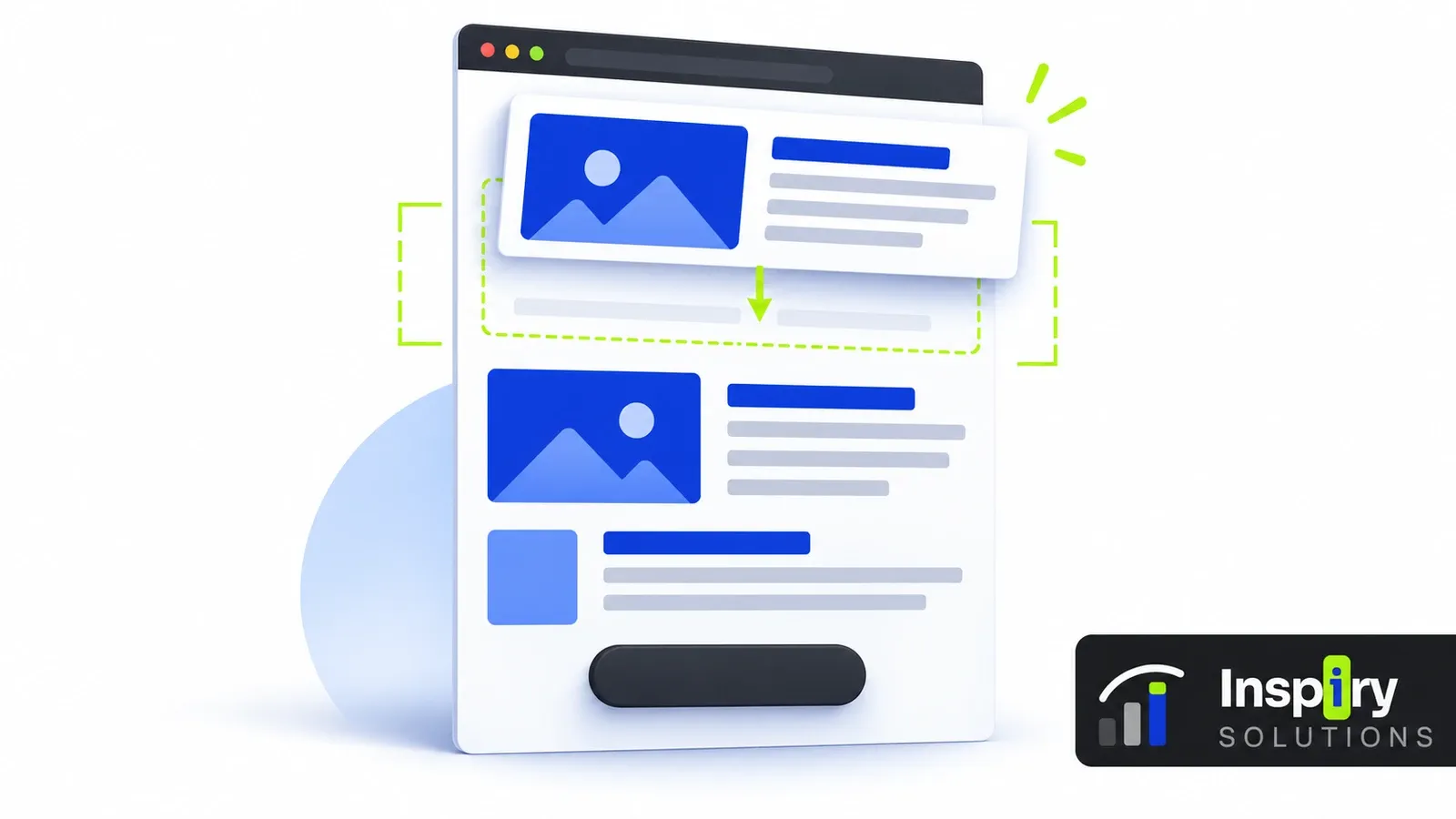
Widgets can shift the layout
Some chat panels, reviews and promotional overlays insert content after the initial page appears.
If existing elements move unexpectedly, these widgets that shift the layout can contribute to Cumulative Layout Shift.
A fixed overlay does not automatically cause instability. The implementation determines whether surrounding content moves.
Scripts can trigger further scripts
A tag manager may load marketing tags that contact additional services or inject more code.
This dependency chain makes the total cost difficult to identify from the page source alone.
That is why our website performance service examines actual browser behaviour rather than judging speed from plugin counts.
Build a script inventory in 3 steps
A script inventory is a shared record of external integrations, their owners, business purposes and measured costs.
A spreadsheet is enough. Record each integration separately, including tools installed through multiple methods. Update the inventory whenever marketing or development adds a new service.
1. List every script and where it loads
Start with representative pages: homepage, service pages, contact page, advertising landing pages and any checkout or booking journey.
Open Chrome DevTools and inspect the Network panel. Review JavaScript requests and domains outside your own website.
Also check tag managers, plugins, apps, theme settings and manually embedded content.
Record whether each tool loads site-wide, on selected pages, after consent or following user interaction.
The goal is to understand what exists before changing anything.
2. Name an owner and a business reason
Every integration needs someone who can explain its value.
The owner might be the marketing lead responsible for campaign reporting, the sales manager using chat enquiries or the team managing bookings.
Avoid vague descriptions such as “needed for marketing”. State the actual purpose, such as measuring completed enquiries or answering visitor questions.
For WordPress, judging plugins by the work they do is more useful than counting installations. A valuable plugin might still load unnecessary frontend scripts.
Use this script inventory template.
| Script | Owner | Business purpose | Pages it is needed on | Measured cost | Decision (keep, delay, replace, remove) |
|---|---|---|---|---|---|
| Live chat | Sales | Answer enquiries | Service and contact pages | Heavy startup work | Delay |
| Analytics | Marketing | Report visits and conversions | Reporting pages | Modest observed work | Keep |
| Ad pixel | Paid media | Measure conversions | Relevant campaign journeys | Extra requests | Keep, limit |
| Heatmap | Unassigned | Previous research | None confirmed | Execution work | Review for removal |
| Review widget | Marketing | Display feedback | Selected service pages | Late layout changes | Replace |
| Embedded video | Content team | Demonstrate services | Video pages | Large player resources | Delay |
These assessments are illustrative, not actual measurements. Replace them with findings from your website.
3. Flag scripts nobody uses any more
An unowned script deserves investigation, not automatic deletion.
Ask when the tool was last used, who reads its reports and whether it supports an active campaign.
Look for duplicated analytics, abandoned experiments, expired advertising tags and unused chat services.
Flag candidates for removal when nobody can establish a current business requirement.
Before deletion, confirm that the integration does not support another team’s reporting, consent management or essential functionality.
Keep the script inventory current so unnecessary integrations do not accumulate again.
Measure the cost of each script
Measurement distinguishes genuinely expensive integrations from tools that merely look suspicious.
Test representative pages under comparable conditions, changing one integration at a time.
Start with Lighthouse
Lighthouse audits website performance and provides diagnostic information.
In Chrome DevTools, run a mobile Lighthouse audit. Review JavaScript execution, main-thread activity, network requests and available third-party diagnostics.
The location of third-party information varies between Lighthouse versions, so inspect relevant details rather than relying on one heading.
Google’s Lighthouse documentation explains the auditing process.
One score does not prove which vendor caused a problem.
Block one integration and compare
Chrome DevTools can block selected network requests during testing.
Record a baseline, block one integration and reload under comparable conditions.
Compare the results:
- Requests and transferred resources.
- Main-thread activity.
- Content rendering and layout stability.
- Missing functionality or tracking.
Repeat tests where results vary.
Blocking every external request together might make the page faster, but it will not reveal each tool’s individual contribution.
Test mobile and consent states
Mobile emulation with network and CPU throttling helps expose expensive processing that powerful desktops may hide.
Confirm important findings on a real mobile device where possible.
Test both before and after granting consent, because some tracking pixels only load following permission.
Record test conditions and affected URLs. This gives your developer reproducible evidence instead of a vague complaint about speed.
Keep, delay, replace or remove
Your script inventory should lead to decisions based on business value and measured performance cost, not a blanket rule to remove every integration.
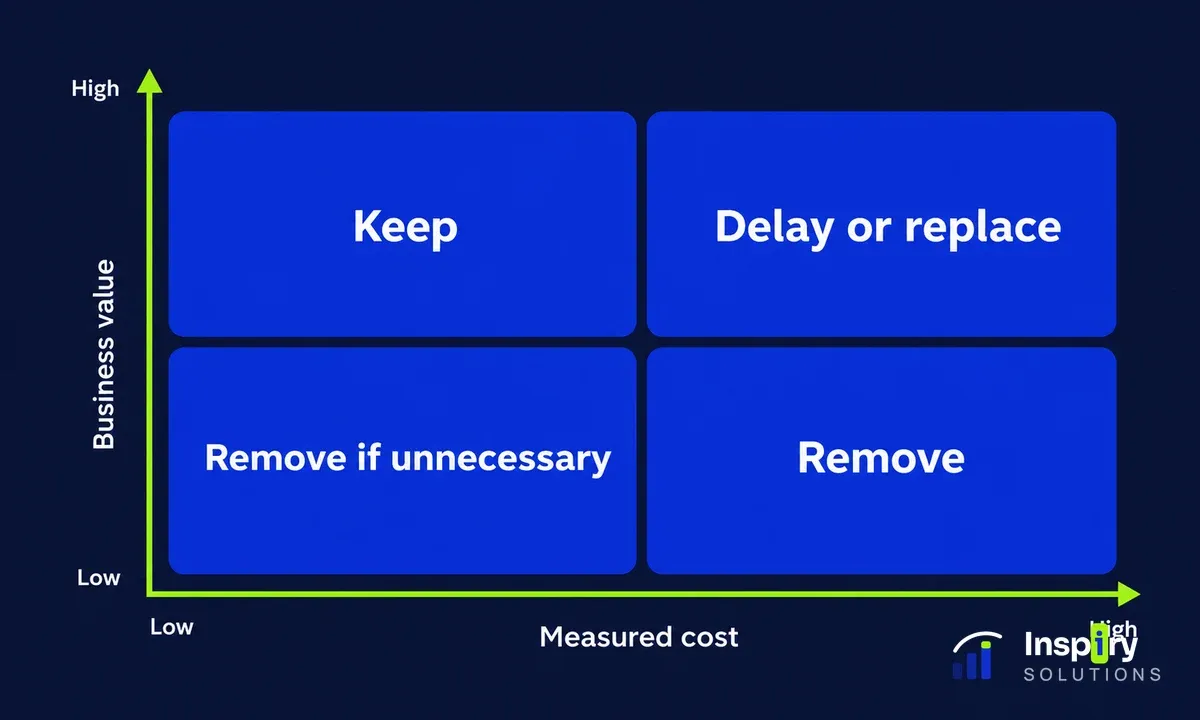
| Business value | Measured cost | Preferred action |
|---|---|---|
| High | Low | Keep |
| High | High | Delay or replace |
| Low | Low | Remove if unnecessary |
| Low | High | Remove |
High value means a tool supports a real business requirement. For example, chat may generate enquiries, while an unused heatmap provides little reason to remain.
Agree before removing tags
Marketing should confirm the business requirement. Development should explain technical dependencies and alternative loading methods.
Together, agree what will change, how reporting will be checked and how the change can be reversed.
A seemingly redundant advertising pixel might record a conversion unavailable elsewhere. A consent integration might control whether other scripts operate legally.
Neither should disappear during an unreviewed clean-up.
Accept useful costs
Some third-party scripts justify their resource cost. A booking system that lets customers schedule appointments may deliver more value than a small improvement in a laboratory score.
The objective is to reduce impact of third party code while maintaining important functionality.
Remove unnecessary duplication first, then optimise integrations worth keeping.
Loading techniques that reduce the cost
Useful integrations can often be loaded differently to reduce initial page work.
Google’s guidance on efficiently loading third-party JavaScript explains several approaches.
Understand async and defer
The async attribute lets an external script download without blocking HTML parsing during the download. It executes when ready.
The defer attribute allows a classic external script to download without blocking parsing and execute after the document has been parsed.
Neither removes execution cost.
Script dependencies may also require a particular order, so test changes before deployment.
Load widgets on interaction
A chat widget does not always need to initialise immediately.
Display a lightweight chat button first. Load the full service when the visitor clicks.
Video players can use the same approach through a thumbnail and play button.
This technique is called a facade: a lightweight placeholder that loads the actual integration after interaction.
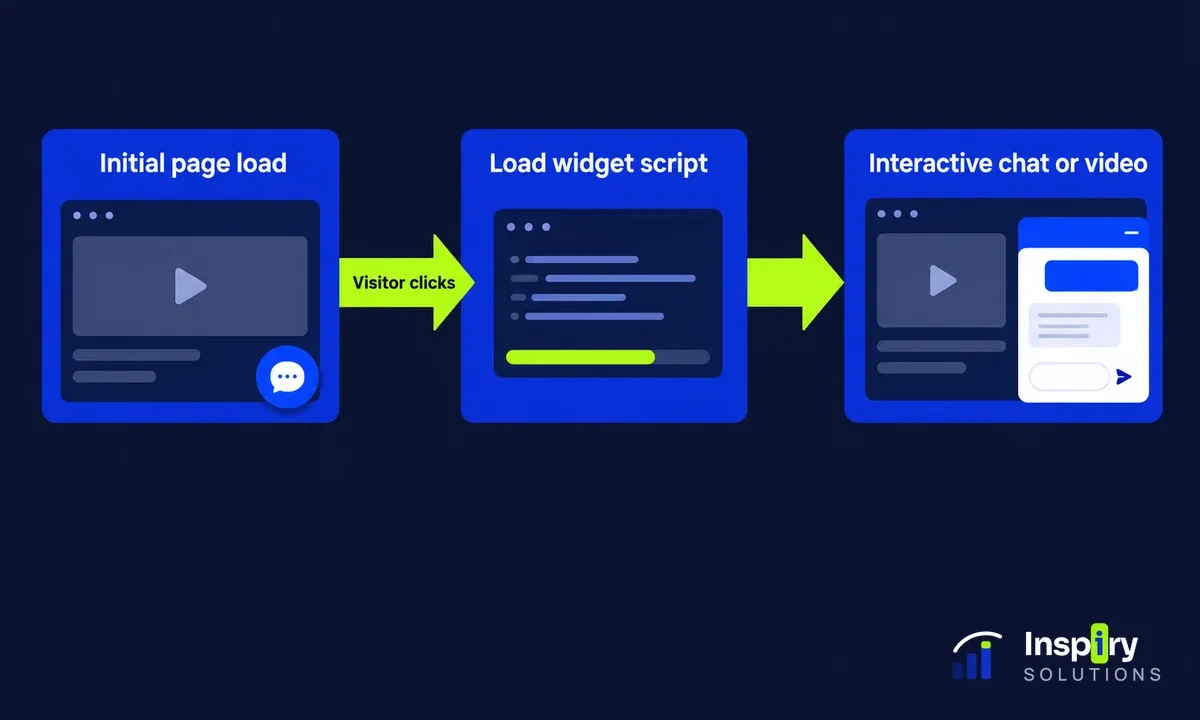
Ensure placeholders remain keyboard accessible and provide clear loading feedback.
Restrict scripts to relevant pages
A booking widget might only be necessary on an appointment page.
Review widgets may be useful on selected service pages rather than across the whole website.
Advertising tags require more care because attribution may depend on events across several pages.
Check reporting requirements before limiting coverage.
Avoid risky shortcuts
Self-hosting vendor code introduces maintenance responsibilities. Arbitrarily delaying analytics can miss important events.
Choose loading techniques around functionality, dependencies and supported vendor implementations.
The goal is to defer third party scripts where appropriate, not simply shift their workload to an inconvenient moment.
Consent banners and tracking scripts
Consent tools can also add scripts, styles and interface elements.
Under UK rules, non-essential cookies and similar technologies generally require consent before they are used, including many advertising and analytics tools.
The Information Commissioner’s Office explains the requirements in its guidance on cookies and similar technologies.
Essential technologies may qualify for exemptions.
Holding non-essential tracking pixels until consent can reduce initial loading work. However, compliance is the primary requirement, not a performance shortcut.
Keep the consent interface light
A consent banner should appear promptly without unexpectedly shifting important content.
Avoid overlapping consent systems or unnecessary custom scripts.
Check that rejecting optional tracking actually prevents the relevant technologies from operating.
Google’s tag management best practices provide additional guidance on deployment and performance.
Never improve apparent speed by bypassing consent controls.
Where scripts come from on WordPress and Shopify
Third-party scripts may originate from plugins, apps, theme settings, custom code and tag managers.
They are not always visible inside the page editor.
WordPress sources
Check plugins responsible for chat, analytics, forms, bookings and reviews.
Some load assets across the website even when their functionality appears on one page.
Inspect theme settings, header and footer snippets, and custom code areas.
Test potentially disruptive changes on staging rather than disabling important functionality on the live website.
Shopify sources
Shopify apps may introduce resources through app embeds, theme extensions and other supported integrations.
Review enabled embeds and theme customisations.
Removing an app does not necessarily remove historical manual code added separately.
Check remaining references without blindly deleting code that may support customer-facing functionality.
Tag Manager and duplicates
A common problem is installing the same advertising pixel directly and through a tag manager.
Inspect both installation paths and their trigger conditions.
Also check whether apparently repeated events are intentional.
After removal, confirm the relevant requests and events have stopped. A deleted dashboard entry alone does not prove that the browser no longer loads the integration.
Hypothetical example: a service site with six marketing tags
A recruitment agency website loads six marketing integrations on every page: live chat, two analytics tools, two advertising pixels and a heatmap.
This is a hypothetical example, not a client case study.
The script inventory reveals that one analytics tool and the heatmap have no current owner. After checking dependencies, the team removes both.
The developer measures page behaviour before and after the changes. Chat loads only after a visitor clicks its button, while advertising pixels are limited to relevant landing pages and campaign journeys after verifying attribution requirements.
In this illustrative scenario, initial main-thread work reduces noticeably while essential reporting and enquiry functionality remain available.
Marketing checks tracking and conversations while development verifies performance. No specific numerical improvement is assumed.
Common questions
Does Google Analytics slow down my website?
Google Analytics adds network requests and JavaScript execution, but its impact is often modest compared with heavy chat widgets or video embeds. Actual cost depends on configuration and the other scripts running alongside it. Measure it using Lighthouse and DevTools rather than removing it on assumption. Also check for duplicated analytics implementations collecting the same information.
Should I remove my chat widget?
Not necessarily. A chat widget may justify its performance cost if it brings useful enquiries or supports customers. A better option can be displaying a lightweight chat button and loading the full integration only after a visitor clicks it. Test mobile behaviour, message delivery and the enquiry process before replacing the existing setup.
What is a facade for a third-party embed?
A facade is a lightweight placeholder that resembles an embedded widget without initially loading its complete resources. A video thumbnail with a play button is a common example. The actual player or widget loads when the visitor interacts with the placeholder. This reduces initial loading work while keeping the content accessible when needed.
Does adding async to a script fix the problem?
No. Async allows an external script to download without blocking HTML parsing during that download, but its code still executes on the main thread and can delay interactions. Async can also alter execution order. Measure the outcome and check functionality before deciding whether async, defer or interaction-based loading is suitable.
Who should decide which tags to remove?
The person responsible for the tool’s business results and the developer should decide together. Marketing understands the reporting or enquiry requirements, while development identifies technical dependencies and performance costs. Agree on a business reason, measurement method and test plan before removal. Afterwards, verify both browser performance and the functionality or reporting the tag previously supported.
Your next step
Start with one task this week: build a script inventory for your homepage and most important enquiry page.
List every external integration, its owner and business purpose.
Ask the responsible teams to identify tools they actively use. Mark unexplained entries for investigation rather than deleting them immediately.
Then ask a developer to measure candidates individually, prioritising scripts that load everywhere but provide value on only a few pages.
Send your developer:
- The affected page URLs.
- Your completed script inventory.
- A mobile Lighthouse report.
- The tools that must remain functional.
- Candidates for delay, replacement or removal.
Request a before-and-after comparison. Confirm that forms, tracking, chat and other essential features still work.
If your site has gathered more tags than anyone can explain, our website performance work builds the inventory with you, measures each script and implements the changes, typically $400-$1,800.
Or start with the free audit. Send your website URL to hello@inspirysolutions.com and receive a plain-language reply within two working days.