To update WordPress plugins safely, check the risk of each update, create a restorable backup, test complex changes on staging and verify key site functions. Avoid updating every plugin together without checking what each one controls. A small utility update rarely needs the same attention as a change to WooCommerce, a page builder or a booking system. If something fails, you should already know how to restore the previous working version.
This guide is for business website owners who worry about pending plugin updates breaking enquiries, orders or layouts. You will learn a repeatable routine covering risk ratings, update order, five practical tests and recovery.
Why plugin updates break sites
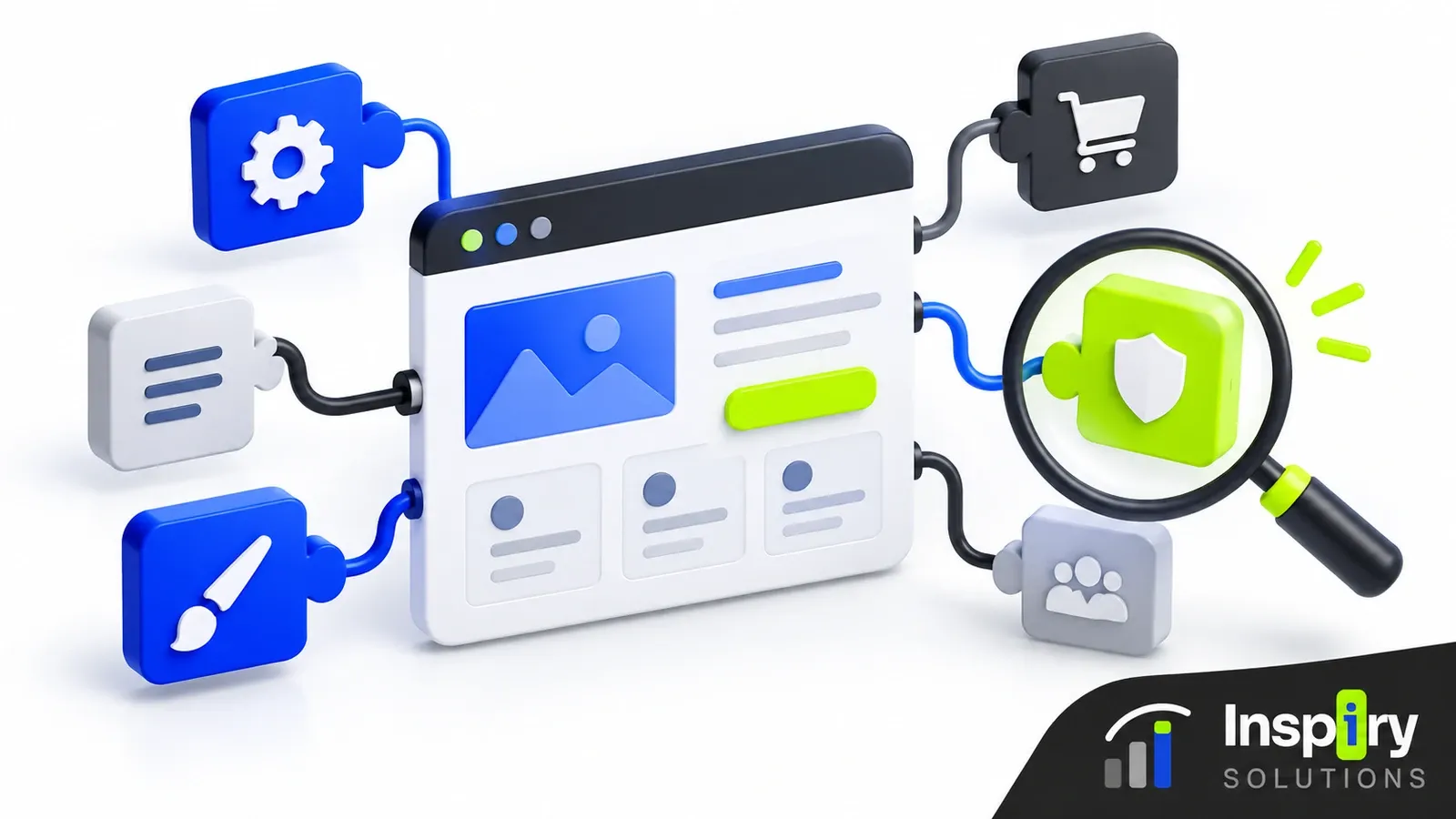
WordPress plugins share the same website environment. They interact with your theme, WordPress core, PHP and sometimes each other. Updating one component can expose compatibility problems elsewhere.
Four common causes explain why plugin updates break working websites.
Plugin conflicts. Two plugins may use incompatible JavaScript libraries or expect different behaviour from shared features. A form might stop submitting even though its update completed successfully.
Theme overrides. Some themes customise templates supplied by plugins. An update can introduce changes those templates do not support, particularly around WooCommerce pages.
PHP requirements. PHP is the server-side programming language WordPress uses. A plugin may require a newer version than your hosting environment provides.
Major version changes. Larger releases sometimes change settings, database tables or data structures. These migrations can complicate reverting to earlier versions.
The message “Update successful” confirms the update process completed, not that your contact form, checkout or templates still work.
Why leaving updates pending is not safer
Skipping updates avoids immediate changes but increases long-term risk.
Outdated plugins can retain known security vulnerabilities. They may also become incompatible with newer WordPress or PHP releases, making future upgrades harder.
The goal is not to avoid plugin updates but to make controlled changes and verify important functionality afterwards.
Before maintaining a large plugin collection, consider reviewing which plugins earn their place. Removing unnecessary plugins reduces dependencies and future maintenance work.
Deactivated plugins may still contain vulnerable files, so unused plugins should be properly assessed and removed when unnecessary.
Rate each update before you press the button
Not every plugin requires the same process. Rate updates according to what they control, the size of the release and the consequences of failure.
A utility plugin might affect a minor feature. A payment plugin could interrupt revenue, while a page builder might affect layouts across multiple pages.
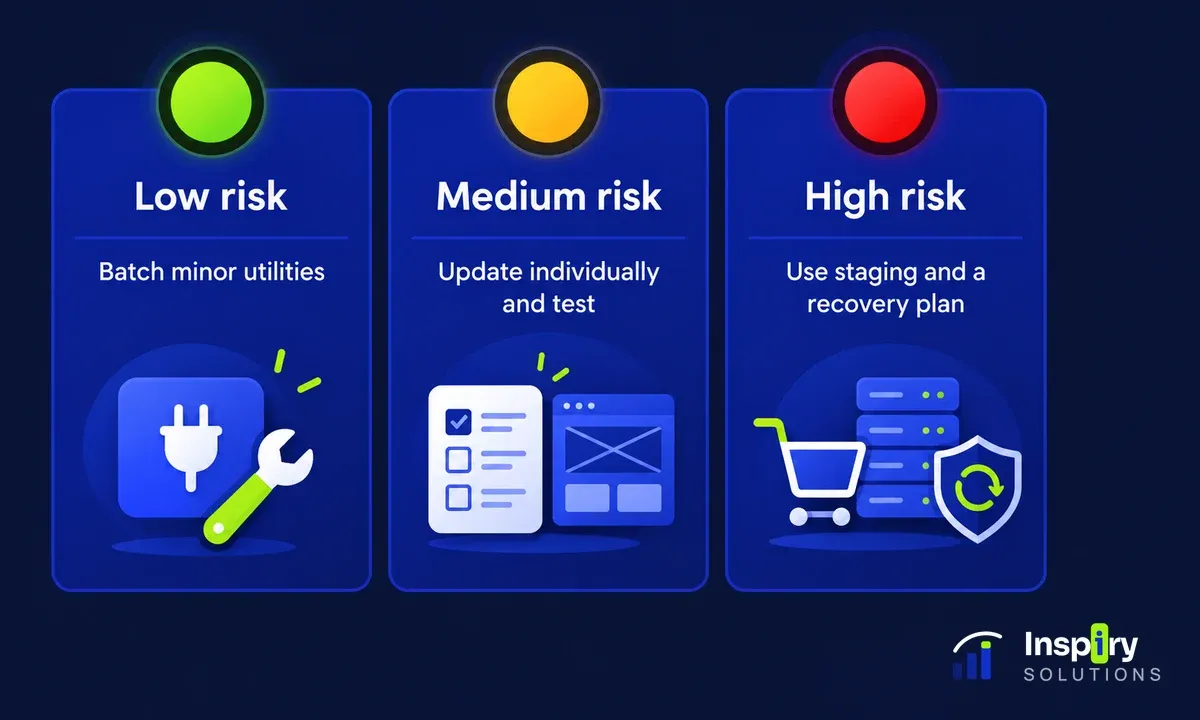
Use three risk levels:
- Low: Minor or patch releases for simple utilities with limited business impact.
- Medium: SEO, caching, forms and page builders, particularly when affecting shared templates.
- High: WooCommerce, memberships, bookings, payment integrations and major version changes.
A minor release is not automatically low risk. Even small checkout changes can affect payments.
WordPress plugin update risk rating
| Plugin type | Example | Risk level | Test on staging first? | Auto-update? |
|---|---|---|---|---|
| Small utility plugin | Simple admin utility | Low | Usually no | Usually reasonable |
| SEO plugin | Metadata and sitemaps | Medium | For major changes | Conditional |
| Caching plugin | Page caching and optimisation | Medium | Recommended | Usually manual |
| Form plugin | Contact and enquiry forms | Medium | Recommended | Usually manual |
| Page builder | Elementor and add-ons | Medium to high | Yes | Usually manual |
| WooCommerce and extensions | Checkout and payments | High | Yes | Avoid unattended |
| Membership or booking plugin | Access and reservations | High | Yes | Avoid unattended |
| Security release of any plugin | Vulnerability fix | Urgent, risk varies | If feasible without unnecessary delay | Depends on exposure |
These classifications are starting points, not guarantees. Adjust them for your website’s dependencies, customisations and business impact.
Security updates should jump the normal queue. Do not leave a serious known vulnerability unpatched until the next monthly maintenance session.
For urgent, high-risk releases, create a fresh backup, test promptly where feasible and deploy when someone can investigate failures.
If your team cannot assess these risks or verify the results, consider maintenance plans that handle updates for you. The important distinction is whether someone tests business functionality rather than simply pressing Update.
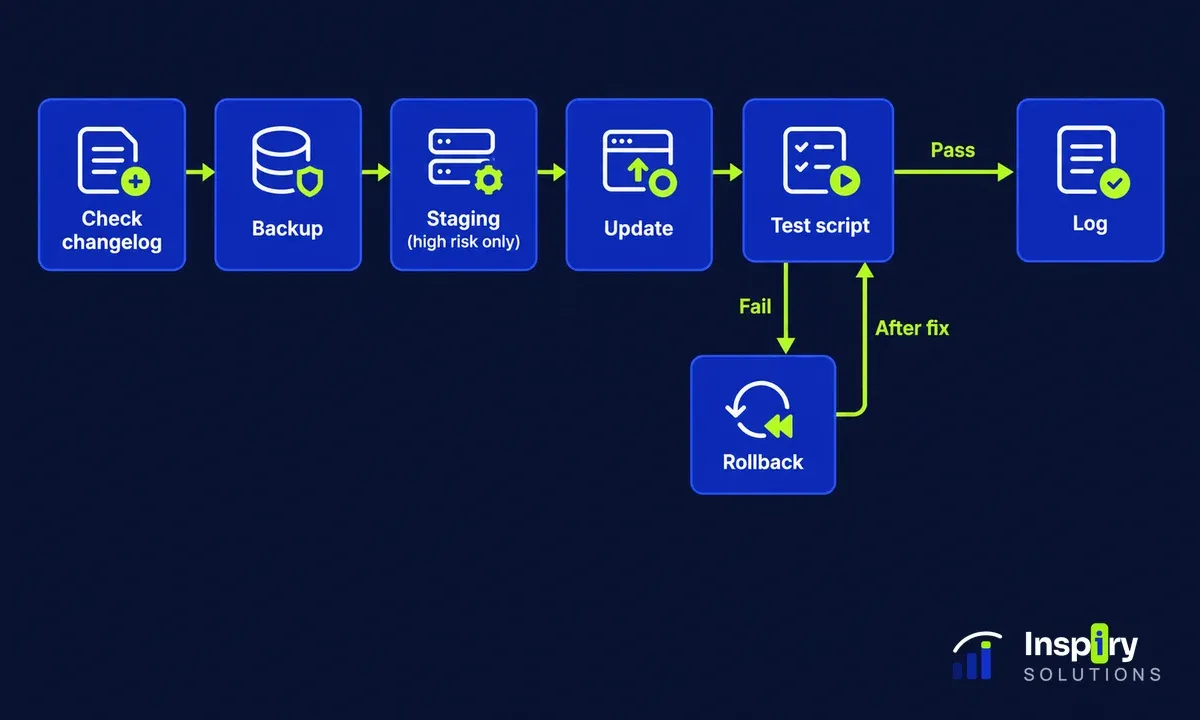
Before updating: backup, changelog and staging
A safe update process starts before files change. Three preparations make recovery considerably easier.
Create a backup you can actually restore
Take a fresh backup of your website files and database.
Files contain plugin code, themes and uploads. The database stores settings, content, users and transaction records. Complete recovery may require both.
The official WordPress backup guidance explains what needs protecting.
Check where the backup is stored and how restoration works. Ideally, it should be accessible independently of your website’s hosting environment.
For critical websites, verify the restoration process on a safe copy. A backup you have never tested may not provide the protection you expect.
If your website receives orders or registrations continuously, remember that restoring an older database can overwrite newer transactions.
Read the changelog and compatibility notes
Open the plugin’s update details before installing the new version.
Look for:
- Breaking changes or removed features.
- New PHP or WordPress requirements.
- Database migrations.
- Compatibility warnings involving other plugins.
- Security fixes requiring urgent attention.
A changelog describes intended changes but cannot guarantee compatibility with your theme or custom code.
Record the installed and replacement versions. Check whether dependent add-ons also require updates, especially for major releases.
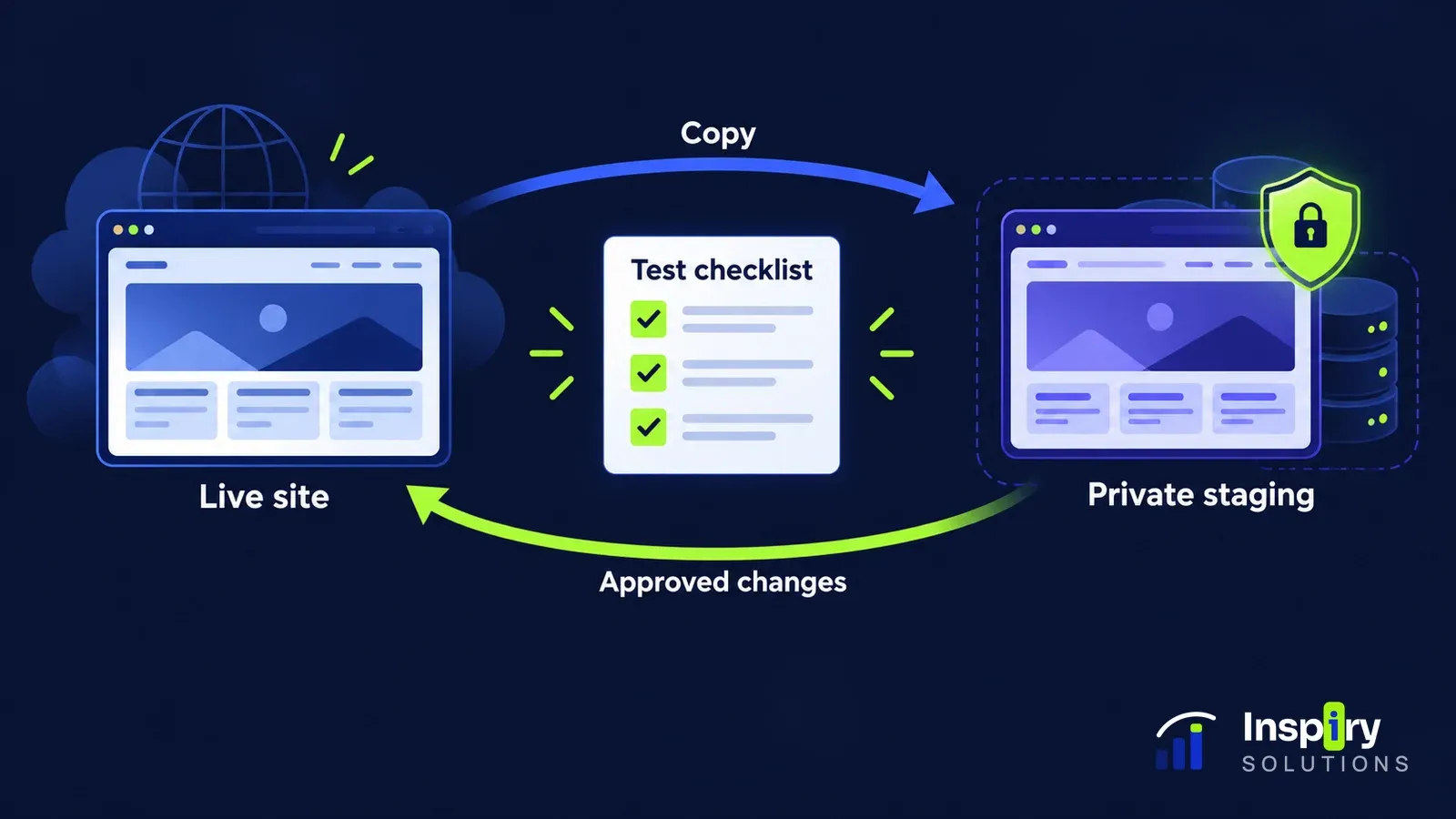
Test high-risk changes on staging
A staging website is a separate copy where changes can be tested before reaching visitors.
For high-risk plugins, testing changes on a staging copy should be standard practice.
Create a recent copy and confirm its PHP version, plugins and important settings resemble production.
Apply the update, clear relevant caches and run the same functional checks planned for the live website.
Prevent staging from sending real customer emails or processing live payments. Use safe email configurations and payment sandbox settings where appropriate.
Staging does not guarantee production will behave identically. Server configuration and recent database changes may differ.
Never overwrite a live WooCommerce or membership database with an older staging copy when newer orders or registrations exist.
The update order that avoids most conflicts
No universal plugin update order eliminates every conflict. Dependencies and compatibility requirements matter more than a rigid sequence.
WordPress provides official guidance on updating WordPress, including backups, core upgrades and troubleshooting. It does not mandate one plugin, theme and core sequence for every website.
For routine maintenance, follow this process.
- Check core and PHP compatibility. Identify whether plugins require a newer environment.
- Update parent plugins before dependent add-ons, when release notes support that sequence.
- Update medium and high-risk plugins individually. Test after each significant change.
- Batch compatible low-risk updates. Use small groups rather than selecting everything.
- Update the active theme when required. Check compatibility with page builders and plugins.
- Update WordPress core at the appropriate point. Follow dependencies and release guidance.
If a plugin requires newer WordPress core files, adjust the sequence accordingly. Do not follow an arbitrary plugin-first rule.
Clear caches between significant changes
Caching systems store copies of pages and assets to improve loading speed.
After updating a page builder, theme or optimisation plugin, clear relevant WordPress, server and CDN caches.
Avoid unnecessary full cache purges after every minor utility update.
Test in a private browser window. Administrators may see different results from visitors because their pages bypass caching.
Hypothetical example
A consultancy has 14 pending updates. Ten are minor utility releases and go out in one batch. The form plugin and page builder each get updated alone on staging, where the builder update changes a header template. That is fixed on staging before the live update, so the live contact form never breaks.
The remaining two updates are assessed separately according to their dependencies and risk.
This hypothetical example shows why grouping updates by risk is more useful than treating every pending release equally. Staging identifies a visible problem before customers encounter it.
A five-minute test script after every update
Updating is only half the job. The other half is confirming the website still supports important business journeys.
Use these five checks after significant plugin updates or low-risk batches. Complex ecommerce and membership systems may require additional testing.
Record pass, fail or not applicable. Test public pages while logged out and check mobile behaviour.
The homepage and a service page
Open the homepage and an important service page in a private browser window.
Check navigation, buttons, images, spacing and shared templates. Look for missing content, broken styling or overlapping elements.
Repeat on mobile, where responsive problems may appear even when desktop pages look correct.
If pages become noticeably slower, investigate speed problems that follow updates.
Submit the contact form
Open the main enquiry form and submit a realistic test enquiry.
Confirm validation, the success message and delivery to the intended destination.
Check email notifications and CRM records where applicable.
Visible form fields do not guarantee successful submission. Processing can fail without obvious layout problems.
Log in and out
Test login and logout using a normal user account.
Check protected pages, permissions and account access. For membership websites, verify that the appropriate subscription level can access its content.
Do not rely exclusively on administrator testing, since elevated permissions can conceal problems affecting ordinary users.
Checkout or booking, if present
For ecommerce websites, test adding products to the basket, changing quantities and reaching checkout.
Verify totals, shipping options and available payment methods. Use a payment sandbox or an approved controlled test.
For booking websites, check slot selection and the expected confirmation process.
Allow additional testing time when payments, bookings or transaction records are involved.
The error log and Site Health
Open Tools > Site Health and review new issues.
The WordPress Site Health documentation explains the available checks.
Review server or WordPress error logs for newly introduced warnings and fatal errors. The WordPress debugging documentation explains how logging helps diagnose problems.
Protect sensitive information in debug logs and avoid displaying errors publicly.
Logs supplement functional testing rather than replacing it. A layout can break without generating a PHP error.
When an update goes wrong: rolling back
Rollback means returning a failed change to a previously working state.
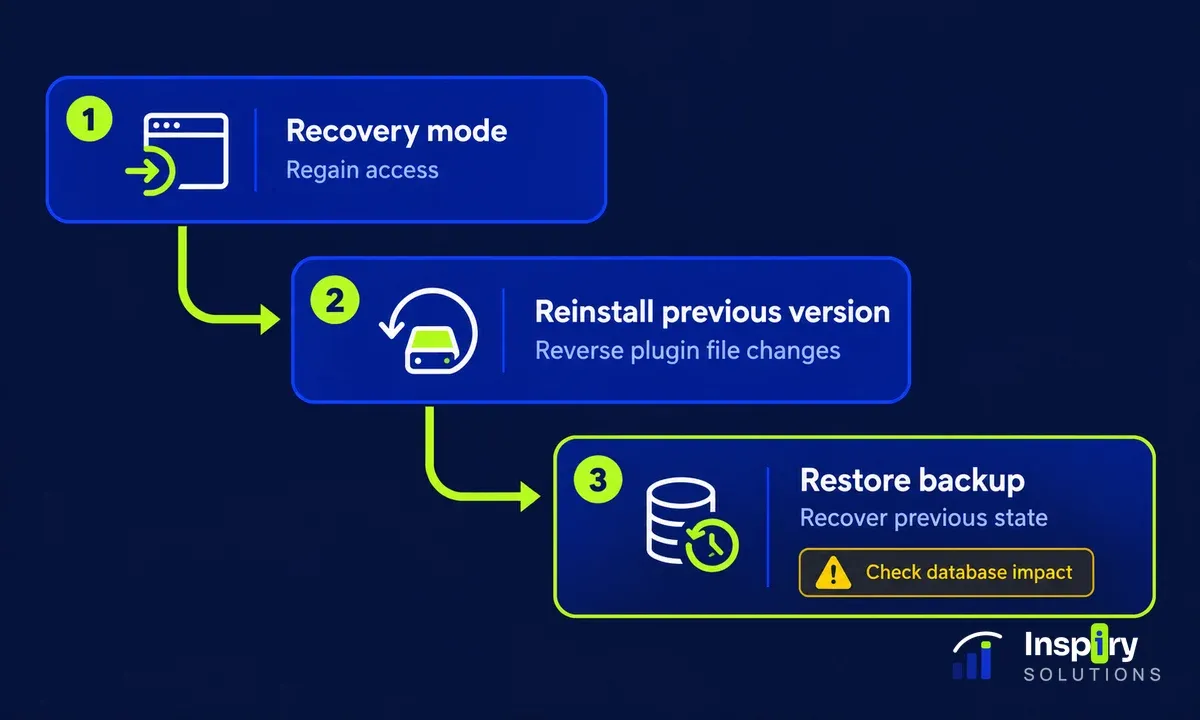
The appropriate recovery method depends on whether the website loads, whether administration remains accessible and whether database changes occurred.
Stop further updates when a failure appears. Record symptoms and identify the latest change.
First: recover access
If WordPress displays a critical error, look for its recovery mode email containing an administrative recovery link.
If the dashboard is inaccessible, use Secure File Transfer Protocol (SFTP), which allows authorised access to server files.
Find the suspected plugin folder inside wp-content/plugins and temporarily rename it. WordPress should then be unable to load that plugin normally.
This may restore access, but disabling a booking or payment plugin also disables its business functionality.
Contact your hosting provider or developer if recovery is uncertain.
Second: reinstall the previous version
When the problem comes from plugin files and no incompatible database migration occurred, reinstalling an earlier compatible release may resolve it.
Obtain the version from the original provider or a verified backup, never an unknown download website.
After reverting, clear caches and repeat the five functional checks.
A file-only rollback may be insufficient when database structures or settings changed during installation.
Third: restore the backup
If reinstalling fails, consider restoring the verified pre-update backup.
First, determine whether the database contains newer orders, payments or registrations. A full restoration could overwrite those records.
For transactional websites, coordinate recovery with someone who can preserve recent business data.
After recovery, document the affected plugin, version numbers, error messages and steps that reproduced the issue.
Report the problem to the plugin author, excluding customer information, passwords and other sensitive details.
Auto-updates: where they help and where to avoid them
Automatic plugin updates reduce the time software remains outdated, but remove the chance to review each release before installation.
Their suitability depends on the plugin’s business impact and your monitoring arrangements.
Where automatic updates make sense
Simple, maintained utility plugins with limited dependencies are reasonable candidates.
WordPress also supports background updates for many minor core releases, as described in its official documentation.
Backups and periodic verification remain necessary because even minor releases can introduce unexpected problems.
Automatic updates should reduce repetitive work, not eliminate maintenance oversight.
Where manual control is preferable
Prefer manual approval for plugins handling payments, bookings, memberships, complex forms and important layouts unless reliable monitoring and recovery arrangements exist.
Page builders and add-ons particularly deserve compatibility checks because they affect shared templates.
If you enable automatic plugin updates for important systems, ensure someone reviews failures promptly.
Send update notifications to a monitored email address. Messages accumulating unread offer little protection.
The question “should I enable auto updates WordPress?” is therefore best answered by examining monitoring, business impact and recovery capability.
Common questions
Should I update WordPress plugins all at once?
Low-risk minor updates can be batched after checking their changelogs and creating a backup. Update complex plugins one at a time so you know which one caused a problem. WooCommerce, page builders, forms and booking systems deserve individual attention. Running the five checks after each significant change makes troubleshooting easier and reduces the number of possible causes.
What happens if I never update my plugins?
Known security vulnerabilities stay open when affected plugins remain outdated. Plugins eventually stop working with newer WordPress and PHP versions, making later updates riskier. You may also miss bug fixes and compatibility improvements. Avoiding every update does not protect a website indefinitely. A safer approach is to review security releases promptly and maintain a controlled update routine.
Do I need a staging site to update plugins?
Not for every minor update, but yes for high-risk plugins such as WooCommerce, page builders and booking systems. Many hosts include one-click staging, making it easier to check changes without affecting visitors. A staging environment is particularly valuable when an update involves database changes, complex integrations or shared templates. Keep it reasonably close to your live configuration.
How do I undo a WordPress plugin update?
Reinstall the previous version or restore the backup you took before updating. If the site is down, disable the plugin by renaming its folder via SFTP or use recovery mode. Check whether the update also changed database structures before reverting files. On transactional websites, avoid restoring an old database without protecting orders or registrations created since the backup.
Are WordPress auto-updates safe?
Generally fine for minor core releases and simple plugins, provided backups and basic monitoring are active. They are risky without monitoring for plugins that handle payments, bookings or layout. Automatic installation does not automatically verify business functions. For important plugins, manual updates with staging tests and a rollback plan give you better control over when changes happen.
Update WordPress plugins safely every month
A repeatable maintenance routine reduces uncertainty and makes plugin updates easier to manage.
Check for important security releases weekly and apply urgent fixes promptly rather than waiting for scheduled maintenance.
For routine releases, choose a monthly maintenance window when someone is available to test and resolve problems.
Maintain a simple update log containing:
- Date, plugin name and version changes.
- Risk level and whether staging was used.
- Backup reference and update result.
- Functional test results.
- Problems, fixes and rollback actions.
This helps diagnose recurring issues and provides useful context when another developer takes responsibility.
When to use a maintenance plan
A small brochure website may be manageable internally when someone understands backups, testing and recovery.
Sites handling enquiries, payments, bookings or memberships require closer supervision.
When comparing providers, ask who tests business journeys, whether restores are included and how failures are resolved. Understand what patch-only plans leave out before choosing solely on price.
Maintenance cannot make updates risk-free. Its purpose is to detect problems early, reduce disruption and provide a recovery process.
If updates make you nervous, our WordPress maintenance plans from $99/month run them with backups, testing and rollback included. Or send your URL to hello@inspirysolutions.com for a free audit and we will tell you which pending updates carry the most risk. You will receive a plain-language reply within two working days.