Use this WordPress accessibility checklist to identify WCAG 2.2 issues in your theme, content, forms and media before deciding what needs fixing. Start with navigation, readable content and working forms, then check the elements that repeat across your website. Some problems belong to your developer, while others can be corrected by a content editor or plugin owner. This guide explains what to check, who should fix it and four practical tests you can perform yourself. It is a starting point for improving accessibility, not proof of compliance.
If you manage a business website, you need a structured way to inspect important pages, record failures and assign the right person to resolve them.
What WCAG 2.2 asks of a business website
Web Content Accessibility Guidelines (WCAG) explain how to make website content usable by people with different disabilities, including those who use assistive technology.
The W3C overview of WCAG organises accessibility around four principles:
- Perceivable: Information needs alternatives, such as image descriptions, captions and sufficient colour contrast.
- Operable: Navigation and controls must work with different input methods, including a keyboard.
- Understandable: Content and interactions should be clear and predictable.
- Robust: Website code should communicate correctly with browsers and assistive technologies.
These principles apply to the complete visitor journey. Visitors should be able to find information, complete forms and receive confirmation without avoidable barriers.
Which WCAG level should you target?
WCAG defines three conformance levels: A, AA and AAA. Level AA is a commonly used target for business websites.
The official WCAG 2.2 specification builds on WCAG 2.1 and adds criteria involving focus visibility, target sizes, dragging movements, repeated information and authentication.
Level AA includes requirements concerning focused controls being obscured and minimum pointer target sizes, subject to exceptions.
What about legal requirements?
Website accessibility can be a legal requirement depending on your country, activities and sector. Smaller organisations should not assume they are exempt.
This article provides technical guidance, not legal advice. Ask a qualified lawyer which requirements apply to your organisation.
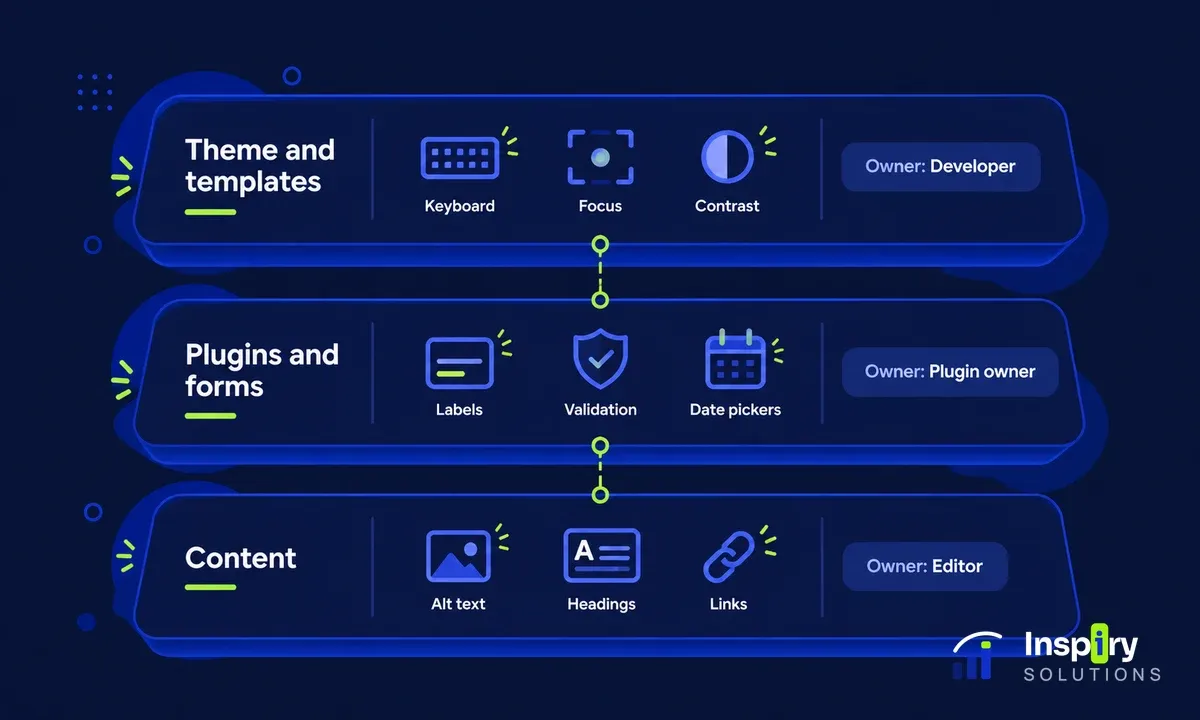
Theme and template checks
Your WordPress theme controls shared structures such as headers, navigation, layouts and footers. A template problem can affect many pages, so inspect reusable components first.
Keyboard navigation and visible focus
Open your website and press Tab repeatedly without using your mouse. Links, buttons, menus and form controls should be reachable in a sensible order.
Focus is the currently selected element. Visitors need a visible indicator showing where they are.
Look for these problems:
- Links that cannot be reached using Tab.
- Dropdown menus that only open on hover.
- Focus indicators hidden by CSS.
- Popups without an accessible close action.
- Focus jumping unpredictably.
Ask your developer to fix problems in shared components rather than patching individual pages.
Colour contrast and visual controls
WCAG Level AA generally requires contrast of at least 4.5:1 for normal text and 3:1 for qualifying large text. Many essential graphical controls and interface indicators require 3:1 non-text contrast.
Check buttons, form labels and coloured sections using a contrast checker. Important information should not depend on colour alone.
Heading structure, skip links and landmarks
Templates should provide meaningful headings arranged logically.
Check for a working skip link that bypasses repeated navigation. Page landmarks should identify areas such as main content, navigation and footer.
The WordPress Accessibility Team Handbook provides relevant development and publishing guidance.
Mobile menus and sticky headers
Test mobile menus, submenus and close buttons using only a keyboard.
Sticky headers must not completely obscure focused elements. This differs from problems such as layouts that jump while loading, although both deserve testing.
When comparing what a custom theme controls, include navigation and focus behaviour alongside design.
Our accessible WordPress templates approach starts with underlying components rather than appearance alone.
Content checks for editors
Even a carefully developed theme cannot prevent publishing mistakes. Editors influence accessibility whenever they add images, headings, links, tables or text.
Alt text that describes purpose
Alternative text should describe what a meaningful image contributes to the page.
For example, a photograph showing damaged roofing might use:
“Broken roof tiles exposing the underlay near the chimney.”
Avoid vague descriptions such as “roof image”. Decorative images generally need empty alternative text, while images acting as controls need names describing their function.
Google’s image documentation also recommends descriptive alternative text. Never add unnecessary keywords at the expense of meaning.
Meaningful link text
A link should explain its destination without requiring someone to read the surrounding paragraph.
Replace “click here” with wording such as “view our maintenance plans”.
This helps visitors who use a screen reader to review links separately.
Avoid identical link wording for unrelated destinations, and identify document downloads clearly.
Heading order and readable content
Use H2 headings for major sections and H3 headings for relevant subsections. Do not choose heading levels purely for appearance.
Keep paragraphs manageable, explain specialist language and use plain English.
Avoid placing important written information inside images when HTML text would work better.
Tables and structured information
Use tables for genuine relationships between rows and columns. Include header cells so assistive technology can associate information with labels.
Avoid tables used only for visual layout.
Check complex tables on mobile. Simplify them or provide an accessible alternative when necessary.
Forms, booking and checkout
Forms combine labels, instructions, validation and changing interface states. Visitors may understand your website but still be unable to submit an enquiry or complete a booking.
Test the entire form journey.
Labels, instructions and required fields
Every form control needs an accessible name identifying the information required.
Use visible labels rather than relying exclusively on placeholders, which disappear when visitors type.
Explain required fields clearly. Group related radio buttons and checkboxes with suitable labels.
Error messages that explain the problem
A useful error message identifies the affected field and explains how to correct it.
For example:
“Email address: Enter a valid address, such as name@example.com.”
Generic messages such as “Submission failed” leave visitors guessing.
Check whether screen readers announce validation errors and whether correctly entered information is preserved when practical.
Date pickers, CAPTCHAs and plugin markup
Test booking calendars using a keyboard. Visitors should be able to select dates, change months and exit without becoming trapped.
CAPTCHA challenges need an accessible route that does not depend exclusively on recognising images.
Inspect the frontend markup produced by your form plugin. WordPress compatibility does not guarantee accessible controls or error announcements.
For checkout and account forms, inspect autocomplete, repeated information and authentication requirements.
Assign plugin-specific problems to the plugin owner, involving a developer when necessary.
Media, video and documents
Website accessibility extends beyond ordinary text. Videos, recordings and downloadable documents need their own checks.
Captions and transcripts
Provide accurate captions for prerecorded videos containing speech or meaningful audio, as required by applicable WCAG criteria.
Captions should communicate relevant sounds alongside dialogue. Transcripts provide another way to access spoken information, particularly for audio-only material.
Check automated captions for mistakes. Where important visual information is not conveyed through audio, assess whether audio description or another alternative is needed.
Playback and motion controls
Avoid unexpected autoplay with sound.
For automatically playing audio lasting more than three seconds, WCAG requires a mechanism to pause or stop it, or independently control its volume.
Playback controls need accessible names and keyboard support. Moving banners and sliders may also need controls under applicable WCAG criteria.
Accessible PDFs and HTML alternatives
PDFs may contain missing headings, incorrect reading order, unlabelled fields or scanned text that assistive technology cannot interpret.
Exporting a document as PDF does not automatically make it accessible.
Where practical, publish essential information as an HTML page. For necessary PDFs, check structure, language, reading order, tables and form fields.
Why overlay plugins are not a fix
Accessibility overlay plugins often add a toolbar offering text resizing, contrast adjustments or display preferences.
These features may help some visitors, but overlays do not automatically correct the underlying website.
They cannot reliably repair missing form labels, incorrect heading relationships or broken navigation. Some can introduce additional problems for assistive technology users.
Fix the original component
When navigation fails, correct the navigation component. When form labels are missing, fix the markup. When an image needs alternative text, update its content.
Accessibility overlay plugins should not replace technical fixes or evaluation against WCAG requirements.
Treat instant compliance claims cautiously. A plugin installation or automated score does not prove that a website meets every applicable criterion.
Four ways to test your site yourself
You can conduct a useful first-pass review without specialist equipment. The objective is to identify barriers, not certify compliance.
Use these four tests on your homepage, service pages, contact page and important booking or checkout journeys.
Our technical audit checklist covers other technical website checks. Accessibility needs its own testing record.
A keyboard-only walk-through
Put your mouse aside and use Tab to move through interactive elements. Use Shift+Tab to move backwards, Enter to activate appropriate controls and Space where applicable.
Check that focus remains visible, navigation follows a sensible order and menus can be opened and closed.
Try completing your primary conversion action, such as submitting an enquiry.
Record any point where you become stuck, cannot identify the selected element or cannot activate a control.
An automated checker as a first pass
Run an automated accessibility checker on representative pages.
These tools can identify issues such as missing accessible names, certain contrast failures and incorrect relationships in markup.
They cannot reliably judge whether every image description is meaningful, whether instructions make sense or whether complex interactions work correctly.
Treat findings as starting points, not a compliance certificate.
Group repeated errors by template or component so one shared problem is not reported as numerous unrelated tasks.
A screen reader spot check
Use a screen reader available on your operating system and follow a short visitor journey.
Listen to the page title, heading structure, navigation, link names and form labels.
Check whether validation errors and important interface changes are announced correctly.
Controls should be described in a way that matches their visible purpose.
This is a useful introductory test, but unfamiliarity with screen readers can lead to incorrect conclusions. Complex issues require experienced assistive technology reviewers.
Zoom to 200%
Increase browser zoom to 200% and inspect important pages.
Text should remain readable, controls usable and content free from unexpected overlapping or disappearance.
Pay particular attention to navigation, pricing cards, tables, cookie notices and contact forms.
Also check reflow at narrow viewport sizes. WCAG’s reflow criterion has specific dimensions, so passing a general zoom test does not establish complete conformance.
Record clipping, excessive scrolling and hidden actions for investigation.
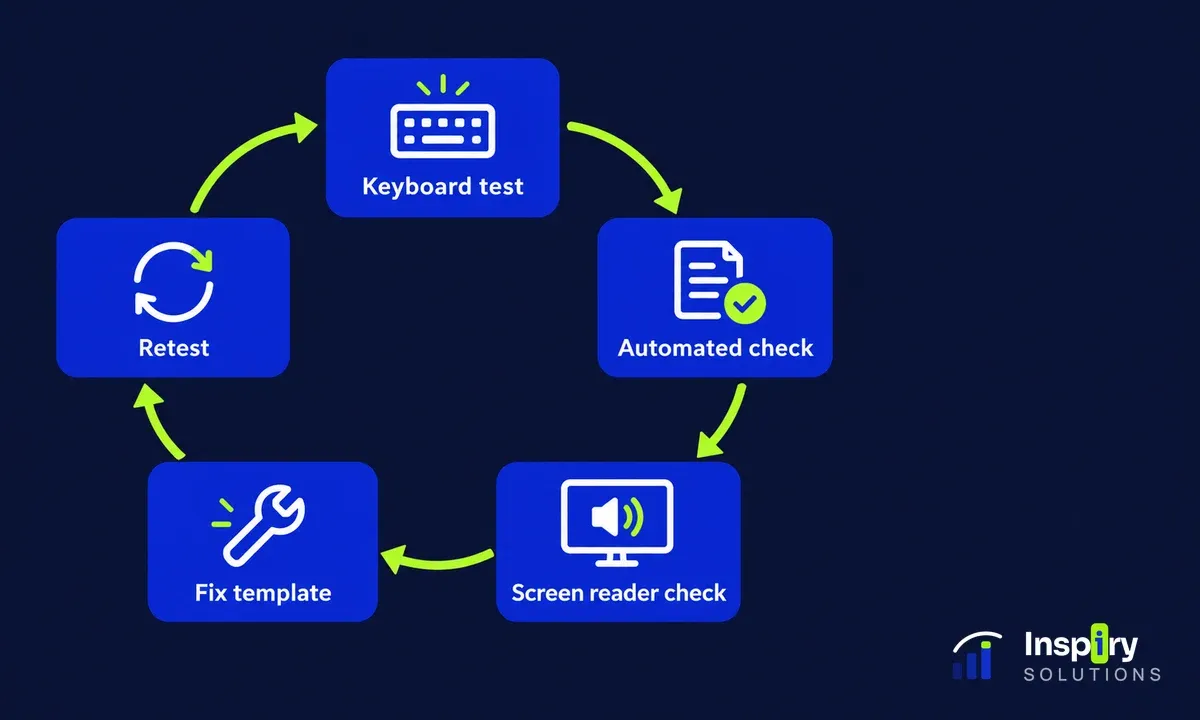
After testing, record the page URL, device, browser, steps to reproduce, expected behaviour and actual result. Assign an owner and identify whether the issue originates in a shared template, plugin or individual content item.
Retest after corrections rather than assuming deployed code resolves the issue.
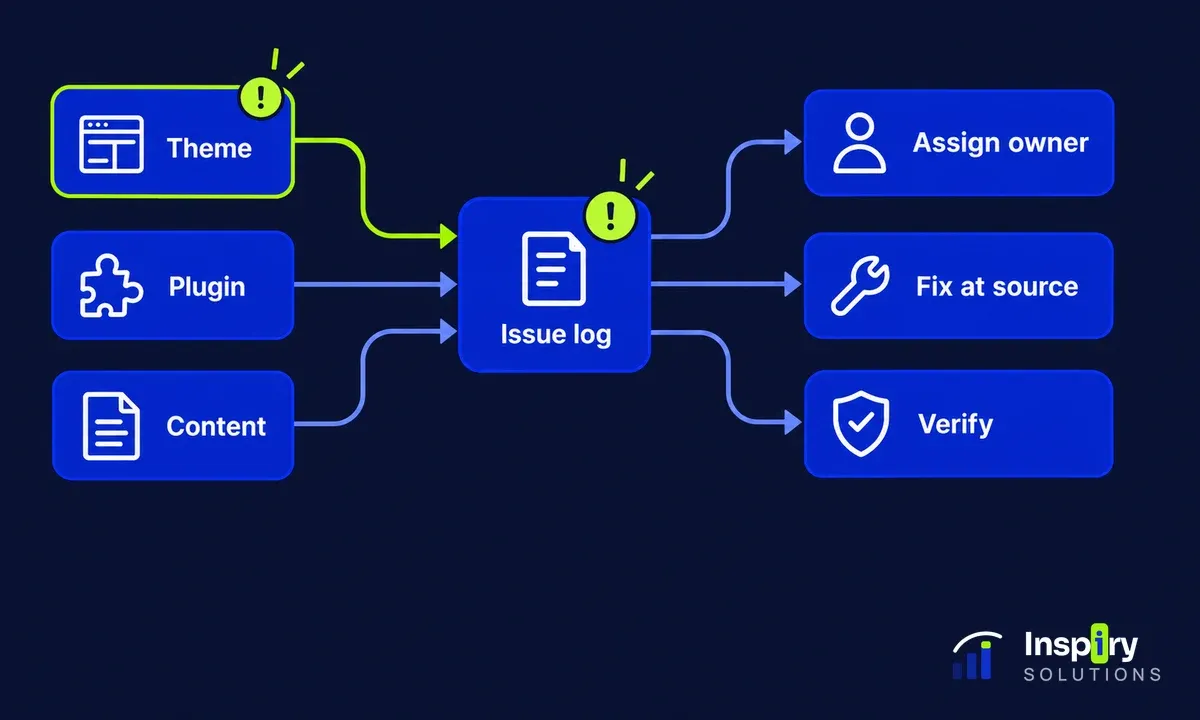
Hypothetical example: A solicitor’s website passes an automated checker, but a keyboard-only review reveals that the mobile menu cannot be opened and enquiry form errors are not announced.
The developer corrects the shared mobile header, while the plugin owner fixes validation behaviour in the reusable enquiry form.
After retesting, those corrections apply wherever the components are used.
This demonstrates why automated checks need manual testing and why shared components deserve early attention.
Your WordPress accessibility checklist by owner
A practical WordPress accessibility checklist separates responsibilities so the right person can investigate each problem.
The table identifies common checks, relevant WCAG principles, likely owners and testing methods. Some failures may involve several components.
Checklist by owner
| Check | WCAG area | Who fixes it | How to test |
|---|---|---|---|
| Keyboard navigation | Operable | Developer | Navigate without a mouse |
| Visible focus | Operable | Developer | Tab through controls |
| Colour contrast | Perceivable | Developer / editor | Check contrast ratios |
| Heading order | Perceivable | Developer / editor | Inspect headings |
| Alt text | Perceivable | Editor | Review image descriptions |
| Link text | Operable | Editor | Read links separately |
| Form labels and errors | Understandable / robust | Plugin owner / developer | Test errors and announcements |
| Target size | Operable | Developer / plugin owner | Check dimensions and spacing |
| Video captions | Perceivable | Editor | Verify caption accuracy |
| PDF documents | Perceivable / robust | Editor / document owner | Inspect reading order |
| Zoom and reflow | Perceivable | Developer | Test zoom and narrow layouts |
| Focus not obscured by sticky headers | Operable | Developer | Tab with sticky header visible |
This is a starting checklist, not a complete WCAG 2.2 conformance evaluation.
Prioritise shared templates first
Begin with navigation, headers, footers, reusable forms and page templates. Correcting shared components can improve multiple pages.
Next, inspect enquiries, bookings, registration and checkout. Then address content-specific issues such as missing alt text and inaccessible documents.
Prioritise serious barriers by their impact on users, not merely their frequency.
Build an ongoing review process
Add accessibility checks to normal publishing and maintenance.
Editors should review headings, images and links. Developers should test interactions after theme changes, while plugin owners check critical forms following updates.
Maintain an issue log with severity, responsibility, status and verification.
Common questions
Is my WordPress theme accessible?
Some themes in the official WordPress theme directory are tagged accessibility-ready, meaning they are developed against specified theme requirements. However, that label does not establish that your finished website meets WCAG 2.2. Custom CSS, page builders, plugins and content changes can introduce barriers. Test the actual website, particularly navigation, focus indicators, forms and mobile interactions.
Do accessibility overlay plugins make a site compliant?
No. Accessibility overlay plugins do not automatically make a website compliant with WCAG. They generally do not correct the underlying markup and can introduce additional interaction problems for some visitors. Certain display controls may still be useful, but they are not substitutes for accessible templates, properly labelled forms, meaningful content and testing with assistive technology.
What is new in WCAG 2.2?
WCAG 2.2 builds on WCAG 2.1 and introduces additional success criteria. Examples include focus not obscured, target size requirements, dragging movements, redundant entry and accessible authentication. These address barriers involving navigation visibility, small interactive controls and unnecessary user effort. The new criteria have different conformance levels, so check the specification when deciding which requirements apply to your target.
Can I check accessibility myself?
Yes. A business owner can perform useful first-pass checks using keyboard navigation, an automated checker and browser zoom. A basic screen reader review can uncover additional problems. However, these methods do not provide a complete assessment. Complex interactions, assistive technology compatibility and formal WCAG conformance evaluation need an experienced accessibility reviewer who understands the relevant success criteria.
Is website accessibility a legal requirement?
It can be, depending on the country, sector, services offered and applicable laws. Public-sector organisations and some private businesses may have specific obligations. WCAG is a technical standard commonly used in accessibility requirements, but legal duties are not identical everywhere. This article is not legal advice. Ask a qualified lawyer about your organisation’s obligations and any documentation or assessment needed.
Next steps for an accessible WordPress website
Start with your most important visitor journey. Resolve barriers preventing people from opening navigation, understanding information or submitting forms before addressing minor presentation issues.
Assign responsibility, verify corrections and investigate shared components when problems repeat.
Send us your site for a free audit and we will flag the template-level accessibility issues worth fixing first. Our WordPress development service fixes them at the source, not with an overlay.
Email hello@inspirysolutions.com with your website URL. You will receive a plain-language reply within two working days.