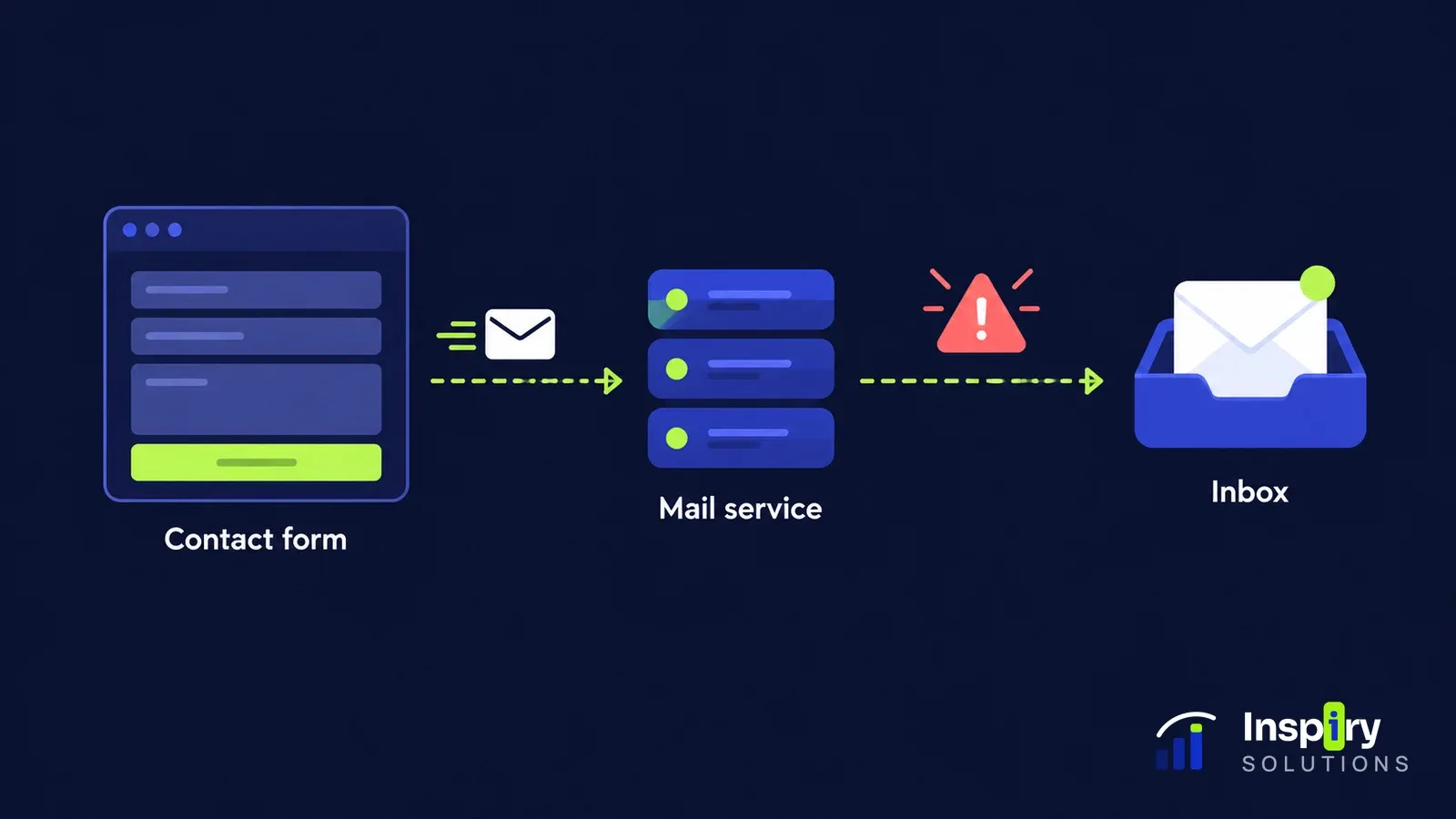
WordPress CRM integration needs more than a working connection. To connect WordPress forms to your customer relationship management (CRM) system without losing leads, choose a suitable connection method, map the fields correctly, store a backup of every submission and test that records reach the right sales person. A successful form message does not prove the CRM received anything. The safest setup gives you a record of what was submitted, a way to detect failures and a clear process for recovering enquiries when the connection breaks.
This guide is for business owners and marketing teams using WordPress forms for enquiries, quotes or bookings. It covers four connection methods, common failures and practical checks that keep working after launch.
Where leads go missing between a form and a CRM
A visitor completes your contact form, presses Submit and sees a thank-you message. Your website appears to have worked, but the sales team never receives the enquiry.
Collecting a submission and creating a CRM record are separate operations. Several systems may process the information before it reaches someone responsible for responding.
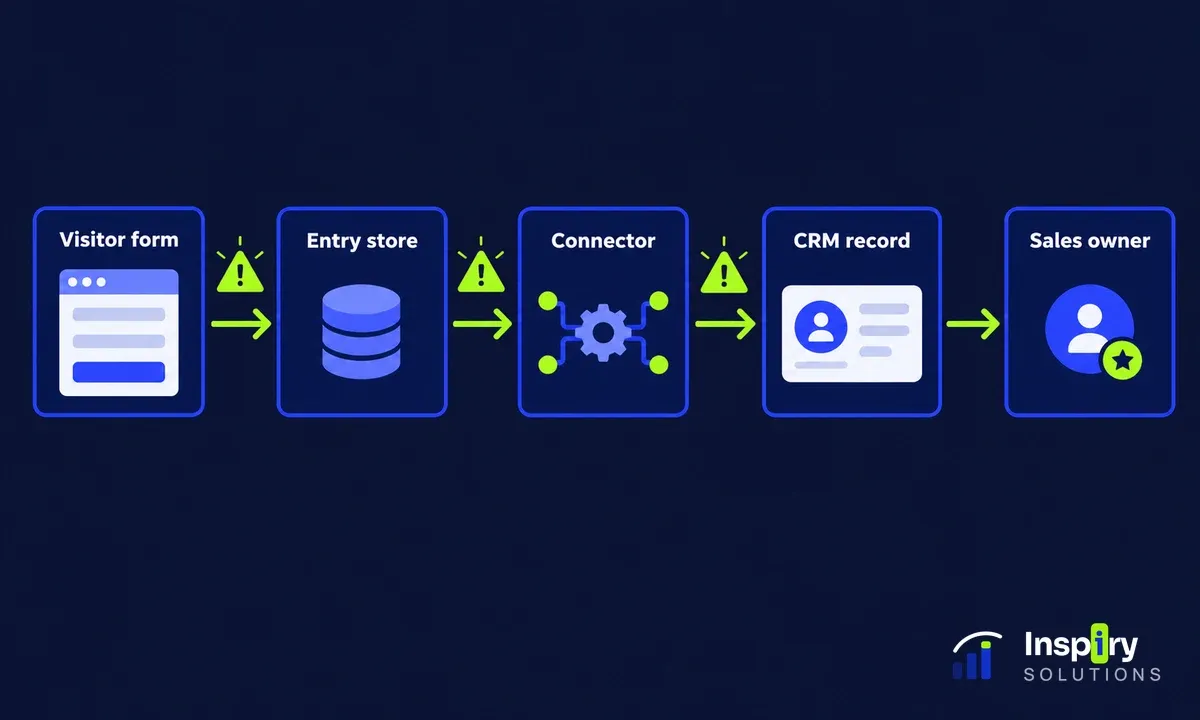
The journey has multiple failure points
A typical WordPress lead capture process follows these steps:
- The visitor submits an enquiry.
- WordPress validates the submission.
- The form plugin saves an entry, if storage is enabled.
- A connector transfers the data to the CRM.
- The CRM creates or updates a record.
- Assignment rules direct the enquiry to a sales owner.
Each stage needs checking. A confirmation message usually proves only that the website processed the submission, not that every later operation succeeded.
Silent API failures
An application programming interface (API) allows software systems to exchange information. A connector uses an API to transfer submitted details.
The receiving system may reject a request because of missing fields, invalid values, permission problems or temporary errors.
If the connector does not report that rejection, the visitor sees success while the sales team receives nothing.
Check whether the integration records both successful and failed transfer attempts. Without logs, diagnosing missing enquiries becomes guesswork.
Changed fields and expired connections
A marketing manager might rename a CRM field without updating the WordPress connection. The integration continues sending the old field name, but the destination may reject it.
Similarly, an expired authorisation token can stop submissions arriving. A token is a credential that authorises access between systems.
Changes to permissions, required fields or account connections can create failures without anyone editing the website.
Spam filtering and email-only routing
Spam protection can reject genuine enquiries. Check whether blocked entries are recorded and can be reviewed.
Email-only routing creates another weakness. If a notification is filtered, rejected or sent to an abandoned mailbox, there may be no independent record.
Never rely on a confirmation message or a single email as proof that an enquiry reached the sales team.
Four ways to set up a WordPress CRM integration
Choose between four connection methods based on your existing tools, required fields and ability to detect failures.
Form plugin add-on
Many WordPress form plugins offer CRM add-ons. Install the add-on, authorise access, select the destination and map the fields.
A WordPress form to HubSpot connection, for example, may be supported through a compatible plugin.
This suits existing forms when both systems are compatible. Verify field mapping, error logs, entry storage and recovery options before choosing it.
A native add-on is not automatically reliable. Failure reporting and retry capabilities vary.
CRM plugin or embed
Some CRM providers offer WordPress plugins or embedded forms that submit directly into their platform.
Removing a separate connector may reduce compatibility problems, but embedded forms can limit styling, accessibility, page performance and WordPress functionality.
Independent entry storage may also be unavailable.
Choose this method when the CRM’s form meets your requirements and provides useful submission reporting.
Automation tool
Automation platforms receive WordPress submissions, process data and create CRM records. They can also route enquiries, send notifications and connect other applications.
This flexibility introduces another subscription and service to monitor.
Check failure alerts, task history, retained submission details and retry behaviour. An automation is only useful if unsuccessful transfers remain visible and recoverable.
Custom API integration
Custom code connects WordPress forms to CRM software with greater control over validation, authentication, mapping and error handling.
The WordPress REST API documentation explains structured data exchange with WordPress. The CRM may provide its own API.
Custom development suits specialised requirements, but API changes and maintenance remain your responsibility.
Read when a custom integration is worth building before commissioning it.
For WordPress integrations built and tested, start with the business requirements rather than assuming custom development is necessary.
Comparing the connection methods
Compare how each method handles rejected submissions, not merely whether the initial connection works.
| Method | Setup effort | How you hear about failures | Ongoing cost | Control over field mapping | Best for |
|---|---|---|---|---|---|
| Form plugin CRM add-on | Low to moderate | Plugin logs or alerts, if supported | Plugin or add-on fees | Moderate | Existing forms with supported connections |
| CRM’s own WordPress plugin or embedded form | Low to moderate | CRM reports or notifications | Often tied to CRM plan | Limited to moderate | Native CRM forms |
| Automation tool between form and CRM | Moderate | Task history and alerts | Subscription or usage fees | High within platform limits | Multiple applications or routing |
| Custom API integration | High | Configured logs and monitoring | Development and maintenance | Very high | Specialised workflows |
Capabilities vary between products. Before installing additional tools, consider auditing what each plugin does.
Ask your provider to demonstrate a failed transfer. Where is the error logged? Who receives an alert? Can the enquiry be recovered without duplication?
Unclear answers indicate that more testing is necessary.
Map fields and tracking data properly
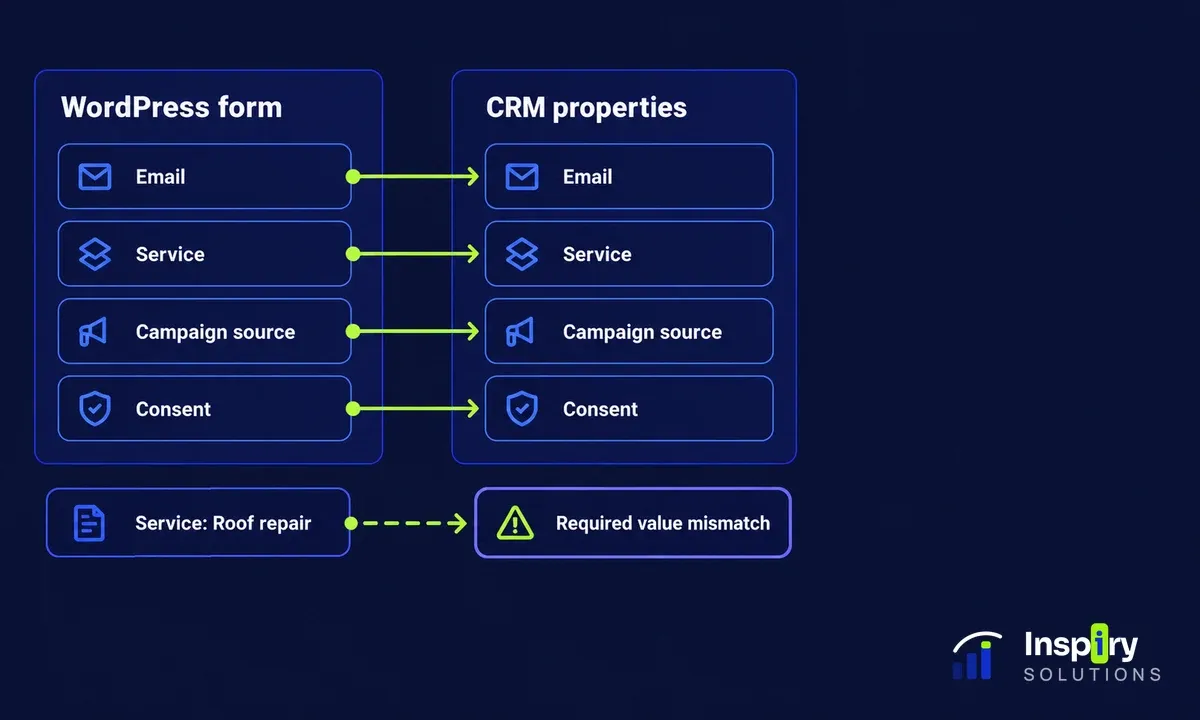
Correct field mapping ensures submitted information reaches the intended CRM properties. It matters particularly when departments or campaigns share the same destination.
Match the required fields
List every WordPress field and its corresponding CRM property.
A quotation request might include name, email, telephone, service, location and project details.
Check data formats. A dropdown sending “Roof repair” may fail if the CRM requires a different predefined value.
Pay particular attention to fields that are optional in WordPress but mandatory in the CRM.
When connecting a WordPress form to CRM software, check whether hidden conditional fields are omitted or sent empty.
Similar field names do not guarantee compatible data.
Preserve campaign and source information
Marketing teams often need to identify which channel generated an enquiry.
Hidden form fields can capture landing pages, campaign names, referral sources and relevant UTM parameters. UTM parameters are values added to URLs to identify marketing campaigns.
Test this information with direct visits, paid campaigns and referrals. Missing campaign parameters should never prevent a genuine enquiry.
Agree on consistent property names and values before launching tracking.
Record consent appropriately
Submitting an enquiry and agreeing to receive marketing messages are different actions.
If your form collects marketing preferences, map the choices correctly and retain appropriate consent evidence where required.
Campaign attribution may also use cookies or similar technologies.
The ICO’s guidance on cookies and similar technologies explains relevant UK consent requirements and exceptions.
Check which tracking activities require consent. Do not activate non-essential tracking simply because a visitor opens the page.
Prevent unwanted duplicate contacts
CRM platforms often identify existing contacts through email addresses or unique identifiers.
Decide whether a repeat submission creates a new contact, updates the existing record or adds another enquiry.
This matters when someone requests several quotations.
Overwriting the previous message could erase useful enquiry history.
Document the matching rule and test repeat submissions, missing email addresses and CRM updates.
Build a safety net for failed submissions
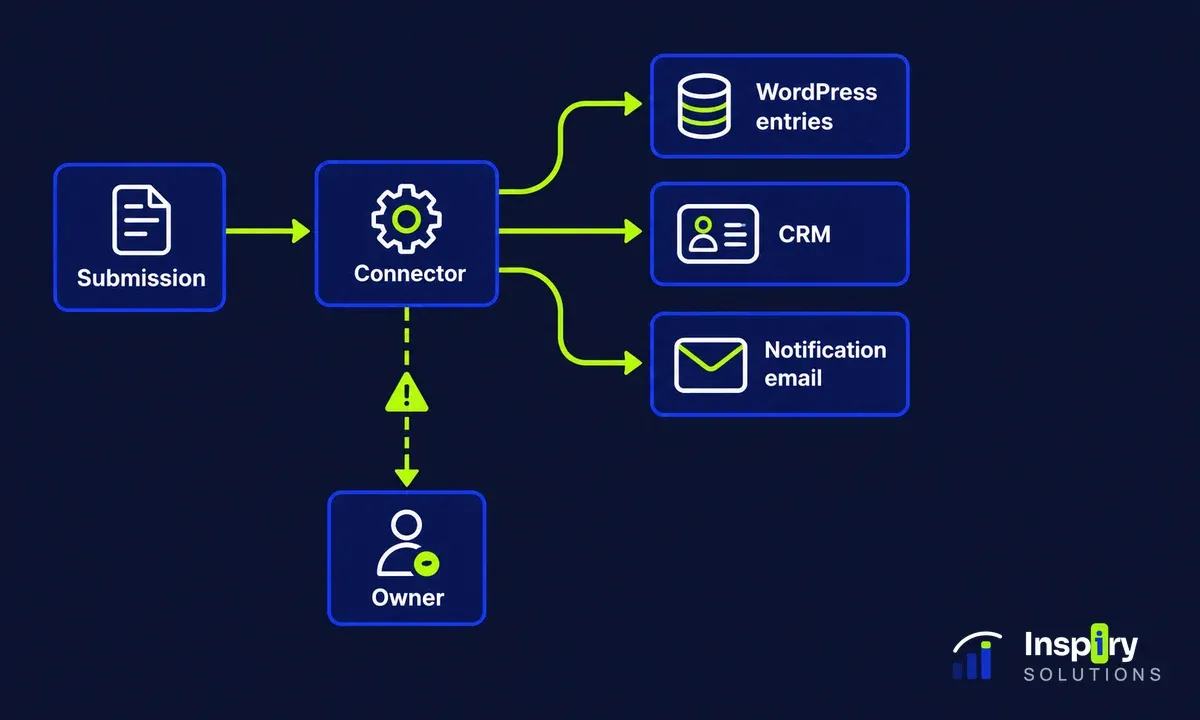
A connector delivers information. A safety net protects the enquiry when delivery fails.
The goal is to preserve enough information to identify unsuccessful transfers and recover them without losing the original submission.
Store entries in WordPress
Where supported, save submissions independently of the CRM connection.
This allows authorised staff to confirm that WordPress received an enquiry even when its destination record is missing.
Entry storage must be enabled and tested. Certain plugins require a separate feature, while embedded CRM forms may bypass WordPress entirely.
Protect personal information through access restrictions, appropriate retention periods and secure backups.
Delete stored entries on a defined schedule. A backup is useful only when it is managed responsibly.
Send error alerts to a named person
Assign integration monitoring to an identifiable owner rather than an unattended shared mailbox.
Where supported, configure alerts for rejected transfers, expired authentication and repeated failures.
An alert should identify the affected form, submission time, failure category and location of the stored entry.
Avoid exposing unnecessary personal information.
An error alert is valuable only if someone receives it and knows what action to take.
Use notification email as a second channel
A separate notification email can help staff notice an enquiry when the CRM connection fails.
However, email can also be rejected or filtered because of authentication, spam rules or recipient configuration.
Google’s email sender guidelines describe requirements and recommendations affecting delivery to Gmail accounts.
For troubleshooting, read fixing form emails that never arrive.
Treat email as an additional channel, not a substitute for entry storage or transfer logs.
Prepare retries and manual recovery
Check whether the connector automatically retries temporary failures.
Retries need safeguards. Repeating a request after a timeout can create duplicate CRM records if the first attempt actually succeeded.
If automatic recovery is unavailable, document a manual procedure.
An administrator should identify failed entries, check whether records already exist, resend information securely and mark recovered submissions as resolved.
Hypothetical example
A building firm changes the name of a required CRM field. Its WordPress quotation form continues displaying successful messages, but the integration keeps sending the old property name.
For two weeks, new CRM records stop appearing.
Without stored entries, the business may have no reliable list of affected enquiries.
With a correctly configured safety net, the first rejection triggers an alert on day one. The team inspects the error, corrects the mapping and recovers enquiries from WordPress storage.
The difference is having evidence of failure and a clear recovery procedure.
Test the whole lead path
Testing the Submit button alone is insufficient.
A complete test follows the enquiry from the visitor’s browser through WordPress to its final CRM record and assigned owner.
Submit realistic test enquiries
Identify every active contact, quotation, booking and campaign form.
Use clearly labelled test details and complete each form as a normal visitor would.
Test required fields, optional fields, conditional sections and different submission routes.
Repeat relevant tests on mobile and with different consent choices.
If several pages contain versions of the same form, check each one. Shared templates do not guarantee identical configurations.
Verify the destination record
After submitting, check the CRM directly.
Confirm that:
- The expected contact or enquiry record exists.
- Name, email, telephone and message match.
- Campaign and source fields are correct.
- The appropriate sales owner is assigned.
- Expected notifications or tasks are created.
- The WordPress entry is stored, where configured.
Do not stop when the contact appears. A record assigned to the wrong team may still go unanswered.
Test failures intentionally
A controlled failure test reveals problems normal submissions might miss.
In staging or a supported test mode, simulate an invalid field or unavailable connection.
Check whether the connector records the rejection, alerts its owner and preserves information for recovery.
Do not deliberately disconnect production systems while customers are submitting enquiries.
The objective is to verify that recovery works, not simply demonstrate a successful transfer.
Keep a simple test log
Record the tests so future checks can be compared.
| Date | Form | Result | Who checked |
|---|---|---|---|
| Test date | Contact enquiry | Entry and CRM record verified | Assigned reviewer |
| Test date | Quote request | Field mapping checked | Assigned reviewer |
| Test date | Campaign enquiry | Source and owner verified | Assigned reviewer |
Replace the sample rows with actual test results.
Keep the log accessible to the integration owner. It should show when each form last passed a complete test.
A screenshot of the thank-you message alone is not sufficient evidence.
Keep it working after launch
A WordPress CRM integration needs ongoing verification because the website and destination platform continue changing.
The strongest maintenance process is simple, repeatable and assigned to someone responsible for completing it.
Run a monthly test submission
Test business-critical forms regularly, such as monthly.
Repeat checks after plugin updates, CRM configuration changes, permission adjustments or form field modifications.
Successful testing before an update does not prove the connection works afterwards.
Document the results and investigate missing records before marking the test complete.
Reconcile entries with CRM records
Compare stored WordPress submissions with CRM records received during the same period.
Allow for legitimate differences, including rejected spam, duplicate-contact updates and intentionally excluded submissions.
Where possible, use a unique submission reference to match each entry with its destination record.
Comparing totals alone can be misleading. Two systems may contain the same number of records but different enquiries.
Investigate unexplained differences, particularly for sales and quotation forms.
Assign clear ownership
Decide who maintains the connection before problems occur.
The responsible person should know where entries are stored, how to inspect failure logs, who manages credentials and how to recover submissions.
Define who responds when alerts arrive outside normal working hours.
For businesses without an internal developer, monthly checks that include form tests can become part of regular WordPress maintenance.
Someone must be accountable for checking whether enquiries reach the team expected to answer them.
Common questions
Why are my form submissions not showing in my CRM?
Common causes include expired connections, changed or newly required CRM fields, and spam filtering that rejects genuine enquiries. Check the form plugin’s entries and the connector’s logs first. If WordPress received the submission, inspect the transfer error and field mapping. Also check whether the CRM updated an existing contact rather than creating a new record.
Should I use the CRM’s own form instead of a WordPress form?
A CRM’s own form removes one connection that could fail because submissions go directly into its platform. However, trade-offs include styling restrictions, page speed and reduced control over complex WordPress layouts. Compare the functionality you need, test completed submissions and confirm whether an independent backup is available.
Do I need to store form entries in WordPress as well?
Yes. WordPress entry storage provides a backup when the CRM connection fails, allowing authorised staff to recover missing enquiries. However, stored personal information must be handled responsibly. Restrict access, protect backups, define an appropriate retention period and delete entries on a schedule. Avoid collecting unnecessary personal information.
Can I pass campaign source data into the CRM?
Yes. Hidden fields can pass campaign source information, landing page details and relevant URL parameters into your CRM. Test whether values arrive correctly across campaigns. Missing tracking parameters should not prevent submissions. If cookies or similar technologies store campaign information, check applicable consent requirements before collecting or using that data.
How often should I test my forms?
Test after any plugin, form or CRM change that could affect submission processing. Also check business-critical forms regularly, such as monthly. Verify the WordPress entry, destination record, field mapping, sales owner and notifications. Record the results and investigate failures rather than relying on a confirmation message.
Next step: check where your enquiries actually go
Identify every active form, verify its stored entries and confirm that submissions reach the correct CRM records and sales owners. Assign responsibility for alerts and recovery.
If you suspect leads are slipping through, send us your site for a free audit and we will trace the path from form to CRM. Our WordPress development service builds and tests integrations end to end.
Email hello@inspirysolutions.com with your website URL for a plain-English reply within two working days.