Abandoned WordPress plugins are extensions that appear to have lost active maintenance, leaving website owners uncertain about security, compatibility and future support. To spot them, check more than the last update date: look at directory notices, support responses, known vulnerabilities, PHP compatibility and whether the developer still exists. If a plugin is genuinely abandoned, the safest replacement depends on what it does and where its data lives. Start by assessing its risk, mapping its features and testing an alternative on a staging website before removing anything from your live site.
Insert the Rank Math Table of Contents block here.
What abandoned WordPress plugins are
An abandoned WordPress plugin is an extension whose original developer no longer appears to maintain it, respond to problems or provide reliable compatibility updates.
You can begin by comparing installed extensions against their entries in the official WordPress plugin directory.
Seven signals to check for each plugin
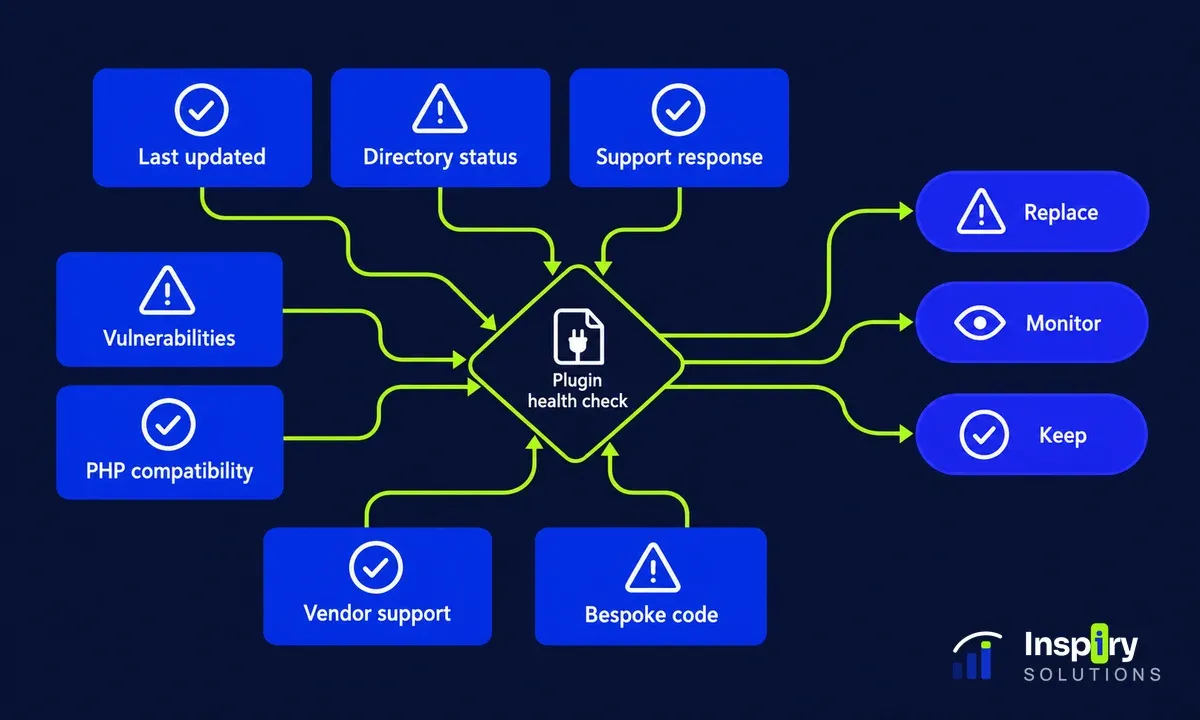
Before deciding whether an extension is abandoned, examine the following seven signals together.
1. Last updated date and ‘tested up to’ version
Open the extension’s listing in WordPress.org and inspect its last updated date and tested WordPress version.
2. A closed notice on WordPress.org
A message stating that an extension has been closed in the official directory is a more serious signal.
3. Support forum response
The support forum can reveal whether someone is still paying attention to the software.
4. Known unpatched vulnerabilities
Security evidence should carry more weight than the age of an extension.
OWASP includes vulnerable and outdated components among its recognised web application security risks in the OWASP Top 10.
5. PHP compatibility
WordPress runs on PHP, the server-side programming language that processes much of the website’s functionality.
6. An expired licence or a vanished vendor
Commercial software needs a different type of investigation.
If the business has disappeared or the product is no longer supported, establish whether another developer has taken responsibility.
Avoid relying indefinitely on a premium extension that cannot be updated safely.
A maintained replacement may be preferable, particularly when the software handles payments, subscriptions or customer information.
7. Bespoke code from a past developer
Not every installed extension appears in WordPress.org.
Some businesses use a custom WordPress plugin created by a former developer or agency.
These extensions can be valuable because they solve a specific business problem.
They can also become difficult to maintain when the original author leaves without documentation.
Check the code’s purpose, dependencies, ownership and compatibility.
Find out whether another developer can understand, maintain and test it.
A bespoke plugin does not need a public release history.
If nobody understands how it works, documenting its behaviour is the first priority, not deleting it.
If you need help checking these signals consistently, plugin reviews in our maintenance plans can identify extensions that require further investigation.
How risky is it? Score by what the plugin touches
Not all abandoned WordPress plugins create the same level of risk.
The most useful starting point is to ask what the extension can access, change or expose.
A display-only gallery is usually less security-sensitive than an upload handler, payment integration or membership system.
Use the following risk table as a practical triage guide.
| Plugin role | Example | Risk if abandoned | Action |
|---|---|---|---|
| Form or file upload | Contact form accepting attachments | High | Check input handling and vulnerabilities; prioritise a maintained replacement |
| Login, membership or security | Login protection or member access controls | High | Review urgently; test replacement before changing access rules |
| Payment or WooCommerce extension | Payment gateway or checkout add-on | High | Check vendor support and transaction compatibility; plan a controlled swap |
| SEO or redirects | Metadata manager or redirect rules | Medium to high | Export settings and rules; verify URLs and output after migration |
| Page builder add-on | Additional widgets or template elements | Medium to high | Find every dependency and test layouts before removal |
| Slider or gallery | Homepage slider or photo gallery | Low to medium | Inventory affected pages; consider rebuilding with existing features |
| Admin-only utility | Editorial convenience or dashboard tool | Usually lower | Check permissions and functionality; remove if unnecessary |
A simple internal scoring method helps determine priority.
Assign one point for each of these conditions:
- The extension accepts user input or can access sensitive data.
- It affects logins, purchases or other business-critical activity.
- It has an unresolved maintenance or compatibility warning.
- It has a known unpatched vulnerability.
- Its removal would disrupt important website functionality.
Treat this as a workload prioritisation score, not an objective security rating.
A higher score means the extension deserves earlier investigation.
An admin-only utility can still be dangerous if it exposes privileged functionality.
For a broader review, consider a full plugin stack audit rather than evaluating every extension in isolation.
Dependencies between extensions may reveal problems that individual checks miss.
After examining the table, include the wider security checks to review access permissions, backups and other parts of the site that influence overall exposure.
Map what the plugin does before removing it
Once you identify a likely replacement candidate, resist the temptation to deactivate it immediately.
First, document exactly what the existing extension does.
A plugin may appear to provide a single visible feature while quietly handling database records, scheduled actions or integrations elsewhere.
Your replacement plan must account for those hidden dependencies.
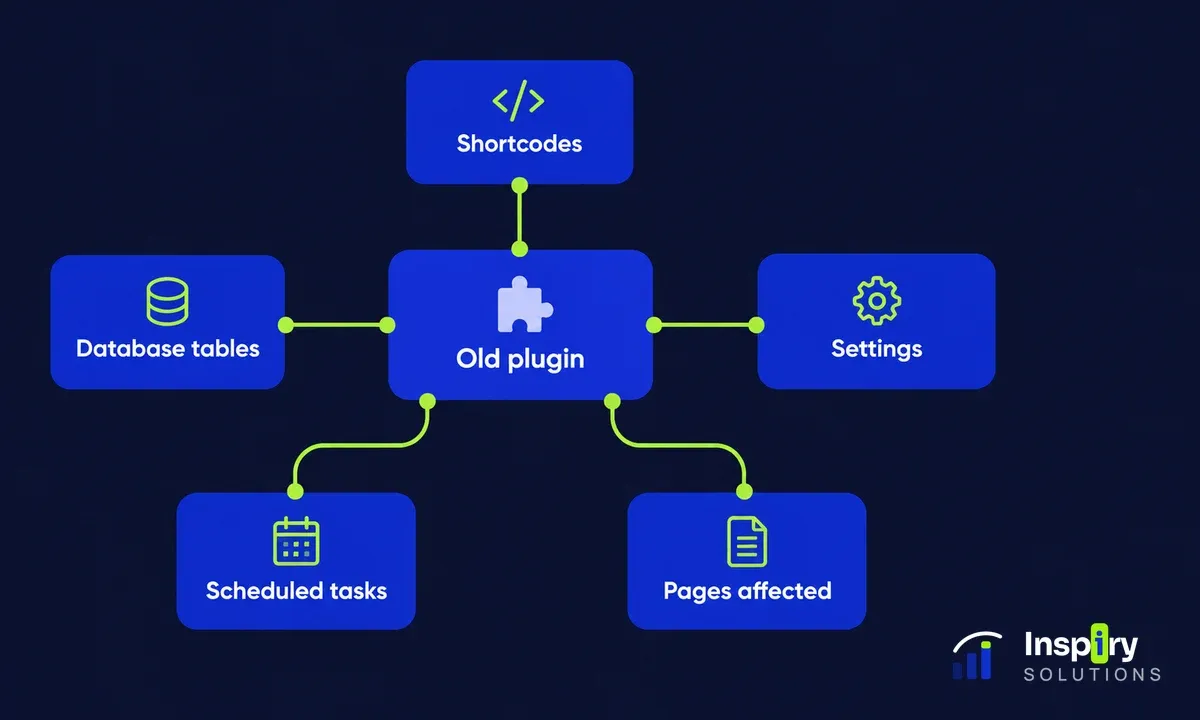
Start with a feature map covering these areas.
Shortcodes and blocks in content
Search posts, pages, reusable content and templates for shortcodes or blocks supplied by the extension.
A shortcode is a piece of text in square brackets that WordPress processes to display functionality.
If its provider disappears, the original shortcode may appear as raw text or stop producing its intended output.
Check page builder templates and dynamic content as well as ordinary posts.
Database tables and stored information
Some extensions save records in WordPress’s standard database tables.
Identify any information that cannot be recreated easily, such as submitted forms, custom field values or historical transactions.
Confirm that the information can be exported and imported before choosing an alternative.
A backup is useful, but it is not the same as a tested migration process.
Settings, redirects and scheduled tasks
Record configuration settings, email notifications, redirect rules and scheduled jobs.
Scheduled jobs are background tasks that WordPress or the server runs periodically.
Removing an extension may stop those tasks, while improperly cleaned schedules may leave unnecessary entries behind.
Document what each important setting achieves rather than merely taking a screenshot.
Pages and journeys affected
Create a list of pages where the functionality appears.
Include less obvious locations such as mobile navigation, confirmation pages, account dashboards and checkout steps.
Then identify the visitor journeys connected to those pages.
For example, a booking form might connect to email notifications, payment collection and a customer confirmation screen.
Replacing only the visible form would not restore the complete journey.
Dependencies on other extensions
Check whether the old component supplies data or functions to another extension.
A page builder add-on may be referenced by templates.
Document these relationships before making changes.
Your final map should make clear what must remain, what can be removed and what requires migration.
This is the foundation of a safe replacement.
Choosing the replacement
Finding a popular alternative is not enough.
A replacement must cover the functionality you actually need, remain maintainable and work with your existing website.
There are four reasonable options.
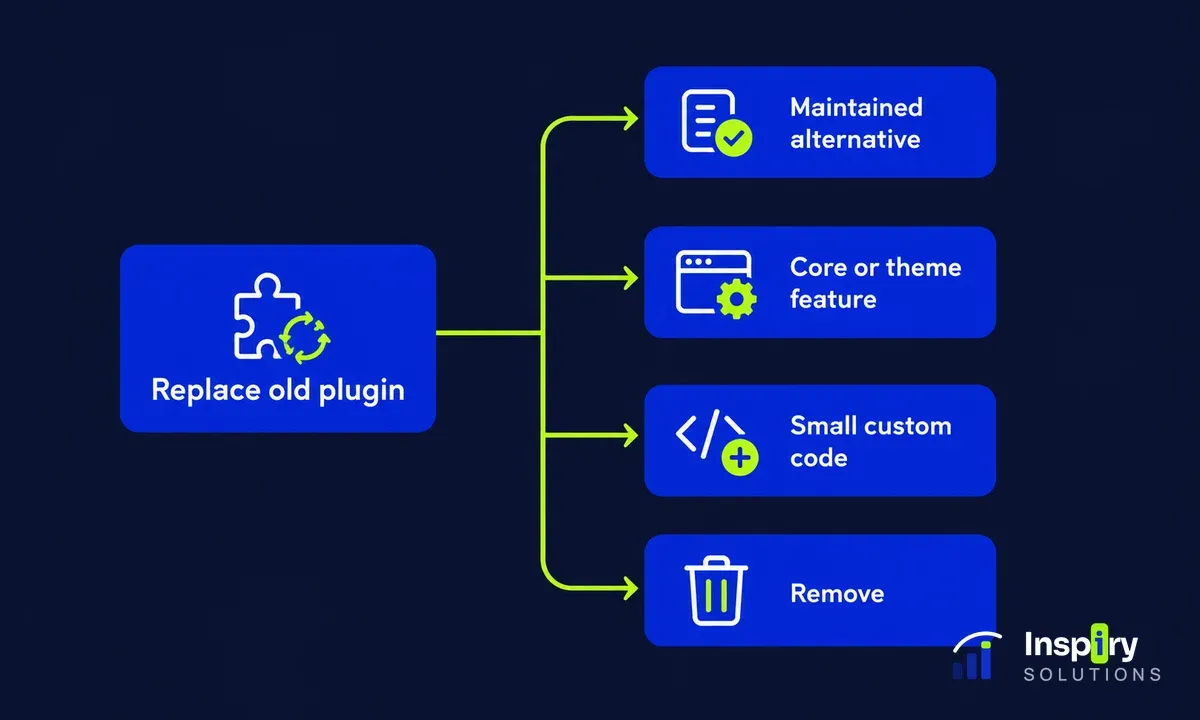
Choose a maintained alternative
Look for an actively supported extension with a clear development history.
Compare its important features against your existing feature map.
Review compatibility information, documentation, support availability, data portability and the developer’s approach to updates.
Do not assume a replacement is better because it offers more features.
Extra functionality may introduce configuration work or dependencies your business does not need.
Test the candidate with your existing theme, WordPress version and relevant extensions on staging before committing.
Use a WordPress core or theme feature
Some older plugins duplicate functionality that WordPress or your current theme already provides.
For example, a basic image layout might be rebuilt using standard blocks rather than a specialised gallery extension.
This can reduce maintenance dependencies.
However, core or theme features are not automatically equivalent to the original product.
Compare accessibility, responsive behaviour, content management and any functionality staff rely on.
Theme-specific features can also create future migration dependencies, so consider that trade-off.
Use small custom code
A small, well-defined requirement may not justify installing another large extension.
For example, a narrow content-formatting rule or administrative adjustment might be easier to maintain as a short custom implementation.
This works best when the code is understandable, documented and managed by someone who can update it.
Avoid placing important business functionality in a theme file without considering what happens when the theme changes.
For more guidance, see when bespoke plugin development pays off.
Custom code is not maintenance-free.
Remove the feature entirely
Sometimes the safest replacement is no replacement.
Ask whether the feature is still used and whether it serves a business purpose.
An outdated popup, decorative slider or abandoned reporting tool may no longer provide meaningful value.
Check with the people who manage the website before removing it.
If nobody needs the functionality, removing it can simplify future maintenance.
Before deciding among the four options, compare them on staging using the same tests.
Judge the result by actual functionality, editing effort, ongoing support requirements and the consequences of another future migration.
Choose the option that meets the requirement with the fewest unnecessary dependencies.
Swapping it safely
Replacing an abandoned extension should be treated as a controlled change, not a routine deletion.
The objective is to preserve functionality and data while removing unsupported code.
Follow this sequence.
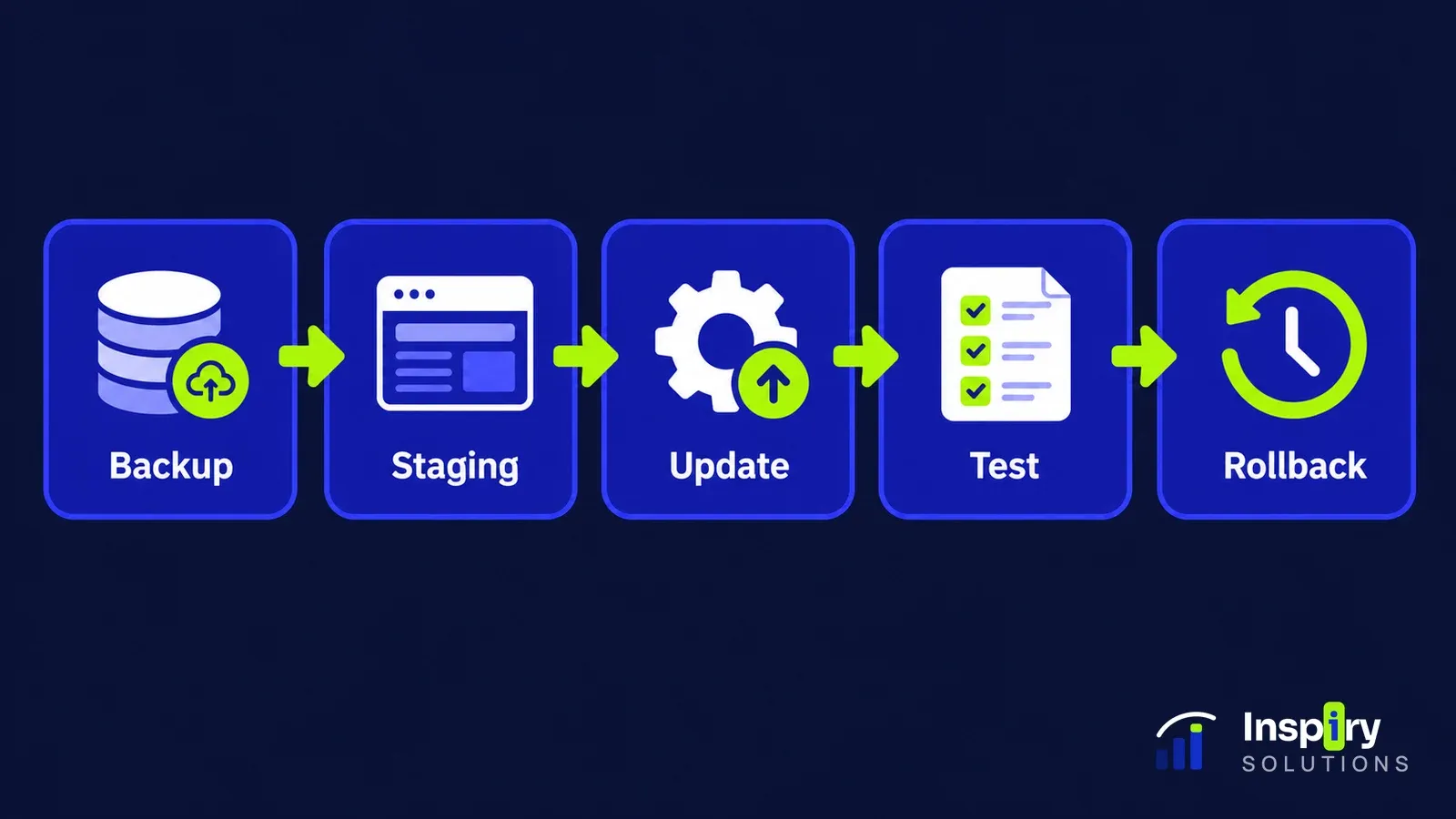
Step 1: Create a verified backup
Back up the website files and database before making changes.
Confirm that the backup can be restored and that you know who is responsible for recovery.
Step 2: Prepare staging
Use a staging website that closely matches production.
Check WordPress, PHP, theme and extension versions.
Avoid using live payment credentials or sending real customer notifications from staging.
Step 3: Export important data
Export records, settings and content from the old extension where appropriate.
Test whether the new solution can import the information without changing its meaning or structure.
For transactional systems, plan how records created during the migration window will be handled.
Step 4: Build the replacement
Configure the alternative and reproduce the necessary features.
Replace affected shortcodes, blocks, widgets and templates.
Retain a checklist showing which pages and workflows have been updated.
Step 5: Test complete user journeys
Test from the visitor’s perspective.
Submit forms, complete relevant checkout tests, check authentication and verify notifications where applicable.
Review mobile layouts, accessibility and error handling.
Check that records are stored correctly, not merely that success messages appear.
Step 6: Move the change to production
Plan the live change for a suitable maintenance window.
Back up again immediately before deployment.
Apply the tested configuration and migrate any data that changed after staging was prepared.
Avoid overwriting newer live orders, submissions or account changes with an older staging database.
Step 7: Verify and clean up
Repeat the critical tests on the live website.
Only after successful verification should you remove the old extension and investigate leftover data.
Do not blindly delete database tables or options.
Hypothetical example: replacing a closed slider plugin
Hypothetical example: A physiotherapy clinic uses a slider plugin that has been closed in the WordPress.org directory.
The developer searches the website and finds its shortcode on 12 pages.
Further inspection shows that only three sliders still serve an important purpose.
On staging, the developer rebuilds those three sliders using suitable WordPress core blocks and removes the unnecessary displays.
They then replace every affected shortcode, check the pages on mobile devices and confirm that the content remains readable and accessible.
After testing, the updated pages are moved to the live site.
The developer checks the affected layouts again, deletes the old plugin and removes its leftover options once their purpose has been confirmed.
The lesson is that a replacement should preserve the business requirement, not blindly recreate every feature of the old software.
This is an illustrative scenario, not a client case.
Common questions
Is it dangerous to use a plugin that has not been updated in a year?
Not automatically. Some small extensions remain functional without frequent releases. However, risk increases if the plugin handles user input, sensitive information or has a known vulnerability. Check the other signals before deciding, including the developer’s responsiveness, compatibility and security history. Treat the update date as a reason to investigate rather than proof of danger.
What does ‘This plugin has been closed’ mean?
It means the plugin was removed from the WordPress.org directory and is no longer available for new downloads there. Closure can happen for several reasons, so the notice does not automatically confirm a security breach. Treat a closed plugin as a priority to investigate and usually replace, especially when no supported release or credible maintainer remains available.
Will removing a plugin delete my content?
Content saved in ordinary WordPress posts usually stays, but shortcodes can stop working and appear as raw text. Some blocks, widgets and templates may also lose their expected output. Data stored separately by the plugin may be lost during uninstall or cleanup, so map and export it first. Always test removal on staging and retain a restorable backup.
Should I replace a plugin with custom code?
Sometimes, particularly when the job is small, well defined and does not justify another dependency. A short custom implementation may be easier to understand than a large general-purpose plugin. However, custom code also needs an owner to maintain it, review security and test compatibility. Choose it only when that responsibility is clear and the functionality is properly documented.
Stop abandoned plugins creeping back
A one-time cleanup is useful, but unsupported extensions can gradually accumulate again.
Prevention requires ownership and a repeatable maintenance process.
Before installing anything new, ask who maintains it, whether it duplicates an existing feature and how difficult it would be to remove later.
Check compatibility, support, update history and whether the software stores information that will need exporting.
Avoid installing an extension solely to solve a minor problem without comparing simpler options.
Schedule a quarterly plugin review, with more frequent attention to security advisories and business-critical updates.
Use a basic register with these fields:
| Field | What to record |
|---|---|
| Plugin name | Installed extension and version |
| Purpose | Business function it provides |
| Owner | Person responsible for reviewing it |
| Last checked | Date of the most recent review |
| Maintenance status | Supported, investigate or replace |
| Dependencies | Important pages, data and integrations |
| Next action | Keep, monitor, test or remove |
This register does not need complicated software.
For ongoing routines, see keeping WordPress maintained month to month and running plugin updates without breakage.
WordPress also provides official guidance on updating WordPress, including preparation and backup considerations.
Assign responsibility for reviewing the register, checking vulnerability notices and verifying that updates have not affected critical functionality.
Without a named owner, even a well-maintained plugin today can become an overlooked dependency tomorrow.
If your WordPress dashboard contains outdated or closed extensions, start by identifying what each one does and whether it has an active maintainer.
Prioritise software connected to logins, forms, uploads, payments and customer information.
Then map dependencies, test appropriate replacements on staging and verify every important journey before deployment.
Do not confuse deleting a plugin with resolving the problem it was originally installed to solve.
If you are not sure which of your plugins are abandoned, send your URL for a free audit and we will reply within two working days. Our WordPress maintenance plans from $99/month include regular plugin reviews.
You can contact Inspiry Solutions at hello@inspirysolutions.com to request your free audit.