Elementor SEO problems usually come from incorrect heading levels, duplicated responsive content and poorly configured templates, not the page builder itself. Fixing them means checking the HTML structure visitors and search engines receive, then correcting the widgets and shared layouts responsible. A well-built Elementor site can have clear page titles, meaningful heading levels, crawlable links and appropriate structured data. The important distinction is between how a page looks in the editor and what its published code actually contains.
This guide is for business owners and agency teams managing Elementor websites built by different people. It explains how to identify structural mistakes and why correcting shared templates is often more effective than editing individual pages.
Is Elementor bad for SEO?
No. Elementor is not inherently bad for SEO, and websites built with it can rank in organic search. Problems usually come from implementation choices rather than the page builder.
A designer might select heading levels for font size, duplicate content for mobile visitors or create page layouts that gradually become inconsistent.
These decisions can produce missing H1 tags, repeated content, confusing heading structures and unsuitable link markup.
Performance is a separate concern. We cover scripts, image delivery and loading times in making Elementor faster.
Our technical SEO fixes prioritise correcting underlying causes, particularly when one template affects multiple pages.
A website does not need rebuilding simply because its current structure is inconsistent. First determine whether the problems originate in shared layouts, global settings or individual content.
Heading levels chosen for looks
A common mistake is selecting heading tags according to font size rather than meaning.
The Elementor Heading widget commonly defaults to H2. Editors may keep that setting or change it to another level because they prefer its appearance.
However, HTML heading levels describe document structure. They are not typography presets.
A service page should normally have one clear H1 identifying its subject, followed by H2 sections and appropriate H3 subsections.
Poor structure can make the relationship between content sections harder to understand.
Missing H1 and multiple H1 problems
An Elementor h1 missing issue can occur when the main title is built using a Text Editor widget, styled container or Heading widget configured as H2.
The opposite happens when a shared template already generates an H1 and an editor adds another inside the page.
Multiple H1 elements are not automatically a ranking penalty, but one clear primary title is a useful convention.
Inspect the published page, including titles supplied by the theme or template.
Set heading levels by meaning
A practical hierarchy is:
- H1: Main page subject
- H2: Primary content sections
- H3: Subsections belonging to an H2
- H4: Further subdivisions when necessary
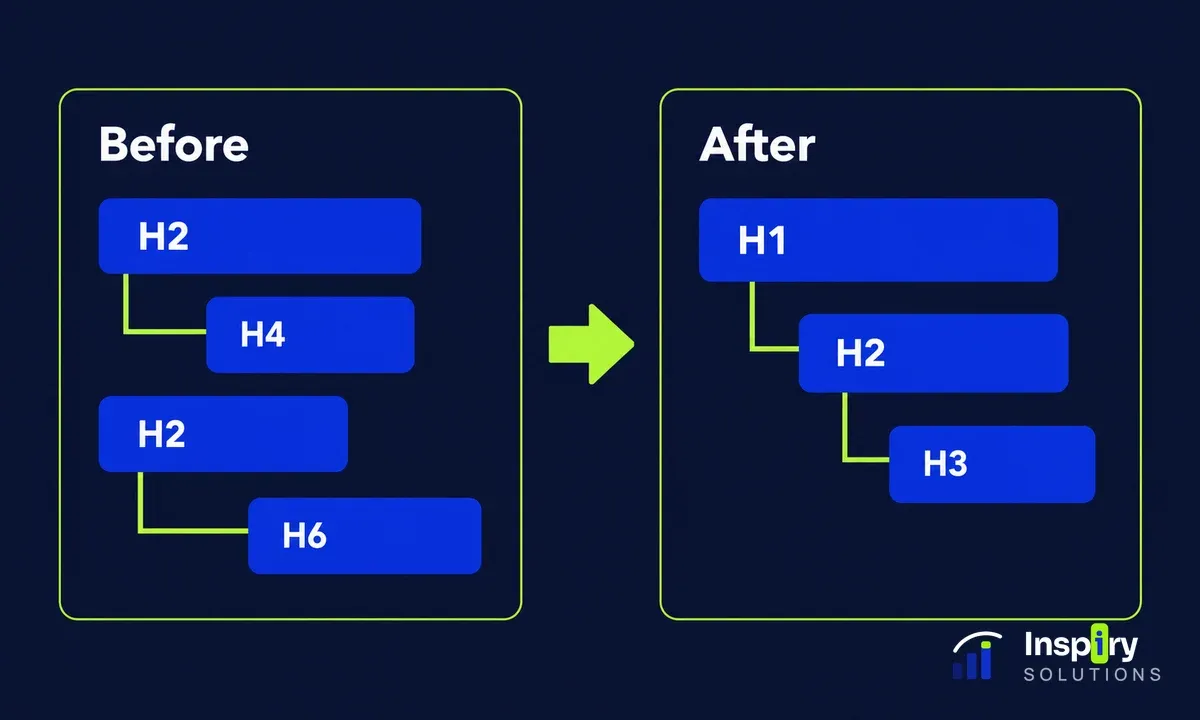
To correct Elementor heading tags, open the Heading widget and choose the appropriate HTML Tag under Content.
Control appearance through Style or global typography settings, keeping visual design independent of semantic structure.
An H2 can look larger than an H1 without changing its HTML meaning.
The WCAG 2.2 accessibility standard provides guidance relevant to meaningful headings and accessible navigation.
Check the complete heading outline after publishing. The editor preview alone may not reveal titles or components inserted by the active template.
Duplicate sections for desktop and mobile
Elementor allows widgets, containers and sections to be hidden on selected screen sizes.
A common approach creates separate desktop and mobile hero sections containing similar headings, descriptions and buttons.
This is the main Elementor hidden content mobile concern: content hidden visually can still exist in the page structure.
Why duplicated responsive content matters
A visitor might see one hero while the HTML contains two H1 elements and repeated descriptions.
This can create unnecessary duplication and an unclear heading outline.
The concern arises when large content sections are repeated unnecessarily or contain conflicting information.
Build one responsive section instead
Where practical, use one container that adjusts across screen sizes.
- Configure the desktop layout.
- Adjust direction and widths for smaller screens.
- Set responsive spacing and typography.
- Keep one heading and content source.
- Test all relevant breakpoints.
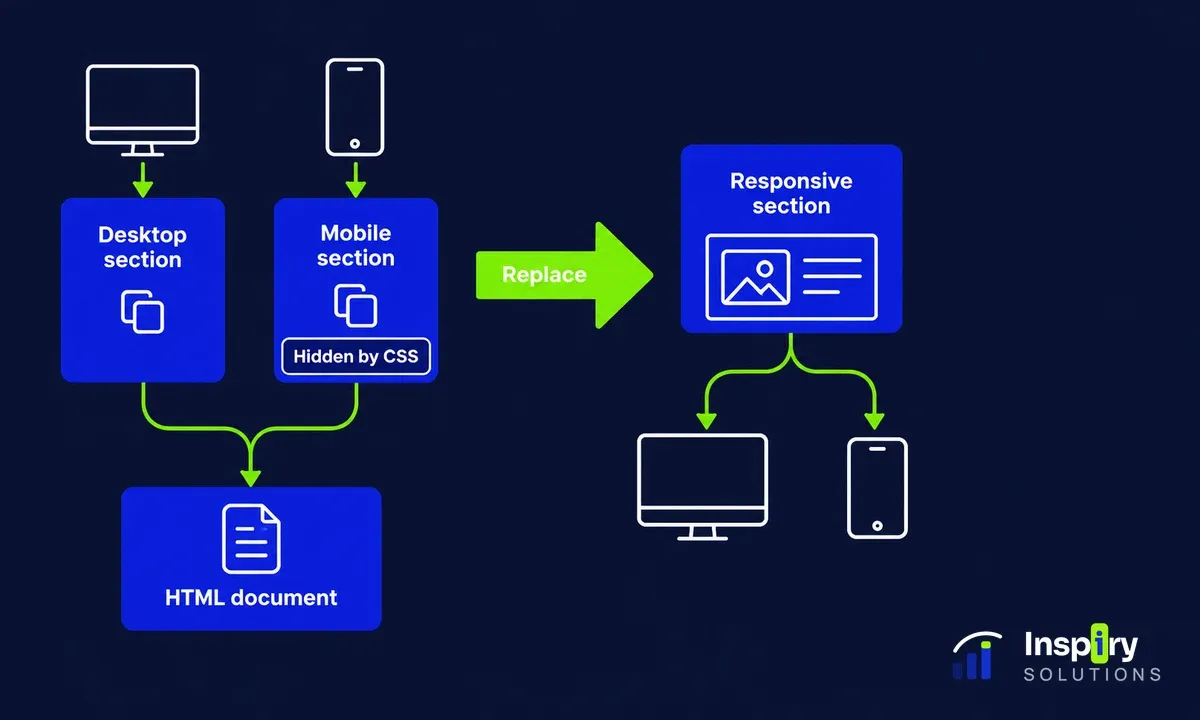
This provides different visual layouts without duplicating the content.
Before removing duplicated sections, check whether they contain unique functionality, tracking or dynamic content.
Theme Builder templates and display conditions
Elementor Theme Builder controls reusable layouts including headers, footers, single pages and archives.
One template can influence the structure of many URLs, making its configuration particularly important.
Elementor Theme Builder SEO problems often involve incorrect display conditions, conflicting layouts or dynamic fields displaying unexpected content.
Understand which template controls each page
The main template types are:
- Header: Shared navigation and branding
- Footer: Shared footer content
- Single: Individual pages, posts or custom post types
- Archive: Collections of content
Display conditions determine where each template appears.
For example, a single-service template might apply to service pages, while another handles blog posts.
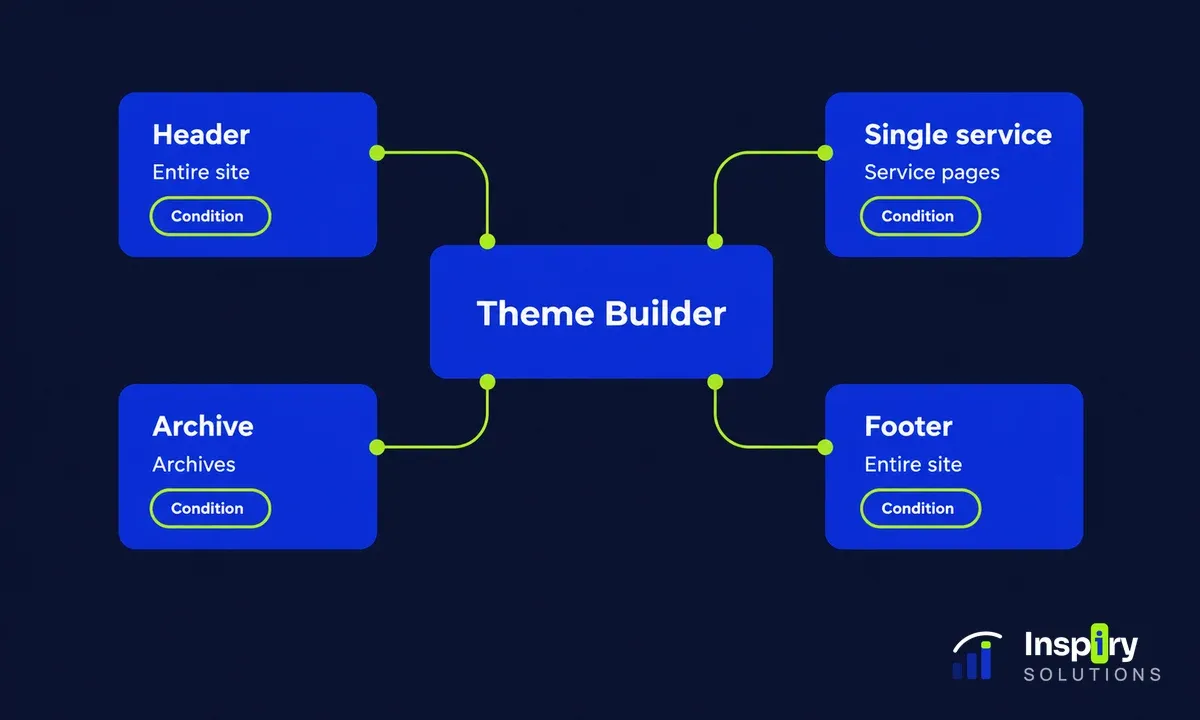
Incorrect conditions can produce missing layouts, unexpected titles or unsuitable page structures.
Check dynamic titles and fields
Dynamic tags display information from WordPress or custom fields.
A heading might use Post Title, while another widget displays a service description stored in a custom field.
Problems occur when a field is empty, the wrong source is selected or a template contains hard-coded content intended for another page.
The Elementor developer documentation provides technical guidance on widget and template functionality.
Links, buttons and other markup issues
Focus particularly on navigation links, accessible controls, images and expandable content.
Buttons need proper destinations
For normal navigation, button-style links should generate standard anchor elements containing an href attribute.
JavaScript click handlers attached to containers are not equivalent to conventional links.
Google’s guidance on crawlable links explains why proper anchor elements matter.
Use links for navigation and buttons for actions such as opening a modal or submitting a form.
Inspect the published HTML, especially when custom code or third-party widgets control navigation.
Icon links need accessible names
Icon-only links may be understandable visually but unclear to people using assistive technology.
Check social icons, navigation controls and search buttons for meaningful accessible names.
An appropriate label should describe the action or destination rather than the icon’s appearance.
Shared header and footer components deserve particular attention because problems there affect many pages.
Image alt text needs checking
WordPress stores alternative text in the Media Library, while Elementor widgets may expose additional image settings.
Do not assume the published image uses the intended description.
Inspect the alt attribute of important images. Meaningful images need useful descriptions; decorative images generally require empty alt attributes.
Google’s image SEO documentation explains how descriptive alternative text provides context.
Tabs and accordions need meaningful content
Elementor tabs and accordions commonly keep collapsed content in the HTML.
This can be appropriate for FAQs, service details and supporting information.
Check that the content is relevant, accurate and not duplicated elsewhere simply to add keywords.
Also verify keyboard operation, accessible labels and the heading hierarchy inside expandable panels.
Do not assume an accordion improves SEO merely because it contains additional text. Its value depends on whether that content helps the reader.
Elementor and your SEO plugin
Elementor manages page presentation, while dedicated SEO plugins handle search metadata and other technical functions.
Rank Math and Yoast SEO can manage titles, descriptions, XML sitemaps and structured data alongside Elementor.
The main risk is conflicting output when several plugins or widgets manage the same information.
Titles and descriptions
The visible H1 and HTML title element serve different purposes.
An H1 identifies the main subject within the page. The title element provides a title for browsers and search engines.
Check both on representative page types.
Review the meta description separately and confirm the SEO plugin generates the intended information.
Schema output
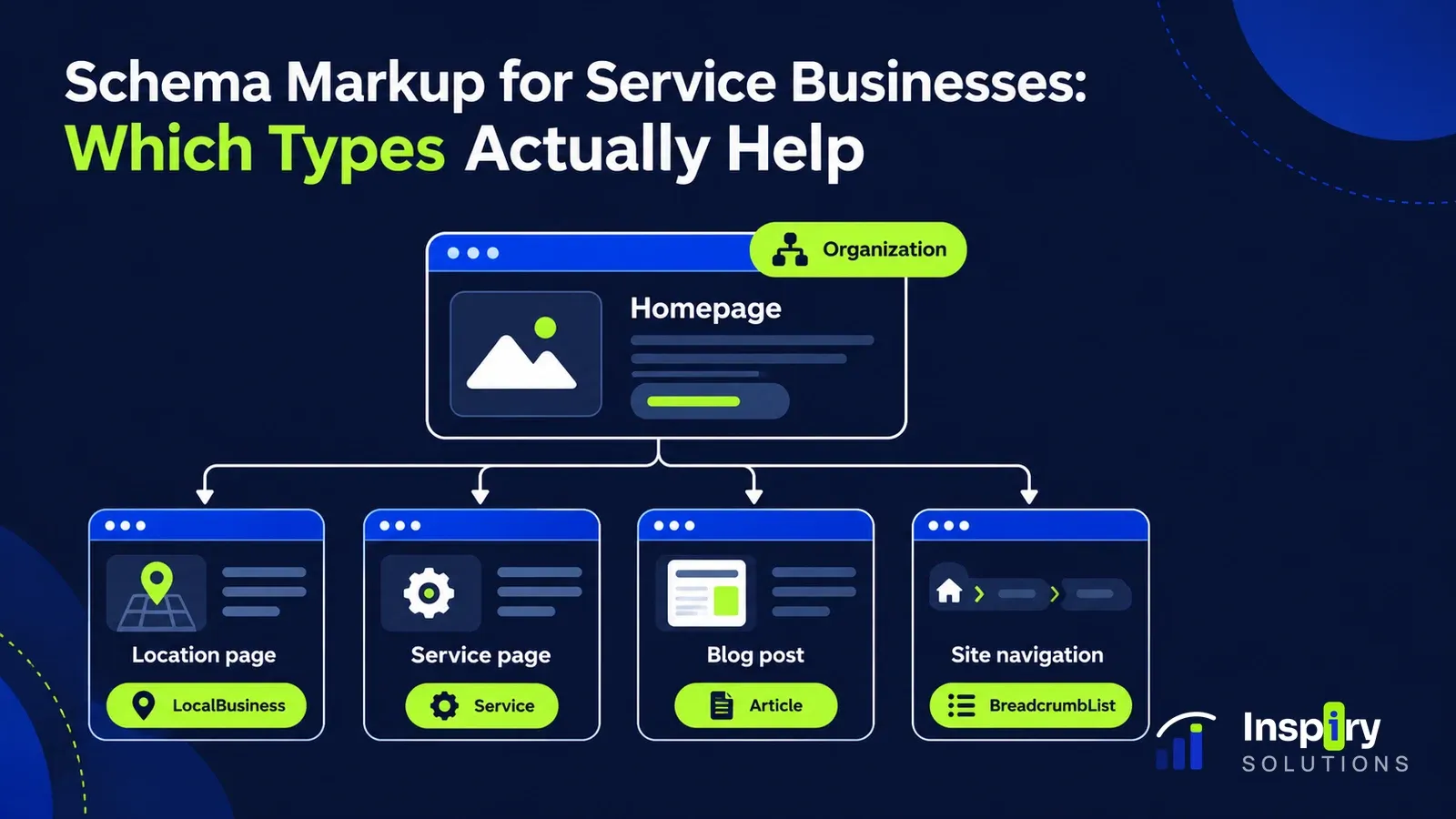
Elementor schema issues can occur when an SEO plugin, theme and add-on widgets all generate structured data.
Repeated schema types are not inherently wrong. Conflicting or misleading information is the main concern.
Check organisation details, FAQ markup, breadcrumbs and article data.
Our guide to choosing schema types explains suitable structured data for service websites.
Breadcrumbs
Breadcrumb widgets display a page’s location within the website hierarchy.
When an SEO plugin also generates breadcrumb schema, confirm that the visible trail and structured data agree.
Check category assignments, parent pages and custom post types.
An Elementor SEO audit in six checks
An Elementor SEO audit should begin with shared templates and then examine individual pages.
For a broader review, see a technical audit for WordPress.
The following checks help distinguish site-wide problems from isolated editing mistakes.
1. Crawl heading structure across templates
Examine the homepage, service pages, blog posts and archives.
Use a crawler or browser inspection tool to extract heading levels.
Look for missing H1 elements, repeated primary titles and headings selected for appearance.
Compare pages sharing the same layout.
If several contain identical errors, investigate the parent template.
Record affected URLs, current heading levels, expected structure and the responsible widget.
2. Check rendered HTML for duplicated sections
Inspect desktop and mobile layouts for repeated headings, descriptions and buttons.
Use browser developer tools to examine the actual HTML rather than relying on visual previews.
Identify content hidden through responsive CSS and distinguish useful interface differences from unnecessary duplication.
Where practical, replace parallel content sections with one responsive container.
Check that headings, links and dynamic information remain correct in the final document.
3. Review Theme Builder display conditions
List active header, footer, single and archive templates.
Inspect their inclusion and exclusion conditions, particularly for service pages and custom post types.
Confirm which layout renders on representative URLs.
Check whether multiple templates have overlapping assignments or unexpected exceptions.
Review dynamic fields when titles or content appear incorrectly.
Test affected page types after corrections, including pages that intentionally use specialised layouts.
4. Check links, buttons and image alt text
Review navigation, service cards, calls to action and footer links.
Confirm navigation uses valid destinations and meaningful link text.
Check icon-only controls for accessible names.
Inspect important images for appropriate alternative text.
Test menus, accordions, forms and popups using keyboard navigation.
Identify whether problems originate from shared widgets or individual pages.
Prioritise global components when the same problem appears repeatedly, then verify that fixes work across their published locations.
5. Check schema from your SEO plugin and add-ons
Inspect structured data on representative pages.
Identify which plugin, theme or widget generates each block.
Check organisation information, breadcrumbs, article data and FAQ markup for contradictions.
Do not classify every repeated schema type as an error.
Validate relevant output with a suitable structured data testing tool.
When an add-on produces conflicting information, correct or disable its redundant output.
Confirm the intended SEO plugin continues generating the required markup after changes.
6. Fix at template and global level first
Prioritise problems affecting multiple pages.
Correct global typography, shared widgets and reusable templates before making isolated content changes.
Test structural corrections in staging before deploying them.
After approval, inspect published HTML and compare representative URLs with the original findings.
Check that forms, navigation and responsive layouts still work.
A completed audit should explain what was wrong, where the fix happened and how its success was checked.
Problem to fix table
Use this table to translate audit observations into specific development tasks.
| Problem | How to spot it | Fix in Elementor | Fix scope (page or template) |
|---|---|---|---|
| No H1 on service pages | Crawl reports or HTML inspection show no H1 | Set the main title widget to H1 or correct the dynamic title | Template |
| Several H1s | Heading outline shows repeated primary titles | Keep one clear main title and correct other heading levels | Page or template |
| Headings out of order | H2 sections followed by unrelated H4 or H6 tags | Set meaningful HTML tags and style through typography controls | Page or template |
| Hidden mobile duplicate sections | Repeated hero markup remains in the published HTML | Replace duplicate sections with one responsive container | Page or template |
| Wrong template applied | Unexpected layout, title or content appears | Correct Theme Builder conditions and dynamic fields | Template |
| Button links using JavaScript actions | Navigation works only through script-driven clicks | Use ordinary URL links for navigation | Page or template |
| Duplicate schema from add-ons | Multiple components output conflicting structured data | Remove or correct redundant schema generation | Template or global settings |
| Missing alt text | Published images have missing or unsuitable alt attributes | Set meaningful alternative text in the Media Library or widget | Page or template |
Hypothetical example
An Elementor website has every service page built from a copied page instead of a shared template.
Each page contains headings chosen according to font size and a separate mobile hero hidden through responsive settings.
An audit reveals inconsistent heading structures and duplicated hero content across the service pages.
The proposed fix creates one single-service template containing a proper H1, dynamic content and one responsive hero.
Existing pages move onto that template individually, with their content, links and functionality checked during migration.
This is an illustrative example, not a client result.
The benefit is a consistent structure and a clearer process for future editing. It does not guarantee improved rankings.
Common questions
Is Elementor bad for SEO?
No, Elementor sites can rank in search engines. Problems usually arise from heading choices, duplicated responsive sections, incorrectly configured templates and speed issues rather than the page builder itself. A properly implemented website can have meaningful HTML, crawlable links and accurate metadata. Review the published output and identify specific problems before deciding whether Elementor needs replacing.
How do I change the heading tag in Elementor?
Open the Heading widget and find the HTML Tag setting under Content. Choose H1, H2, H3 or another appropriate level according to the heading’s meaning. Use global typography or the widget’s Style controls to manage visual appearance independently. Inspect the published page afterwards, particularly when a shared template also generates its main title.
Does hidden content in Elementor hurt SEO?
Content hidden on particular devices can still remain in the HTML. Hiding elements does not automatically create an SEO penalty, but duplicated text and headings can make page structure unclear. Where practical, replace separate desktop and mobile content copies with one responsive section. Inspect the final HTML to confirm unnecessary duplication has been removed.
Do I need an SEO plugin with Elementor?
Yes, an SEO plugin is recommended for a typical WordPress business website. Elementor does not independently provide comprehensive management of SEO titles, meta descriptions or XML sitemaps. Rank Math or Yoast can work alongside it. Choose one primary SEO plugin and check that the theme and additional widgets do not generate conflicting metadata or structured data.
Keep the fixes in place
Fixing current problems is only useful if future editing does not recreate them.
Establish simple rules for heading levels, responsive sections, link destinations and image alternative text.
Provide saved layouts with correct HTML tags, and assign responsibility for Theme Builder changes.
Review representative pages after Elementor, theme or major plugin updates.
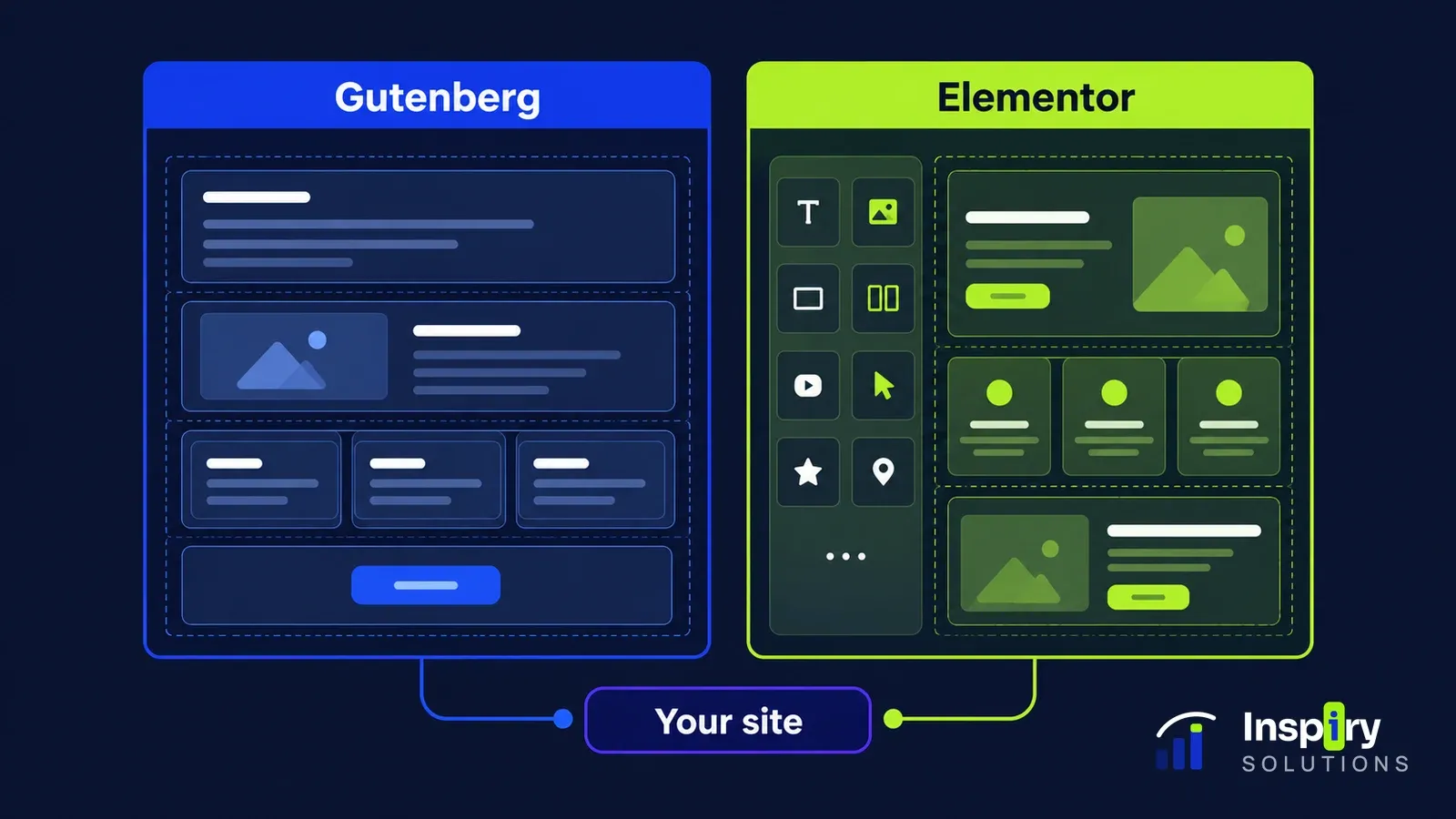
If maintaining the existing structure becomes impractical, compare a custom theme or premium template before rebuilding. Our guide to Gutenberg compared with Elementor also explains alternative editing approaches.
If your Elementor site was built page by page and nobody is sure how the templates work, we can audit and fix the structure at template level as part of our technical SEO service. Send your URL for a free audit.
We will review your website and provide a plain-language reply within two working days, outlining the structural issues that need attention.