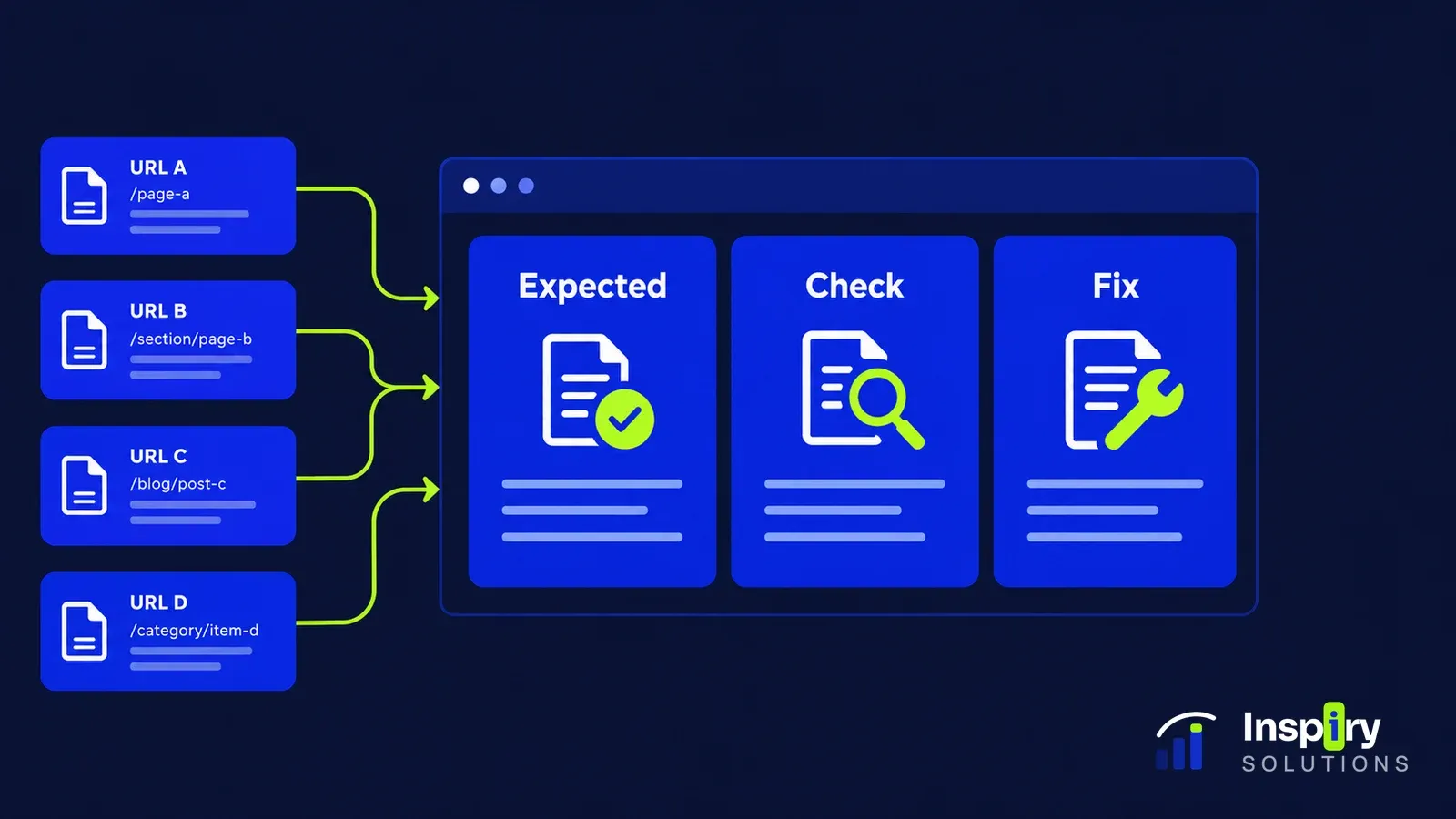
To learn how to use Google Search Console, start with five checks: review search visibility, identify changes to important pages, check indexing, confirm your sitemap and look for technical warnings. You do not need to understand every report. For most business websites, a 20-minute monthly review is enough to spot issues worth investigating, see whether recent changes helped and decide when to involve your developer. The important skill is recognising which numbers matter and which fluctuations are normal.
This guide is for business owners and marketing teams who want practical answers without becoming SEO specialists. You will learn what to check, which changes matter and when to request technical help.
What Search Console tells you that nothing else does
Google Search Console is a free tool showing how Google discovers, indexes and displays your website in search results. It helps answer a question ordinary analytics cannot fully explain: what happens before someone visits?
According to Google’s introduction to Search Console, the tool helps website owners measure search traffic, investigate indexing problems and understand how Google sees their pages.
It answers practical questions:
- Which searches make our website appear?
- How many people click our results?
- Are important service pages indexed?
- Has Google identified technical problems?
- Did visibility change after an update?
The distinction between Search Console and Google Analytics matters.
Search Console measures visibility in Google Search before the click. Google Analytics measures visitor activity after someone arrives, including visits from other sources.
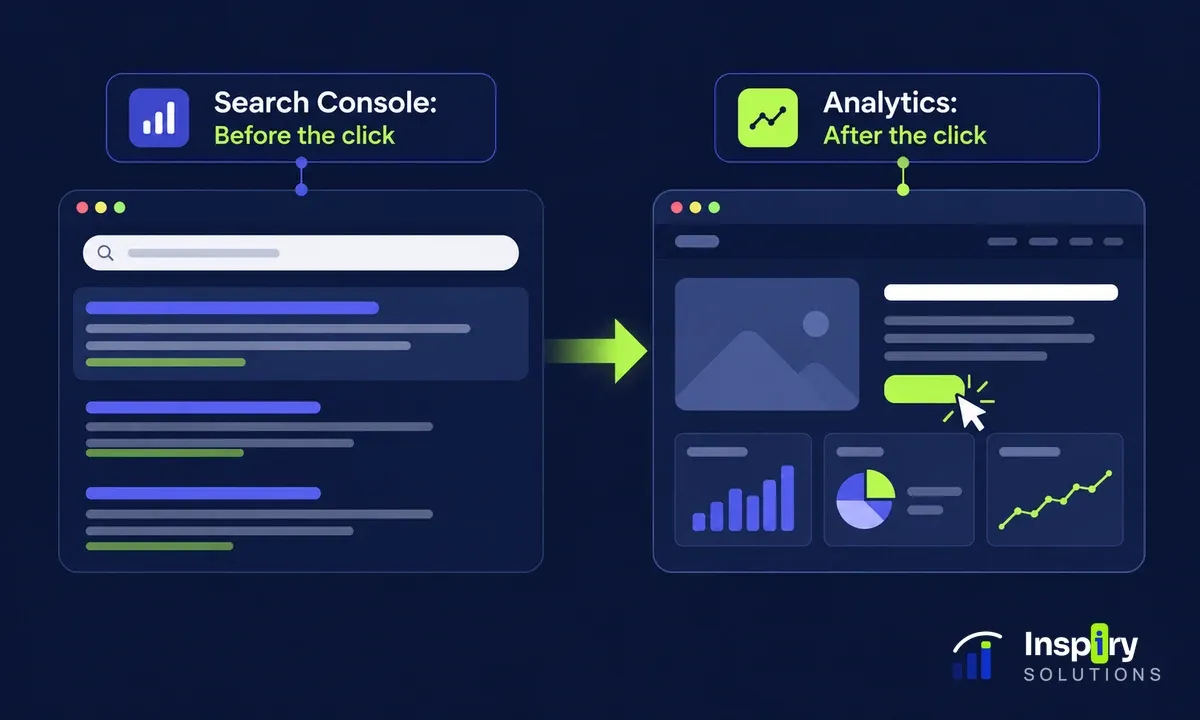
For example, Search Console might reveal that a service page receives impressions but few clicks. Analytics can show whether visitors who arrive submit enquiries.
Neither tool tells the complete story. Together, they connect search visibility with visitor behaviour. See Google Analytics documentation for more about measuring visits and conversions.
Set it up properly
Before reading reports, verify your website and confirm your business controls access.
Open Search Console, sign in and add your website as a property. A property represents the website URLs you want to monitor.
You have two options.
Domain property: Covers your domain across supported protocols and subdomains, including www and non-www versions.
URL-prefix property: Covers only URLs beginning with the exact address entered. An HTTPS property does not automatically include HTTP or other subdomains.
For most businesses, a domain property offers better coverage.
Domain verification requires a DNS record. DNS connects your domain name with services such as your website and email.
To verify ownership:
- Select Domain when adding the property.
- Copy Google’s verification record.
- Add it at your DNS provider.
- Return and select Verify.
- Allow time for DNS changes if necessary.
Never delete unrelated DNS records during verification.
Keep verified ownership under your business’s control. Give developers or agencies Full or Restricted access according to their responsibilities. Full permission allows broader management, while Restricted access mainly allows viewing reports.
Review permissions when changing agencies. Do not depend entirely on a contractor’s account.
If configuration needs attention, our technical SEO help can identify problems without requiring you to manage DNS yourself.
New properties may take time to display useful data. An initially empty report does not necessarily indicate a problem.
The Performance report: what people search and click
The Performance report shows which searches produce visibility, which pages attract clicks and how these patterns change.
Open Performance > Search results and select Web.
Four measurements matter:
- Clicks: How often people click your website from Google Search results.
- Impressions: How often your website appears under Google’s counting rules.
- CTR: Click-through rate, calculated as clicks divided by impressions.
- Average position: Average ranking position across reported search appearances, not one fixed ranking.
Google explains these metrics in its Performance report documentation.
Interpret them together. Rising impressions with fewer clicks can mean your website appears for additional searches that generate less engagement.
Find which pages bring visitors
Select the Pages tab beneath the chart.
Identify commercially important URLs, including your homepage, primary services and location pages. Do not treat every page as equally valuable.
Choose one URL, then switch to Queries. The search console performance report now shows searches associated with that page.
You may discover relevant phrases that were not deliberately targeted. These can reveal questions your content should answer.
Record your most valuable landing pages. If an important page suddenly disappears from its usual position among top performers, investigate whether its search visibility has changed.
Spot queries with impressions but few clicks
In Queries, look for relevant searches producing impressions but limited clicks.
Before rewriting content, consider whether the search matches the page’s purpose. Informational searches may naturally attract fewer enquiries.
Review the page title, description, content and ranking position. Low CTR can also reflect competing results or special features in Google’s search results.
Prioritise queries with commercial relevance rather than changing every page with disappointing numbers.
Compare before and after a change
Use the Date filter to compare completed periods.
For monthly reporting, compare the previous completed month with the month before. For seasonal businesses, consider the equivalent period last year.
After a redesign, compare dates surrounding the release and inspect affected pages individually.
Averages can mislead. Average position combines different queries, locations and devices. It may change because the mix of searches changed.
Likewise, Search Console data can be delayed or preliminary.
Look for sustained patterns, particularly changes affecting important queries. Avoid making decisions based on one unusual day.
The Page indexing report: what Google has and has not indexed
The Page indexing report shows which known URLs Google has indexed and why others are excluded.
An indexed page is eligible to appear in Google Search, but indexing does not guarantee rankings or traffic.
Open Indexing > Pages to review indexed and not indexed groups.
Not every excluded URL is a problem. Redirects, duplicate pages, deliberately excluded URLs and certain parameters may be correctly omitted.
Focus on important pages that should appear in search results.
Statuses worth investigating include:
- Server error (5xx): Google encountered a server problem.
- Not found (404): A URL is missing, potentially after migration.
- Excluded by noindex: A page instructs search engines not to index it.
- Blocked by robots.txt: Crawling restrictions may prevent access.
- Duplicate, Google chose different canonical: Google selected another preferred URL.
A canonical identifies the preferred version when similar or duplicate URLs exist.
Always check whether an exclusion is intentional before changing anything.
Our guide to diagnosing pages Google will not index explains common causes and practical fixes.
You can also consult Google’s Page indexing report guidance for status definitions.
A sudden loss of indexed service pages deserves investigation. Expected exclusions usually do not.
URL Inspection: check one page in detail
The URL Inspection tool helps investigate a specific page.
Paste its complete published address into the inspection bar. Use the correct HTTPS URL.
The report can show whether Google indexed the page, when it last crawled it and which canonical URL it selected.
Check:
- Whether the URL is indexed.
- Whether Google can crawl it.
- Whether indexing is permitted.
- Which canonical Google selected.
- Whether the last crawl followed your recent changes.
If an important service page disappears, url inspection helps distinguish an indexing issue from an ordinary visibility change.
After a fix, select Test Live URL to examine the currently accessible page.
A successful live test does not mean Google’s index has updated.
For important new or significantly updated pages, you can select Request Indexing.
Use it sparingly. Requests have limits and do not guarantee indexing. When many pages share an issue, investigate the cause rather than requesting indexing repeatedly.
Sitemaps, experience and security reports
Three additional areas deserve attention during your search console monthly check.
Sitemaps
An XML sitemap lists URLs you want search engines to discover.
Open Indexing > Sitemaps and confirm your submitted sitemap shows Success.
This means Google processed it successfully, not that every listed URL was indexed.
If the sitemap fails, check its address and whether a migration or plugin change affected it.
Core Web Vitals
Core Web Vitals measure aspects of real-user experience, including loading, responsiveness and visual stability.
Search Console groups URLs using available real-user data and identifies groups requiring improvement.
The report highlights patterns rather than every technical cause. Smaller websites may lack sufficient data.
Read Core Web Vitals in plain English to understand the measurements and useful next steps.
Security and manual actions
Open Security & Manual Actions.
Manual actions concern violations of Google’s spam policies. Security warnings may indicate hacking or harmful content.
Both reports should ideally show no detected issues.
Any new warning deserves prompt investigation.
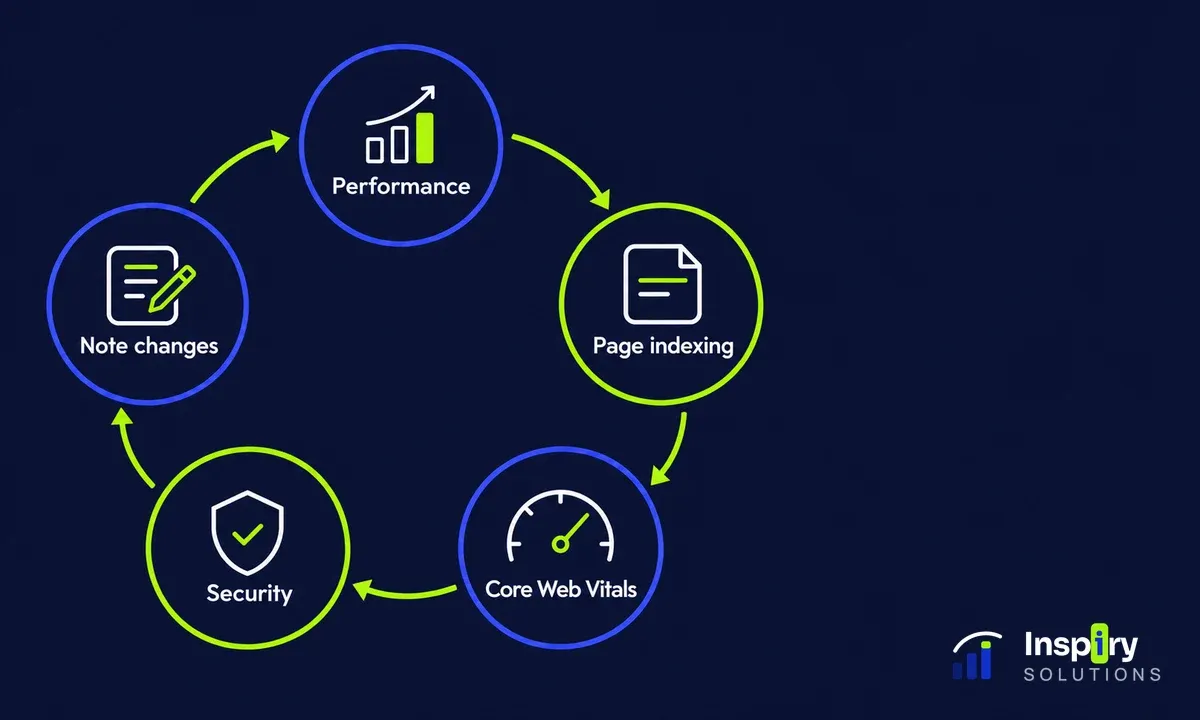
How to use Google Search Console in a 5-step monthly routine
Learning how to use Google Search Console becomes easier when you follow the same routine each month.
Reserve approximately 20 minutes. The goal is not a complete SEO audit but identifying meaningful changes and deciding what requires attention.
Use this monthly routine table as your checklist.
| Step | Report | What to look at | Normal | Escalate if |
|---|---|---|---|---|
| 1 | Performance | Clicks and impressions trend | Small fluctuations consistent with history | Substantial unexplained decline persists |
| 2 | Performance by page | Top service pages | Important pages maintain broadly consistent visibility | Key pages lose meaningful search traffic |
| 3 | Page indexing | Indexed count and new errors | Expected exclusions and stable key URLs | Important pages disappear or errors increase |
| 4 | Core Web Vitals | Poor URL groups | No significant new deterioration | Important URL groups become Poor |
| 5 | Manual actions and Security issues | Report status | No issues detected | Any new warning appears |
Check clicks and impressions against last month
Allow four minutes.
Open Performance and compare the previous completed month with the preceding month.
Check the overall direction of clicks and impressions.
Normal movement can reflect seasonality, weekends or changing demand. Do not investigate every small fluctuation.
If clicks fall sharply while impressions remain steady, inspect the affected pages and queries.
Record the date range and a short observation.
Check queries and pages that moved
Allow five minutes.
Open Pages and review your most important service URLs.
For pages showing meaningful changes, select the URL and switch to Queries.
Check whether relevant searches still produce impressions and clicks.
Minor ranking movement is normal. Concentrate on important pages losing visibility, especially following website changes.
Record two or three representative queries rather than exporting every result.
Scan the Page indexing report for new issues
Allow four minutes.
Check whether the indexed count changed substantially and whether new exclusion reasons appeared.
Prioritise your homepage, main services and important location pages.
Expected redirects and duplicate exclusions are normal.
If previously indexed business-critical pages become excluded unexpectedly, inspect several examples and record the reasons.
Avoid turning every exclusion into a development task.
Confirm sitemaps still read Success
Allow two minutes.
Open Sitemaps and check the status of your submitted sitemap.
Success is expected, although it does not confirm every page is indexed.
If the status changes, note the sitemap address and displayed message.
Consider whether a recent migration, SEO plugin update or security setting could explain the failure.
Check experience, manual actions and security
Allow five minutes.
Review Core Web Vitals for newly affected URL groups. Then open Manual actions and Security issues.
Normal means no new serious experience deterioration and no detected security or manual-action warnings.
Investigate new Poor URL groups affecting important pages. Treat security warnings and manual actions as urgent.
Finish your monthly review by noting significant website changes, including redesigns, redirects, releases and plugin updates.
Read Google’s notification emails between monthly reviews. Important warnings should not wait until your next scheduled check.
Hypothetical example: clicks fall after a redesign
Hypothetical example: A business owner notices clicks to the main service page have fallen after a redesign.
They open Performance and filter by that page.
Impressions remain broadly steady, but average position has slipped for two important queries.
The owner uses URL Inspection and discovers that Google has selected a canonical pointing to the staging website rather than the live service page.
A staging website is a separate environment used for testing changes before publication.
The owner sends the URL, inspection screenshot and redesign date to the developer.
In this hypothetical scenario, the developer corrects the canonical configuration the same day.
The owner then tests the live URL to confirm the intended canonical is present.
Recovery is not guaranteed or immediate. Google must process the changes, and rankings can vary for other reasons.
The lesson is to investigate the cause before rewriting content or changing unrelated SEO settings.
When to call your developer
Not every change requires technical support. Escalate when the evidence suggests an identifiable problem.
Examples include:
- Sudden, unexplained drops in indexed pages.
- Repeated server errors affecting important URLs.
- New security warnings or manual actions.
- Service pages losing clicks after a deployment.
- Incorrect canonical URLs or noindex directives.
- Sitemap failures after migration.
- Important templates developing performance problems.
Check what changed and when. A release, plugin update or redesign may be relevant, although timing alone does not prove the cause.
Our guide to monitoring after a redesign explains why redirects, indexing and visibility checks belong in the release process.
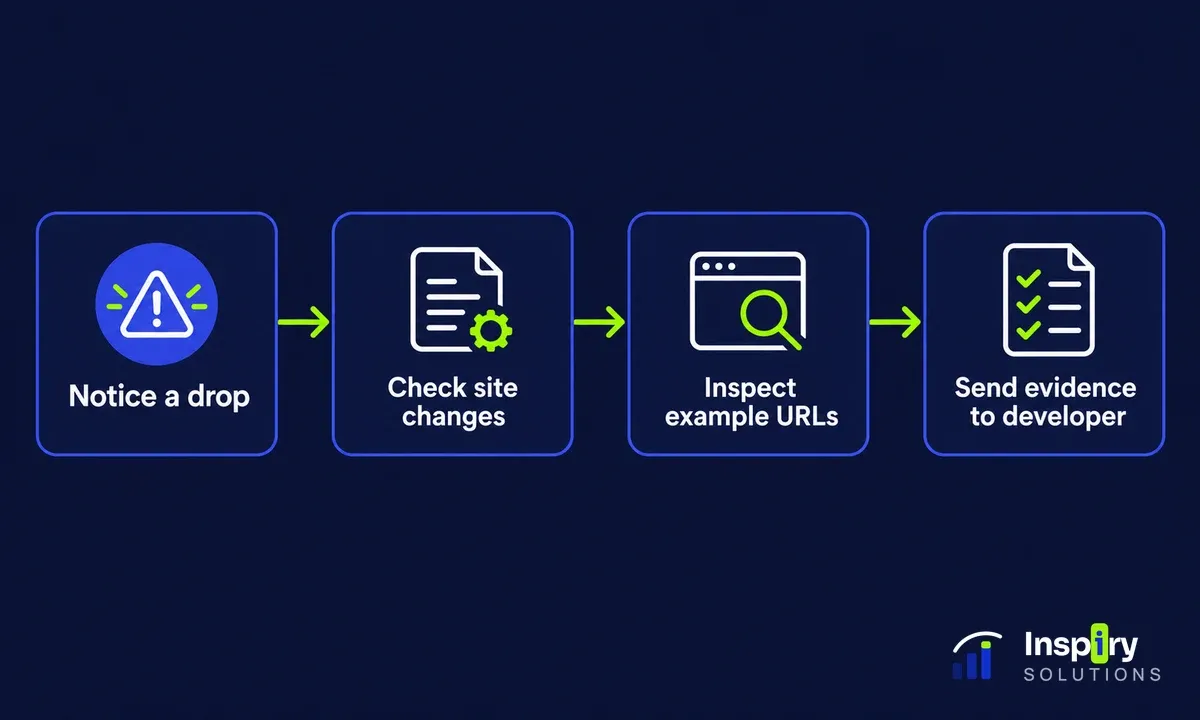
When contacting your developer, send:
- A screenshot of the affected report.
- The date range and when the issue started.
- Two or three example URLs or queries.
- Relevant recent website changes.
- The affected business pages or services.
“Our SEO is down” provides little useful information.
“Three service pages lost clicks after Tuesday’s release” with URLs and screenshots gives the developer something specific to investigate.
Ask for the likely cause, proposed fix and verification steps.
Avoid making multiple unrelated changes simultaneously. Otherwise, identifying what helped becomes difficult.
Common questions
Is Google Search Console free?
Yes, Google Search Console is free from Google. You need to verify website ownership or receive access from an existing verified owner before viewing reports. There is no subscription required for its standard features. A developer may charge for configuration or troubleshooting, but using the tool itself does not involve a Google fee.
What is the difference between Search Console and Google Analytics?
Search Console shows your visibility in Google Search before someone clicks a result. Google Analytics shows what visitors do after arriving on your website from different sources, including search, social media and advertising. Search Console explains search discovery, while Analytics helps measure visitor behaviour and outcomes such as enquiries or purchases.
Why do Search Console numbers not match Analytics?
They measure different things using different methods. Search Console records clicks from Google Search, while Analytics measures website sessions and events. Clicks and sessions are not interchangeable. Privacy settings, consent choices and tracking restrictions also affect Analytics data. Compare overall trends rather than expecting identical numbers across the two platforms.
How often should I check Search Console?
A monthly routine is enough for most established business websites. Spend approximately 20 minutes reviewing visibility, indexing and technical warnings. Check more frequently after important releases, migrations and redesigns. Read Google’s alert emails when they arrive, because serious indexing or security issues should not remain unattended until your next scheduled review.
Should I use Request Indexing for every page?
No. Request Indexing is intended for important new pages or pages that have been significantly updated. Google applies request quotas, and requesting indexing does not guarantee inclusion in search results. For larger groups of pages, maintain accurate sitemaps and internal links, then investigate technical problems rather than repeatedly requesting indexing for individual URLs.
Make Search Console a habit
The value of Search Console comes from recognising patterns over time, not exploring every available report.
Add a recurring 20-minute appointment to your calendar and review the same measurements each month.
Keep a simple change log covering new pages, redesigns, redirects, plugin updates and significant releases.
When something looks unusual, gather evidence before changing anything. A short list of verified issues is more valuable than dozens of unexplained warnings.
For your first review, consider having a developer walk through the important reports with you.
If you would like someone to read Search Console with you the first time and turn what it shows into a short fix list, our technical SEO service does exactly that. Send your URL for a free audit.