To update PHP version in WordPress safely, check your current version, test compatibility on staging, fix errors and then switch your live site. PHP is the programming language your website runs on, and older versions eventually stop receiving security updates. The actual switch usually happens in your hosting control panel, not the WordPress dashboard. The important work comes before that switch: checking plugins, your theme and any custom code for compatibility. With a recent backup, a tested staging copy and a rollback plan, you can reduce the risk of an unexpected outage.
What PHP is and why the version matters
PHP is the server-side programming language that powers WordPress.
Security support has an expiry date
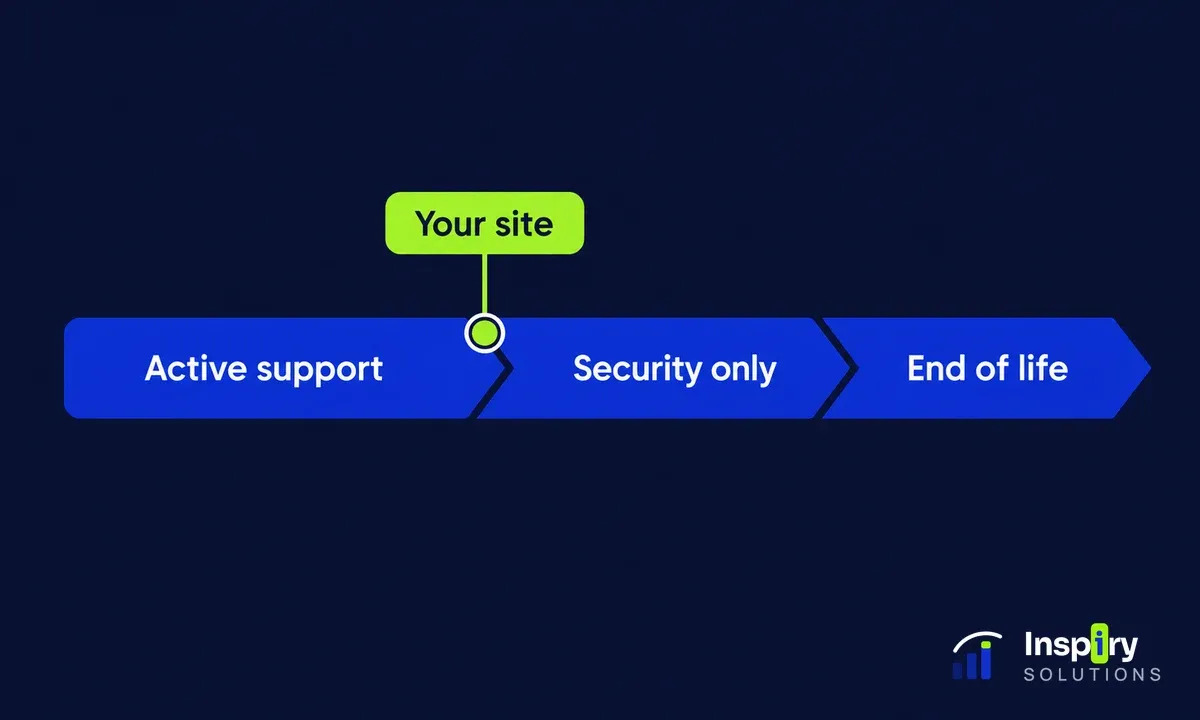
PHP versions follow a published support schedule.
According to PHP’s official supported versions schedule, a release branch eventually stops receiving official fixes.
Regular WordPress maintenance with PHP upgrades included helps prevent these changes from becoming urgent projects.
Performance is a possible benefit, not a guarantee
Newer PHP releases often include improvements that help server-side code execute more efficiently.
If pages take too long to begin loading, understand why the server responds slowly before assuming the PHP version is the only cause.
How to check which PHP version your site runs
You do not need to install a plugin or edit code to identify your current PHP version.
Check inside WordPress
Sign in to your WordPress administration area and open Tools > Site Health.
The official WordPress Site Health documentation explains where to find server information and how WordPress reports potential problems.
Check your hosting control panel
Most hosting providers display PHP settings somewhere in the account dashboard.
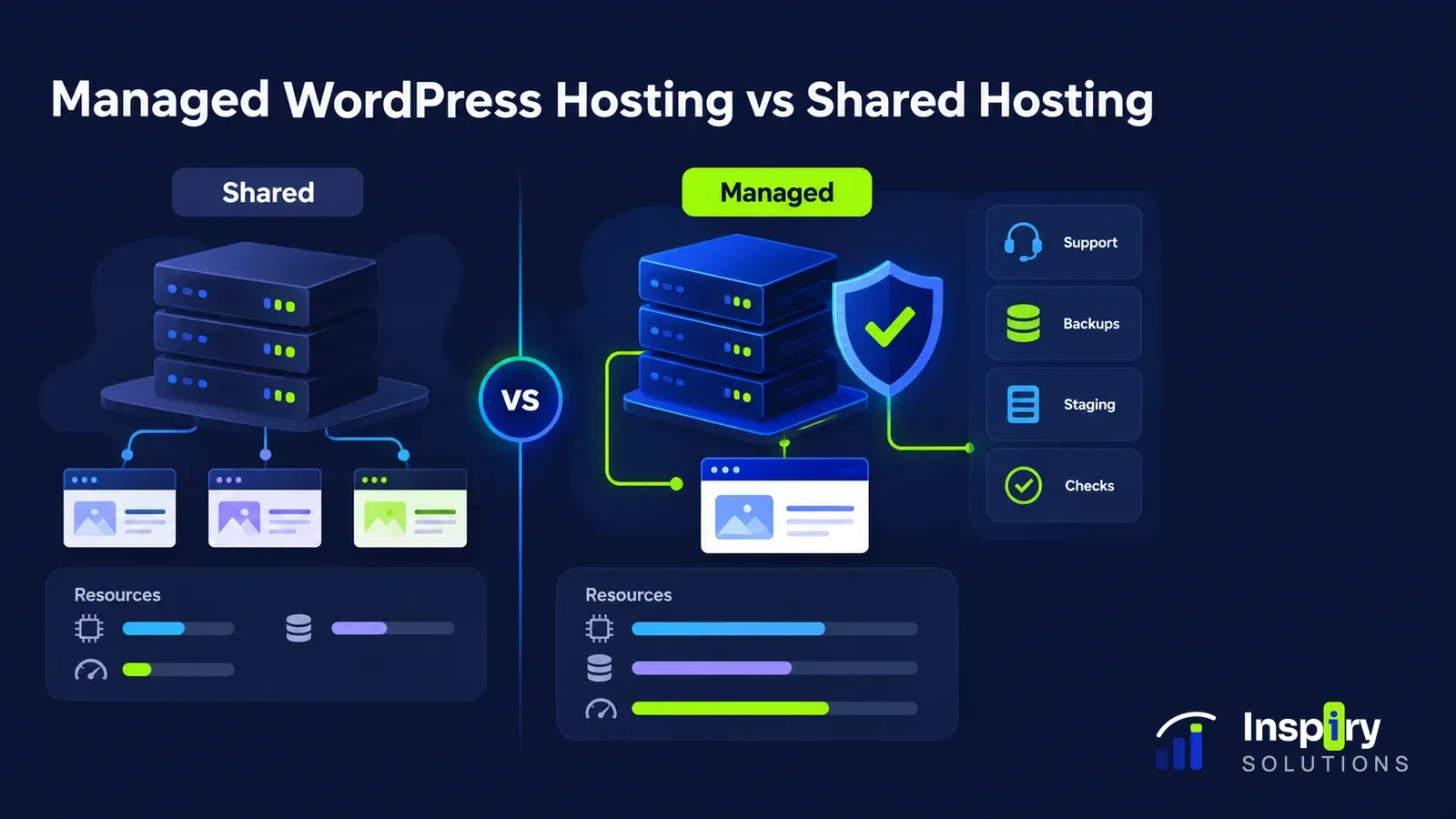
The differences between hosting platforms are covered in what to expect from your host.
Decide which version to target
Compare your current environment with WordPress.org’s official requirements.
What can break when you update PHP
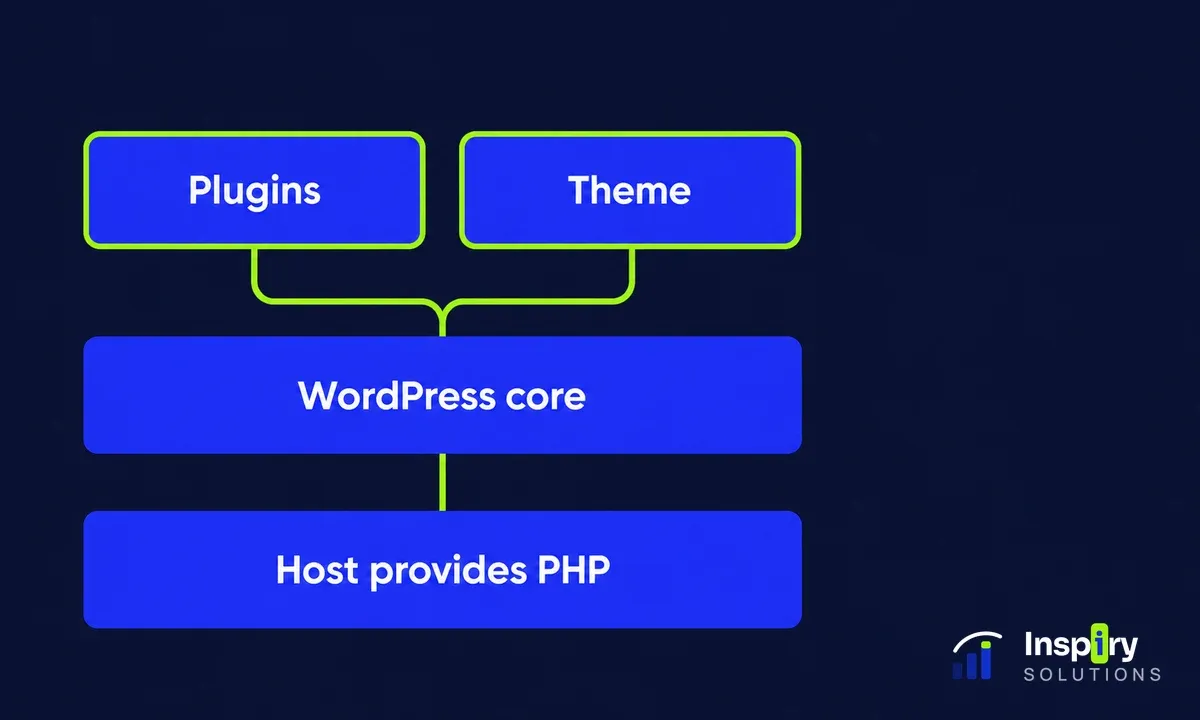
The PHP version is shared by WordPress core, your theme and the plugins running on the website.
Older themes and plugins
Some older code uses functions or language features that newer PHP releases have removed or changed.
Custom code creates another dependency
Custom PHP may live inside a theme’s functions.php file, a child theme, a custom plugin or another site-specific component.
Symptoms to watch for
Common signs of PHP incompatibility include:
- A white screen or a WordPress critical error message.
- An email reporting a fatal error involving a plugin or theme.
- A broken layout or missing homepage component.
- A contact form that no longer submits.
- Checkout failures or incorrect order behaviour.
- An administrative screen that no longer opens.
- Warnings appearing in server or WordPress debug logs.
- Background tasks failing without a visible message.
Before you switch: a compatibility check
The safest PHP upgrade starts with an inventory of the software your website depends on.
Review your plugins and theme
Open Plugins > Installed Plugins in WordPress and record each active plugin.
For every important component, check:
- The plugin name and installed version.
- Whether an update is available.
- When the developer last released an update.
- Any stated support for the intended PHP version.
- The business function that depends on it.
- Whether another component could replace it.
Deal with abandoned components first
A plugin that has received no meaningful maintenance for a long period deserves closer inspection.
If its developer no longer supports it, investigate a maintained replacement before changing the server environment.
Replacing a plugin can itself require development work.
For example, changing a booking plugin could affect existing appointments or how notifications are delivered.
Test replacements on a separate copy rather than removing business-critical functionality from the live site.
Do not assume that updating WordPress core will repair incompatible theme code.
Prepare a recoverable backup
Before changing anything, take a complete backup covering the database and website files.
The database stores information such as content, settings, orders and user records.
Confirm when the backup was created, where it is stored and how restoration would work.
A backup that has never been tested is an incomplete recovery plan.
For a busy website, consider what information could be created between the backup and a potential restoration.
Where possible, repair the PHP problem or reverse the version change without overwriting newer business data.
Also confirm who has hosting access, who can perform recovery and how visitors will be informed if something goes wrong.
The objective is a controlled change with a recovery route, not merely possession of a backup file.
How to update PHP version in WordPress, step by step
Once you know your current version and have checked the main dependencies, use the following four-step process.
The sequence moves testing away from visitors, identifies compatibility failures and gives you a way to reverse the change if necessary.
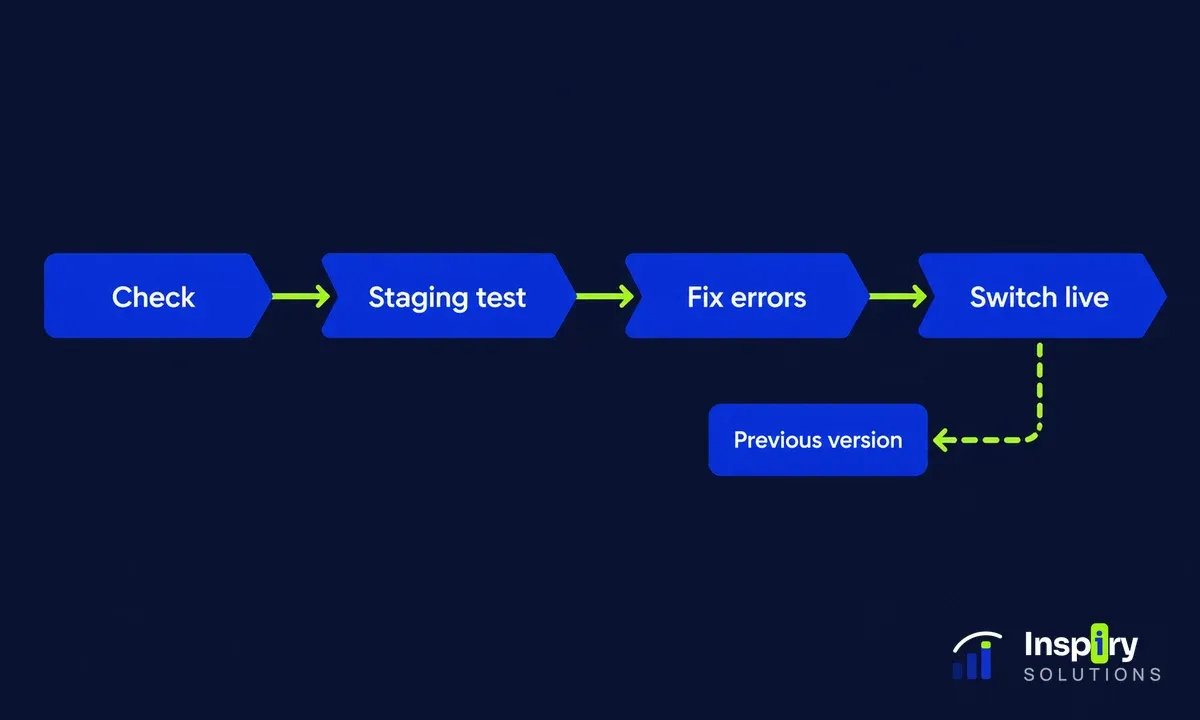
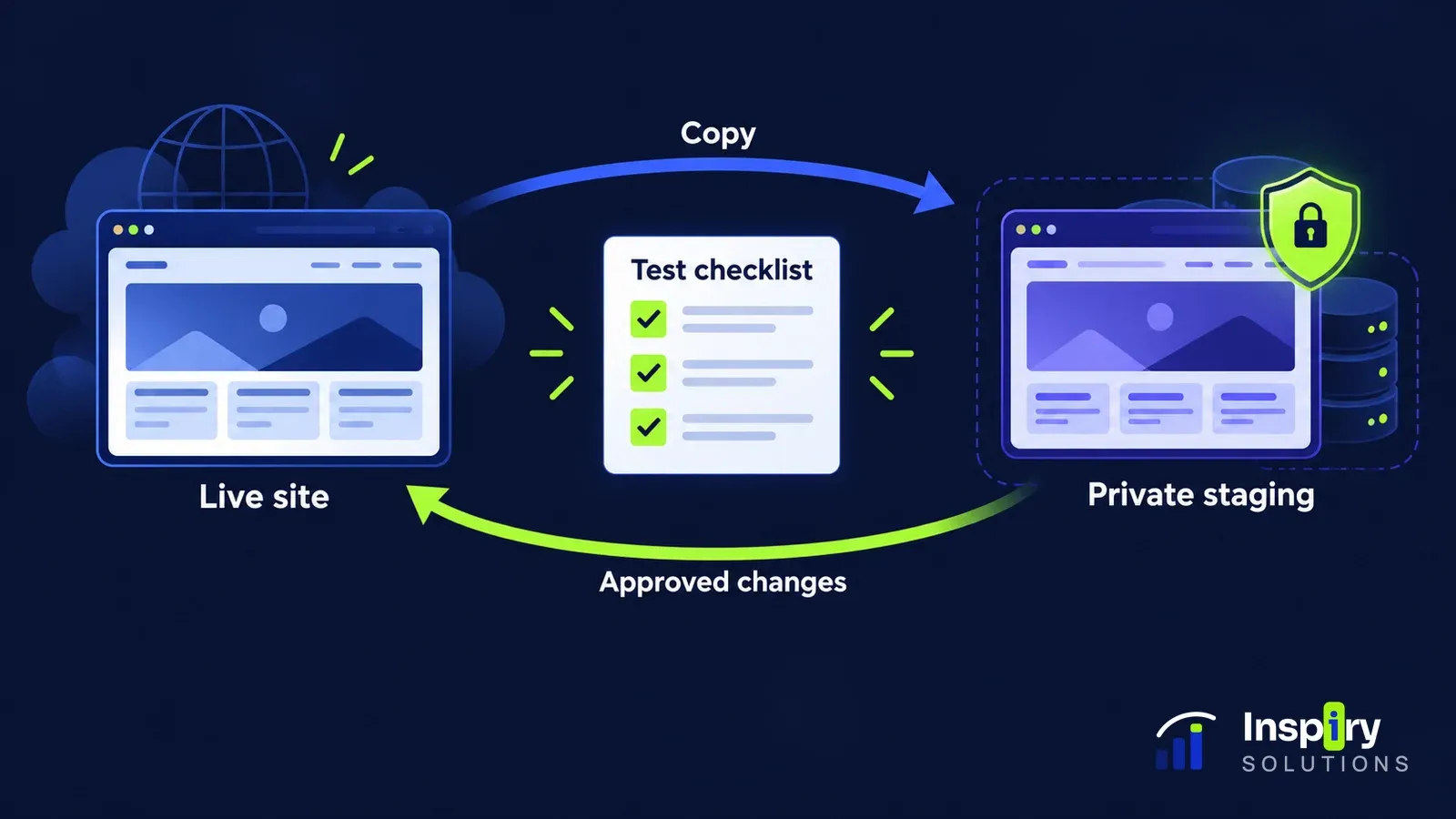
Step 1: clone to staging
Create a staging copy of your website.
Staging is a separate environment where you can test changes without directly affecting the live website.
Many managed WordPress hosts provide a cloning feature.
Our guide to setting up a staging copy explains the general approach.
The copy should reproduce the important parts of production, including the current WordPress installation, theme, plugins and custom code.
Where practical, match relevant server settings too.
Prevent search engines from indexing the test environment and restrict public access where appropriate.
Also disable or redirect real-world actions that could cause trouble.
Take a baseline before updating anything.
Check the homepage, key service pages, administration area and major visitor journeys.
A screenshot or short screen recording can help document behaviour that needs comparison.
Step 2: change the PHP version
In your staging hosting settings, select the intended target version.
The control may be labelled PHP Manager, PHP Settings or something similar.
Make sure you are changing staging rather than the production website.
The environment may briefly restart PHP processing or become unavailable while the host applies the setting.
After the change, return to Tools > Site Health > Info > Server and verify which version WordPress reports.
Do not assume the switch succeeded simply because the hosting interface accepted the selection.
Open the WordPress dashboard and load a few pages to check for immediate failures.
If the site produces a critical error, record what happened before reversing the change or investigating.
Where a host does not allow an older version to be selected again, ask support about its recovery procedure before proceeding further.
A rollback plan must be confirmed in advance.
Step 3: test and read the log
Now perform the actions visitors and administrators rely on.
Test at least the following where relevant:
- Homepage navigation and important landing pages.
- Contact forms and quote requests.
- Account registration, login and password resets.
- Product pages, baskets and checkout.
- Membership access and protected content.
- Booking availability and appointment confirmation.
- File uploads, search and filtered results.
- Administrative editing, saving and publishing.
- Email notifications and background tasks.
Use test accounts, sandbox payment settings and controlled submissions wherever possible.
Verify the result of each action, not just whether the button responds.
For example, a successful-looking form submission is not enough.
Next, inspect the error logs.
WordPress provides debugging options documented in its official debugging guide.
A developer can enable debug logging on staging and configure errors to be recorded rather than displayed publicly.
Never expose debug information to live visitors.
Review fatal errors first.
Then examine warnings and deprecation notices.
Not every warning causes an immediate outage, but repeated notices should be investigated before they become future failures.
Where possible, connect each log entry to the action that triggered it.
If a plugin is responsible, check for an update or contact its developer.
Only proceed once business-critical functions work and significant compatibility issues have been addressed.
Step 4: switch live and watch
Plan the production change for a quieter period when the relevant people are available.
A quiet period reduces exposure, but it does not guarantee zero downtime.
Confirm the latest backup, your test results and the agreed recovery procedure before changing production.
If staging fixes included plugin updates or code changes, deploy those compatible changes using a controlled process.
Select the tested PHP version in the production hosting panel.
Verify the new version in WordPress Site Health and immediately repeat the most important user journeys.
Keep somebody responsible for checking logs and responding if errors appear.
Monitor contact submissions, transactions and administrative behaviour after the switch.
If a serious issue appears, use the agreed rollback procedure where the host still supports the previous version.
Rolling back PHP does not necessarily undo changes to plugins, themes or data.
Record the final version, changes made, tests passed and any remaining issues.
Keep the previous version available only where the host permits it and only as a temporary fallback.
Version jump decision table
The work involved depends on how far behind the website is and what software it runs.
A small change on a maintained brochure website may be straightforward.
Use this decision table to choose the right approach.
| Situation | Risk | What to do first | Who should do it |
|---|---|---|---|
| One minor version step with maintained plugins | Lower, but not zero | Confirm compatibility and test key functions on staging | Site administrator familiar with hosting |
| Several major versions behind | Higher because compatibility changes accumulate | Audit plugins, theme and custom code before selecting a target | WordPress developer |
| Custom theme or plugin code | Depends on code quality and maintenance history | Review custom functions and run compatibility tests | WordPress developer |
| Abandoned plugins in use | Higher when unsupported code performs essential tasks | Identify replacements or repair options | Developer with business owner approval |
| WooCommerce or membership site | Higher business impact if transactions or access fail | Test payment, account and order journeys | Developer and responsible business team |
| Host forcing an upgrade on a fixed date | High if testing and recovery options are limited | Confirm deadline, staging access, backups and fallback options | Business owner, developer and host |
Risk is not determined by the version number alone.
An actively maintained store can still contain a compatibility problem.
The difference is that the consequences of failure are greater when customers rely on payments, bookings or account access.
The PHP update becomes a development task when testing identifies incompatible code, essential plugins need replacing or production cannot be changed safely without coordinated work.
It is also sensible to involve a developer if you cannot establish a working backup, access logs or confirm a rollback option.
Do not force the version change simply because it looks like a small hosting setting.
The setting may be simple.
Hypothetical example: an old theme blocks the upgrade
Hypothetical example: A building firm’s hosting provider announces that it will retire an old PHP version.
The company has a WordPress website with project galleries, a homepage slider and a form for requesting building quotations.
The site appears normal, so the owner initially expects the upgrade to take only a few clicks.
Before touching production, the developer clones the website to staging and selects the newer PHP release.
The homepage slider stops working. The quotation form displays correctly but fails when somebody submits it.
The developer checks the logs and identifies compatibility errors linked to the old theme and its supporting components.
The theme was last updated years ago and does not have a reliable maintenance path.
Instead of reverting production indefinitely, the developer investigates which features depend on the outdated code.
The slider plugin is replaced with a maintained alternative. Two theme functions are patched to work with the new environment.
The developer then repeats the important checks.
The homepage displays correctly, project galleries open and a test quotation reaches the intended destination.
Only after these tests pass does the team schedule the live change.
The production website is backed up, updated and monitored, with the old PHP version available as a fallback for a week under the hypothetical hosting arrangement.
No rollback is needed in this example.
The lesson is not that every older theme requires substantial development.
It is that the first compatibility test revealed failures before customers encountered them.
Without staging, the company could have discovered the problem through missing enquiries rather than a controlled test.
If replacing the theme had required rebuilding most of the site, the developer would have needed to explain that larger scope before proceeding.
A PHP upgrade should expose the real technical condition of the website, not become an excuse for unnecessary rebuilding.
Common questions
Which PHP version should WordPress use?
Check WordPress.org’s requirements page for the currently recommended version. Then choose a release that still receives security support according to php.net. The newest available version is not automatically the best choice for every existing website. Confirm that your theme, plugins and custom code support the selected environment before switching production.
Will updating PHP break my WordPress site?
It can if plugins, the theme or custom code use features that newer PHP releases have removed or changed. The result might be a visible critical error or a less obvious failure during checkout, login or form submission. Testing on staging first helps find these problems before visitors encounter them and gives a developer space to fix them.
Will a newer PHP version make my site faster?
Newer versions are often faster, but the gain depends on the website and hosting environment. Changing PHP does not fix slow plugins, heavy pages, unoptimised images or an overloaded server on its own. Measure performance before and after the upgrade. Also investigate other reasons a WordPress site is slow if visitors continue experiencing delays.
Can I go back to the old PHP version?
Most hosts let you switch back from the control panel, provided they still offer the previous version. Check availability before upgrading because some hosts remove older releases permanently. Reverting is only a short-term fallback if the old version is losing security support. Fix the compatibility problem and return to a supported version rather than relying on rollback indefinitely.
Keep PHP current without the drama
PHP upgrades are easier to manage when they are part of routine website maintenance rather than a reaction to a hosting deadline.
Check your installed version against PHP’s official support schedule twice a year.
Review WordPress updates, plugins, themes and custom code during the same maintenance cycle.
If you discover an older component, investigate it while there is still time to plan a replacement.
Document the environment your website needs. Include the PHP version, major dependencies, known customisations, backup procedure and person responsible for technical changes.
This information makes future upgrades easier to estimate and safer to execute.
A regular maintenance process should also include testing backups, reviewing error logs and checking whether the hosting environment remains suitable.
Our guide to maintenance plans and what they include explains how ongoing work can be organised.
When a plugin blocks the upgrade
Start with the plugin developer or support team if the component is actively maintained.
Provide the current and target PHP versions, plugin version, reproducible error and relevant log details.
If the developer cannot provide a compatible update, ask a WordPress developer to assess whether repair or replacement is the better option.
For custom themes and plugins, approach the developer responsible for maintaining that code.
Before sending access credentials, share the site URL and a concise description of the problem. Sensitive log details and temporary access should only be transferred through appropriate secure channels.
Need help with a PHP upgrade?
If your host is pushing a PHP upgrade, send us your website URL for a free audit. We will reply within two working days with a plain-language assessment of what is likely to break and what needs checking before the switch.
PHP upgrades are included in our WordPress maintenance plans from $99/month.
Email hello@inspirysolutions.com to get started.