WordPress caching explained simply: your website can save work at four different layers so it does not have to rebuild or download everything whenever someone visits. Page caching saves finished pages, object caching saves reusable database results, browser caching stores files on a visitor’s device, and CDN caching delivers suitable content from servers closer to visitors. Each layer solves a different problem. Understanding where they sit, who controls them and what must bypass them helps you avoid stale pages, broken forms and unnecessary server work.
This guide is for business owners and marketers whose hosting provider and plugins both mention caching. You will follow one page request, identify the four layers, learn what to exclude and understand how to clear caches without guessing.
Why WordPress needs caching
WordPress creates many pages dynamically. Without a suitable cache, a page request can trigger PHP code, WordPress processes, database queries and template rendering before the server returns the finished HTML.
PHP is the programming language WordPress uses on the server. The database stores posts, settings and other website information. Repeating this work for every visitor uses resources that could otherwise serve additional requests.
Caching saves reusable results so WordPress can avoid repeating operations. Instead of rebuilding an unchanged services page, the server may return an existing HTML copy.
This matters when several people visit together or a page requires expensive database queries.
Caching does not replace efficient code or adequate hosting. A poorly configured website can remain slow despite a working page cache. Large scripts, third-party services and inefficient queries still deserve investigation.
Our guide to common WordPress slowdown causes covers problems that caching cannot solve.
The useful question is whether the right work is reused safely without returning outdated content or information belonging to another visitor.
The journey of one page request
Imagine someone opening a WordPress services page. Their browser needs HTML, images, stylesheets and scripts.
Several components may answer requests before WordPress generates anything.
- Visitor browser: Checks whether reusable resources are stored locally. Fresh files may not require downloading.
- CDN: Checks whether an edge server can return a cached response.
- Server page cache: Looks for finished HTML that can be reused.
- WordPress and PHP: Generate the response when no suitable finished page exists.
- Object cache: Supplies reusable data during WordPress processing.
- Database: Answers queries when required information is not cached.
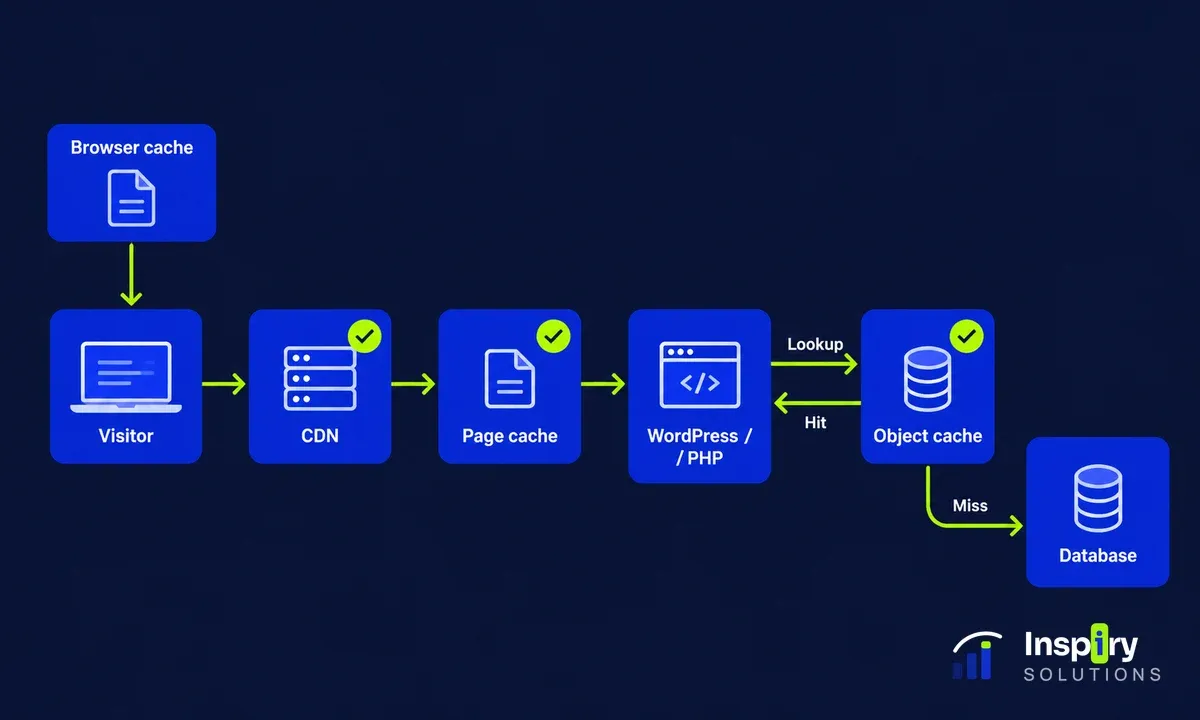
This is a simplified path. Individual resources may follow different routes. The object cache works alongside WordPress rather than serving finished pages directly.
A successful cache lookup avoids further work, although its benefit depends on what was saved.
Our website performance diagnosis examines whether delays originate from hosting, caching, WordPress processing or frontend resources.
Not every cache stores a complete page. Some store files, others store finished HTML, and others retain data needed during page generation.
WordPress caching explained: the 4 layers
The main types of caching in WordPress serve different purposes. Treating them as interchangeable creates confusion and can introduce errors.
| Layer | What it stores | Where it lives | Who controls it | Main benefit | Common pitfall |
|---|---|---|---|---|---|
| Page cache | Finished HTML pages | Hosting server or plugin storage | Host or plugin | Avoids rebuilding pages | Stale or personalised HTML |
| Object cache | Reusable query results and application data | Server memory or cache storage | Host and developer | Reduces database work | Stale values |
| Browser cache | Images, CSS, JavaScript and suitable responses | Visitor’s device | Browser, guided by server headers | Avoids repeated downloads | Outdated files |
| CDN cache | Eligible files and sometimes HTML | Distributed edge servers | CDN provider, host or developer | Reduces origin requests | Stale edge content |
Page caching
Page caching stores the finished HTML generated for a URL. When another eligible visitor requests that page, the server can reuse the response instead of rebuilding it through WordPress.
It works particularly well for public pages showing substantially identical content to everyone, including services pages, articles and general information.
A page cache uses rules for expiry, regeneration and exclusions. Some systems automatically clear affected pages after publication, but this depends on their configuration.
A cache hit means a suitable stored response was reused. A cache miss means the system needed to retrieve or generate a response.
Caching can improve Time to First Byte (TTFB), the time before the browser receives the first response byte. Google’s guidance on improving server response time discusses caching as one way to reduce server processing.
Our guide to reducing server response time explains how to investigate TTFB.
The limitation is that finished HTML can contain information that should not be shared. A page cache must distinguish public content from personalised or transactional responses.
Object caching
An object cache stores reusable information during WordPress processing. Unlike a page cache, it does not normally return a finished page directly to visitors.
WordPress might retrieve settings, content records or database query results. If suitable data is cached, it can reuse that information instead of repeating the operation.
WordPress includes an object caching system for reuse within a request. A persistent object cache can retain appropriate values across separate requests.
Redis is a common technology for persistent object caching. It stores information in memory and requires compatible hosting and WordPress integration.
This explains page cache vs object cache: page caching avoids generating eligible pages, while object caching makes pages that still require processing less expensive to generate.
Persistent caching is particularly relevant for dynamic websites, logged-in users and database-heavy operations. Its effectiveness depends on the workload and correct invalidation.
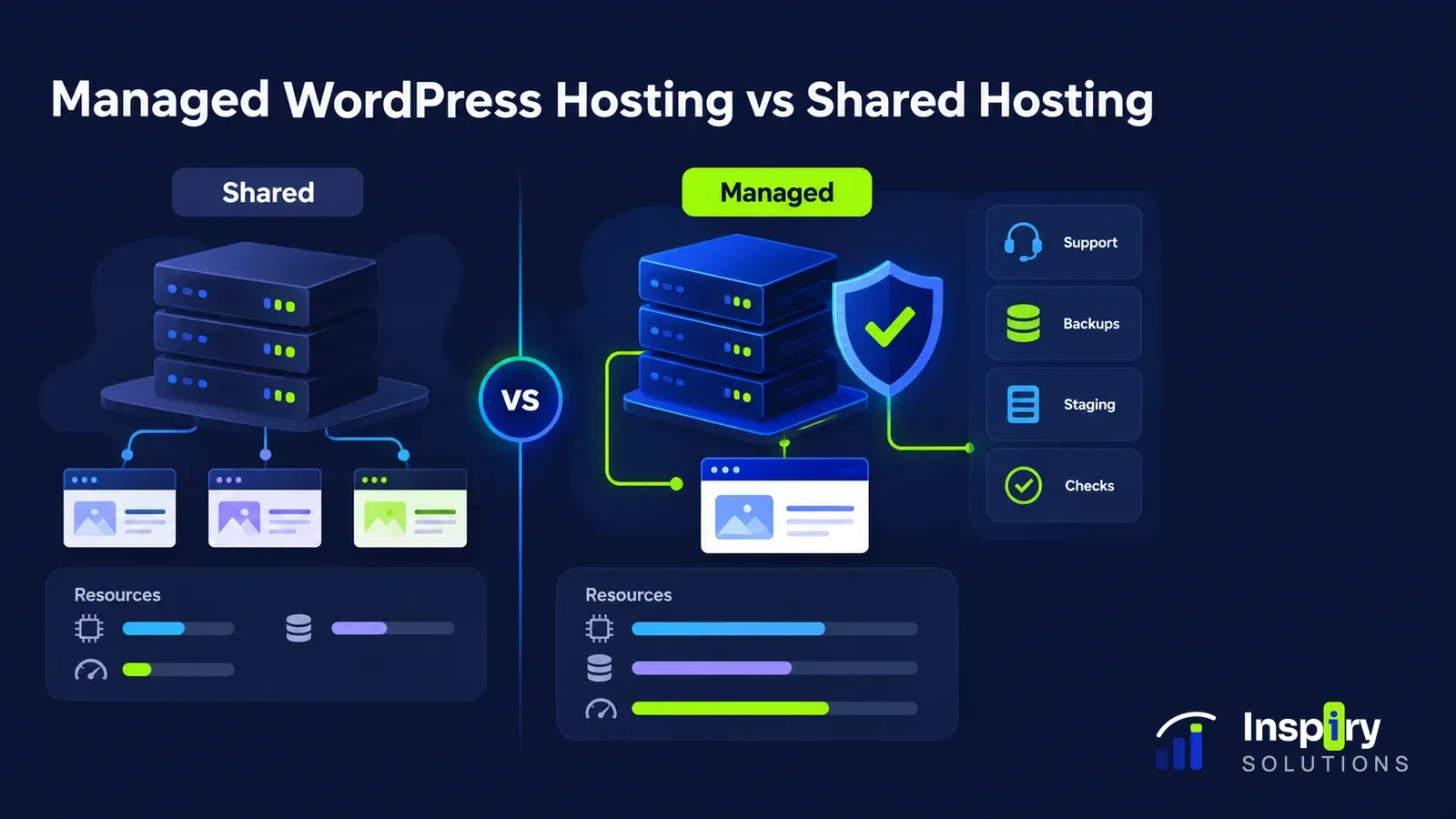
Not every host supports it. Our comparison of what managed hosts include helps explain the hosting features worth checking.
Browser caching
Browser caching allows a visitor’s device to reuse suitable responses rather than downloading them repeatedly.
Images, stylesheets, fonts and JavaScript files are common candidates because they often remain unchanged between visits.
Websites send HTTP headers that influence caching behaviour. The Cache-Control header can specify whether content may be stored and when it needs revalidation.
Google’s HTTP caching guide explains freshness periods, validation and related browser behaviour.
One important distinction is that no-cache allows storage but requires validation before reuse. no-store instructs caches not to store the response.
Browser caching WordPress resources becomes easier to manage with versioned file URLs. When a stylesheet changes, its version can change, prompting the browser to retrieve the updated resource.
Without versioning, visitors may continue using older files while their cached copies remain fresh.
The objective is to retain unchanged resources efficiently without preventing visitors from receiving updates.
CDN caching
A content delivery network, or CDN, distributes eligible website resources through servers in different geographical locations.
When someone requests a cacheable resource, a nearby edge server may deliver it instead of contacting the original hosting server.
Cloudflare’s explanation of how a CDN works describes this distributed delivery approach.
CDN caching commonly covers images, stylesheets and scripts. Some configurations also cache HTML, although full-page caching requires appropriate rules and exclusions.
This can reduce origin requests and delivery distance, especially when visitors access a website from different regions.
However, CDN caching introduces another location where outdated content can remain. Clearing the hosting page cache does not necessarily remove an old HTML copy stored at the edge.
Coordinated CDN purge rules are therefore important when a website caches complete HTML pages.
Who controls each layer
Caching responsibility is often shared between the hosting provider, plugins and developer. Problems appear when those systems overlap without coordinated settings.
The host commonly manages server-level page caching, persistent object cache support and sometimes CDN services.
A caching plugin may provide page caching, browser cache headers and exclusions, particularly on hosting without equivalent built-in features.
The developer checks how these systems interact and configures versioned assets, sensitive-page exclusions and automatic purges.
| Responsibility | Typical owner | What to confirm |
|---|---|---|
| Server page caching | Host | Enabled, exclusions and purge controls |
| Persistent object caching | Host and developer | Support, integration and invalidation |
| Browser cache headers | Host, plugin or developer | Lifetimes and asset versioning |
| CDN caching | CDN provider, host or developer | HTML rules, bypasses and purging |
Two systems caching the same finished HTML may create unnecessary complexity. An update might clear one copy while another continues serving an old version.
Before installing another caching tool, identify which layers already operate and who controls each. Enable missing functionality rather than duplicating existing features.
What should never be cached
The most important caching decision is often what must bypass shared full-page HTML caching.
Public articles generally suit page caching. Pages containing visitor-specific or sensitive information require greater care.
Transactional and logged-in pages
Shopping carts, checkout pages and account dashboards usually need to bypass shared page caching because their content depends on the visitor’s session.
The same applies to personalised membership areas and logged-in administration screens.
Static files used on these pages may still benefit from browser caching. Excluding personalised HTML does not mean disabling all caching.
Forms and expiring security tokens
Some forms include temporary security values, called nonces or security tokens, to help validate submissions.
When HTML containing a token remains cached beyond its validity, visitors may receive an expired value. The form can then reject submissions despite appearing normal.
Possible solutions include suitable cache lifetimes, exclusions or generating fresh tokens dynamically. The correct approach depends on the form implementation.
Always test actual submissions after changing caching settings.
Personalised and location-based content
Prices, recommendations, availability and messages may change according to location, cookies or visitor identity.
A shared page cache must not display one visitor’s private information to another.
Some public variations can be handled through correctly configured cache rules. Otherwise, bypass shared HTML caching or load personalised content dynamically.
Elementor websites need similar checks when templates use dynamic widgets or forms. See caching settings for Elementor sites for related considerations.
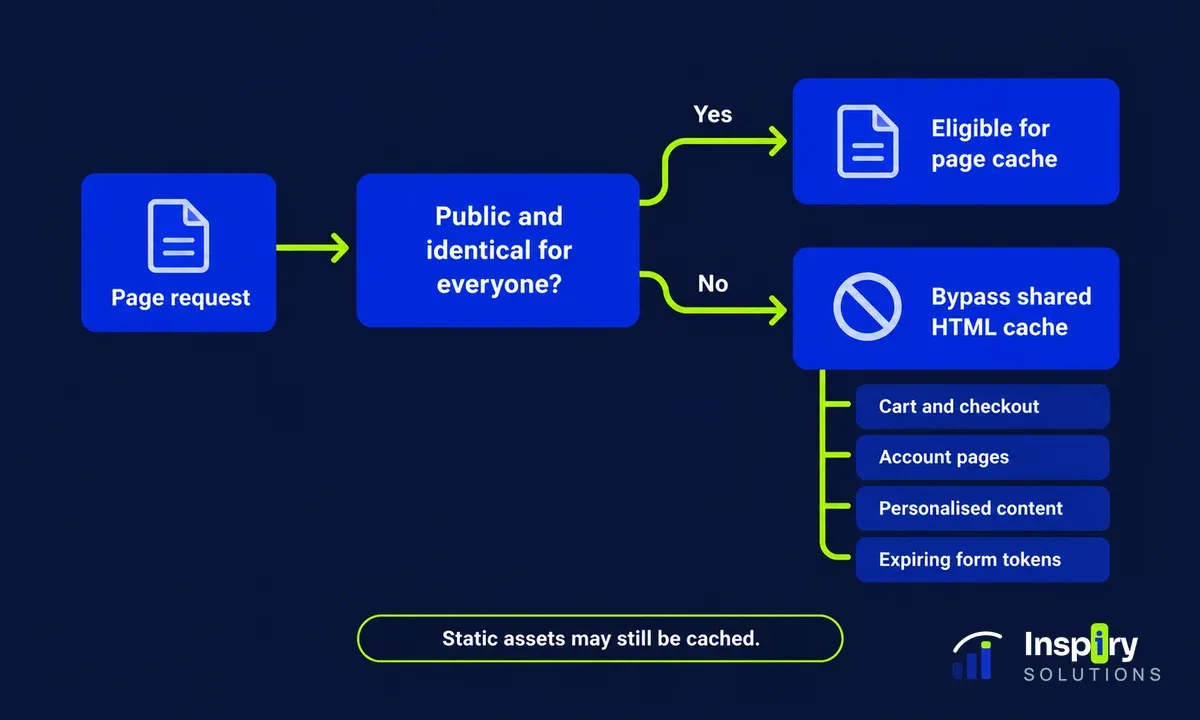
Treat exclusions as a functional requirement, not merely a performance preference. Review them after hosting migrations, plugin changes and CDN configuration updates.
Clearing caches in the right order
When a published change does not appear, identify which layer still holds the previous version.
For a coordinated reset, work from inner data caches towards the visitor. Clear relevant object cache entries if outdated data is suspected, followed by the server page cache and CDN.
Finally, refresh or clear the affected browser cache if an old response or file remains.
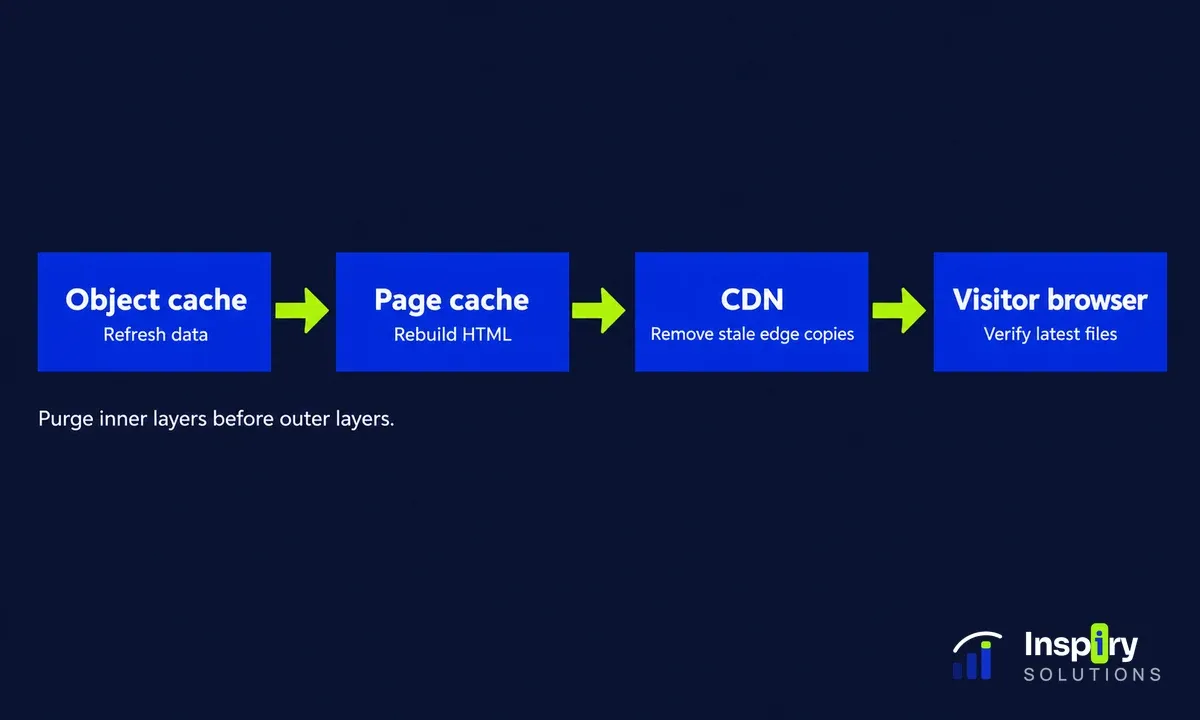
A practical sequence is:
- Confirm the new content is saved in WordPress.
- Clear relevant object cache entries if underlying data may be stale.
- Purge affected URLs from the server page cache.
- Purge corresponding CDN content, particularly cached HTML.
- Check the page in a fresh browser session.
- Verify future edits trigger the expected automatic purges.
This is a troubleshooting sequence, not an instruction to flush every cache after every edit. Routine updates should invalidate only relevant content.
Clearing the CDN before the server page cache can cause it to retrieve outdated HTML and cache it again.
Similarly, clearing the page cache while underlying data remains stale can regenerate an incorrect version.
Browser refreshing alone may not help because valid cached resources can still be reused.
Avoid two independent systems performing the same page caching job without deliberate coordination.
When you need to clear WordPress cache entries, start with the smallest relevant purge. Clearing everything can temporarily increase server work.
Signs your caching is set up wrong
Caching problems may not appear in performance tests. A page can respond quickly while delivering incorrect information.
Common warning signs include:
- Edits remain invisible: Published changes appear in the editor but not publicly.
- Visitors see another person’s details: Accounts, carts or personalised messages appear in the wrong session.
- Forms fail: Security validation errors occur despite correct submissions.
- Content differs unexpectedly: Visitors receive conflicting versions.
- Performance varies significantly: Cached pages respond quickly, but uncached requests remain unusually slow.
A privacy problem requires immediate action. Disable the affected shared HTML caching rule and investigate what information may have been exposed.
For stale public content, compare logged-out responses and inspect available cache headers. Where appropriate, test the origin independently of the CDN.
Hypothetical example: old prices still showing
Hypothetical example: A consultancy updates its pricing page in WordPress. The editor shows the new prices, and the team clears its hosting provider’s page cache.
However, some visitors still see the old prices.
The website uses CDN HTML caching, and the CDN retains the previous version. Clearing the host cache has not removed that edge copy.
The team confirms that WordPress contains the correct prices and identifies the CDN as the source of outdated HTML.
It clears relevant underlying caches if needed, purges the host page cache and then removes the old CDN copy.
Fresh browser checks confirm that the current pricing appears.
A developer configures automatic CDN purging when WordPress publishes or updates affected pages.
The permanent improvement is coordinated invalidation rather than more frequent full-cache clearing.
This example is illustrative only. Actual behaviour depends on the hosting provider, CDN and WordPress configuration.
Common questions
Do I need a caching plugin if my host already caches pages?
Often no. Many hosting providers already offer server-level page caching, which can remove the need for another plugin doing the same job. Running two independent page caches can cause conflicts, stale pages and confusing purge behaviour. Check what your host provides first, then add only missing functionality rather than duplicating existing caching.
Why do my changes not show after I edit a page?
A cache layer may still be serving an older version of the page or its supporting files. Confirm the edit is saved, then clear relevant inner caches first, followed by the page cache and CDN. If the old version remains, inspect browser caching and verify which system supplied the response. Do not assume every delay requires disabling caching.
Does caching help logged-in users?
Yes, but not necessarily through full-page caching. Shared page caching is usually bypassed for logged-in users because their responses may contain personal information. A persistent object cache can still reduce repeated database work while WordPress generates individual responses. This is particularly useful for busy membership sites, dashboards and other dynamic areas where full-page reuse is unsuitable.
Can caching break a contact form?
Yes. Some forms include temporary security tokens inside the page HTML. If that HTML remains cached for too long, the token can expire before a visitor submits the form, causing validation errors. Set suitable cache exclusions or lifetimes, or arrange for fresh tokens where supported. Always test actual form submissions after changing caching settings.
What is Redis in WordPress?
Redis is an in-memory data store commonly used as a persistent object cache for WordPress. It can retain reusable data between separate page requests and reduce repeated database queries. Redis needs appropriate hosting support and WordPress integration. It is most useful on dynamic or busy websites, although correct configuration and invalidation matter more than simply switching it on.
Your next step
This week, make a simple inventory of your website’s caching layers.
Check whether your host provides page caching, whether a plugin also caches finished HTML, whether persistent object caching is active and whether your CDN stores static files or entire pages.
Record which service controls each layer and where its purge settings are located. Then test a harmless edit on a public page.
Check that the update appears correctly and that forms, accounts and any shopping functionality continue working.
If problems remain, send your developer the affected URL, what changed, when it changed, screenshots, your hosting provider, caching settings and any visible errors.
Ask them to identify the layer responsible before adding another optimisation tool.
If your caching is doubled up, stale or breaking forms, our website performance work untangles the layers and sets them up properly, typically $400-$1,800.
Or send your URL to hello@inspirysolutions.com for the free audit and get a plain-language reply within two working days.