WordPress user roles determine what each person can do on your website, from writing a draft to changing plugins, settings and other users’ access. For most business teams, the safest approach is to reserve Administrator accounts for a small group, give content staff Editor or Author access, and apply clear login security rules to everyone. Each person should have a named account, an appropriate role and a reason to retain access. Multi-factor authentication, regular reviews and prompt removal of former contractors complete a practical access policy.
Insert the Rank Math Table of Contents block here.
The default WordPress user roles in plain English
WordPress uses roles to decide which actions a logged-in person is allowed to perform.
The official WordPress roles and capabilities documentation explains the permissions assigned to each role.
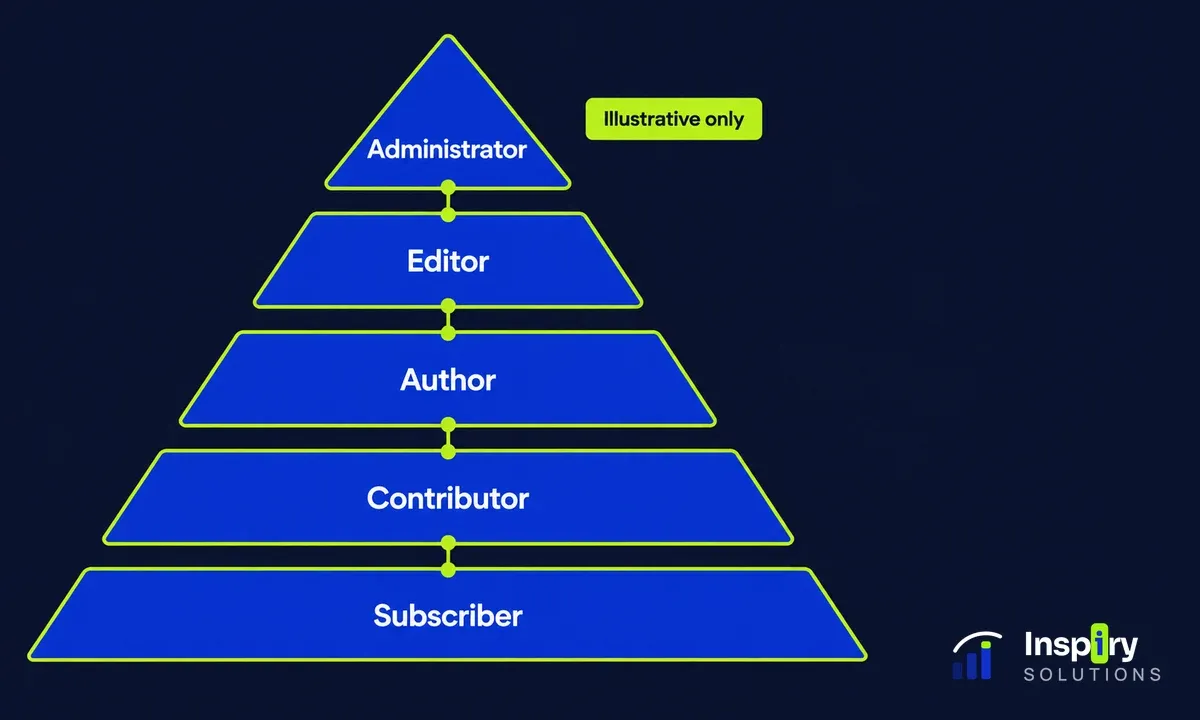
Administrator
An Administrator has broad control over a standard WordPress website, including plugins, themes, settings and other users. On a single site this is the highest role. On a multisite network, a separate Super Admin role manages the whole network, and site Administrators have fewer powers.
Editor
An Editor can create, publish, edit and manage content, including posts and pages created by other people.
Author
An Author can write, publish, edit and manage their own posts.
Contributor
A Contributor can write and edit their own posts but cannot publish them.
Subscriber
A Subscriber has very limited access.
Subscribers cannot normally create, edit or publish WordPress posts.
This role is commonly suitable for registered website users who do not need administration permissions.
Membership and learning plugins may extend what Subscribers can access on the front end, but those features are separate from the standard publishing capabilities.
What about WooCommerce and custom roles?
If WooCommerce is installed, you may also see Shop Manager and Customer.
Other plugins may add roles such as SEO Manager, Membership Manager or custom staff roles.
Check these under Users > All Users and inspect their actual permissions before assigning them.
Plugins and custom code can also modify existing WordPress roles and capabilities, so review what your particular website allows rather than assuming every installation behaves identically.
Match roles to real jobs on your team
The most useful way to decide user roles is to start with actual tasks.
Ask what someone must change, whether they need to publish independently, and whether they must control technical settings.
| Team member | Typical tasks | Suggested role | Notes |
|---|---|---|---|
| Owner | Oversee website ownership, appoint trusted technical users | Administrator | Keep an owner-controlled account with MFA |
| Marketing manager | Publish pages, review articles, manage campaigns | Editor | Administrator only if technical settings are required |
| Content writer | Create and publish their own blog posts | Author | Use Contributor if approval is mandatory |
| Guest contributor | Submit occasional articles for review | Contributor | Remove access when the assignment ends |
| SEO agency | Update content, metadata and on-page SEO | Editor | Some plugin settings may require temporary Administrator access |
| Developer | Update plugins, themes, templates and configuration | Administrator when needed | Use a named, time-limited account |
| Shop or bookings staff (WooCommerce) | Manage products, orders or relevant operational records | Shop Manager or suitable custom role | Check the actual store and booking permissions |
| Customers | Access orders, account information or member features | Customer or Subscriber | Avoid granting editorial or administrative permissions |
For a typical content team, Editor and Author are often sufficient.
Similarly, an SEO agency should not automatically receive Administrator access.
Some SEO plugins introduce additional capabilities or restrict their settings to administrators.
Treat WordPress roles and capabilities as a working access policy, not a one-time setup decision.
How many administrators is too many
There is no universal maximum number of WordPress Administrators.
However, every additional Administrator increases the number of accounts that can make major changes.
A useful starting policy for a smaller business is one owner-controlled Administrator and one trusted technical Administrator where ongoing maintenance requires it.
Keep a short, named register of everyone with Administrator access.
Do not let an external agency become the only party with full control of your website.
Keep ownership separate from service delivery.
Your business should control at least one Administrator account that does not depend on an employee’s personal email address or an agency’s account.
This connects to what to own when a site launches, including hosting access, domain registration, backups and other credentials that may be required during a handover.
Also distinguish WordPress access from hosting access.
If a contractor needs Administrator privileges for a technical change, agree when those privileges will be removed or reduced.
For businesses that prefer not to manage this themselves, our maintenance plans with access reviews provide a starting point for discussing routine oversight alongside website maintenance.
A sensible policy reduces unnecessary access without creating a dependency on one unavailable person.
Login security that actually matters
Correct WordPress user roles limit what people can do after logging in.
Login security therefore needs several controls working together.
Enable multi-factor authentication.
Multi-factor authentication, often called MFA or two-factor authentication, requires an additional verification step beyond a password.
For WordPress, this usually means configuring a suitable authentication plugin or identity system.
At minimum, require MFA for every Administrator and Editor.
The official WordPress two-step authentication guidance explains the additional authentication layer.
Test MFA before enforcing it across the team.
Use unique passwords and a password manager.
Each person needs a unique, strong password that is not reused across websites.
A password manager helps staff create and store credentials without relying on predictable variations, spreadsheets or messages containing passwords.
Avoid sending login credentials through ordinary chat messages when a secure credential-sharing method is available.
The UK’s National Cyber Security Centre small business guidance provides practical advice on passwords and account protection.
Also secure the email accounts associated with WordPress users.
Limit repeated login attempts.
Automated attackers can repeatedly try passwords against exposed login endpoints.
Appropriate rate limiting, login protection or hosting-level security rules can reduce this activity.
The WordPress guidance on brute-force attacks explains this risk and defensive approaches.
Avoid overly aggressive rules that repeatedly block legitimate employees.
Never use shared logins.
An account named “marketing” used by several employees creates an accountability problem.
You cannot reliably determine which person changed a page, and removing one departing employee’s access becomes difficult when everyone knows the same password.
Create named accounts instead.
Shared credentials are especially risky when a freelancer or agency has finished working with your business.
Review application passwords.
WordPress application passwords allow external applications to authenticate through supported programmatic interfaces without using a person’s normal login password.
They are useful for legitimate integrations, but they create another credential to manage.
Review application passwords in the relevant user’s profile.
Application passwords are not a substitute for MFA on interactive logins.
Finally, include access permissions, authentication and recovery arrangements in a broader security checklist. Login protection is one part of website security, not the entire security programme.
Giving agencies and freelancers access
When you give agency access to WordPress, begin by defining the work rather than automatically creating an Administrator account.
An SEO consultant reviewing content may need Editor access.
Use a consistent access lifecycle.
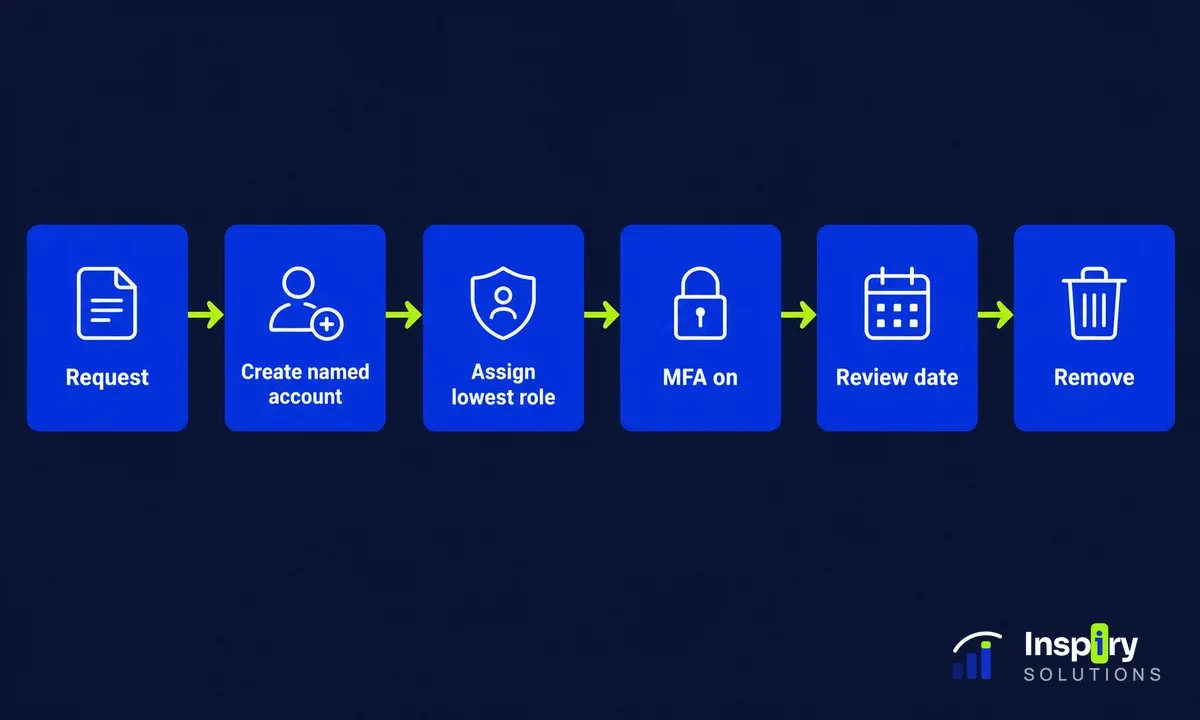
Request and approval
Ask the contractor to identify the required tasks, expected duration and whether the work affects the live website.
The business owner or designated manager should approve access.
Create a named account
Create a separate WordPress account for each person who needs access.
This makes it easier to identify activity, apply MFA and remove an individual without disrupting everyone else.
Assign the lowest suitable role
Choose the minimum permissions needed for the agreed work.
If a developer requires temporary Administrator access, record why.
Apply authentication and a review date
Enable MFA where required and record the access expiry or review date.
Standard WordPress does not automatically expire every user account on a chosen date.
Restrict additional systems
WordPress access does not automatically justify hosting, SFTP, database, domain registrar or payment-provider access.
SFTP is a secure file transfer method used to access server files.
A hosting account may expose substantially more than a single website, so confirm its permissions before sharing access.
Our guide to how agency partners should handle credentials explains related considerations for agency delivery relationships.
Access planning is also useful when auditing access before a migration, particularly where old developers or agencies still have credentials.
At project completion, review deliverables, confirm ownership of any integrations and remove permissions that are no longer justified.
Offboarding: removing users without losing content
Removing WordPress users needs more care than deleting a name from the user list.
A departing employee might own published posts, hold active application passwords or have access to the hosting account.
Start by checking what their account controls.
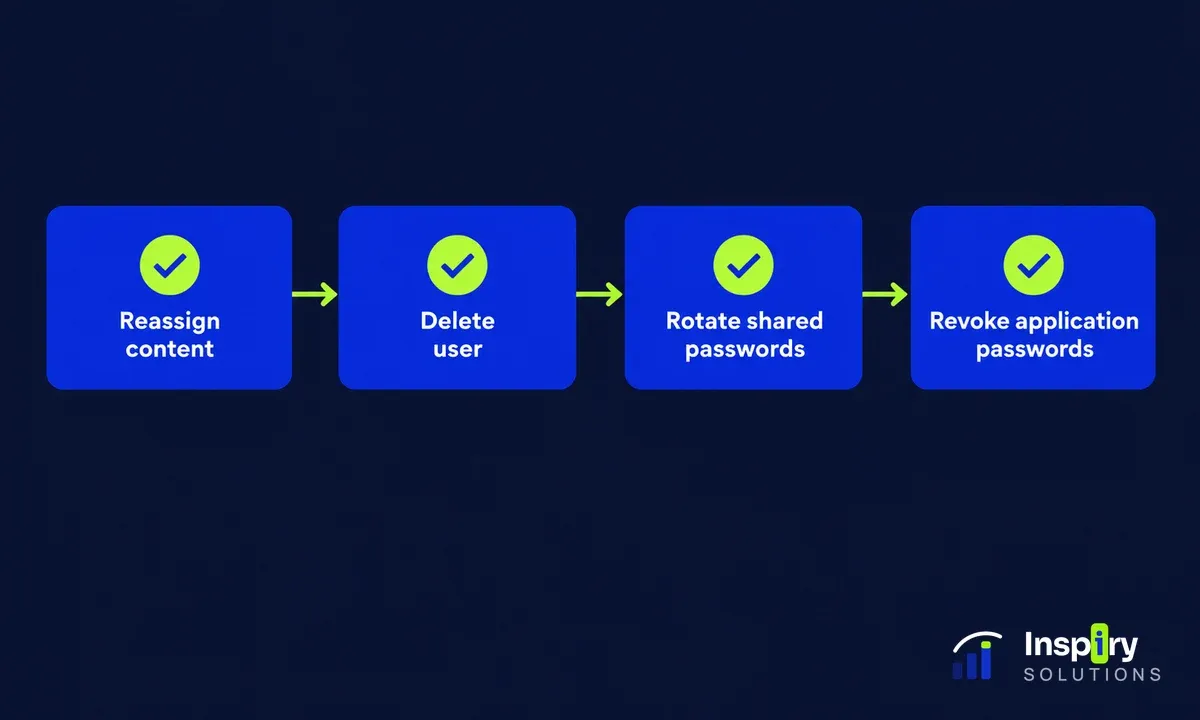
1. Identify the account and its content.
Open Users > All Users and confirm that you have selected the correct person.
Review their posts, pages and any relevant content types.
Make a current backup before performing substantial user or content changes.
2. Reassign content before deletion.
When deleting a user through the standard WordPress interface, WordPress offers the option to delete their content or attribute it to another user.
Choose the attribution option when the business needs to retain the content.
Select an appropriate existing account, such as the marketing manager or editorial owner.
3. Remove or disable the account.
Once the content and responsibilities are transferred, delete the former user’s account or use a suitable access-management process to disable it.
Do not leave an unused Administrator login active merely because the person might return for another project.
If future access becomes necessary, assess the work and grant it again.
4. Rotate exposed shared credentials.
Changing a WordPress password does not invalidate separate passwords for hosting, SFTP or other external systems.
If the departing person knew shared credentials, rotate those passwords and distribute replacements only to authorised people.
Do not assume that removing a WordPress user automatically cancels access to other services.
5. Revoke integration credentials.
Review application passwords, API keys, personal access tokens and relevant external integrations.
An API key is a credential that allows software to communicate with a service.
Revoke credentials that are no longer required and replace any necessary integration credentials under an appropriate active owner.
Finally, test the site’s important functions, including forms, scheduled integrations and publishing workflows.
Hypothetical example: tidying a team’s access
Hypothetical example: A property firm has used several developers, marketing employees and agencies over a number of years.
During an access review, the marketing manager discovers nine Administrator accounts.
Two belong to agencies that stopped working with the company years ago. Another is a shared account called “marketing” that multiple employees still use.
The company cannot clearly explain why every Administrator needs that level of access.
First, the team identifies ownership.
The business verifies its owner-controlled account, confirms the hosting credentials and checks that current backups are available.
It then asks active users what work they perform. Most marketing staff edit property pages, publish articles and update campaign content.
Those tasks do not require Administrator permissions.
Next, the business adjusts roles.
The final arrangement has two named Administrators with MFA and three Editors responsible for routine content work.
The current SEO agency receives a named Editor account with an agreed review date.
If the agency later needs to change an SEO plugin’s global settings, it can request temporary technical access.
Finally, former users are removed.
The marketing manager checks content ownership and reassigns old articles before deleting the departed users.
The shared marketing login is retired after individual accounts are created. Any credentials previously shared with former agencies are reviewed and rotated as necessary.
The team records its access decisions so the next review does not begin from scratch.
This is a hypothetical example, not a reported client result. Its lesson is that WordPress login security improves through clear ownership, fewer unnecessary permissions and a repeatable process, rather than simply installing another security plugin.
Common questions
What is the difference between an Editor and an Administrator in WordPress?
Editors can manage all website content, including other people’s posts and pages. Administrators can also install plugins, change themes, manage users and modify site settings on a standard WordPress installation. For a marketing manager responsible for publishing, Editor is often sufficient. Reserve Administrator permissions for people who genuinely need technical or site configuration control.
What role should I give my SEO agency?
Editor is often enough for content updates, internal links and metadata work, depending on how your SEO plugin handles permissions. Give Administrator access only when the agency must change plugins, technical configuration or restricted settings. Record why those permissions are needed and review them at the end of the engagement. Use a separate named account rather than sharing your own login.
What happens to posts when I delete a WordPress user?
When deleting a user through the standard WordPress interface, WordPress asks whether to delete their content or attribute it to another user. Choose to reassign it if you need to preserve their posts and pages. Select an appropriate existing account and check the content afterwards. Take a backup first, particularly when plugins manage additional content types.
Should every WordPress user have two-factor authentication?
At minimum, every Administrator and Editor should have two-factor authentication enabled. It greatly reduces the risk of an attacker accessing an account using only a stolen password. Extending MFA to Authors, Contributors and other users is advisable where practical. Provide clear setup instructions and recovery procedures so legitimate team members are not unnecessarily locked out.
Run a quarterly access review
A quarterly review is a practical starting point for many small business websites.
The first review may take longer because historical accounts need investigation.
Use the following checklist.
- Export or inspect the user list. Open Users > All Users and identify active accounts, assigned roles and registered email addresses.
- Confirm the business owner. Make sure the organisation retains its own working Administrator account and recovery arrangements.
- Review every Administrator. Ask whether each account still requires technical access, then reduce permissions where appropriate.
- Check Editors and Authors. Match their permissions to current publishing responsibilities and remove unnecessary capabilities.
- Verify MFA coverage. Confirm that Administrators and Editors have completed enrolment, and address accounts without the required protection.
- Investigate inactive accounts. Review recent activity or last-login information where reliable logging is available. WordPress core does not provide a standard last-login timestamp in its normal user list.
- Remove departed staff. Reassign content and revoke accounts belonging to employees, agencies or freelancers who no longer need access.
- Review contractor dates. Confirm upcoming expiry or review dates and whether the original project still justifies access.
- Check external credentials. Review relevant hosting users, SFTP accounts, application passwords and API keys separately.
10.
Keep the register secure and avoid storing actual passwords within it.
A review should end with specific decisions.
Where login history is unavailable, do not guess which accounts are inactive.
Access reviews also belong alongside updates, backups, restore testing and performance checks. Our article on what to expect from WordPress maintenance explains how routine oversight fits into wider website care.
The aim is not to achieve the smallest possible number of users.
Start by opening Users > All Users and reviewing your Administrator accounts. Identify anyone who no longer works with your organisation, then check which active people could perform their tasks with Editor or Author permissions instead.
Next, require MFA for privileged accounts, retire shared logins and establish a clear process for contractor access and removal.
Document the decisions in a simple access register and put the next review on your team’s calendar. Do not make major permission changes without confirming content ownership, backups and any essential integrations first.
Want someone to tidy and watch your WordPress access? Our maintenance plans start at $99/month, or send your URL to hello@inspirysolutions.com for a free audit and a plain-language reply within two working days.