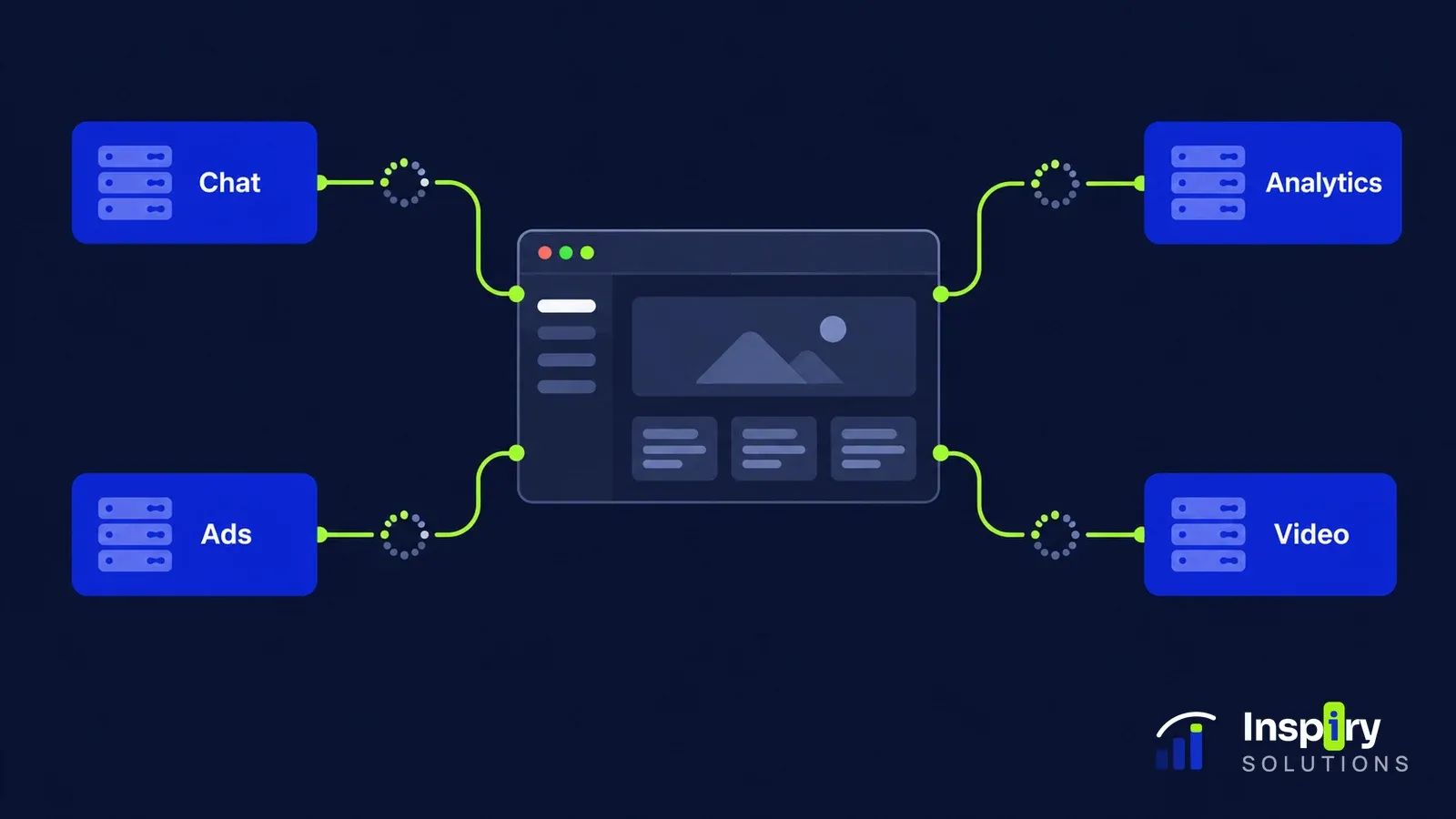
Google Tag Manager page speed problems usually come from the tracking scripts inside the container, not the container itself. The Google Tag Manager snippet loads asynchronously, but the tags it activates can still download scripts, occupy the browser’s main thread and delay interactions. The solution is not to remove tracking blindly. Audit what fires, eliminate duplicate or abandoned code, choose appropriate triggers and test every change against the reports your business uses. A controlled clean-up can reduce unnecessary work without sacrificing useful measurement.
Google Tag Manager page speed: is the container the problem?
Google Tag Manager (GTM) allows marketing teams to manage tracking code without editing website files for every campaign. A container holds tags, triggers and variables. A tag performs an action, such as sending an analytics event. A trigger determines when that action happens. A variable supplies information, such as a page address or conversion value.
Google’s best practices for tags and tag managers explain that performance depends heavily on the type and behaviour of the tracking code.
- Extra network requests competing with important page resources.
- JavaScript execution occupying the browser’s main thread.
- Repeated listeners or checks running during visitor interactions.
- Third-party components moving content after it appears.
- Duplicate integrations executing unnecessary work.
For context, read a Core Web Vitals overview.
Measure before blaming GTM
Start with Chrome DevTools. Inspect the Network panel for third-party requests and the Performance panel for long JavaScript tasks.
Then use GTM Preview mode to understand which tags execute.
Where safe, compare performance with selected tracking integrations disabled in a test environment.
Also remember that performance tools sometimes attribute work from injected scripts to GTM rather than identifying the individual integration responsible.
Our website performance work uses this diagnosis-first approach to separate tracking requirements from unnecessary processing.
How containers grow over time
A gtm container often becomes difficult to manage because adding tracking is easier than reviewing what already exists.
Each decision may appear reasonable independently. Together, they can create duplicated requests, conflicting event data and unnecessary browser activity.
Campaign tracking outlives campaigns
Advertising campaigns finish, marketing platforms change and agencies move on. Their tags frequently remain active because removing them has no clear owner.
Some legacy integrations become obsolete, while others keep sending data to accounts the current team cannot access.
Website integrations overlap
WordPress themes, plugins and tracking containers can all install measurement code.
Shopify stores face a similar problem when apps inject storefront scripts independently. The principles behind app and pixel bloat on Shopify also apply to poorly maintained GTM configurations.
Publishing without documentation
Several people may have permission to publish container changes, yet nobody maintains a reliable record of why those changes happened.
The real problem is not necessarily too many tags in GTM.
Maintain a simple register containing tag name, purpose, owner, firing conditions and review date.
Audit your container in 4 steps
A reliable audit begins with an inventory, not a deletion session. Marketing identifies the measurements the business needs, while development checks where code originates and how much work it creates.
Export and list every tag
Open your GTM workspace and export the container configuration as a JSON file. This structured file records the configuration and provides a useful reference for comparison.
Create a spreadsheet containing every tag, its vendor, purpose, owner, associated triggers, consent requirements and current status. Group entries by function, such as analytics, advertising, conversion measurement and customer support.
For each entry, ask whether somebody currently uses the information. If ownership is unclear, investigate rather than deleting it immediately.
Include the connected variables and triggers in your review. Removing one element without understanding its dependencies can leave confusing configuration behind.
This inventory becomes the shared checklist for marketers and developers throughout the clean-up.
Find tags also hard-coded in the site
Compare the GTM inventory with tracking installed outside the container.
Inspect the WordPress theme, header scripts, analytics plugins, marketing integrations and custom code areas. Pay particular attention to plugins that add tracking code.
Use browser developer tools to identify repeated measurement IDs, script URLs and network requests. Two analytics tags are not automatically duplicates: they might send information to different properties or support separate measurement requirements.
Confirm their destinations and event parameters before consolidating anything.
The objective is one deliberate implementation for each measurement requirement, not an arbitrary reduction in tracking tools.
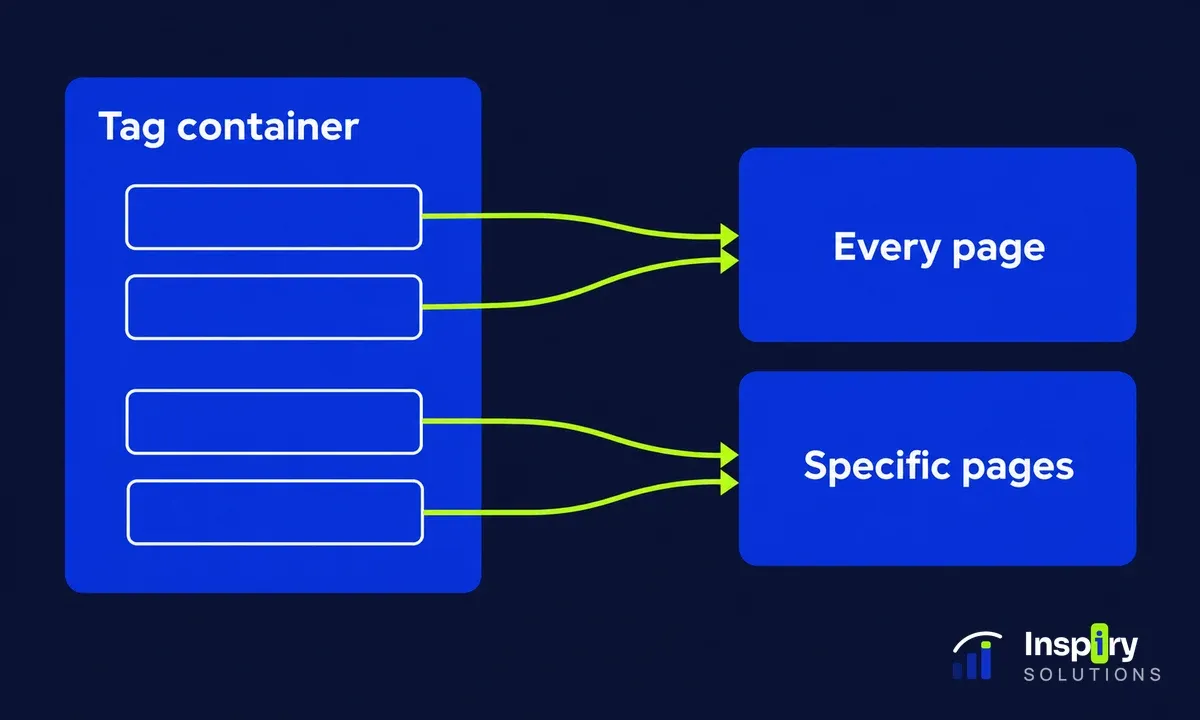
Check triggers firing on all pages
Review every tag’s firing conditions and compare them with its purpose. An all-pages trigger may be appropriate for basic analytics configuration, but a booking-specific event should not execute across unrelated pages.
Ask whether each integration needs to fire everywhere, on a specific page template, after consent or following a particular visitor action.
Be careful with URL-based conditions, because query parameters, redirects and changing page structures can affect whether a trigger operates correctly. Test revised conditions in GTM Preview mode before publishing.
Record expected behaviour for each important event so the person approving the changes can verify it.
Remove paused and legacy tags
Identify paused tags, expired campaigns and integrations without a current business purpose. Paused tags do not fire, so deleting them improves organisation but should not be presented as a direct speed improvement.
Active legacy tags are more important because they may still download resources or execute unnecessary JavaScript.
Confirm ownership, check reporting dependencies and obtain approval before removing them.
Publish related changes together with clear version notes, and avoid combining unrelated campaign launches with a performance clean-up.
Container audit table
| Tag issue | How to spot it | Speed impact | Fix |
|---|---|---|---|
| Duplicate analytics tag | Repeated measurement IDs or duplicate events | Extra processing and possible duplicate requests | Verify destinations, then consolidate |
| All-pages trigger on a single-page tool | Preview shows execution outside the required page | Unnecessary execution across the website | Restrict the trigger |
| Heavy custom HTML tag | Large scripts or long tasks in DevTools | Main-thread work and extra downloads | Replace, simplify or load later |
| Abandoned campaign pixel | No current campaign owner or reporting purpose | Continued network requests | Confirm inactivity, then remove |
| Tag firing before consent | Preview shows restricted activity before permission | Premature requests and compliance risk | Apply appropriate consent controls |
| Several tags loading the same library | Repeated library requests or initialisation | Duplicate loading or execution overhead | Share or consolidate the implementation |
Prioritise issues by confirmed performance cost, reporting importance and implementation risk.
Your audit should produce three outcomes: an approved removal list, a trigger improvement list and a separate development task list.
Triggers and timing
Triggers influence gtm performance because they determine when tracking activity competes with page loading and visitor interactions.
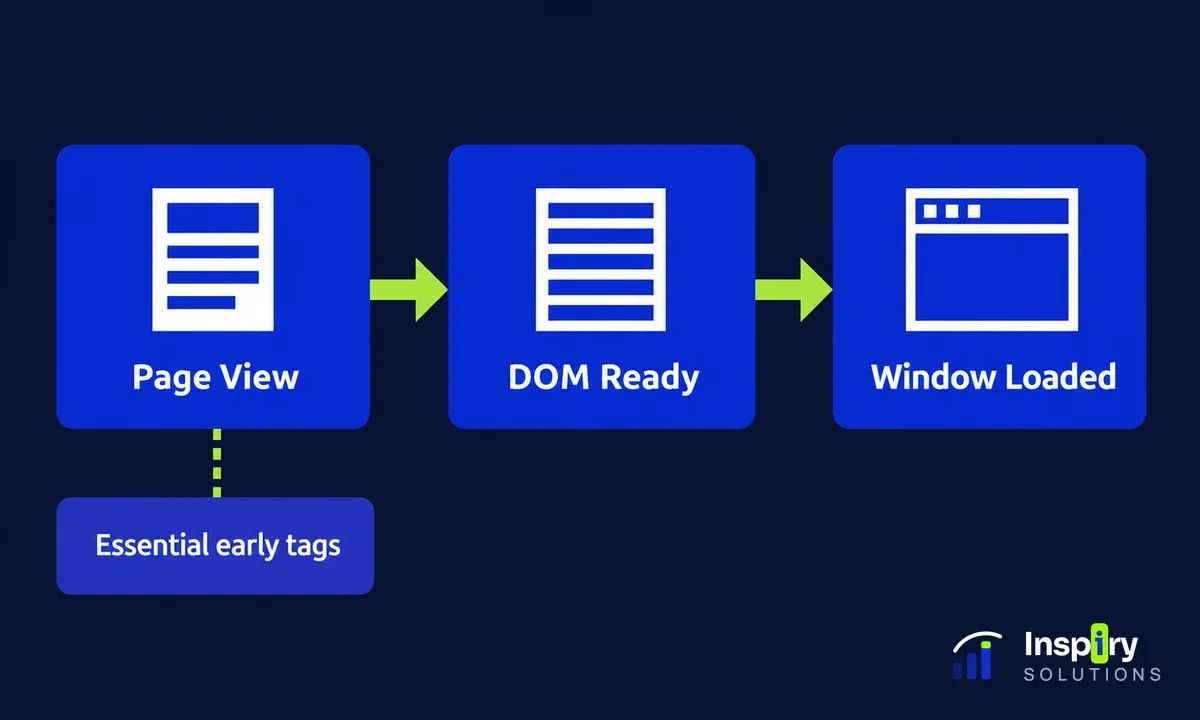
Tag Manager offers three page view trigger types worth understanding:
- Page View: fires as soon as the browser begins to load the page.
- DOM Ready: fires after the browser has constructed the document structure.
- Window Loaded: fires after the page has fully loaded, including embedded resources such as images and scripts.
Moving non-essential work from Page View to Window Loaded can reduce competition during initial loading.
A delayed analytics event may also be missed when somebody leaves a page quickly.
Timing must therefore match the purpose of the measurement.
Use specific firing conditions
A video tracking tag belongs on pages containing the relevant video. A booking conversion should fire when the booking event occurs, not every time a visitor opens the website.
Custom events can provide more reliable conditions than broad page views when the website generates them correctly.
For a single-page application, where content changes without traditional page reloads, developers may need to provide dedicated events for route changes or completed actions.
Agree what each conversion represents before changing its trigger.
Delay optional integrations
Consider loading optional widgets, remarketing tools or lower-priority scripts after an appropriate event or visitor interaction.
Avoid postponing essential consent handling or measurement that genuinely needs early execution.
Google’s guidance on loading third-party scripts efficiently explains why unnecessary JavaScript can interfere with page loading.
For more detail about responsiveness, see how tags delay clicks and taps.
Custom HTML tags and their cost
GTM Custom HTML tags allow users to insert HTML and JavaScript through the container.
This flexibility is useful for specialist integrations, but it also makes custom code an important audit target.
A Custom HTML tag might load a tiny measurement script. Alternatively, it might inject an entire chat widget, register repeated listeners or request several supporting libraries.
The name alone does not determine the performance impact.
Some custom integrations repeatedly inspect the document or initialise code that is already present.
Prefer supported templates
Built-in vendor integrations and carefully reviewed custom templates usually provide clearer configuration than unrestricted JavaScript.
Templates are not automatically faster in every situation, but their restrictions can reduce implementation mistakes.
When custom HTML is unavoidable, ask the developer to check script loading, browser caching, repeated initialisation and event listeners.
Also avoid delivering essential website features through GTM.
For a broader investigation, follow our approach to auditing every third-party script.
The practical question is not whether custom HTML exists. It is whether that code is necessary, correctly implemented and measured.
Consent and tag loading
Performance improvements must not undermine visitor consent.
Some tracking activity requires permission before non-essential cookies or similar technologies are used.
In the UK, non-essential cookies and comparable tracking technologies generally require informed consent before storage or access, unless a relevant exemption applies.
This matters particularly for advertising and remarketing integrations.
Understand Consent Mode
Google Consent Mode allows supported Google tags to adapt their behaviour according to consent signals.
It is not a replacement for obtaining consent where consent is legally required.
Depending on the configuration, certain consent-denied implementations may still send limited cookieless signals.
Check that the consent platform supplies appropriate default settings and updates the signals when visitors make a choice.
Test both acceptance and rejection journeys in GTM Preview mode.
Do not suppress required consent functionality merely to make a performance report look better.
Server-side tagging: when it is worth considering
Server-side tagging uses a server container to process supported measurement requests outside the visitor’s browser.
Selected information can pass through an endpoint controlled by your organisation instead of requiring every supported vendor integration to operate independently in the browser.
This can reduce some client-side processing and improve control over how measurement data is distributed.
However, it does not eliminate the need for all browser-side collection.
Understand the trade-off
A server-side configuration introduces hosting, infrastructure monitoring, setup and maintenance work.
It also requires careful attention to consent handling, event mapping, security and debugging across environments.
The speed benefit depends on which integrations move and how much work actually disappears from the visitor’s device.
Server side tagging speed should therefore be evaluated through measurement rather than assumed.
For a smaller service business, correcting duplicate installations and unnecessary triggers is usually a more sensible first investigation.
Consider server-side tagging when measurement requirements are complex, the organisation has technical ownership and the expected benefit justifies the additional ongoing responsibility.
Hypothetical example: a container built up over years
Hypothetical example: A training provider’s container holds dozens of tags built up over several years.
The marketing team notices that some pages feel less responsive, but nobody wants to risk removing tracking because advertising decisions depend on the reports.
The audit finds two analytics implementations firing on every page, including one also hard-coded in the website theme.
Several advertising pixels belong to campaigns that ended previously.
A custom HTML chat script also loads on every page, regardless of whether somebody opens the chat panel.
What changes
First, the analyst identifies which measurement properties, events and reports the team actively uses.
The developer confirms which analytics implementation can be consolidated without losing required events.
Marketing approves the removal of abandoned campaign pixels after checking that the associated reports are no longer needed.
The chat script is moved to load when a visitor clicks the chat control. The developer tests that interaction independently of GTM.
The team then verifies the required analytics events and publishes with a documented version.
Illustrative only.
Removing duplicate code, obsolete pixels and unnecessary initial loading can reduce main-thread work while preserving the reporting the team needs. Actual improvements must still be measured on the affected pages.
Test changes without breaking tracking
A successful clean-up has two requirements: the website should perform better, and essential reporting must continue working.
Treat publication as a joint responsibility between marketing and development.
The marketer owns the measurement requirements.
Use workspaces and Preview mode
Create a dedicated GTM workspace for performance changes and avoid mixing unrelated campaign updates into the same publication.
Use Preview mode to inspect tag execution and confirm the expected firing conditions.
Google’s Tag Manager Help documentation explains installation, preview testing, workspaces and version management.
Test representative visitor journeys, including form submissions, phone links, bookings and other significant actions.
Record the expected event names, destinations and important parameters.
Where one action should produce one conversion event, verify that it is not accidentally sent multiple times.
Repeat the tests with relevant consent choices.
Document versions and rollback
Before publishing, prepare a short change record covering removed tags, revised triggers, reasons and approvals.
Identify the previous container version that should be restored if important measurement stops working.
GTM version history supports restoring a previous configuration, but it does not reverse independent theme, plugin or server changes.
If website code changes accompany the audit, the developer needs a separate rollback plan.
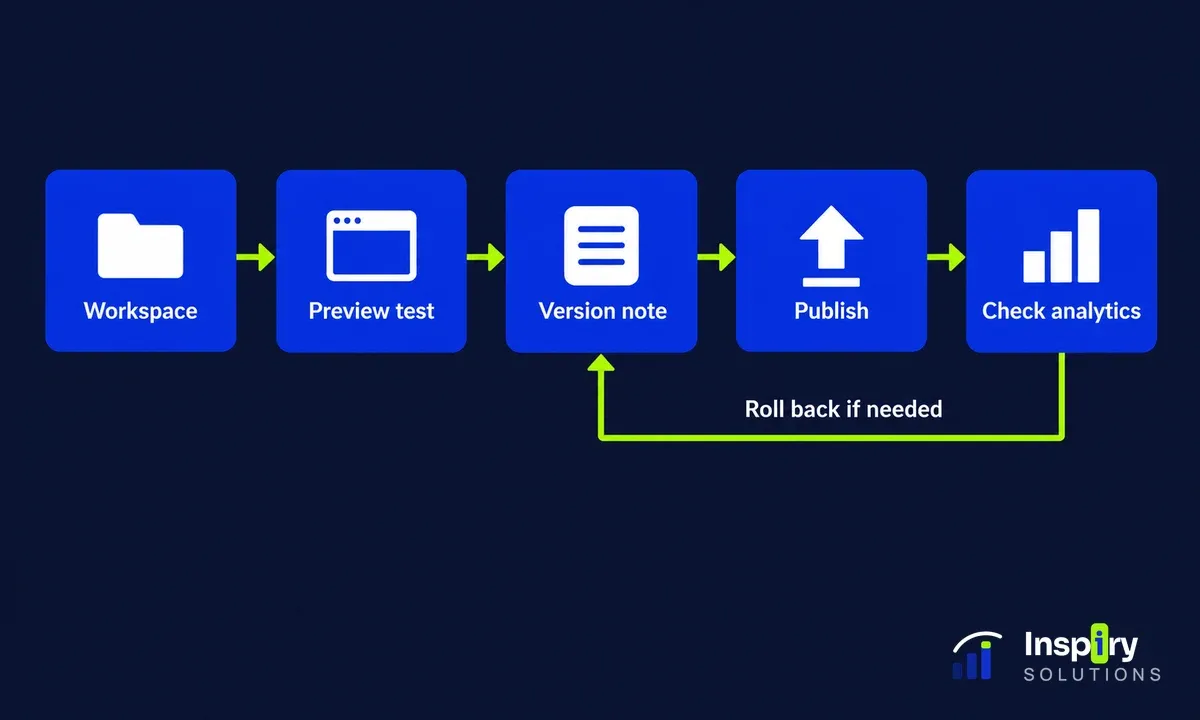
A useful workflow is workspace, preview test, version note, publish, analytics verification and rollback if required.
Check analytics after publishing
After publication, repeat important visitor journeys on the live website.
Use GA4 Realtime and DebugView where appropriate to check incoming events. Review event and key event configuration through Google Analytics Help.
Standard reports may require processing time, so an immediate absence of data is not always proof that tracking failed.
Check event parameters and attribution requirements, including those discussed in tracking AI referrals in GA4.
Finally, rerun comparable performance tests.
Record changes in network activity, main-thread work and relevant user experience metrics.
Do not declare success based only on a better synthetic performance score if conversion measurement has stopped working.
Common questions
Does Google Tag Manager slow down a website?
It can contribute to slower loading or responsiveness, but the container snippet itself is relatively light and loads asynchronously. Most significant google tag manager page speed problems come from the tags inside it, particularly scripts that download large resources, execute expensive JavaScript or fire unnecessarily. Inspect actual network and processing activity before attributing the problem to GTM.
Where should the Tag Manager code go?
Follow Google’s installation instructions for the chosen integration. The standard installation places the JavaScript snippet as high as practical in the page head, with a separate noscript element immediately after the opening body tag. The JavaScript loads asynchronously, so it does not directly block HTML parsing. Avoid accidentally installing the container more than once.
Is server-side tagging faster?
Server-side tagging can reduce work in the visitor’s browser by moving supported processing to server infrastructure. However, some browser collection remains necessary, and the benefit depends on the integrations involved. Hosting costs, setup complexity and ongoing maintenance make it more suitable for larger or technically mature sites than as the first response to a small website’s performance problems.
How many tags are too many?
There is no fixed number that makes a container too large. What matters is how much work each tag performs, when it fires and whether it still serves a useful purpose. A small number of expensive scripts can create more problems than numerous lightweight measurement calls. Audit behaviour and ownership rather than applying an arbitrary tag limit.
Can I remove tags without losing data?
Yes, provided each tag is checked for an owner, purpose and reporting dependencies before removal. Test proposed changes in GTM Preview mode, confirm the required events still arrive and publish with clear version notes. Keep the previous configuration available so you can roll back if necessary. Never remove an unfamiliar integration without checking its business purpose.
Your next step
Choose one important page this week and record every tag that fires when it loads.
Identify which integrations have a current owner, a clear business purpose and appropriate triggers.
If you need a developer, send the page URL, GTM container ID, relevant tag names, performance observations and a list of conversions that must continue working.
If your Tag Manager container has grown beyond anyone’s memory, our website performance work audits it with your marketing team and keeps tracking intact, typically $400-$1,800. Or start with the free audit and a plain-language reply within two working days.