Shopify Online Store 2.0 lets your team build pages, rearrange sections, display product-specific information and add compatible app features without changing code. It gives store managers and marketing teams more control through the theme editor, while developers remain responsible for custom features, technical setup and performance. The important distinction is that your team can work with the tools already built into a theme. Creating new tools, changing how they behave or fixing technical problems still requires development work. Knowing where that boundary sits helps you make routine changes without risking the store.
What Online Store 2.0 changed
Shopify Online Store 2.0 changed how merchants build and manage storefront pages. The main improvement is the ability to reuse configurable sections across more page types without a developer editing theme files for every layout change.
Older Shopify themes, often called vintage themes, gave merchants the most layout flexibility on the homepage. Product pages, collection pages and other templates were more restricted.
JSON templates. Shopify JSON templates list which sections appear on a page and in what order, so a compatible theme lets merchants add, remove and reorder supported sections on product, collection and other pages. This is often called Shopify sections everywhere. The available section types still depend on the theme.
App blocks. Compatible apps can provide blocks that merchants position in the theme editor, such as a reviews display on a product template. This is generally easier to manage than pasting app code into the theme, but the app and the theme must both support it.
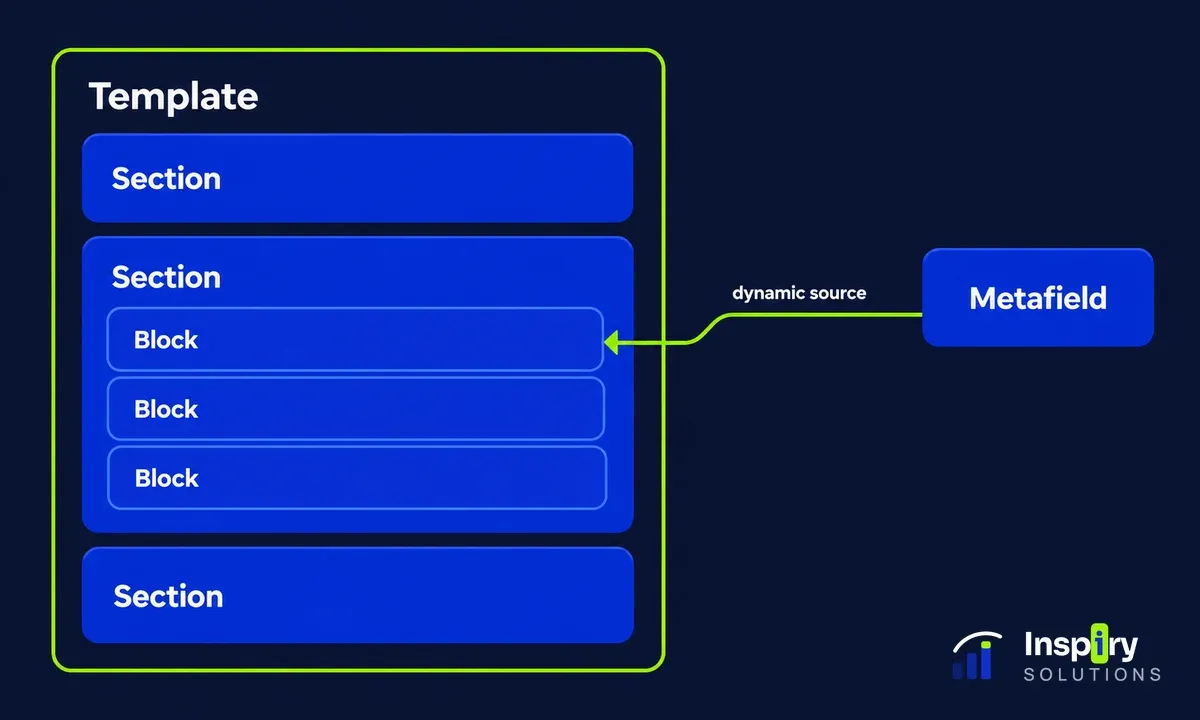
Metafields and dynamic sources. Metafields store extra information about products, collections and other resources, such as materials or brewing instructions. Compatible section and block settings can display these values through dynamic sources.
Shopify explains the relationship between these features in its theme architecture documentation.
For store owners who need greater flexibility than their current setup provides, custom Shopify sections and theme upgrades can establish the editing tools needed before day-to-day responsibility moves to the marketing team.
Sections, blocks and templates in plain English
The terminology sounds more technical than the everyday tasks involved.
Template: the layout for a page type. Your store might use a default product template for most products and an alternate template for products that need extra explanation.
Section: a larger part of a page, such as an image banner, featured collection or product information area. You can often rearrange sections, change their settings and remove ones you do not need.
Block: an item inside a section. A product information section might contain title, price, variant selector and buy button blocks. Not every section allows every block type; the developer defines what is available.
Settings: the controls your team sees in the editor. A setting only appears if the theme developer has provided it.
A useful way to separate responsibilities is to ask whether a request changes content, arrangement or functionality.
Content changes normally belong to the store team. Arrangement changes often do too, provided the necessary components already exist. New functionality may require a developer.
One important detail is that a template can be shared by multiple products or pages.
Changing the default product template may therefore affect many products. Creating or editing an alternate template gives you more control over which products receive a particular layout.
Is your theme Shopify Online Store 2.0?
You do not need to inspect code to perform an initial check.
Open Shopify admin, go to Online Store, select Themes and open the theme editor using Customize.
Then follow this process:
- Use the page selector to open a product page rather than the homepage.
- Look for the option to add a section within the product template.
- Check whether the editor offers multiple supported section types.
- Inspect whether relevant section settings support dynamic sources.
- Review the theme name, version and available updates.
If you can add and rearrange sections on a product template, that is a strong indication that you are using an Online Store 2.0-compatible template.
A vintage theme generally restricts section-based editing mainly to the homepage, although individual themes may have custom editing features.
For a technical confirmation, a developer can check whether the theme uses JSON templates and supports the expected Online Store 2.0 features.
Also check maintenance status. An older theme might still work, but a theme without ongoing updates can become harder to maintain as applications and platform capabilities change.
What your team can do without a developer
The biggest advantage of Shopify Online Store 2.0 is that routine page management can move closer to the people responsible for marketing and products.
There are four practical tasks a trained store team should be able to manage, provided the theme includes the necessary features.
Build landing pages from sections
A marketing team can assemble a campaign page using existing sections.
For example, a seasonal promotion might include a hero banner, introductory text, featured products, customer reviews and a closing call to action.
Rather than requesting a custom page from scratch, the team selects the available components and arranges them into the intended order.
If your design requires a comparison table, interactive calculator or specialised product selector that the theme does not include, a developer must create or integrate the required functionality.
For routine page assembly, agree on approved section combinations so every campaign does not introduce a completely different visual style.
Create alternate templates
Alternate templates let the team use different layouts for selected products, collections or pages without changing the default layout for everything.
For example, a clothing shop might use its default product template for ordinary products and an alternate template for items needing additional fitting advice.
In the theme editor, the team can create another template based on an existing one, configure its sections and assign it to relevant products.
Before creating another template, check whether an existing one already meets the requirement.
Show metafield content
Shopify metafields dynamic sources allow compatible sections to display resource-specific information. Consider a shop selling equipment with different dimensions, materials and care instructions.
Instead of manually editing the same layout for each product, the team can maintain those details in product metafields.
A correctly configured section reads the relevant value for the product being viewed.
Once the developer has created the definitions and connected the section settings, authorised staff can maintain the actual values through Shopify admin.
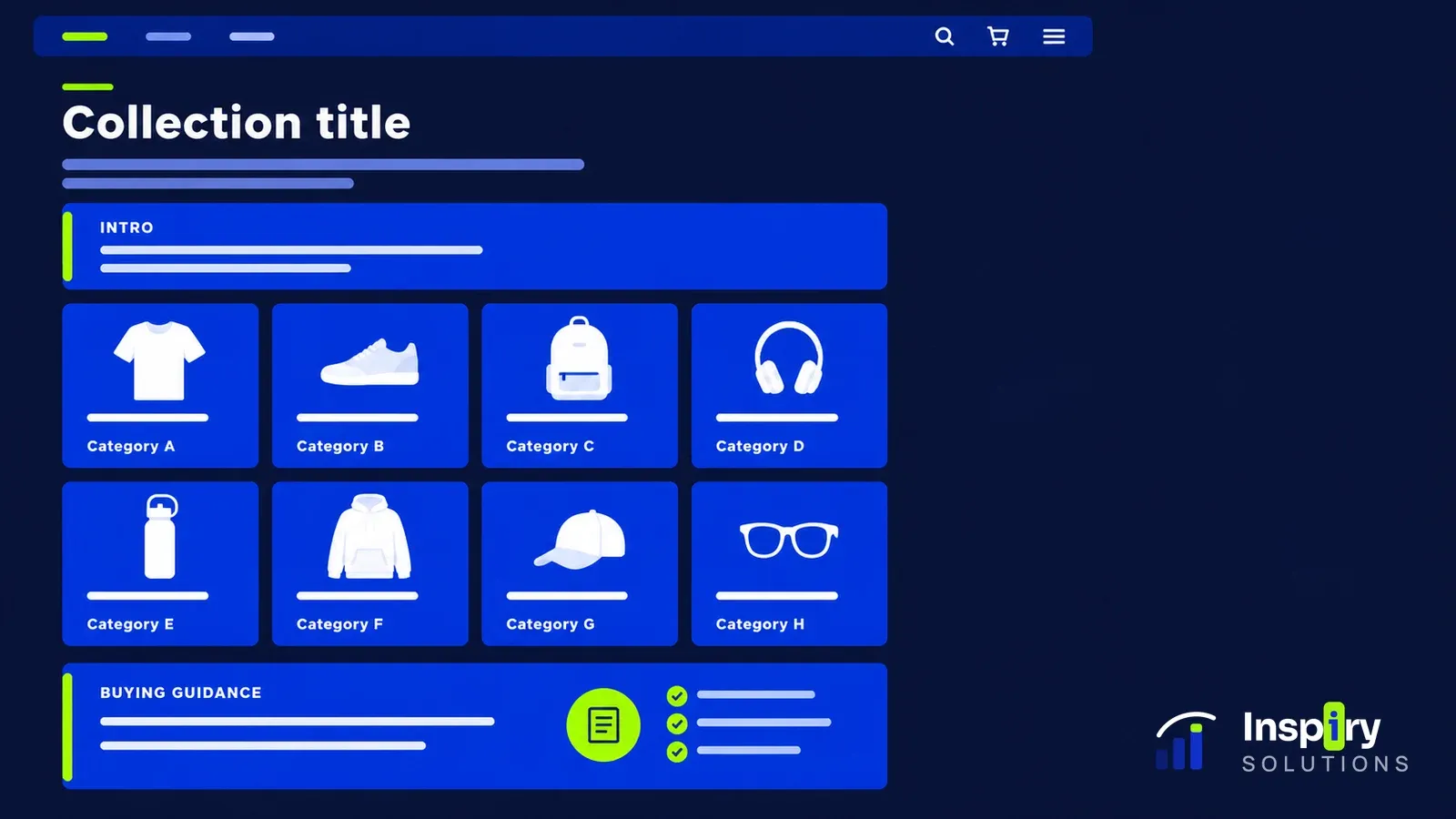
The same principle can support product information within collection experiences. Our guide to using sections on collection pages explains the importance of structured collection content.
Also check how a section behaves when a metafield is empty.
Add app blocks
Compatible Shopify app blocks let the team add application features through the editor.
A review application, for instance, might expose a block that displays product reviews in an appropriate section.
The team can add the block, adjust its position and inspect how it appears on mobile.
A new app may introduce scripts, styles, data collection requirements or subscription costs.
Agree which applications staff are permitted to install and which require technical review.
A practical responsibility rule is that marketing staff may position approved app blocks, while installation of unfamiliar applications requires developer or administrator approval.
Finally, separate permission to edit from permission to publish. Someone who can prepare a campaign does not automatically need authority to change the live theme.
Where a developer is still needed
Online Store 2.0 reduces repetitive developer work.
Building new section types
If the theme lacks a suitable layout component, a developer can build a custom section using Shopify Liquid, HTML, CSS, JavaScript and theme settings.
The developer should also decide which controls staff need.
Configuring metafields and dynamic sources
A store administrator may be able to create metafield definitions, but a developer is often useful when the requirements involve custom data structures, theme output or conditional display logic.
For example, a product-specific specification table may need to hide empty rows and format different values consistently.
Protecting performance
New sections can introduce oversized images, unnecessary JavaScript or additional stylesheets.
A developer should inspect how components load, whether images are appropriately sized and whether scripts run when their functionality is not needed.
Shopify’s theme performance guidance covers technical considerations for keeping storefront code efficient.
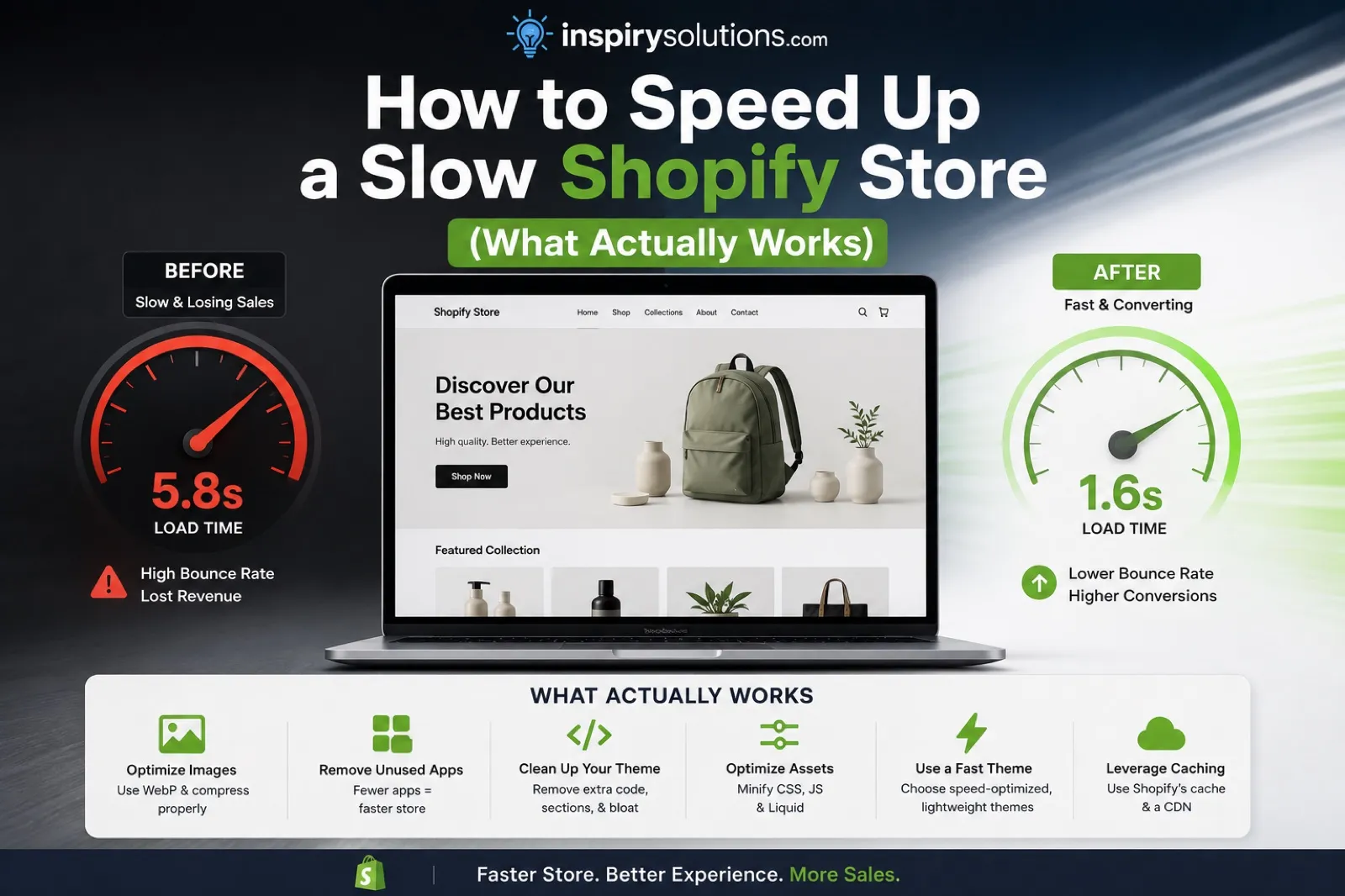
Our guide to what actually speeds up a store explains why identifying the cause of a slowdown matters more than applying random optimisation changes.
Handling technical integrations
Changes to checkout-related functionality, structured data, analytics tracking or complex application integrations need careful testing.
Some checkout customisations also depend on Shopify plan and platform capabilities.
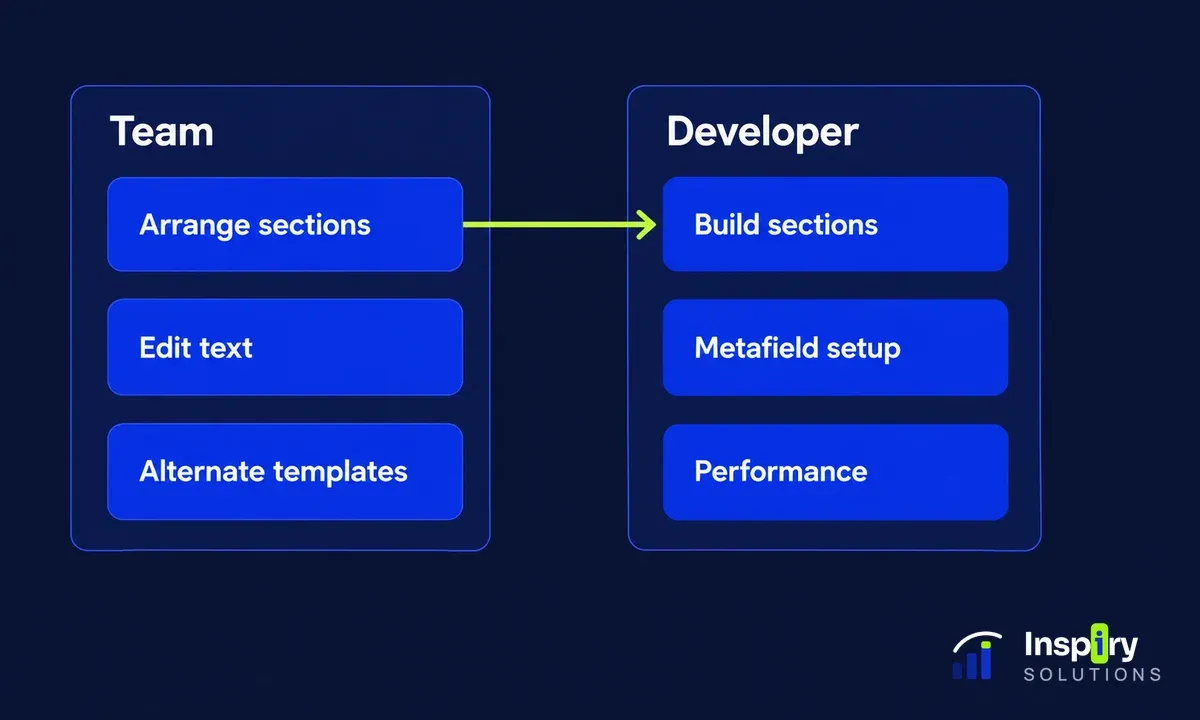
Who edits what?
The following table provides a practical starting point for assigning work.
| Task | Vintage theme | Online Store 2.0 theme | Usually done by |
|---|---|---|---|
| Homepage layout | Existing homepage sections | Add and rearrange supported sections | Store team |
| Landing page from existing sections | Often restricted | Supported through JSON templates | Store team |
| Product page layout | Often code-dependent | Rearrange supported sections | Store team |
| Alternate product template | May require code changes | Create and assign through the editor | Store team |
| Size guide from metafields | Custom integration often needed | Dynamic sources after setup | Developer sets up, team maintains |
| Adding an app feature | May require theme code changes | Compatible app blocks | Team with technical approval |
| New section type | Custom development | Custom development | Developer |
| Theme update | Requires careful review | Requires careful review | Developer |
| Speed fixes | Technical diagnosis needed | Technical diagnosis needed | Developer |
For a developer, the goal should be to make repeatable work easier for the team, rather than becoming the person who must approve every minor wording or layout adjustment.
Guardrails that keep the store stable
More editing freedom creates more opportunities for accidental changes.
Work on a duplicate theme
Before substantial layout work, duplicate the current theme and make changes to the unpublished copy.
Use the preview to inspect the result before switching the live version.
Check the homepage, a representative product, a collection and any other page types affected by the change.
Remember that duplicating a theme does not duplicate all store data or isolate every app configuration.
Limit and label components
Names should describe purpose rather than appearance alone.
Define a small set of recommended layouts and explain which section types suit each use case.
Maintain a change log
Record what changed, who changed it, when it was published and how to reverse it.
Updates may require code customisations to be reapplied or reconciled with newer theme files.
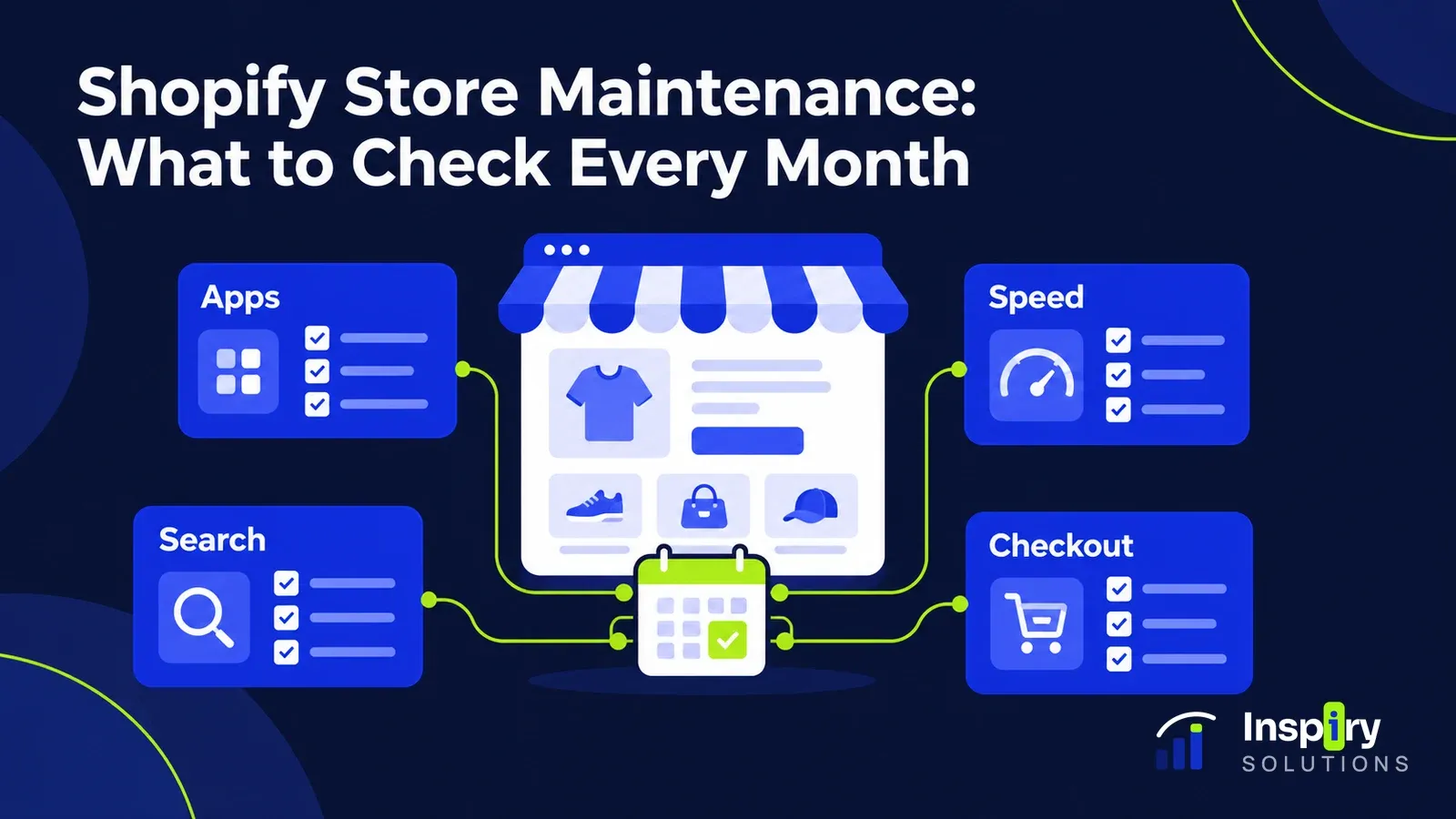
Regular maintenance can include these checks. See our guide to monthly checks for a Shopify store.
Test speed after substantial changes
A visually simple app block can still load JavaScript and CSS.
After adding new app functionality or a heavy image section, compare mobile page behaviour and loading performance.
Google’s guidance on efficiently loading third-party JavaScript explains why unnecessary external scripts can affect page responsiveness.
Our article on app scripts that slow stores covers this problem in a Shopify context.
Review before publishing
Establish an approval process covering mobile layout, desktop layout, links, product information and purchase functionality.
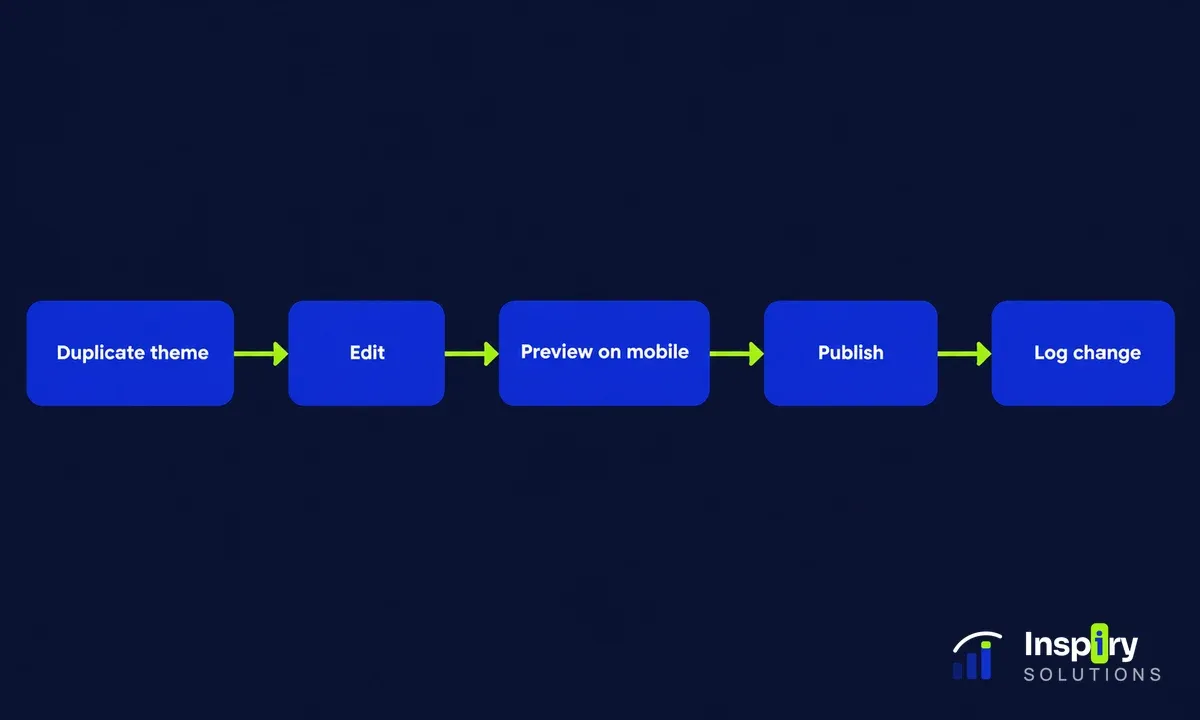
The safe editing flow is straightforward: duplicate the theme, make the change, preview on mobile, publish after approval and record the change in the log.
For high-impact changes, include a purchase journey check before and after publishing.
Moving from a vintage theme
If your current theme is vintage, there are two main routes to Online Store 2.0.
The first is to switch to a newer theme that already supports JSON templates, sections and other relevant features.
The second is to convert the existing theme through development work.
Our comparison of a custom theme versus a premium one helps frame that decision.
Check whether the new theme supports the product information, navigation, applications and merchandising workflows your store needs.
A Shopify theme change normally leaves existing product, collection and page URLs unchanged because those resources belong to the store rather than the theme.
However, the visible page content and layout can change considerably.
Before publishing, compare representative pages for headings, descriptions, internal links, images, structured data and tracking behaviour.
Test product variants, cart interactions and any customer-facing application features.
Keep the old theme unpublished as a fallback while the new theme is being validated.
Reverting to the previous theme can restore its layout and code, but it will not necessarily reverse shared data changes or external app settings.
Hypothetical example: A coffee store uses a vintage theme with a fixed product layout.
Every time the marketing team wants to add or change a brewing guide on a product page, they request a developer to update the page presentation.
The store then moves to an Online Store 2.0 theme with a reusable brewing guide section connected to product metafields.
The developer creates the section, defines the required fields and tests how the guide behaves when information is missing.
After that initial setup, the team can update brewing instructions for individual coffees through Shopify admin.
The developer remains responsible for creating new section types, changing the underlying functionality and handling technical issues.
Common questions
What is the difference between Shopify vintage and Online Store 2.0 themes?
Vintage Shopify themes generally allow section-based editing mainly on the homepage, with more restricted layouts elsewhere. Online Store 2.0 themes use JSON templates so supported sections can work across page types, including product and collection pages. They also support compatible app blocks and metafield dynamic sources. The exact editing options depend on what the theme developer has implemented.
Will switching to an Online Store 2.0 theme affect SEO?
Changing a Shopify theme does not normally change existing product, collection or page URLs. However, headings, content, internal links, structured data and page performance may change with the new theme. These differences can affect SEO. Test the replacement as an unpublished theme, compare important page templates and verify technical elements before switching the live theme.
Can I add sections to product pages?
Yes. With an Online Store 2.0 theme using JSON product templates, you can add supported section types to product pages through the theme editor. You are limited to the section types and settings the theme provides. If you need a layout or feature that does not exist, a developer must build or integrate it before your team can use it.
Do app blocks slow a store down?
App blocks can load additional JavaScript, stylesheets and other resources, so they can affect performance. Their advantage is that compatible integrations are usually easier to manage and remove cleanly than code manually inserted into theme files. That does not guarantee better speed. Check mobile performance and storefront behaviour whenever you add an application feature.
Decide who edits what
Start with a one-page responsibility list rather than a long technical manual.
Give the marketing team ownership of routine content updates, existing section arrangements, approved alternate templates and properly configured metafield values.
Keep custom section development, technical integrations, theme upgrades and performance investigations under developer responsibility.
Then agree who can preview, approve and publish changes.
Review this arrangement after one month of actual use.
Look at the requests still reaching the developer.
Also review mistakes and confusing settings.
A good Shopify online store should let your team handle ordinary content work without giving them unnecessary responsibility for technical systems.
If your team is stuck waiting for a developer for every page change, send your store URL for a free audit, or ask about Shopify development to build the sections your team needs.