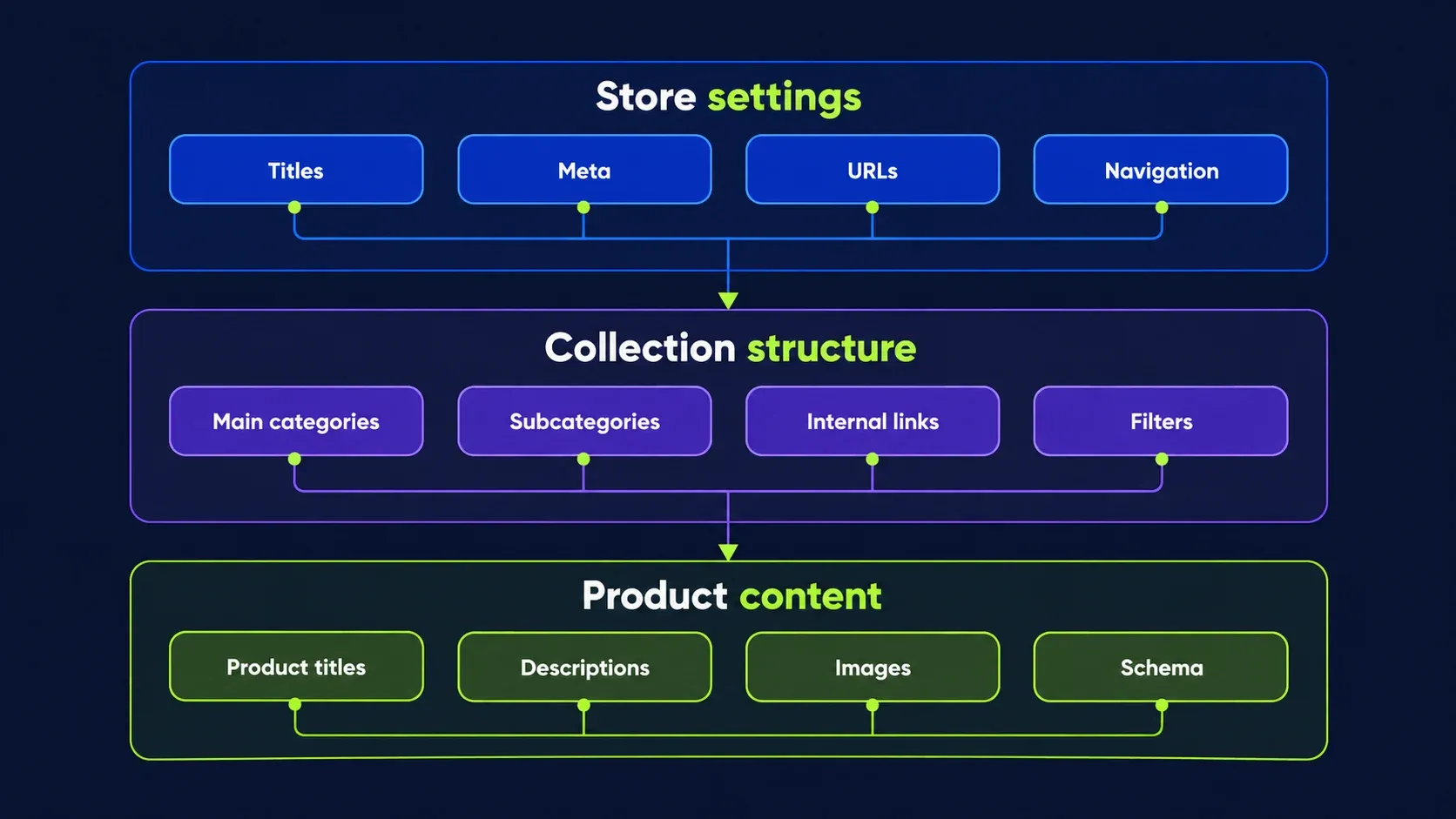
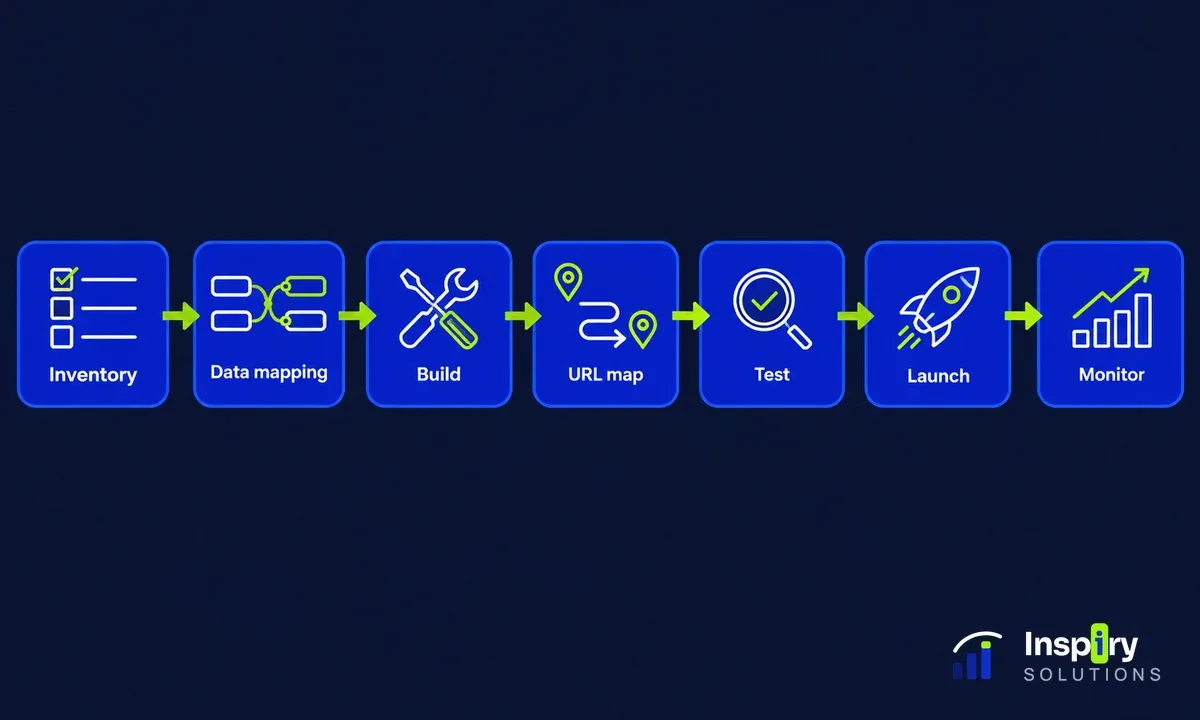
A WooCommerce to Shopify migration starts with an inventory of your store’s features, followed by data mapping, rebuilding, redirects and testing. Moving products is usually straightforward. The bigger risks are losing subscription functionality, breaking customer accounts, changing URLs without redirects or discovering that an undocumented plugin handled something important. A safer plan identifies these dependencies first, then moves four data sets: products, customers, orders and subscriptions.
This guide is for store owners ready to migrate WooCommerce to Shopify. It explains what to export, what needs rebuilding, how to protect important URLs, what to test and what affects the budget.
Confirm a WooCommerce to Shopify migration is the right move
Moving platforms makes sense when your current store requires too much technical maintenance or you want a more managed ecommerce environment.
Shopify handles hosting, core updates and much of the infrastructure a WooCommerce owner would otherwise manage. Its integrated checkout and ecommerce tools can simplify daily operations.
Reasons to move include:
- Reducing responsibility for hosting and server maintenance.
- Consolidating store management into one platform.
- Using Shopify’s native checkout and ecommerce tools.
- Simplifying routine inventory and order management.
- Reducing dependence on a heavily customised WordPress setup.
However, Shopify is not automatically cheaper or more flexible.
WooCommerce may remain the better choice for unusual pricing rules, complex product configurations, advanced content requirements or heavily customised integrations.
Shopify subscription fees, apps and development costs can offset maintenance savings.
If you have not assessed these trade-offs, read our guide to deciding between Shopify and WooCommerce.
Before committing, document your expected benefits and the functionality you cannot afford to lose. Those requirements become your criteria for approving the new store.
Inventory what WooCommerce does for you
The most important part of a WooCommerce to Shopify migration happens before exporting products.
List every active plugin, its purpose and the business process it supports.
A subscription plugin, for example, might control billing schedules, renewal emails, payment tokens and failed payment recovery. Replacing its subscription button does not replace those processes.
Review these areas:
- Subscriptions: recurring payments, renewals, pauses and cancellations.
- Bookings: calendars, availability and reminders.
- B2B pricing: customer groups, wholesale discounts and minimum quantities.
- Product add-ons: personalisation, extra fields and conditional pricing.
- Custom emails: order notifications, follow-ups and checkout recovery.
- Payments: gateways, refunds, saved methods and fraud checks.
- Shipping: delivery zones, weight rules and carrier integrations.
- Taxes: configured rates, exemptions and integrations.
- Integrations: accounting, ERP, CRM, email marketing and warehouses.
ERP means enterprise resource planning software, which can connect inventory, purchasing and accounting.
Inspect plugin settings and stored data before removing anything. Also check custom theme code, snippets and WordPress configuration. Important functionality may not appear in the plugin list.
For each feature, assign one of four destinations:
- Setting: replace it with a native Shopify setting.
- App: use a suitable third-party application.
- Custom build: develop functionality without a suitable replacement.
- Drop: remove functionality no longer needed.
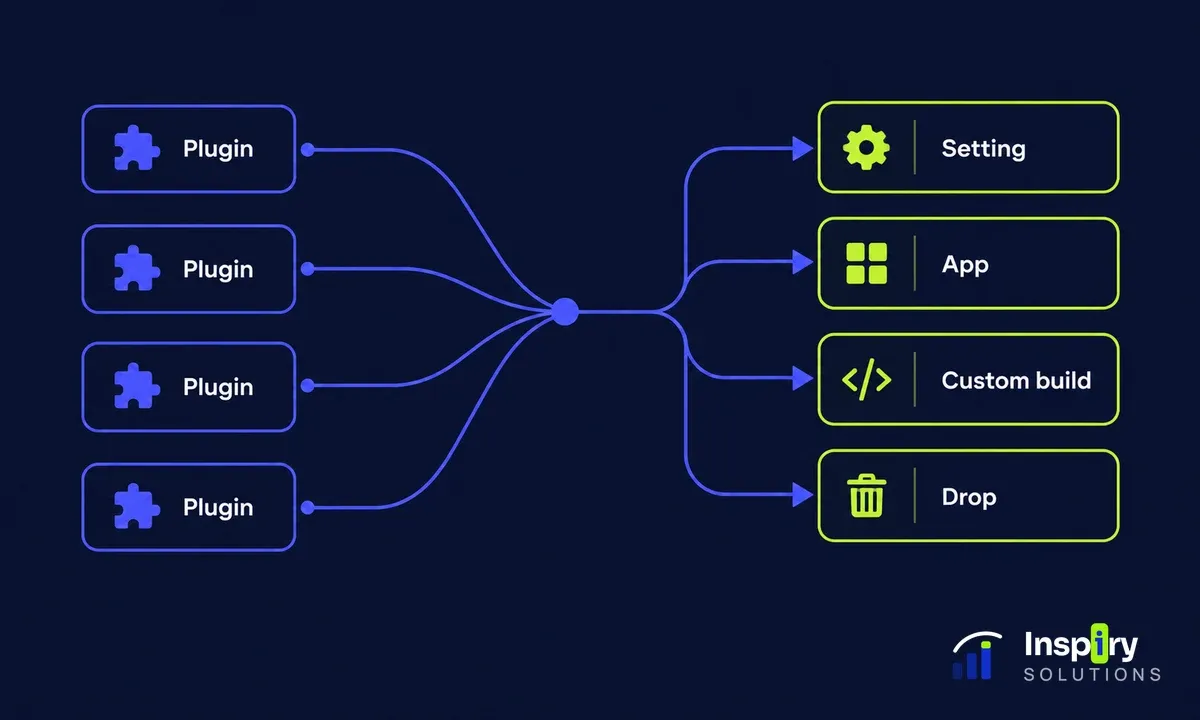
Document the existing behaviour and who must approve its replacement.
Pay particular attention to custom fields. Products may contain specifications, personalisation options or downloadable resources that standard CSV exports do not capture correctly.
Do not purchase replacement apps immediately. First establish whether each feature is necessary and whether Shopify already provides it.
At Inspiry Solutions, Shopify store builds and migrations can begin with this inventory, allowing the quote to reflect your actual requirements.
Hypothetical example
Consider a 400-product WooCommerce coffee store with subscriptions.
Its inventory finds 23 plugins. Nine become Shopify settings, six become apps, two require custom work and six are dropped.
Subscriptions move with assistance from the payment provider, where supported, and customers receive account activation emails at launch.
This hypothetical example is illustrative, not a client result. It demonstrates why migrating 400 products is only one part of the project.
Map the data: products, customers and orders
Once the inventory is complete, define what information must move and how you will verify it.
The four critical data sets are products, customers, orders and subscriptions. Each has different limitations.
Follow Shopify’s official migration process for preparation and supported import methods.
Before exporting, remove duplicates, identify obsolete products and review unused categories. Keep an untouched backup of the original data.
The WooCommerce documentation covers product exports and available data extensions.
Products and variants
Export product names, descriptions, images, SKUs, prices, stock quantities, categories, attributes and relevant metadata.
SKU means stock keeping unit, an identifier distinguishing products and variants.
Variable products need additional attention. A product might have combinations of size, colour, material or other attributes.
Shopify supports up to 2,048 variants and three options per product under its current product model. Check current limits, theme support and app compatibility before importing.
More complex selections may require an app or different product structure.
After a trial import, compare representative products with their originals. Check image order, prices, inventory, SEO fields and custom data.
A successful import notification does not guarantee that every field is correct.
Customers
You can move customers from WooCommerce to Shopify using supported import tools or migration applications.
Typical records contain names, email addresses, contact details and addresses, depending on the import method.
Passwords cannot be transferred as working Shopify account passwords.
Customers must activate or reset their accounts, depending on the customer account system selected.
Prepare the invitation email before launch. Explain the required action and test the sign-in process on mobile.
Keep marketing consent separate from account migration. Importing customer records does not automatically grant permission to send marketing messages.
Test returning-customer journeys before directing everyone to the new store.
Orders
Historical orders support customer service, reporting and purchase enquiries.
They do not move through the standard product CSV process. Importing order history generally requires a specialised app or API-based process.
An API lets software systems exchange information through defined interfaces.
Decide how much history needs to appear inside Shopify. Older records may remain in a secure archive.
Imported orders are generally for historical reference. They do not necessarily recreate original payment transactions, fulfilment events or automation.
Verify order totals, dates, line items, taxes, discounts, refunds and customer associations.
Document which records are available in Shopify and which remain in the archived WooCommerce system.
Subscriptions
Subscriptions are often the most sensitive part of a WooCommerce to Shopify migration.
The challenge extends beyond importing recurring products. Existing subscriptions involve billing schedules, saved payment credentials, renewal dates and customer permissions.
Payment tokens usually require coordination with the payment provider or subscription platform. Some arrangements support transfers; others require customers to authorise new payment methods.
Confirm compatibility before promising uninterrupted renewals.
Map active subscriptions, billing frequencies, upcoming charges, discounts and cancellation rules.
Test successful renewals, failed payments, cancellations and account access.
If automatic transfers are unsupported, prepare customer communications and a re-authorisation process. Copying subscription records alone does not preserve payment collection.
Rebuild the theme and features
A WooCommerce theme cannot simply be transferred to Shopify as a functioning theme.
The platforms use different theme structures and templates. Treat this as a controlled rebuild, not a theme export.
Choose between a premium Online Store 2.0 theme and a custom Shopify implementation.
A premium theme often suits conventional catalogues. Custom development is appropriate when existing themes cannot support essential design or functionality.
Rebuild these areas:
- Homepage and navigation.
- Collection and product pages.
- Cart and relevant checkout settings.
- About, contact, delivery and returns pages.
- Blog articles and informational content.
- Search, filtering and mobile layouts.
Preserve useful product copy, images and page content rather than rewriting everything unnecessarily.
Install only the apps approved during the inventory. Every additional app introduces another dependency and potentially another recurring cost.
Rebuild forms, popups, email signup and automated messages with deliberately chosen tools.
Check accessibility, mobile usability, performance and customer journeys throughout development.
Build on a temporary Shopify domain while the existing WooCommerce store continues serving customers.
Plan URLs and redirects
URL changes are a major SEO risk in a WooCommerce to Shopify migration.
WooCommerce commonly uses /product/coffee-beans/ and /product-category/coffee/.
Shopify uses paths such as /products/coffee-beans and /collections/coffee.
Blog articles commonly move under /blogs/news/, although the blog handle depends on the store configuration.
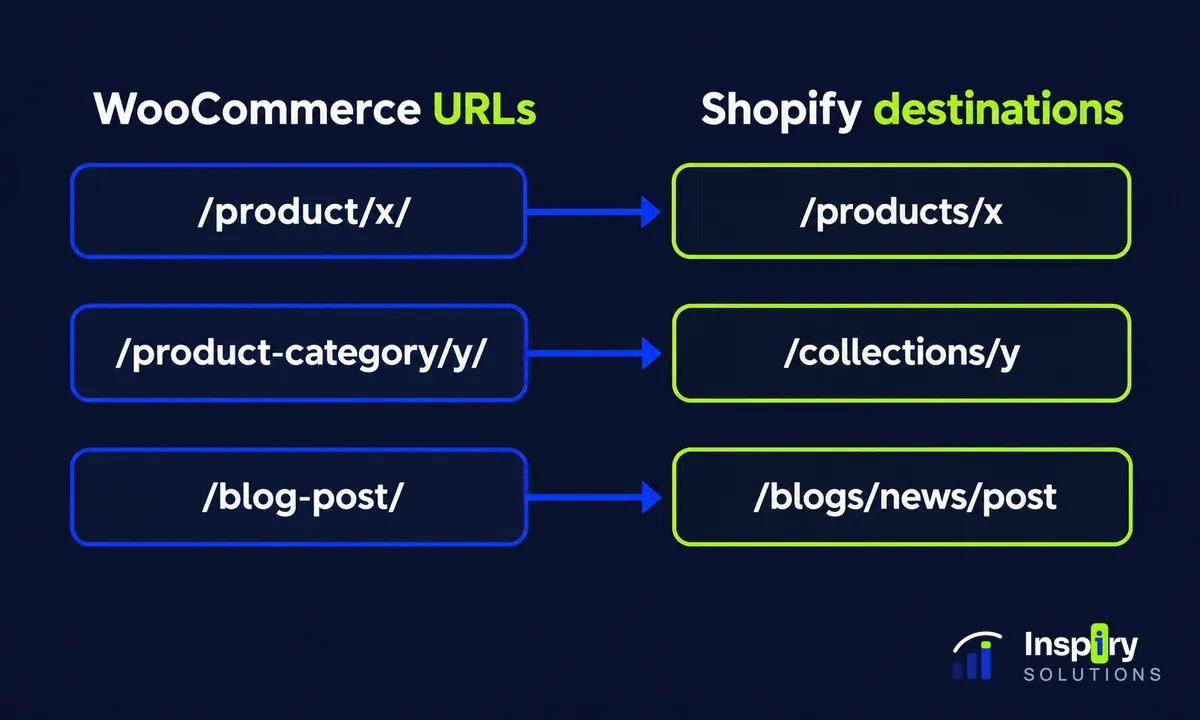
Create a WooCommerce to Shopify URL mapping spreadsheet containing:
- Existing URL.
- Destination URL.
- Page type.
- Redirect status.
- Test result.
- Notes or exceptions.
Include products, categories, pages, articles and valuable custom URLs.
This is where the SEO side of moving to Shopify becomes important. The detailed checklist covers metadata, internal links and search visibility.
Use permanent 301 redirects when an old URL has a relevant replacement. A 301 tells browsers and search engines that a resource has permanently moved.
Shopify supports creating and importing URL redirects, including CSV imports.
However, reserved paths and URLs that still return valid pages may not support standard Shopify redirects. Check these restrictions before finalising the map.
Our guide explains how 301 redirects pass signals and why destinations matter.
Google’s site move guidance recommends mapping old addresses to relevant new destinations and monitoring the transition.
Do not redirect every missing page to the homepage. Match pages by purpose and content, and review discontinued products individually.
WooCommerce to Shopify mapping
This table summarises common migration paths. Some items require apps, API work or manual rebuilding rather than direct imports.
| WooCommerce item | Shopify equivalent | How it moves | Watch out for |
|---|---|---|---|
| Simple products | Products | CSV or migration app | Images, SKUs and stock |
| Variable products | Product variants | CSV or migration app | Variant and option limits |
| Product categories | Collections | Manual setup or app | Collection logic and URLs |
| Tags | Product tags | CSV or app | Filtering behaviour |
| Custom fields | Metafields | Mapped import or API | Field types and display |
| Customers | Customer records | CSV or import app | Passwords and consent |
| Orders | Historical orders | Migration app or API | Refunds and payments |
| Coupons | Discounts | Rebuild or app | Eligibility and stacking |
| Subscriptions | Subscription app | Provider-assisted process | Tokens and renewals |
| Bookings | Booking app | Rebuild or integration | Existing bookings |
| Blog posts | Blog articles | App or manual import | Formatting and URLs |
| Pages | Shopify pages | Manual or app | Layout and metadata |
| Redirects | URL redirects | CSV import | Reserved paths |
| Payment gateways | Payment providers | Reconfigure | Eligibility and credentials |
| Shipping rules | Shipping settings or apps | Rebuild and test | Zones and exceptions |
Use this as a planning tool, not a guarantee that every feature has a direct equivalent.
Test with real orders before launch
Do not launch merely because the storefront looks finished.
Test the WooCommerce to Shopify migration as a functioning business process, from browsing to payment, fulfilment and customer communication.
Create a test matrix covering every payment method, important shipping zone, customer type and discount scenario.
Include these checks:
- Place successful orders using supported test payment methods.
- Test failed or declined payments.
- Verify shipping rates across relevant locations.
- Apply valid, expired and incompatible discounts.
- Check tax calculations for representative orders.
- Confirm inventory decreases after purchase.
- Inspect order confirmations and notifications.
- Verify accounting, fulfilment and email integrations.
- Test account activation and password recovery.
- Check redirects from representative old URLs.
Inspect results inside Shopify and connected systems, not just the checkout confirmation page.
For subscriptions, test renewals in the supported test environment.
Ask a few existing customers to test account activation before launch, where your account setup permits it. Fix confusing instructions or unsuccessful sign-in attempts.
Repeat critical tests after significant theme, app or payment changes.
Prepare a written launch checklist identifying who approves the switch and handles problems.
Launch day and the first 30 days
A successful launch requires a controlled switch followed by monitoring.
Take a fresh WooCommerce backup, including the database, uploads and configuration.
Agree on final data synchronisation. Orders and stock may change while the new store is being prepared. Without a cutover process, late orders could be missed.
On launch day:
- Confirm final product and inventory data.
- Activate live payment methods.
- Connect the domain and update DNS records.
- Verify HTTPS and important pages.
- Check customer emails and checkout.
- Test redirects on the live domain.
- Confirm analytics and Search Console tracking.
DNS controls which service a domain points to. Allow changes to reach users and avoid unnecessary edits during the switch.
During week one, review orders, failed payments, 404 errors and Search Console data daily.
Watch important landing pages for indexing and redirect issues. Our guide to protecting rankings during a rebuild covers additional checks.
During weeks two to four, continue monitoring search performance, inventory, customer complaints and integrations. Investigate problems individually rather than making broad changes without evidence.
Keep the old WooCommerce installation backed up and offline, with public access disabled after the switch. Do not immediately delete historical records.
Use these post-launch Shopify SEO checks to review the store after initial issues are resolved.
Timeline and cost
The WooCommerce to Shopify migration cost depends on functionality, existing data quality and launch requirements.
At Inspiry Solutions, a new Shopify store or rebuild typically costs $3,500-$12,000, depending on catalogue complexity, features and design.
A Shopify store audit starts from $600 if you need an inventory and migration plan first.
Major cost drivers include:
- Custom functionality requiring development.
- Subscriptions, bookings or wholesale requirements.
- Data cleanup and complex product structures.
- Integrations with external business systems.
- Large or irregular redirect lists.
- Bespoke design and testing requirements.
Budget separately for Shopify plans, premium themes, paid apps and ongoing services unless the quote includes them.
Do not estimate costs solely from product counts. Importing 400 basic products can require less work than rebuilding a small store with complex subscriptions.
There is no universal timeline.
Plan phases covering inventory, data mapping, design, development, import validation, redirects, testing, launch and monitoring.
Give each phase a clear completion condition.
A useful quote identifies deliverables, exclusions, dependencies and responsibilities rather than promising an arbitrary launch date.
Common questions
How long does a WooCommerce to Shopify migration take?
It depends on catalogue size, custom features, integrations and data cleanup. The inventory and data mapping often take longer than the actual product import. Plan in phases rather than committing to a fixed date before assessing the store. Allow separate time for testing, customer account preparation and post-launch checks.
Will I lose SEO moving from WooCommerce to Shopify?
Not necessarily, but URLs change, so every old URL needs an appropriate redirect to its new equivalent. Important content, page titles, metadata and internal links must move too. Some movement in search rankings after a migration is common, and nobody can guarantee none. Careful mapping, testing and monitoring reduce avoidable risks.
Can customer passwords be moved from WooCommerce to Shopify?
No, existing WooCommerce passwords cannot be transferred as usable Shopify account passwords. Customers must activate or reset their accounts, depending on the customer account system selected. Plan the invitation email, timing and support process before launch. Test the customer experience so returning buyers understand how to regain access.
How much does a WooCommerce to Shopify migration cost?
At Inspiry Solutions, a new Shopify store or rebuild typically costs $3,500-$12,000. Custom features, integrations, catalogue complexity and data cleanup affect the final price. A Shopify store audit from $600 can produce the inventory and plan first. Your quote should identify inclusions, separate app costs and launch support.
Start with an inventory, not an export
The best first step this week is to review what your WooCommerce store actually does.
List the plugins, payment methods, integrations, important data and existing URLs. Identify which features must survive and which can be simplified.
Use that inventory to request a migration plan and realistic quote.
Planning the move? Send your WooCommerce store URL for a free audit at hello@inspirysolutions.com. You will receive a plain-language reply within two working days.
Or ask about Shopify development for a fixed quote on the migration, from inventory to launch.