WordPress database optimization starts with measuring what WordPress loads on each request, not simply deleting old records or shrinking tables. Large autoloaded options, unnecessary post revisions and leftover plugin data can contribute to slow admin screens and uncached pages. The safest approach is to identify the expensive data, back up the site, remove only confirmed waste and measure again. A smaller database is useful only when the cleanup reduces unnecessary work without removing information your business still needs.
What database bloat is and when it matters
A WordPress database stores much of the information that makes your website work.
Examples include:
- Settings left behind after removing plugins.
- Thousands of old post revisions.
- Expired temporary records.
- Logs generated by plugins.
- Abandoned drafts and deleted content awaiting permanent removal.
- Historical data retained by tools the website no longer uses.
Why the admin area often feels slow first
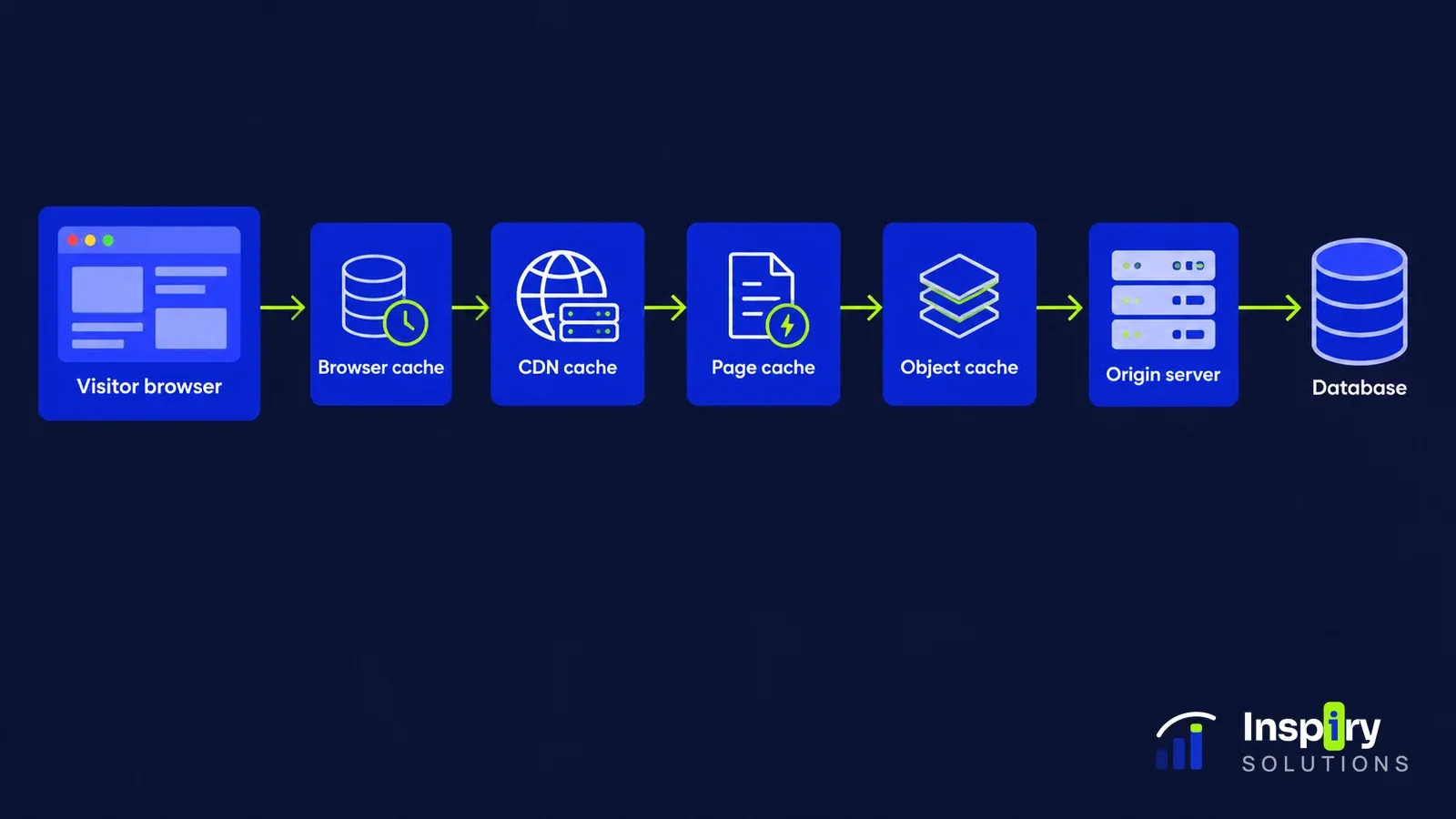
Many WordPress websites use page caching, which stores completed pages so visitors do not need WordPress to generate the same content repeatedly.
Our guide to how caching hides database slowness explains this distinction.
It is also worth diagnosing a slow server response before assuming the database is responsible.
Google’s guidance on optimising Time to First Byte explains how server-side processing contributes to the time before a browser receives its first response bytes.
Autoloaded options: the bloat that slows every page
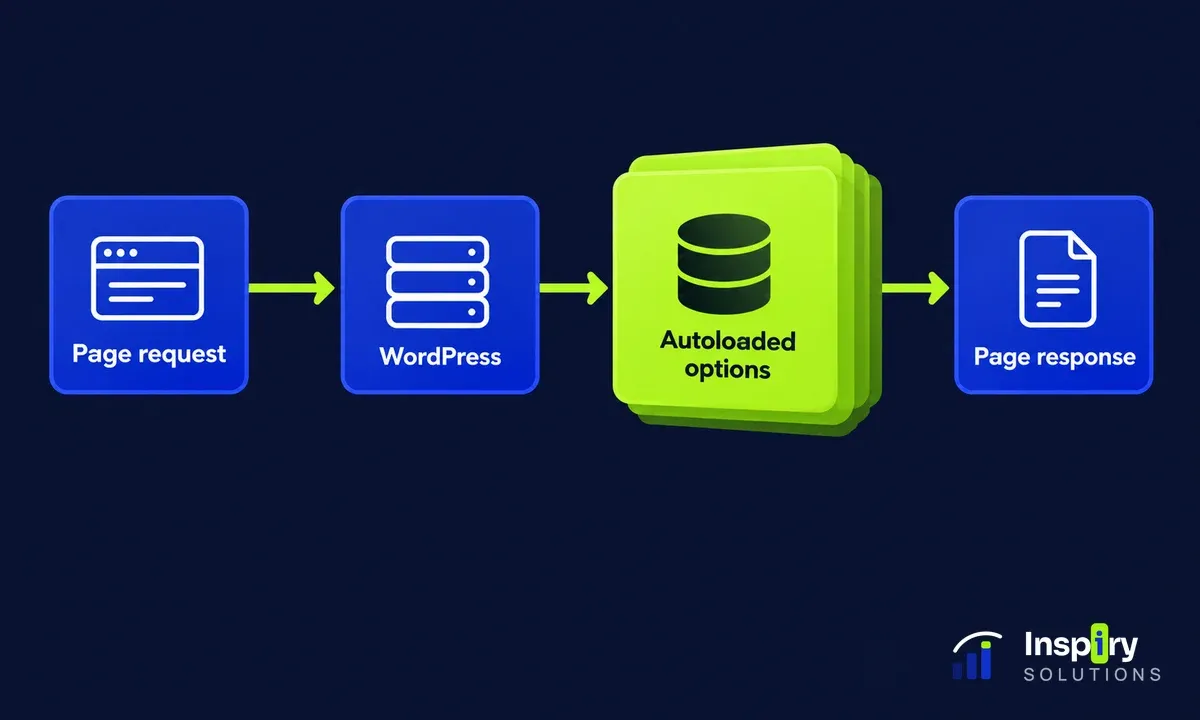
One of the most important places to inspect is the WordPress options table.
Where oversized autoloaded options come from
Common causes include plugins that save large configuration arrays, temporary information stored incorrectly and settings from features no longer in use.
If you are reviewing your plugin stack, start with removing plugins that cost too much rather than deleting database entries based only on their names.
What the Site Health warning means
Modern WordPress versions include checks for excessive autoloaded data.
The official WordPress Site Health documentation explains how diagnostic information and recommended improvements are presented.
For businesses wanting regular checks rather than occasional emergency cleanup, our maintenance plans with database health checks provide an ongoing maintenance option.
Revisions, drafts and trash
WordPress saves revisions when content is updated.
Decide what history is worth keeping
Before deleting revisions, consider how the editorial team uses them.
To cap future revisions per post, a developer can add a line like this to wp-config.php, above the line that says to stop editing. The number is an example, not a recommendation:
define('WP_POST_REVISIONS', 10);What about auto-drafts and trash?
Auto-drafts are temporary records WordPress creates while editing content.
Transients, sessions and logs
Not all database bloat comes from posts and settings.
These categories require different cleanup decisions.
Transients are temporary, but not always disposable
WordPress transients are a mechanism for storing data that can expire.
A plugin might use them to avoid repeatedly calculating an expensive result or requesting information from an external service.
Depending on the configuration, transients may be stored in the options table or handled through a persistent object cache.
Expired transients stored in the database are generally good candidates for removal.
However, expiration does not guarantee immediate deletion.
Removing valid transients unnecessarily may force WordPress or plugins to rebuild cached data, temporarily increasing processing work.
For WordPress transients cleanup, prefer clearing expired records rather than indiscriminately deleting every temporary value.
Sessions have a purpose
Sessions help websites remember temporary user activity.
For example, an eCommerce website may need session information to maintain shopping baskets or checkout-related state.
Deleting active sessions can interrupt customer activity.
Some plugins also store temporary login, membership or workflow information in their own tables.
These records may resemble disposable data when viewed in a database management tool, but their business purpose matters more than their appearance.
Logs can grow without anyone noticing
Security, statistics, email and automation plugins may record events over time.
Logging can help diagnose problems and investigate suspicious activity.
But unnecessarily detailed logs may cause tables to grow continuously.
The better solution is usually to inspect the plugin’s logging settings and retention policy.
You might reduce unnecessary logging, configure a sensible retention period or archive historical records before removal.
Never assume that older records are irrelevant to compliance, accounting or support requirements.
WooCommerce orders, customer information and form entries are business data, not database rubbish.
Deleting them can create consequences far more serious than a slow dashboard.
If these tables are large, investigate their queries, indexes and retention requirements instead of treating them as ordinary cleanup targets.
WordPress database optimization in 5 safe steps
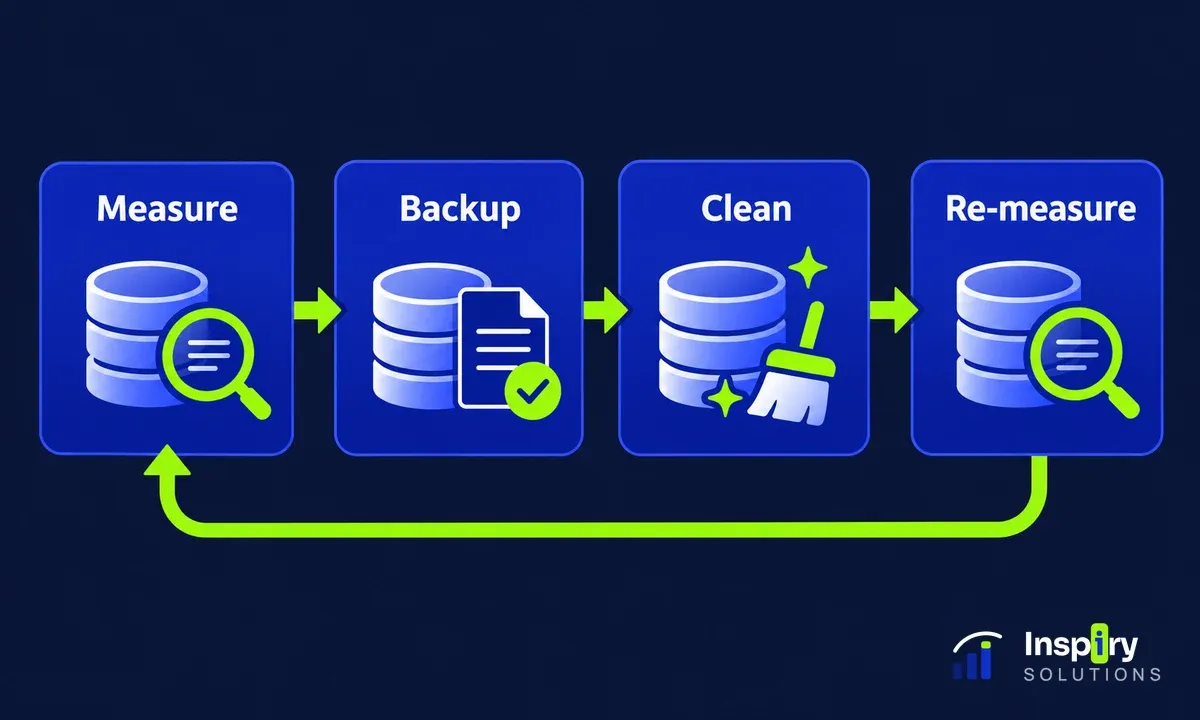
The safest WordPress database optimization process follows a controlled sequence.
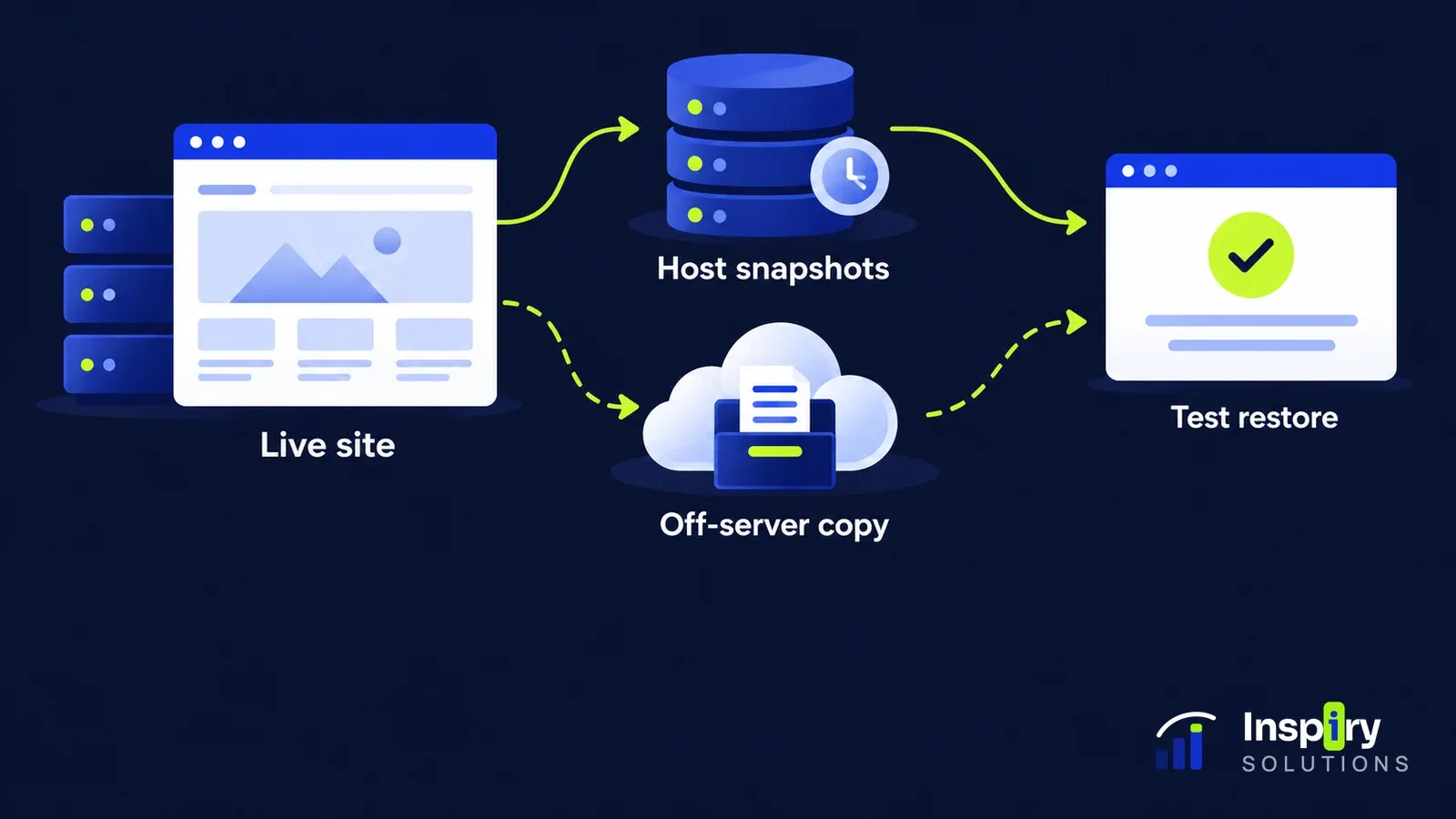
First, preserve a recoverable copy of the site.
Each change should have a clear purpose and a way to verify whether it improved performance.
1. Take a full backup first
Before changing database records, take a complete backup of the website.
The backup should include the database and website files, not just an export of selected tables.
The official WordPress backup guidance explains why both types of information matter when restoring a website.
Our guide to backups to take before cleanup covers planning a recovery process.
Confirm that the backup completed successfully and that you know how to restore it.
For a business-critical website, use a staging environment to test changes before touching production.
A backup that has never been checked is not a reliable recovery plan.
Ask your developer: Can you confirm the backup includes the complete database and files, and explain how the site would be restored if cleanup causes a problem?
2. Measure table sizes and autoload size
Next, collect a baseline.
Record the overall database size, the largest tables and the total amount of autoloaded data.
Identify unusually large individual options and note which plugins or features appear to own them.
The developer can use database administration tools or appropriate WP-CLI commands to investigate.
Useful measurements include:
- Total autoloaded data and the largest individual options.
- Table sizes and approximate record counts.
- Revision, draft and trash volumes.
- Expired transient counts where applicable.
- Slow database queries associated with real requests.
- Dashboard and uncached page response times.
The wp_options table may not be the main problem.
Also review other causes of slow WordPress pages before assigning every delay to the database.
Ask your developer: Which records or queries are creating measurable work, and how do they relate to the slow pages?
3. Clean the items that are safe to remove
Begin with data that has an identifiable lifecycle and a low risk of affecting required functionality.
Examples include expired transients, approved old revisions, unnecessary auto-drafts and content confirmed for permanent deletion.
Use WordPress-aware tools where possible rather than manually deleting rows.
For revisions, agree on a retention limit before removing older history.
For trash, confirm that no editor expects to recover the content.
Avoid combining all operations into one large cleanup.
Check that editing, page loading and scheduled tasks still work after each significant operation.
Ask your developer: Can you remove the clearly expired or unwanted records first, then report what changed before touching active plugin settings?
4. Review the careful items with a developer
Investigate orphaned options, large active-plugin settings, historical logs and plugin-created tables individually.
Ownership is the key question.
An option with an unfamiliar prefix is not necessarily abandoned.
Likewise, an active plugin might deliberately retain information that appears excessive.
Before deleting a large option, determine what uses it and whether its autoload behaviour can safely change.
Moving an option away from autoloading is not always a complete solution.
For important changes, test functionality on staging and preserve a record of the original values.
Ask your developer: Which plugin or feature owns each proposed deletion, and what tests prove that removing it is safe?
5. Re-test admin and uncached page speed
After cleanup, repeat the original measurements.
Compare the total autoloaded data, table sizes and slow query behaviour.
Then test the website through the same routes used before the changes.
Pay particular attention to:
- Dashboard loading and common editing tasks.
- Uncached public pages.
- Logged-in user experiences.
- Forms, search and account functionality.
- Checkout and membership workflows where relevant.
Try to keep the hosting environment, cache conditions and testing method consistent.
A smaller database without a measurable performance improvement is still a smaller database, but it should not be presented as a successful speed fix.
If response times remain slow, continue investigating PHP workers, plugins, external requests, hosting resources and expensive queries.
Ask your developer: What changed in the measurements, and which remaining bottlenecks should be investigated next?
Cleanup table: safe, careful, leave alone
The following table is a practical starting point for deciding what to remove.
It is not permission to delete records without checking what they contain.
| Data type | Where it lives | Safe to remove? | Precautions |
|---|---|---|---|
| Expired transients | Options table or cache storage | Usually safe | Clear expired values; check for custom caching behaviour |
| Post revisions beyond a limit | Posts table | Usually safe after review | Agree on retention and preserve useful history |
| Auto-drafts and trash | Posts and related data | Usually safe after confirmation | Check whether editors need to recover content |
| Options from removed plugins | Options table | Clean with care | Confirm no active feature or custom code uses them |
| Large autoloaded options from active plugins | Options table | Clean with care | Investigate ownership, dependencies and autoload behaviour |
| Plugin log tables | Plugin-specific database tables | Clean with care | Check retention, security and compliance requirements |
| WooCommerce orders and sessions | WooCommerce and WordPress tables | Leave orders alone; review expired sessions carefully | Protect order history and avoid disrupting active customers |
| Form entries | Plugin-specific tables | Leave alone unless retention is approved | Preserve enquiries, submissions and required records |
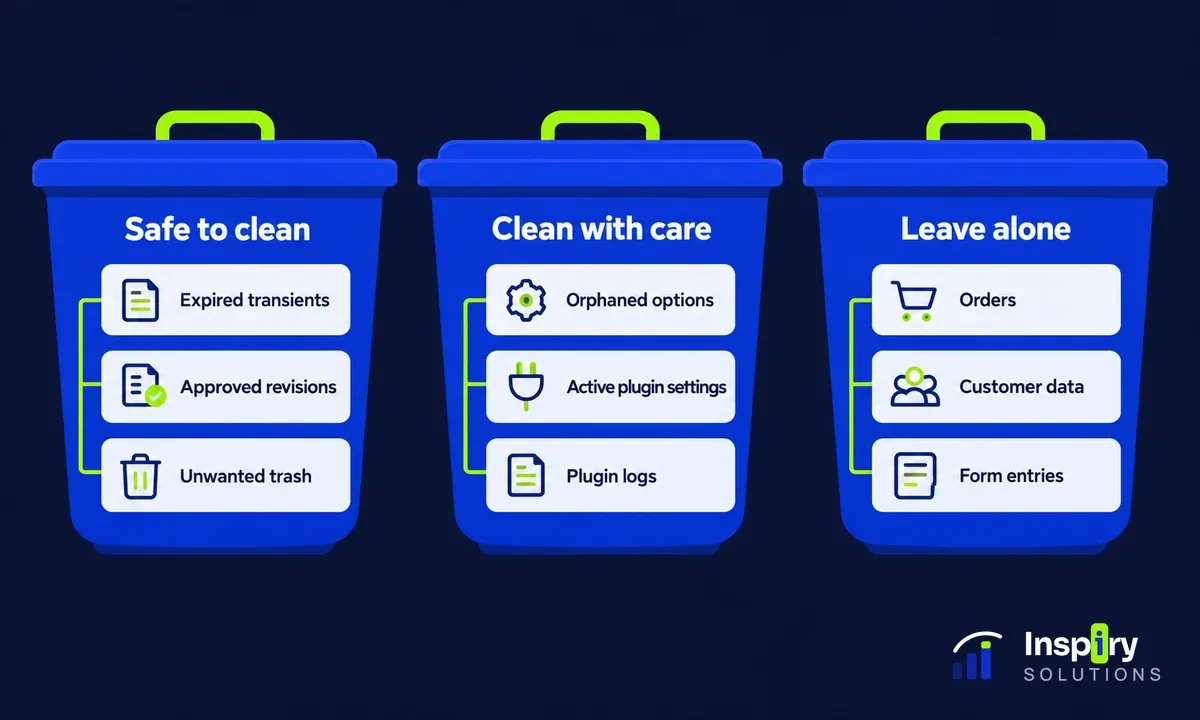
The strongest protection against accidental damage is treating unfamiliar data as important until its purpose is understood.
For example, a large set of form submissions may make the database look inefficient.
But if those submissions contain customer enquiries that were never exported to a CRM, deleting them could mean losing sales information.
The same applies to orders, membership records and customer details.
By contrast, confirmed expired temporary records normally have a much clearer reason for removal.
Use three categories during any database review: safe to clean, clean with care and leave alone.
This decision process is more useful than ranking every table by size and deleting the biggest one first.
What one-click optimisation plugins actually do
WordPress optimisation plugins commonly offer several database maintenance actions.
Depending on the tool, these can include deleting revisions, clearing expired transients, emptying trash and optimising database tables.
Table optimisation is a database maintenance operation that can reorganise storage or reclaim space under certain conditions.
It does not automatically remove slow queries, fix excessive autoloading or improve application logic.
That distinction matters.
A plugin might report that it reduced database size while dashboard response time remains unchanged.
The operation may have cleaned storage without addressing the actual performance bottleneck.
Why automatic cleanup deserves caution
Some tools offer broad cleanup options covering unused tables or leftover plugin settings.
The difficulty is determining what is genuinely unused.
A custom integration might depend on a table that an optimisation plugin does not recognise.
A WooCommerce or membership extension may retain historical information for valid operational reasons.
Automatic deletion cannot reliably understand every business dependency.
Before using a cleanup plugin, inspect the selected actions, take a backup and test them on staging.
Keep database cleanup tools updated and remove temporary optimisation plugins when they are no longer required.
Do not enable scheduled deletion of unfamiliar tables or options merely because an interface labels them as unnecessary.
Use an optimisation plugin for well-defined maintenance tasks.
Hypothetical example: a slow admin on an eight-year-old site
Hypothetical example: An eight-year-old consultancy website has a slow dashboard.
The public homepage appears reasonably fast because it is cached.
However, the WordPress dashboard is slow, and opening the page editor takes longer than expected.
The owner assumes the entire database has become too large and considers installing an optimisation plugin.
Instead, the developer measures the database before making changes.
The review reveals that the autoloaded options are dominated by settings from three plugins removed years ago.
A statistics plugin is also storing extensive event logs.
Neither problem would necessarily be identified by simply deleting post revisions.
What the developer changes
The developer first creates and checks a complete backup.
Next, they verify that the removed plugins’ options are no longer referenced by active features or custom code.
After confirming ownership, they remove the orphaned options.
They also adjust the statistics plugin’s logging configuration so unnecessary records stop accumulating.
The historical logs are reviewed according to their retention requirements rather than deleted indiscriminately.
Finally, the developer introduces a reasonable revision limit to control future growth.
How the result is verified
The developer repeats the autoload measurement and dashboard response tests.
The aim is to confirm that WordPress processes less unnecessary data while all required features continue working.
If dashboard performance improves, the measurements help establish whether the cleanup contributed.
If it does not, the developer investigates other possible bottlenecks instead of continuing to delete database content.
This hypothetical example illustrates why identifying the actual cause matters more than applying a generic cleanup.
Common questions
Does a large WordPress database slow the site down?
Not by size alone. Autoloaded data and slow database queries often matter more than the total amount stored. Full-page caching can hide underlying database work on many public pages, while dashboard screens and uncached pages reveal it more clearly. Measure query performance and frequently loaded settings before deciding that database size is the problem.
What are autoloaded options in WordPress?
Autoloaded options are settings WordPress loads during normal application startup, so frequently needed configuration is readily available. Large amounts can add processing and memory work to many page requests. Settings left by removed plugins are a common reason to investigate, although active plugins can also create oversized options. Identify ownership before deleting anything.
Is it safe to use a database cleanup plugin?
Generally, cleanup tools can be useful for approved old revisions, expired transients and unwanted trash after taking a verified backup. Be much more careful with options and plugin-created tables. Deleting the wrong record can disable features or remove important business information. Review individual operations and test higher-risk changes on staging first.
How many post revisions should WordPress keep?
There is no single correct number. A sensible limit per post preserves useful editing history without allowing unlimited growth. The right amount depends on how frequently content changes and whether editors need to restore older versions. Configure the limit using WP_POST_REVISIONS in wp-config.php, then separately review revisions already stored.
Keep the database lean
WordPress database maintenance works best as a routine process rather than an emergency response to a slow dashboard.
For most business websites, a quarterly review is a useful starting point. Websites with heavy transactions, extensive logging or complex integrations may need more frequent monitoring.
Good habits include setting an appropriate revision limit, reviewing plugins before removing them and checking that unnecessary logs are not retained indefinitely.
When uninstalling a plugin, review its documented data-removal behaviour. Some plugins deliberately preserve settings so they can be reinstalled without losing configuration.
Do not assume that uninstalling a plugin removes every record, or that leftover data is automatically safe to delete.
Periodically check autoloaded options, significant table growth and relevant admin response times.
Most importantly, verify speed after each cleanup rather than assuming smaller storage means a faster website.
A useful maintenance report should explain what was measured, what was changed, what was preserved and what improvement, if any, the tests confirmed.
If your WordPress admin or pages have slowed over time, send your URL for a free audit and we will reply within two working days. Database checks are part of our WordPress maintenance plans from $99/month.