The best WordPress caching plugin depends on your hosting setup, existing server cache and the type of website you operate. WP Rocket, LiteSpeed Cache, W3 Total Cache and WP Super Cache can all improve performance in suitable environments. However, installing another plugin may achieve nothing if your host already caches pages efficiently. Start by checking your server, then choose the simplest solution that handles caching without disrupting forms, shopping carts or logged-in visitors.
This comparison explains five caching approaches without affiliate rankings. You will learn which features matter, what causes problems and how to test changes before applying them to a live website.
The best WordPress caching plugin depends on your host
Before comparing features or prices, establish how your hosting provider handles WordPress caching. A plugin that works well on ordinary shared hosting might duplicate functionality on a managed platform.
The central question is simple: does your server already store and deliver cached HTML pages?
Check the caching already provided
Open your hosting dashboard or ask your provider whether full-page caching is enabled. Page caching stores generated HTML so the server does not need to rebuild the same public page for every visitor.
Confirm whether your host uses server-level caching, clears cached content after updates and excludes personalised pages. Ask whether it recommends a particular WordPress plugin.
The answer determines whether another caching plugin is necessary.
Understand your server environment
LiteSpeed and OpenLiteSpeed environments can use LiteSpeed Cache’s integrated server caching when the relevant modules are configured.
Managed WordPress hosts using Nginx or other server-level systems may already deliver cached pages without a general WordPress caching plugin. Some restrict plugins that interfere with their infrastructure.
On shared hosting without effective built-in page caching, a general-purpose option can be useful.
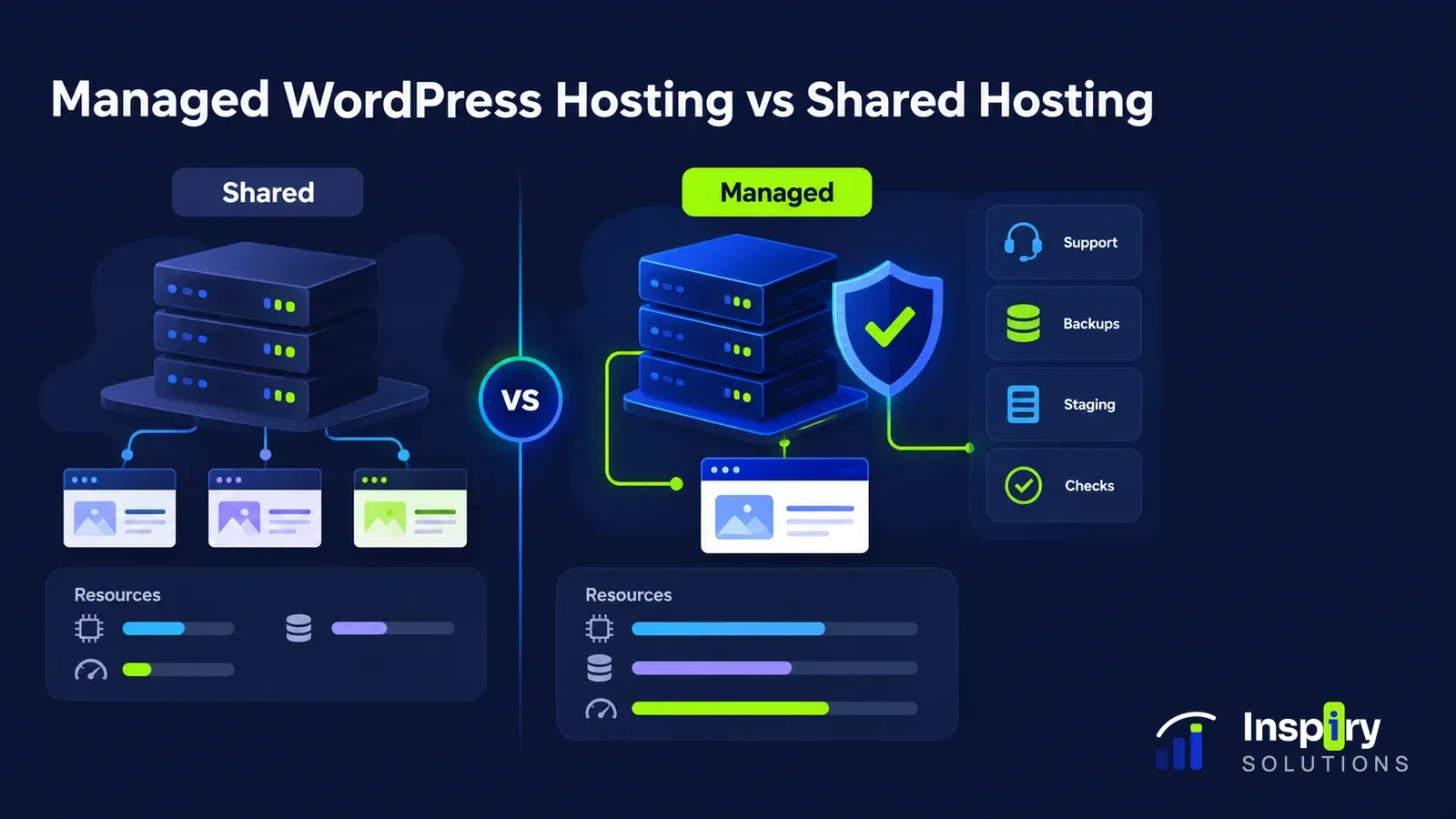
Read what managed hosting includes before assuming every hosting plan provides equivalent performance features.
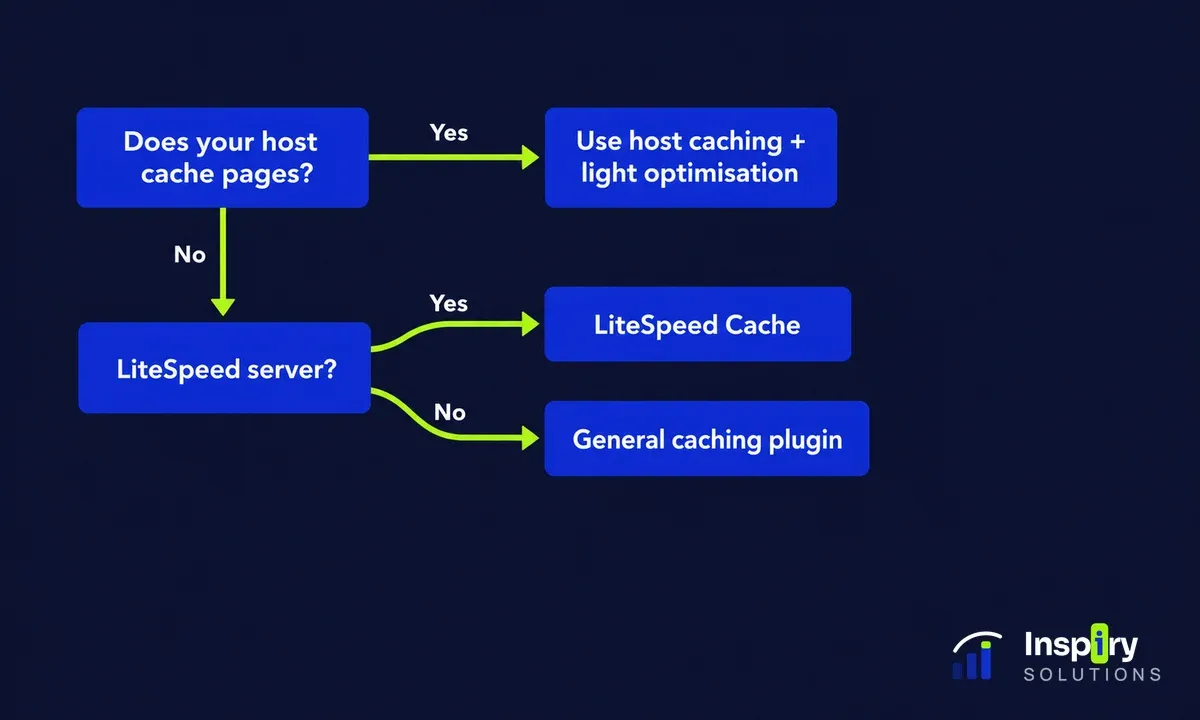
Use this decision tree as a starting point. Your host’s documented caching rules and restrictions take priority.
When caching behaviour is unclear, our website performance service begins with diagnosis rather than adding more software.
What a caching plugin actually does
The primary job of a caching plugin is to reduce repeated processing. WordPress normally builds pages using PHP, its database, a theme and active plugins.
Page caching saves reusable HTML for eligible visitors. Returning that response reduces server work and can shorten the time before a browser receives content.
Google’s guidance on optimising server response time explains how serving suitable cached content can reduce Time to First Byte, or TTFB.
Page caching is only one layer
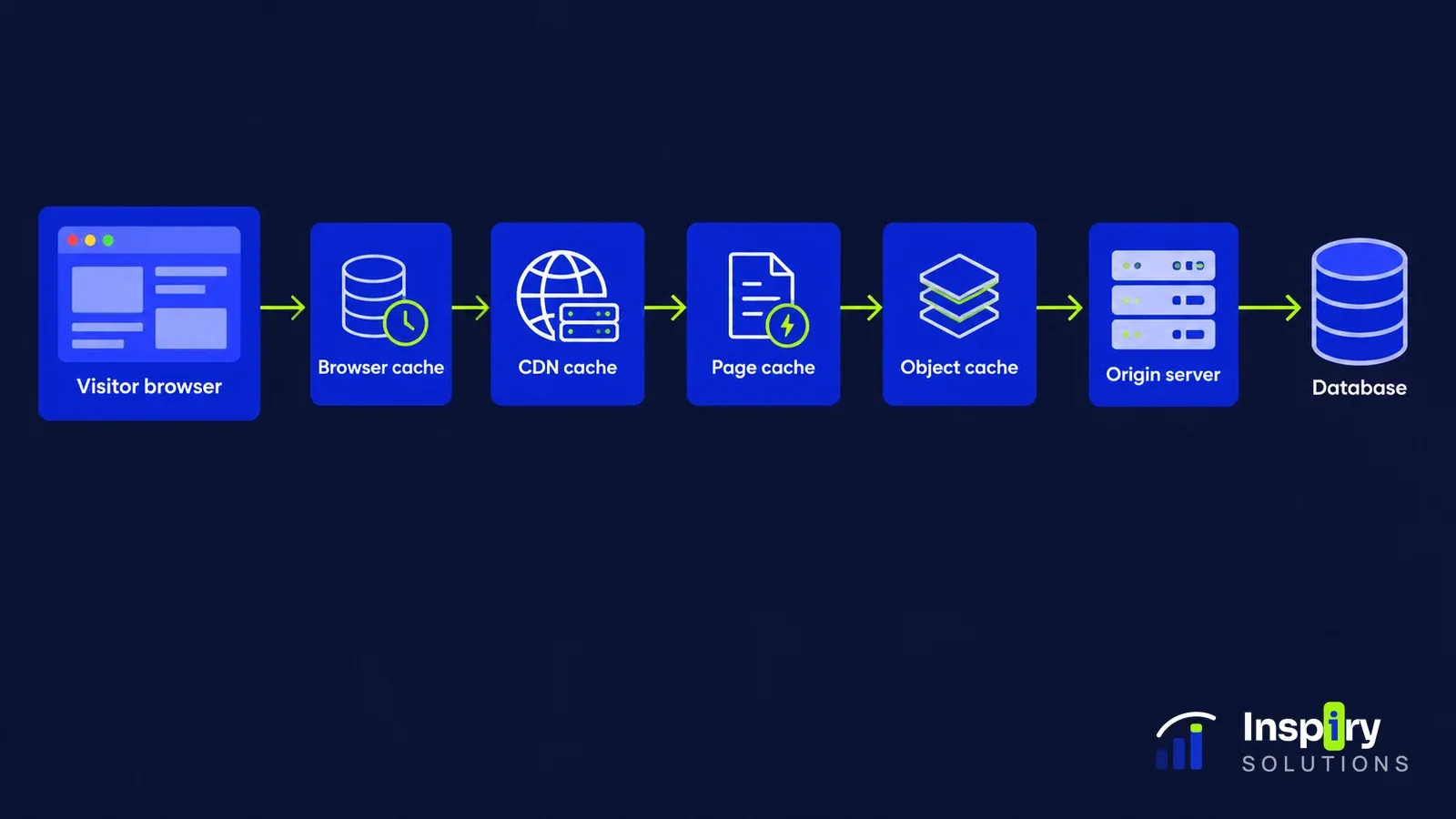
A WordPress website can use several caching systems:
- Page cache: stores completed HTML responses.
- Object cache: stores reusable database results and application objects.
- Browser cache: lets visitors reuse previously downloaded resources.
- CDN cache: stores eligible content closer to visitors.
A content delivery network, or CDN, distributes resources through geographically separated servers. These layers can complement one another but need compatible rules.
For more detail, read the four caching layers.
Optimisation features are different
Modern caching tools may also minify CSS and JavaScript, delay scripts, remove unused styling or lazy load images.
Minification removes unnecessary characters from files. Lazy loading postpones eligible resources until needed.
These changes can reduce transferred data or browser processing, but they can also affect functionality. Every additional optimisation requires testing.
Avoid duplicating image optimisation or CSS and JavaScript processing across plugins. Keeping your plugin stack lean simplifies troubleshooting.
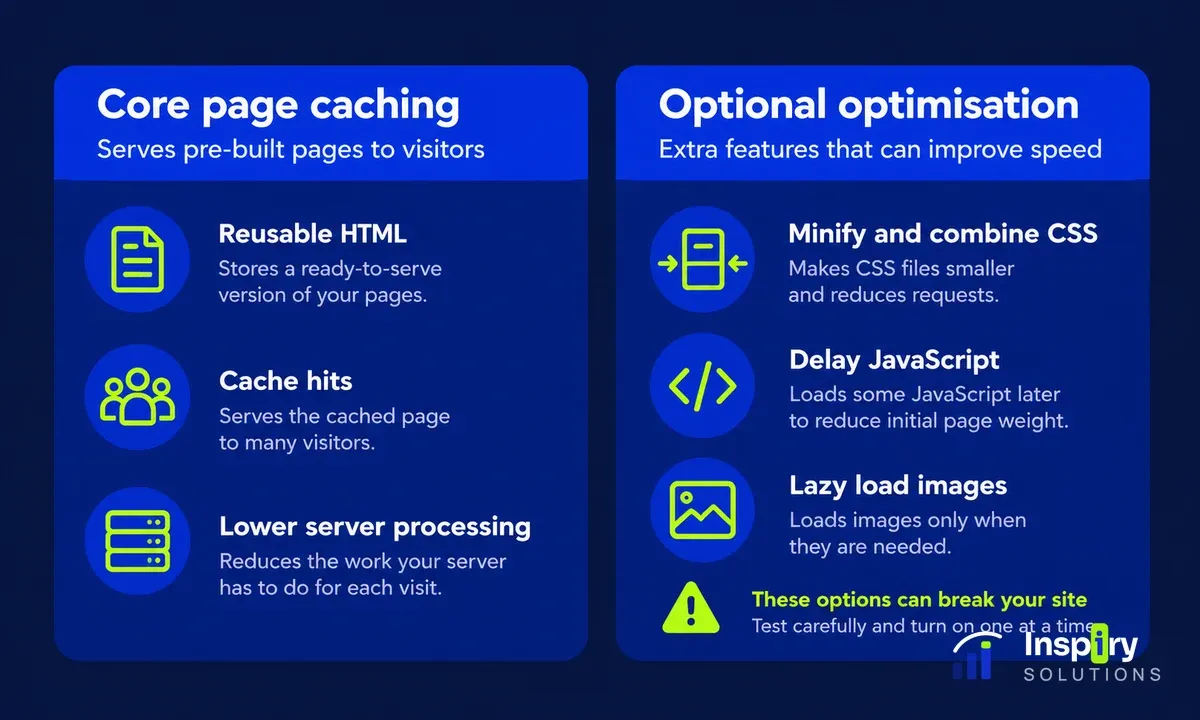
Separate essential caching from optional enhancements. Enable each feature only when it addresses a measurable problem.
The 5 main options compared
This WordPress cache plugin comparison covers four established plugins and host-provided caching.
These options are not ranked. Compatibility, maintenance and website functionality matter more than feature counts.
The WordPress plugin directory provides official listings for checking features and requirements. WP Rocket is a separate commercial product.
WP Rocket
WP Rocket is a paid caching plugin combining page caching, preloading and frontend optimisation within one interface.
It suits sites without equivalent server caching where owners want several performance controls in one place.
JavaScript delays and CSS processing still need testing, especially with interactive themes.
In a WP Rocket vs LiteSpeed Cache comparison, your server technology matters more than the appearance of either interface.
Best fit: Websites needing a consolidated paid caching and optimisation tool.
LiteSpeed Cache
LiteSpeed Cache is a free plugin offering integrated page caching on compatible LiteSpeed infrastructure.
Its page caching and other LiteSpeed-exclusive features need OpenLiteSpeed, a commercial LiteSpeed server or LiteSpeed-powered hosting. On other web servers, those features are only available through the QUIC.cloud CDN.
Some image and frontend optimisation features operate without LiteSpeed server caching.
Its main advantage is integration with compatible hosting infrastructure.
Best fit: LiteSpeed or OpenLiteSpeed websites where the host supports its caching features.
W3 Total Cache
W3 Total Cache offers configurable page, browser and object caching alongside CDN integration. It has a free version and a paid Pro tier.
Developers can control different caching methods, but unsuitable settings may create conflicts or unnecessary complexity.
In a W3 Total Cache vs WP Super Cache comparison, W3 Total Cache provides broader controls, while WP Super Cache concentrates on static HTML caching.
Best fit: Technically managed websites requiring detailed configuration.
WP Super Cache
WP Super Cache is a free plugin that generates static HTML versions of WordPress pages.
It provides cache expiry management, preloading and basic CDN support without the broad frontend optimisation suite found in other tools.
Its simpler caching method suits conventional content websites, while advanced server rewrite settings require additional care.
Best fit: Blogs and straightforward business websites needing static page caching.
Host-provided caching
Host-provided caching stores eligible responses through the hosting infrastructure. Its cost is generally included in the hosting plan.
Depending on the provider, it may include automatic purging, CDN integration or persistent object caching.
A separate page caching plugin may be unnecessary, although lightweight image optimisation can still help.
Best fit: Managed WordPress websites with effective server-level caching.
Caching options compared
| Option | Cost model | Page caching works best on | Extra optimisation features | Best fit |
|---|---|---|---|---|
| WP Rocket | Paid | Compatible hosting without equivalent server page caching | Preloading, CSS/JS optimisation, lazy loading | Owners wanting consolidated controls |
| LiteSpeed Cache | Free plugin; optional services may cost extra | Compatible LiteSpeed infrastructure or supported cloud caching | Image, CSS/JS and other optimisation tools | LiteSpeed hosting |
| W3 Total Cache | Free with paid tier | Configurable hosting environments | Browser/object caching, CDN, minification | Developer-managed websites |
| WP Super Cache | Free | Conventional WordPress hosting that permits its caching methods | Preloading, compression, basic CDN support | Content-focused websites |
| Host-provided caching | Included with hosting plan | The host’s supported infrastructure | Depends on provider | Managed hosting with caching included |
Check current plugin documentation and hosting restrictions before installation. Available capabilities depend on versions, services and server configuration.
Features that matter and features that cause trouble
The best caching plugin for WordPress should serve eligible pages reliably, clear outdated content and avoid exposing personalised responses.
A long feature list provides little value if essential caching behaviour is unreliable.
Cache preloading and purging
Preloading generates cached pages before visitors request them, reducing the chance of an uncached visitor request needing to generate a page.
Automatic purging removes outdated content after updates. Without dependable invalidation, visitors may continue seeing old text or layouts.
Prefer targeted clearing that refreshes affected pages without unnecessarily rebuilding the whole cache.
Exclusions and browser caching
A reliable setup excludes pages containing session-specific or private information.
Browser caching matters for images, fonts and static files. Google’s HTTP caching explanation describes how response headers control reuse and freshness checks.
These rules must distinguish reusable assets from private or frequently changing content.
The features to treat cautiously
Combining files, delaying JavaScript and removing unused CSS can affect script ordering or styling.
Not every optimisation suits every theme. Enable features against measured bottlenecks, then test interactive components.
Choose a caching plugin that allows individual changes to be reversed easily.
Settings that commonly break sites
When someone reports that a caching plugin broke my site, the cause is frequently an optimisation setting rather than page caching itself.
Begin troubleshooting by identifying what changed and where the fault occurs.
JavaScript delay and combination
JavaScript controls navigation menus, popups, form validation and interactive features.
Delaying a required script can prevent components from initialising. Combining scripts may introduce dependency or execution-order problems.
Symptoms include unresponsive menus, missing form validation and buttons that do nothing.
Disable script optimisation options individually before removing the entire plugin.
CSS processing and unstyled content
CSS controls appearance and layout. Incorrect optimisation may produce unstyled pages, missing icons or sections with the wrong spacing.
Tools that generate critical CSS or remove unused styles can miss classes introduced after user interaction.
Elementor websites need particular care because widgets and responsive templates can generate varied styling requirements.
Our guide to caching settings for Elementor covers related performance decisions.
Caching personalised pages
Caching HTML without suitable exclusions can display inappropriate content or interfere with dynamic functionality.
Shopping carts, account pages and session-dependent forms need special handling. Membership websites may display different information to each visitor.
Configuration should account for authenticated sessions, relevant cookies and dynamic requests.
Clearing the cache does not permanently fix incorrect exclusion rules.
WooCommerce, membership and logged-in sites
Dynamic websites need different caching strategies from informational sites. Public product descriptions may be cacheable, but an individual customer’s cart cannot be treated as shared content.
The objective is to cache reusable pages without disrupting transactions or exposing private information.
Keep transactional pages dynamic
WooCommerce cart, checkout and account pages should bypass shared HTML page caching.
Other requests may need exclusions depending on sessions, payment integrations and personalised pricing.
A caching plugin may recognise WooCommerce’s standard requirements, but custom checkout flows still need testing.
Never assume default exclusions cover every extension.
Handle logged-in visitors separately
Logged-in visitors usually need uncached or appropriately personalised HTML.
Membership dashboards, private courses and account settings must not be delivered through unrestricted shared page caching.
Although specialised configurations can support separate cache variants, these require careful implementation.
Bypassing shared page caching for authenticated visitors is generally the safer starting point.
Consider persistent object caching
Object caching stores reusable application data to reduce repeated database operations.
On database-heavy membership websites, host-supported persistent object caching may help logged-in performance more than an additional HTML caching plugin.
Redis or Memcached can provide this capability where hosting supports them.
However, object caching does not automatically fix inefficient queries. Test whether database processing is actually causing delays.
Test a caching plugin safely
Changing caching behaviour on a live business website without testing creates avoidable risk.
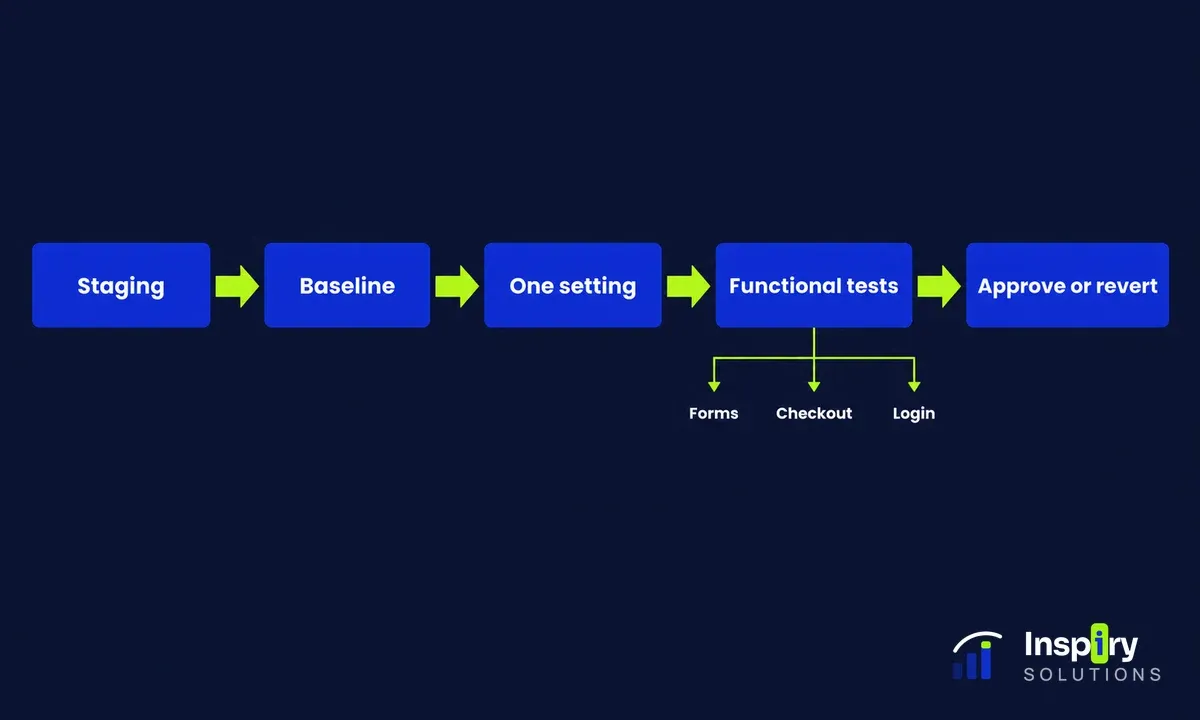
Use a controlled process so each change is measurable and reversible.
Begin with staging and a baseline
Create a staging copy reflecting the live site’s theme, plugins and hosting behaviour. Confirm whether its caching infrastructure matches production.
Follow testing on a staging site to protect live content and transactions.
Record representative loading behaviour before making changes. Include public pages, important templates and interactive pages.
Note which caching layers are already enabled.
Change one setting at a time
Start with appropriate page caching and leave aggressive frontend optimisation disabled.
Verify cache hits, exclusions and automatic clearing after content updates.
Next, test optional settings individually, recording their effect on speed and functionality.
If a problem appears, reverse the latest change before adjusting anything else.
This is more effective than enabling every option and investigating multiple simultaneous conflicts.
Test functionality, not just speed
After each meaningful change, check:
- Desktop and mobile navigation.
- Contact forms and confirmation messages.
- WooCommerce cart and checkout.
- Login, logout and account pages.
- Elementor popups and interactive widgets.
- Content updates and cache clearing.
- Browser console errors and layout changes.
Test as both an anonymous visitor and an authenticated user where relevant.
A faster checkout that cannot accept payment is a failed optimisation.
Compare performance under similar conditions and distinguish cached responses from uncached ones.
After successful staging tests, apply approved settings to production with a backup and rollback plan.
When not to add a caching plugin
Installing another tool is not the correct response to every slow WordPress website.
If your host already provides effective page caching, a second page cache can complicate invalidation without delivering meaningful benefits.
Similarly, another plugin may already handle caching adequately.
The important question is whether caching addresses the measured bottleneck.
Identify problems caching cannot solve
A cached homepage may respond quickly while oversized images, excessive JavaScript or third-party widgets still slow the website.
Heavy database queries can affect logged-in visitors and requests that bypass HTML caching.
Large layouts may also take too long to render after the server responds.
Investigate why another plugin is not always the fix before installing additional software.
Hypothetical example
Hypothetical example: A law firm’s website runs on managed WordPress hosting with a caching plugin installed over the host’s existing server caching.
Pages occasionally display stale content, and its enquiry form sometimes fails because dynamic requirements are not handled correctly.
After testing, the developer removes the plugin’s redundant page cache, retains host caching and uses lightweight image optimisation.
In this illustrative scenario, both problems disappear without a measurable speed loss.
This is not an Inspiry Solutions client result or evidence that removing a plugin always fixes form failures.
The lesson is to eliminate duplicate functionality and verify the original problem before introducing another caching layer.
Common questions
Is WP Rocket worth paying for?
WP Rocket can be worth paying for when a website lacks effective server-level caching and the owner wants several optimisation features in one place. It reduces the need to assemble separate tools. However, on hosting platforms that already provide page caching, its paid features may add relatively little. Check which capabilities you genuinely need before purchasing.
Can I use two caching plugins at once?
Do not run two competing page caching systems without a deliberately supported configuration. Overlapping page caches can create stale content, confusing purge behaviour and unnecessary troubleshooting. Choose one primary page cache and disable duplicate functionality elsewhere. Separate tools for image optimisation or object caching may coexist if their responsibilities are clearly defined and compatibility is tested.
Do I need a caching plugin on managed WordPress hosting?
Often not for page caching. Many managed WordPress providers already cache eligible pages through their own infrastructure, and some restrict caching plugins that duplicate those features. Check your hosting dashboard, documentation and support guidance first. You may still benefit from lightweight image or frontend optimisation, but those requirements should be assessed separately from HTML caching.
Why did my site break after enabling a caching plugin?
Usually, the problem comes from JavaScript or CSS optimisation rather than basic page caching. Script delays can interrupt menus and forms, while CSS processing can disrupt layouts. Reproduce the issue on staging and disable optimisation options one at a time to identify the cause. Also check exclusions if the failure affects checkout, accounts or personalised content.
Will a caching plugin fix my Core Web Vitals?
A caching plugin can reduce server processing and improve response time, which may help pages begin loading sooner. However, it will not independently fix oversized images, heavy scripts or layout shifts. Core Web Vitals depend on several aspects of loading, responsiveness and visual stability. Measure the actual bottleneck before assuming better caching will solve the entire problem.
Your next step
This week, make one practical check: ask your hosting provider whether full-page caching is enabled, which technology supplies it and whether your current WordPress plugin duplicates that functionality.
Record the answer before installing anything new.
If investigation is needed, send your developer the website URL, hosting provider, active caching plugins and a clear description of the issue. Include affected pages, whether the problem occurs while logged in and any recent setting changes.
Screenshots, browser console errors and reproduction steps are more useful than a general complaint that the website is slow.
If you are unsure which caching setup suits your host, or a plugin has broken something, our website performance work sets caching up properly and tests it, typically $400-$1,800. Or ask for the free audit by emailing hello@inspirysolutions.com with your website URL and get a plain-language reply within two working days.