Robots.txt for WordPress controls which URLs search engines can crawl, but it does not reliably keep pages out of Google. Most business websites need only a few rules: restrict crawling of the administration area, keep essential page resources accessible and identify the sitemap. The costly mistakes are broader restrictions, particularly a site-wide block copied from staging, blocked CSS and JavaScript, and pages that Google cannot crawl to discover a noindex instruction. Before changing anything, check what your live site currently serves and which URLs the rules actually affect.
This guide is for WordPress owners and marketers who need to inspect, understand or safely edit robots.txt. It covers a baseline configuration, common mistakes and a testing routine that separates crawling problems from indexing issues.
What robots.txt controls, and what it does not
A robots.txt file gives instructions to automated visitors, including search engine crawlers, about which URLs they should fetch. It normally sits at the website root, where compliant bots look for it before crawling other resources.
The central distinction is crawling versus indexing.
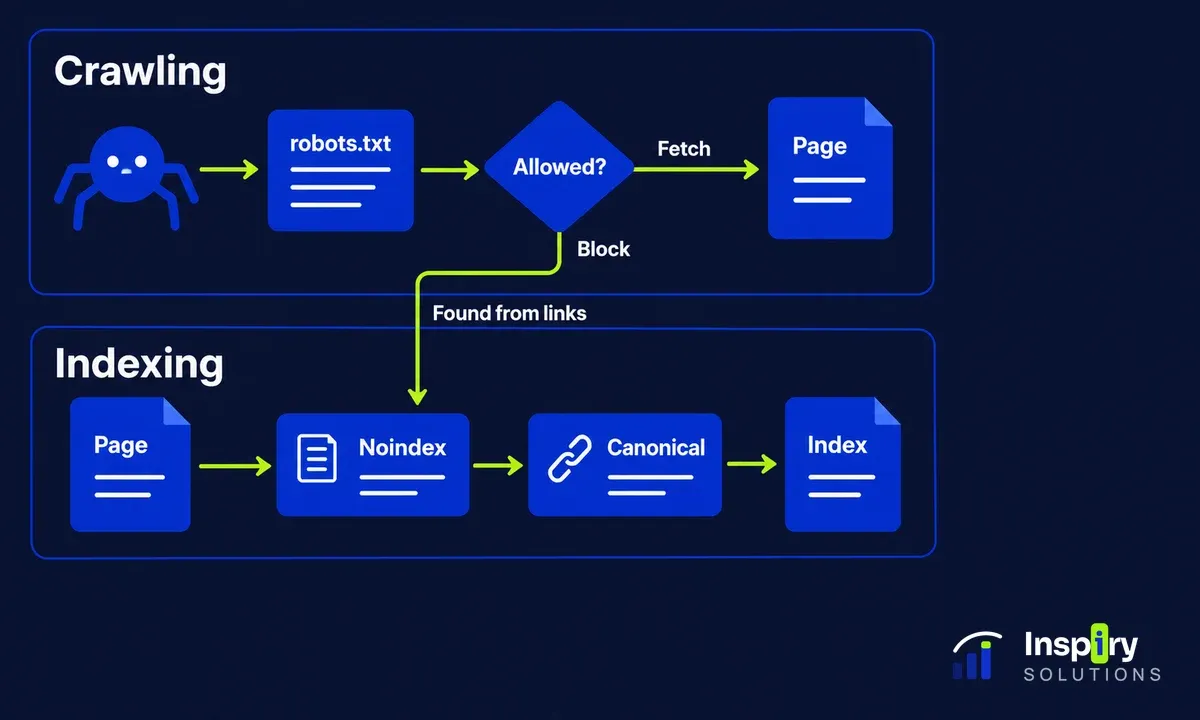
Crawling means requesting and reading a page or resource. Indexing means processing information about a URL for potential inclusion in search results. These processes are connected but not interchangeable.
A robots.txt disallow rule asks compliant crawlers not to fetch matching URLs. It does not automatically remove them from Google’s index.
Why a blocked page can still appear in Google
Google can discover a URL through links on other websites, even when robots.txt prevents Googlebot from visiting its content.
The address may appear in search results without Google having read the page. This behaviour is explained in Google’s robots.txt guidance.
To exclude an ordinary public page from search results, a crawlable noindex instruction is usually more appropriate. Google must access the page to process that instruction.
Robots.txt also provides no privacy protection. Anyone can request the public file and see its listed paths.
Disallowing a client portal or document directory does not prevent human visitors from opening those addresses. Use authentication and access controls for sensitive material.
If Search Console reports an unexpected restriction, investigate before adding rules. Our technical SEO support checks crawling instructions alongside indexing signals before recommending changes.
How WordPress creates robots.txt
WordPress can generate a virtual robots.txt file dynamically. The URL may work even when no physical file exists in your hosting account.
Visit yourdomain.com/robots.txt to inspect what your website serves.
On a typical public WordPress installation, the generated output restricts the administration directory while allowing its Ajax endpoint.
WordPress or an SEO plugin may also publish a sitemap declaration.
Virtual files, physical files and SEO plugins
A virtual robots.txt is generated through WordPress rather than stored as a normal text file.
SEO plugins can modify this output, and some provide an interface to edit robots.txt in WordPress.
A physical robots.txt placed in the website’s document root normally takes precedence over the virtual version.
Changing plugin settings therefore does not guarantee the public file changes. Always verify the actual response at /robots.txt.
The search engine visibility setting
Under Settings > Reading, WordPress includes “Discourage search engines from indexing this site”.
Modern WordPress versions use a noindex-related mechanism when this setting is enabled. It is not equivalent to a universal robots.txt disallow rule.
The setting requests that search engines avoid indexing public content, but it neither enforces privacy nor guarantees compliance.
Check both this setting and robots.txt during launches, particularly when transferring content from staging to production.
A safe robots.txt for WordPress: the baseline
Most standard business websites need only a short configuration.
Here is a practical example for a website using a sitemap index at /sitemap_index.xml:
User-agent: *
Disallow: /wp-admin/
Allow: /wp-admin/admin-ajax.php

Sitemap: https://example.com/sitemap_index.xml
Replace example.com with your domain and verify the sitemap address. The correct path depends on your WordPress configuration and SEO plugin.
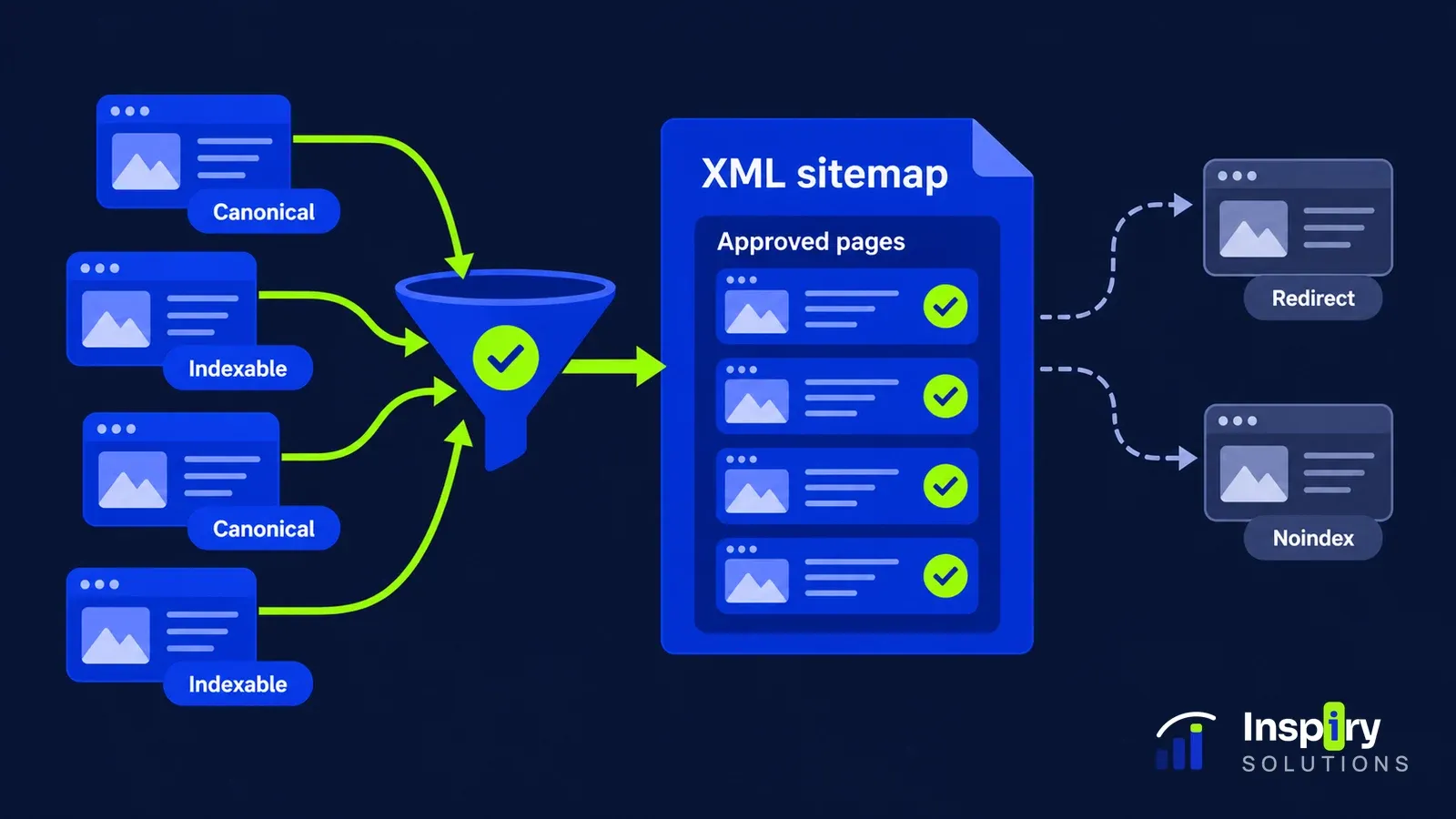
For guidance, see what your sitemap should list.
What these rules mean
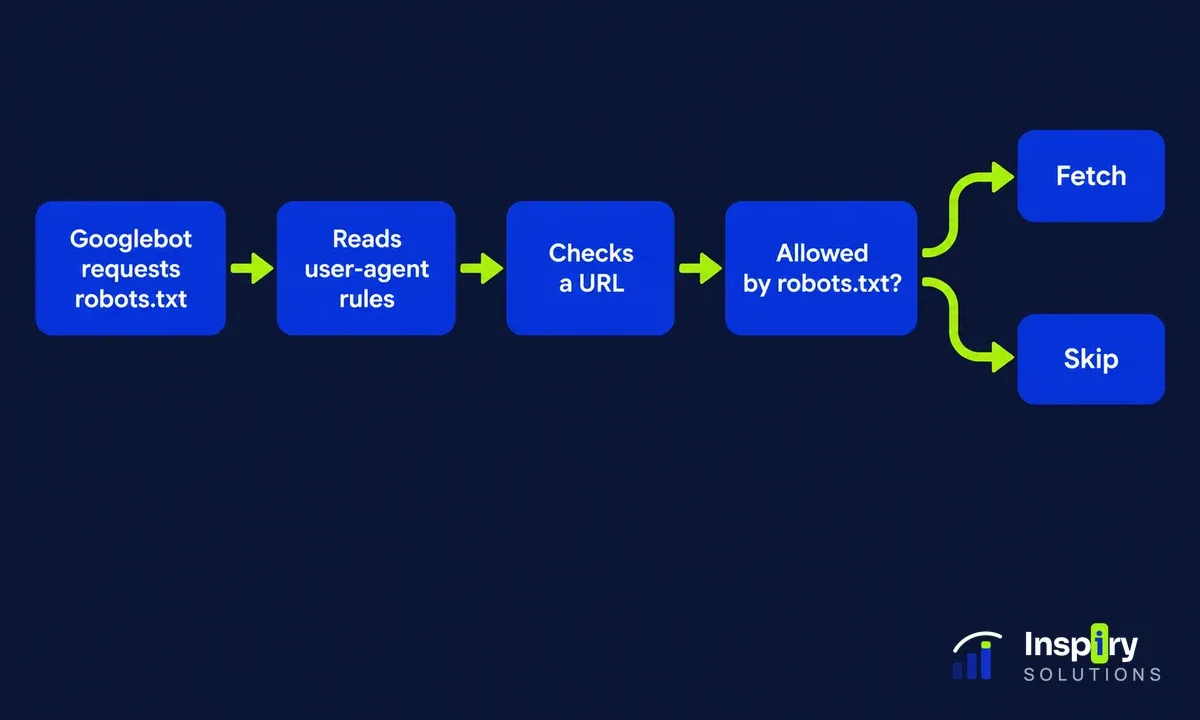
User-agent: * applies instructions to compliant crawlers without a more specific matching group.
Disallow: /wp-admin/ restricts crawling within the administration directory. It does not secure WordPress against unauthorised access.
Allow: /wp-admin/admin-ajax.php provides an exception for an endpoint that public-facing features may use.
The Sitemap declaration identifies the sitemap’s location. It does not guarantee indexing.
Why fewer rules are usually safer
Public pages need accessible content, images, CSS and JavaScript. Restricting entire WordPress directories may interfere with rendering without improving SEO.
The WordPress robots.txt default is a reasonable starting point, not something every site must customise.
Before adding a disallow rule, identify the exact URL patterns it should affect and test important pages that must remain crawlable.
3 costly robots.txt mistakes
The most serious robots.txt mistakes occur when rules intended for one environment or purpose restrict important public content.
Three problems deserve particular attention.
The staging rule that reaches the live site
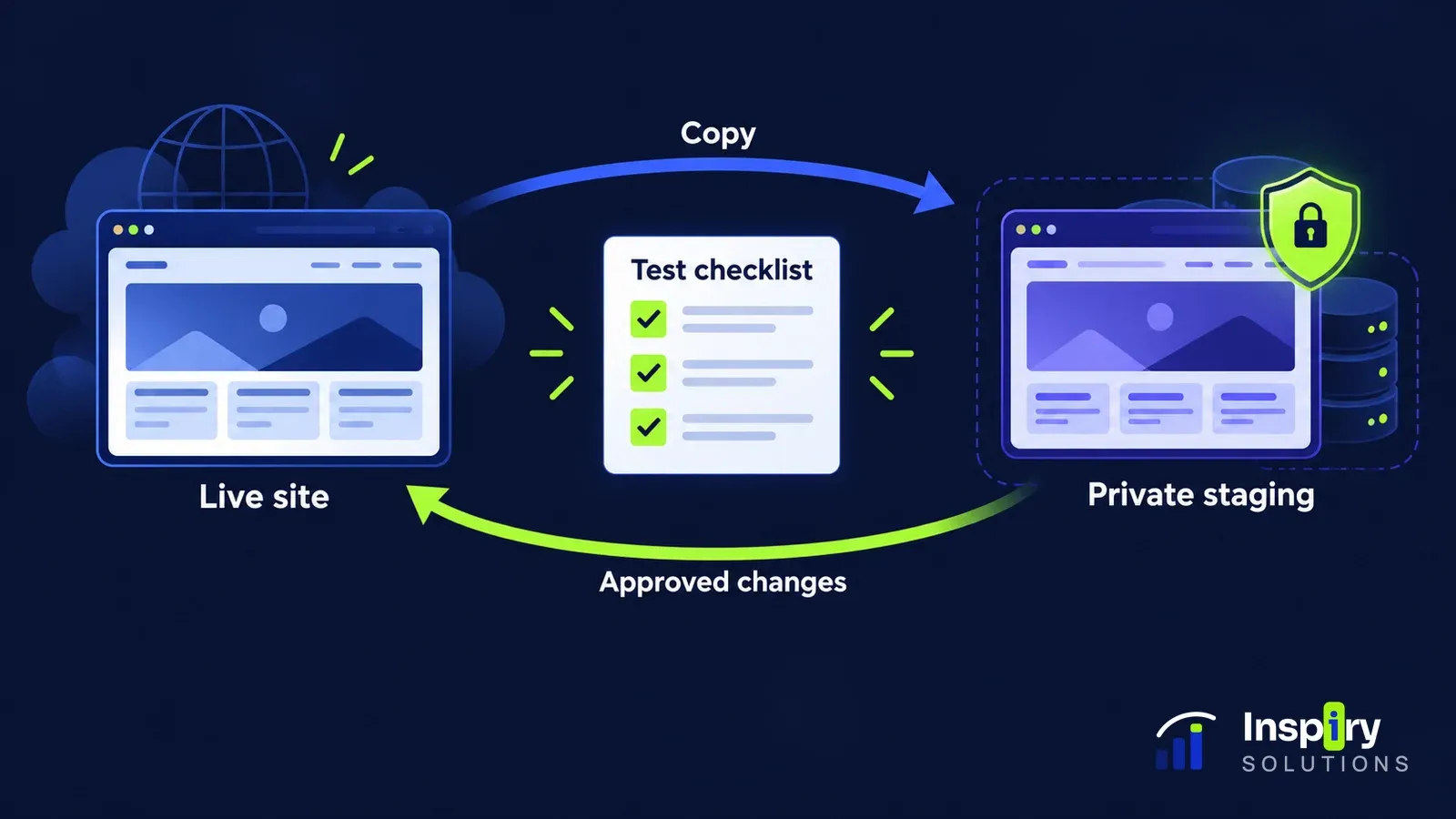
A staging website is a testing copy where developers prepare changes before publishing them.
It may contain:
User-agent: *
Disallow: /
The forward slash matches every URL path. This rule instructs compliant crawlers not to crawl the website.
Problems arise when a redesign or migration copies it to the live domain.
Googlebot may then be unable to fetch important service pages, even though visitors can browse them normally.
The safeguard is checking robots.txt during deployment, not merely deleting the restriction after discovering it.
When setting up a WordPress staging site, use password protection rather than relying on robots.txt for privacy.
If important pages are missing from Google’s index, our guide to reasons Google skips your pages explains other possible causes.
Blocking resources Google needs to render
Some website owners restrict entire directories, particularly /wp-content/ and /wp-includes/.
These folders can contain stylesheets, JavaScript, fonts and images required by public pages.
Google uses browser-like rendering to understand many websites. Blocking essential resources may prevent it from seeing the page as visitors do.
This can affect its understanding of content, navigation and dynamically displayed elements.
Google explains resource access in its JavaScript SEO documentation.
Avoid blanket restrictions. Check whether each resource is necessary and inspect representative rendered pages in Search Console.
Using robots.txt where noindex is needed
A thank-you page or outdated campaign page may remain accessible to visitors but should not appear in search results.
Adding a robots.txt disallow rule is often the wrong solution.
If Googlebot cannot fetch the URL, it cannot read a noindex meta tag on that page.
This creates conflicting instructions: the site requests exclusion from indexing while preventing Google from seeing that request.
For a public page that should remain accessible, allow crawling and apply noindex.
For content that no longer exists, return an appropriate removal status or redirect to a genuinely relevant replacement.
Use crawling restrictions for crawling problems and indexing controls for indexing problems.
Smaller problems worth checking
Not every robots.txt issue affects an entire website. Smaller errors can complicate troubleshooting and prevent selected URLs from being crawled.
Wildcard rules that match too much
Robots.txt supports pattern matching, including an asterisk for multiple URL variations.
A broad disallow rule intended for tracking parameters might also block useful pages.
For example, restricting URLs containing a question mark requires care on websites using query parameters for products, pagination or languages.
Test patterns against actual URLs before publishing.
Conflicting files and plugin settings
An SEO plugin may display one configuration while an older physical robots.txt continues to be served.
The public response is the source of truth.
Check the document root, plugin settings and relevant caching layers when changes do not appear.
Rules left behind by old plugins
Removed themes and plugins can leave obsolete paths in robots.txt.
Review the purpose of each rule, confirm whether its target still exists and remove restrictions without a current justification.
Avoid deleting unfamiliar entries until their effects are understood.
Robots.txt or noindex: choosing the right tool
Robots.txt and noindex solve different problems.
Use robots.txt when compliant crawlers should avoid fetching URLs. Use noindex when a publicly accessible page should not appear in search results.
Canonical tags indicate a preferred URL among duplicate or similar pages. Google treats them as signals rather than guaranteed commands.
For private resources, use authentication.
Rule decision table
| Goal | Use robots.txt? | Better option | Notes |
|---|---|---|---|
| Keep wp-admin out of crawling | Yes | Disallow /wp-admin/ | Preserve the admin-ajax.php exception where appropriate |
| Stop crawling internal search results | Yes | Target search URL patterns | Test against legitimate pages |
| Keep a thank-you page out of results | No | Noindex | Google must access the page to see it |
| Remove an old page from Google | No | 404, 410 or redirect | Redirect to a genuinely relevant replacement |
| Hide a private client area | No | Password protection | Crawling restrictions do not control access |
| Stop a staging site appearing | No, not on its own | Password protect staging | Restrict unauthorised visitors |
| Opt out of a specific AI crawler | Yes | User-agent-specific rule | Check documented crawler behaviour |
Choosing based on the actual objective
Before changing robots.txt, decide whether your objective is reducing crawling, preventing indexing, removing obsolete content or protecting private information.
For example, internal search URLs may generate numerous combinations with little search value. Targeted crawling restrictions can be useful if they do not block important pages.
A thank-you page is different. It may need to remain functional for customers while being excluded from search results.
Choose the mechanism according to the desired outcome, not simply because a robots.txt editor is available.
Rules for AI crawlers
AI services operate crawlers with distinct user-agent identifiers. Some providers support controlling these separately through robots.txt.
Their purposes differ. Some support search experiences, while others collect content for model development or related uses.
Google-Extended and Googlebot
Google-Extended is a separate product control from Googlebot.
It allows publishers to express preferences for specified AI uses without directly changing ordinary Google Search crawling.
Check the identifiers in Google’s crawler documentation.
Make a deliberate access decision
OpenAI documents separate identifiers, including GPTBot, OAI-SearchBot and ChatGPT-User, with different purposes and behaviours.
Consult the OpenAI crawler documentation before creating restrictions.
Rules for one user agent need not apply to another. However, robots.txt compliance is voluntary and cannot guarantee content will never be referenced elsewhere.
Read how AI search changes access decisions for context and whether to block AI crawlers for the fuller trade-offs.
Document your decision and review it as requirements change.
Hypothetical example: an accidental Disallow: / after a staging launch
This hypothetical example illustrates a preventable deployment problem, not a client case study.
A WordPress business website undergoes a redesign. The development team works on staging, where robots.txt includes:
User-agent: *
Disallow: /
The redesigned site is pushed live, but nobody checks the public robots.txt response.
The production domain continues serving the restriction. Search Console subsequently reports “Blocked by robots.txt” for important service pages.
Visitors can still browse the website normally, making the underlying issue less obvious to its owner.
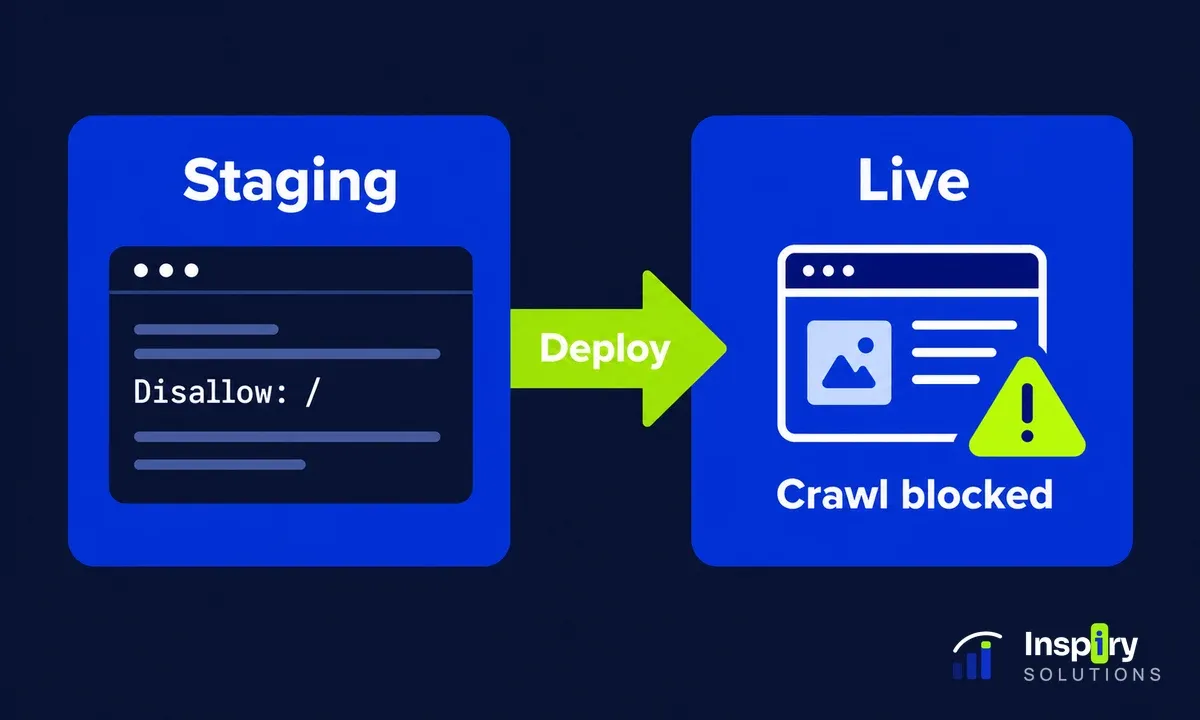
The fix and the missed checkpoint
Once identified, the restriction is removed and the corrected public file is verified.
The configuration change is straightforward, but Google’s indexing information may not update immediately.
Google needs to retrieve the revised rules and revisit affected URLs according to its crawling processes.
The preventive action is a launch check: inspect the production robots.txt and confirm that important service pages remain crawlable before declaring the deployment complete.
Test before and after every change
Testing robots.txt requires checking both the public file and its effects on actual URLs.
A short routine helps prevent accidental restrictions and makes changes easier to reverse.
1. Inspect the current public file
Open https://yourdomain.com/robots.txt directly.
Confirm that it serves the intended production configuration.
Look for site-wide restrictions, unexpected user-agent groups, obsolete paths and incorrect sitemap addresses.
If a plugin displays different instructions, investigate whether a physical file or caching layer takes precedence.
Save the original configuration.
2. Identify URLs that must remain accessible
Choose representative URLs from your homepage, service pages, articles and important public templates.
Include examples that should be restricted, such as administration paths or unnecessary internal search URLs.
Record which results you expect.
A valid robots.txt response does not prove its rules are correct. Test their effect on real addresses.
3. Use Search Console
Open Google’s robots.txt report to review known file versions, retrieval problems and available testing controls.
Use URL Inspection to check important pages and investigate reported crawling restrictions.
Historical “Blocked by robots.txt” reports may not reflect the current live configuration.
Compare the report with the public file before drawing conclusions.
Google generally caches robots.txt for up to a day, although behaviour varies. Search Console allows you to request a refresh.
4. Make one controlled change
Edit the source actually serving robots.txt, whether it is a physical file or plugin-managed configuration.
Avoid changing unrelated indexing settings simultaneously.
Keep a dated backup of the previous version so the change can be reversed.
Test proposed rules in staging where practical, while accounting for differences between staging and production access controls.
5. Verify and record the result
Reload the public robots.txt after deployment.
Repeat URL checks and monitor relevant Search Console information.
Record what changed, why it changed and who approved it.
Successful testing confirms the intended crawling rules. It does not guarantee that Google will index or rank particular pages.
Common questions
Where is the robots.txt file in WordPress?
By default, WordPress generates a virtual robots.txt file, so there may be no physical file stored on the server. You can view the public version at yourdomain.com/robots.txt. A physical robots.txt placed in the website root normally overrides the virtual version. SEO plugins can also provide an editor, although you should always check the public response.
Should I block wp-content or wp-includes?
No, not as a blanket rule. These WordPress directories contain CSS, JavaScript, images and other resources Google may need to render your pages correctly. Blocking them can make pages appear incomplete or broken to Google, even when visitors see the website normally. Restrict only specific resources after confirming they are unnecessary for crawling and rendering.
Will blocking a page in robots.txt remove it from Google?
No. Robots.txt controls crawling, not indexing. Google may still display a blocked URL if it discovers the address through links. To remove a page, use a crawlable noindex instruction, return a genuine 404 or 410 status, or redirect an obsolete URL to an appropriate replacement. Leave it crawlable so Google can process that instruction or response.
Does robots.txt help with crawl budget on a small site?
Most small and mid-sized websites do not have a significant crawl budget problem. Complicated robots.txt rules are therefore unlikely to provide meaningful benefits. Targeted restrictions can help when a website generates endless URL combinations through internal search, filters or unnecessary parameters. First establish whether these patterns are actually being crawled before adding restrictions.
How long does a robots.txt change take to apply?
Google generally caches robots.txt for up to a day, although certain conditions can extend this period. You can request a refresh through the robots.txt report in Search Console. After Google retrieves the updated rules, affected pages may still need to be crawled again before their indexing information changes. Check both stages when evaluating the result.
Make robots.txt part of your launch checklist
Check robots.txt during every WordPress launch, migration and staging deployment.
Before publishing, confirm that production rules differ appropriately from staging restrictions and that important pages remain crawlable.
Our guide to checks for a WordPress hosting move covers the wider deployment process.
Assign ownership and provide useful evidence
Assign one person responsibility for changes to crawling and indexing instructions, with development and SEO responsibilities agreed.
When requesting help, send the developer your website URL, current robots.txt content, affected page addresses and relevant Search Console screenshots.
Explain whether the goal is reducing crawling, excluding pages from results or fixing an unexpected restriction. This helps the developer identify and verify the appropriate change.
Not sure what your robots.txt is telling Google? Our technical SEO audit checks it alongside your sitemap, noindex tags and indexing report, and we implement the fixes. Send your URL for a free audit and a plain-language reply within two working days.